Windows 11 lets you mount an ISO file directly through File Explorer without any third party software. You just double click the ISO and Windows creates a virtual drive for it. But some users report that File Explorer stops responding the moment they try to mount an ISO file. The window freezes, clicks do nothing, and you eventually have to close File Explorer through Task Manager.
This guide walks through the fixes that resolve this freeze on Windows 11 and Windows 10.
What Causes File Explorer to Freeze When Mounting an ISO
The freeze usually traces back to a small set of underlying issues.
- A corrupted or incomplete ISO file that Windows cannot read properly during the mount process.
- The Virtual Disk service (vds) not responding or stuck in a bad state.
- Conflicting third party ISO mounting or virtual drive tools running in the background.
- Corrupted system files affecting the Windows Explorer shell.
Fix 1: Install Pending Windows Updates
Windows Updates often patch shell and disk mounting bugs, so this is worth checking before anything else.
- Press Win + I to open Settings.
- Go to Windows Update and click Check for updates.
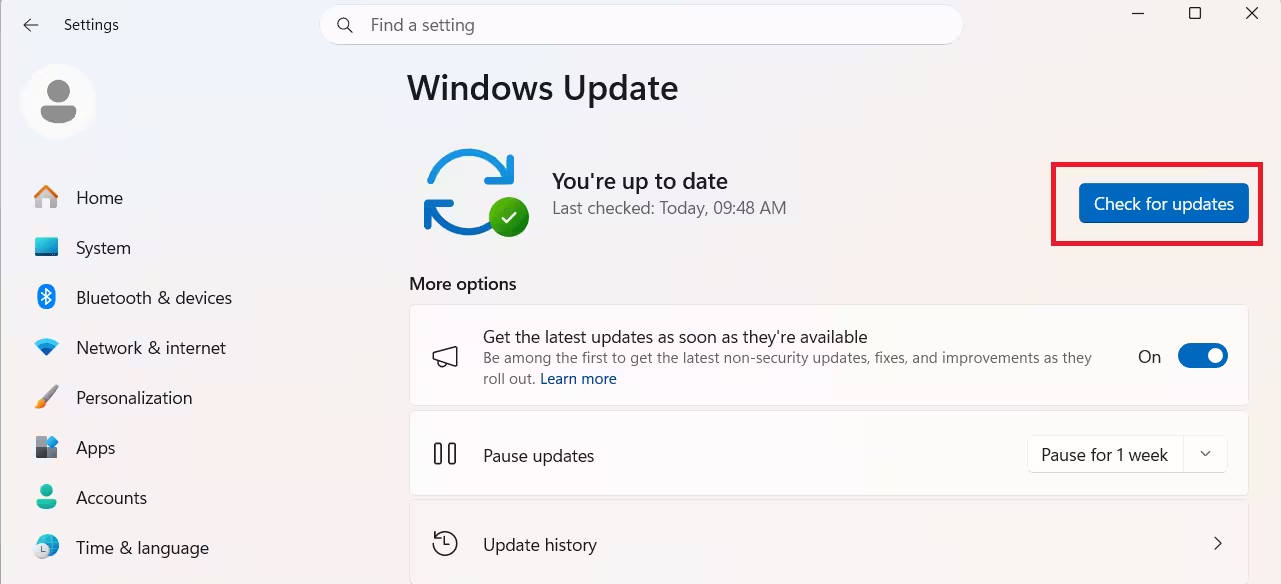
- Install any pending updates and restart your PC.
- Try mounting the ISO again.
This issue shows up frequently on devices enrolled in the Windows Insider Program. If that applies to you, an update often resolves it directly.
Fix 2: Unblock the ISO File
Windows blocks files downloaded from the internet by default, and a blocked ISO can cause the mount action to hang instead of failing outright.
- Right click the ISO file and select Properties.
- On the General tab, check for an Unblock option near the bottom.
- Select Unblock, then click Apply and OK.
- Try mounting the ISO again.
Fix 3: Restart Windows Explorer
A stuck Explorer process is the most common trigger, and restarting it clears the freeze immediately in many cases.
- Press Ctrl + Shift + Esc to open Task Manager.
- Find Windows Explorer in the Processes list.
- Right click it and select Restart.
- Wait for your desktop and taskbar to reload, then try mounting the ISO again.
If File Explorer was fully unresponsive before this, Task Manager itself might lag for a few seconds. Give it time before forcing anything else.
Fix 4: Restart the Virtual Disk Service
Windows uses the Virtual Disk service to handle ISO mounting. If this service hangs, File Explorer freezes while waiting on it.
- Press Win + R, type
services.msc, and press Enter. - Scroll down and find Virtual Disk.
- Right click it and select Restart. If the option is grayed out, select Start instead.
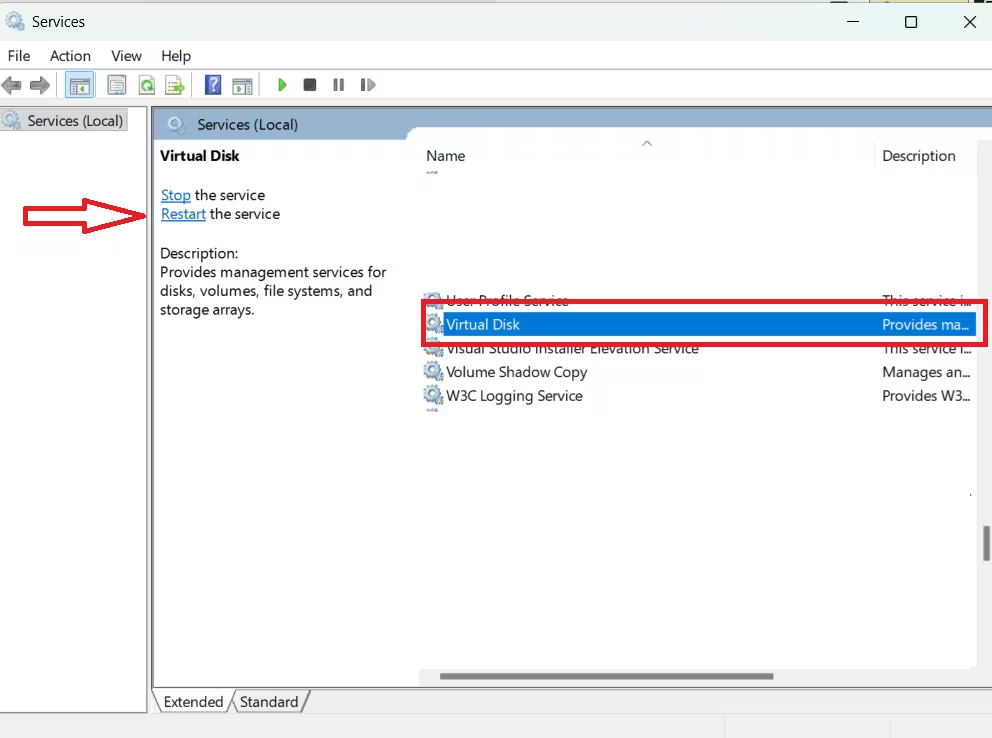
- Close the Services window and try mounting the ISO again.
You can also restart this service through Command Prompt if the Services window itself feels sluggish:
net stop vds
net start vds
Fix 5: Reset the ISO File Association
If the ISO file type is no longer linked to File Explorer, mounting can stall instead of prompting an error.
- Press Win + I to open Settings.
- Go to Apps > Default apps.
- Search for .iso in the search box.
- Set Windows Explorer as the default app for this file type.
- Try mounting the ISO again.
Fix 6: Unmount the ISO Through Disk Management
Sometimes the ISO gets stuck in a partially mounted state from a previous attempt, and File Explorer freezes trying to mount it again on top of that.
- Press Win + X and select Disk Management.
- Look for a drive listed as a DVD or CD drive tied to the ISO.
- Right click it and select Eject.
- Close Disk Management and try mounting the ISO from File Explorer again.
If the ISO does not show up in Disk Management at all, restart your PC first. This clears any leftover mount state that File Explorer cannot see.
Fix 7: Run SFC and DISM Scans
Corrupted system files can affect the shell components File Explorer relies on to handle disk images.
- Open Command Prompt as administrator.
- Run this command and let it finish:
sfc /scannow- Once it completes, run this to repair the Windows image:
DISM /Online /Cleanup-Image /RestoreHealth- Restart your PC and try mounting the ISO again.
Fix 8: Check the ISO File for Corruption
If the ISO itself is incomplete or damaged, Windows can hang while trying to read its file table during mounting.
- Check the file size of the ISO against the source you downloaded it from.
- If you downloaded it, delete the file and download it again from the original source.
- If you created the ISO yourself, rebuild it and confirm the new file mounts without issues on another folder location.
Fix 9: Close Conflicting Third Party Software
Tools like virtual drive managers, disk imaging software, or older mounting utilities can conflict with Windows’ built in ISO mounting and cause File Explorer to hang.
- Press Ctrl + Shift + Esc to open Task Manager.
- Check the Processes tab for any virtual drive or disk imaging software running in the background.
- Right click each one and select End Task.
- Try mounting the ISO again through File Explorer.
If the ISO mounts fine after this, uninstall the conflicting tool or set it to not run at startup.
Fix 10: Mount the ISO Through PowerShell
If File Explorer keeps freezing regardless of the fixes above, PowerShell can mount the ISO without touching the Explorer shell at all.
- Right click the Start button and select Windows Terminal or PowerShell.
- Run this command, replacing the path with your actual ISO location:
Mount-DiskImage -ImagePath "C:\path-to-your-file.iso"- Check This PC for the new drive letter once the command finishes.
Fix 11: Test in a Clean Boot State
If none of the fixes above work, a background third-party service is likely interfering with the mount process.
- Press Win + R, type
msconfig, and press Enter. - On the Services tab, check Hide all Microsoft services, then click Disable all.
- Restart your PC and try mounting the ISO again.
- If it mounts successfully, re-enable services one at a time to identify the conflicting one.
Frequently Asked Questions
Why does File Explorer freeze specifically when I mount an ISO?
File Explorer relies on the Virtual Disk service to create a virtual drive for the ISO. When that service hangs or the ISO file itself is corrupted, File Explorer waits on a response that never comes, which shows up as a freeze.
Is it safe to force close File Explorer during the freeze?
Yes. Ending the Windows Explorer process through Task Manager and restarting it does not affect your files. It only restarts the shell that manages the desktop, taskbar, and folder windows.
Do I need third party software to mount ISO files on Windows 11?
No. Windows 11 and Windows 10 both support mounting ISO files natively by double clicking the file or right clicking it and selecting Mount. Third party tools are only needed for advanced features like editing ISO contents.

