Microsoft has not yet pushed Windows 11 26H2 through the official download page, but you can already get the ISO using UUP Dump. This tool pulls preview build files directly from Microsoft's servers and converts them into a usable ISO image on your PC. Once you have the ISO, Rufus turns it into a bootable USB drive for a clean install or an in-place upgrade.
Windows 11 26H2 (2026 Update) is expected to roll out around September or October 2026. Creating an early ISO is ideal for testing on a spare PC or virtual machine, validating app compatibility, or preparing deployment plans without waiting for the official release.
Important: Back up your computer before installing any preview build. Treat this as test software and avoid installing it on your primary machine.
What You Need Before Starting
- A Windows PC to run the UUP Dump conversion script
- At least 70 GB of free disk space on your primary drive for the script to process files
- A reliable internet connection
- A USB drive with at least 8 GB of storage for the bootable drive
- Rufus downloaded to your PC
Step 1: Download Windows 11 26H2 ISO Using UUP Dump
UUP Dump fetches Windows Update Package files directly from Microsoft's Content Delivery Network and packages them into an ISO. No third-party files are added to the image.
- Open your browser and go to uupdump.net.
- On the homepage, click the Dev Channel button, or type category:dev in the search bar and press Enter. This filters the build list to show the latest Windows 11 Insider Preview releases.
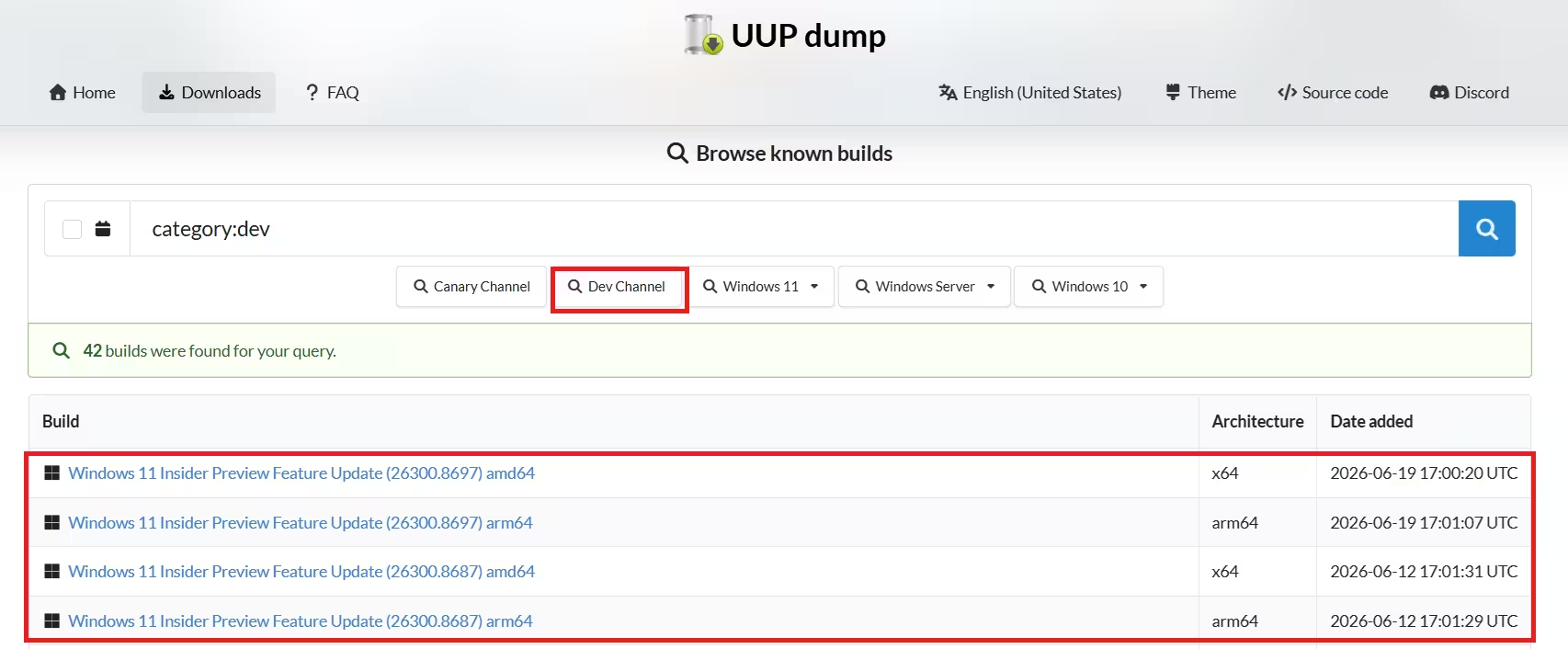
- From the results list, select the latest Windows 11 Insider Preview Feature Update (26300.xxxx) amd64 entry. As of writing, the latest build is 26300.8697. Always pick the entry with the higher build number.
Note: If you have a Copilot+ PC or a device with an ARM processor, select the arm64 entry instead of amd64. Both share the same build number.
- Choose your language from the Language dropdown, then click Next.
- Select the Windows 11 editions you want to include in the ISO (Home, Pro, or both), then click Next.
- On the download options page, select Download and convert to ISO under Download method.
- Check the Include updates (Windows converter only) option. This step tells the script to integrate the latest updates and produces a proper 26H2 ISO.
- Click Create download package. UUP Dump saves a small ZIP file to your PC.
Step 2: Extract and Run the Conversion Script
- Open the downloaded ZIP file in File Explorer.
- Click Extract all, choose a destination folder, then click Extract.
- Inside the extracted folder, right-click uup_download_windows.cmd and select Run as administrator.
- Windows SmartScreen may block the file. Click More info, then click Run anyway to proceed.
- When the Command Prompt window prompts you, press R then Enter to run the script once.
- The script begins downloading the 26H2 build files from Microsoft's servers. This step takes 20 to 60 minutes depending on your internet speed. Do not close the window.
- After the download and conversion finish, press 0 to close the script window.
The completed Windows 11 26H2 ISO file appears inside the folder where you extracted the UUP Dump tool.
Troubleshooting: If the script fails partway through, right-click Remove_Failure_MountDr_TempDir.cmd in the same folder and select Run as administrator. After that process completes, run the UUP Dump script again from Step 3 above.
Step 3: Create a Bootable USB Drive Using Rufus
- Open rufus.ie and download the latest version under the Download section.
- Double-click the rufus.x.xx.exe file to launch the tool.
- Plug in your USB drive. Rufus detects it automatically. Confirm the correct drive appears under the Device dropdown before continuing.
- Click Select, browse to the Windows 11 26H2 ISO file you created in Step 2, then click Open.
- Under Image option, select Standard Windows 11 Installation.
- Set Partition scheme to GPT.
- Set Target system to UEFI (non-CSM). Switch to MBR only if installing on an older BIOS-only system.
- In the Volume label field, enter a descriptive name such as Windows 11 26H2 Setup.
- Leave the File system and Cluster size options at their defaults.
- Check Quick format.
- Check Create extended label and icon files.
- Click Start.
Step 4: Choose Compatibility Options
After clicking Start, Rufus displays a Windows User Experience dialog with bypass options.
If your hardware meets Windows 11 requirements: Clear all checked options and click OK.
If your hardware does not meet Windows 11 requirements: Check the options that apply:
- Remove requirement for 4 GB+ RAM, Secure Boot, and TPM 2.0 bypasses the RAM, firmware signature, and trusted platform module checks.
- Remove requirement for an online Microsoft account lets you create a local account during setup instead of signing in with a Microsoft account.
Click OK to confirm. Rufus warns you that all data on the USB drive will be erased. Click OK again to proceed. The writing process takes 5 to 10 minutes.
How to Use the Bootable USB
For a clean install: Restart your PC and enter the BIOS or UEFI firmware settings (usually by pressing F2, F12, Delete, or Esc during startup). Set the USB drive as the first boot device, save, and exit. Windows Setup launches from the USB drive.
For an in-place upgrade: With your current Windows installation running, open File Explorer, browse to the USB drive, and run setup.exe. This upgrades your system while keeping your files and apps.
When Will the Official ISO Be Available?
Microsoft typically releases preview ISOs through the Windows Insider Program once a build reaches a more stable state. For Windows 11 26H2, watch the Microsoft Insider Preview Downloads page. Until an official ISO appears there, UUP Dump remains the most direct option.