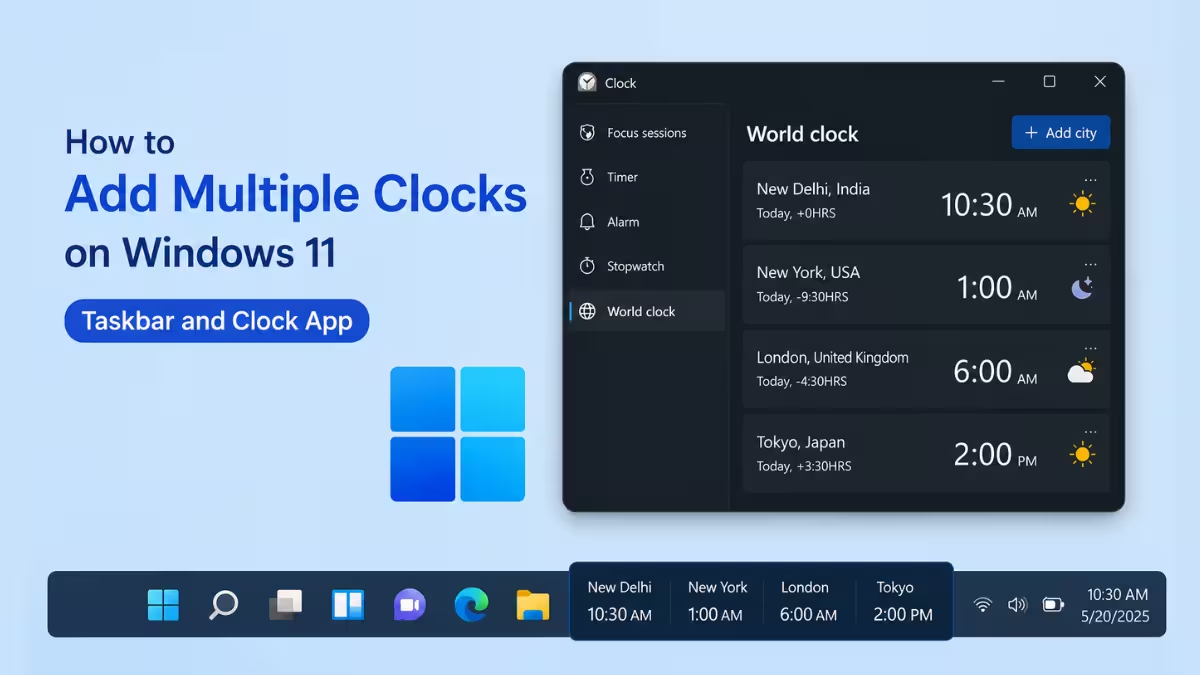
Keeping track of a different city’s time usually means opening a browser tab or checking your phone. Windows 11 avoids that with two built-in options: a quick taskbar clock for one or two zones, and a Clock app that can track as many locations as needed.
Method 1: Add Clocks Through Taskbar Settings
This method adds up to two extra clocks that appear when you click the taskbar time.
- Search for Control Panel in the Start menu and open it
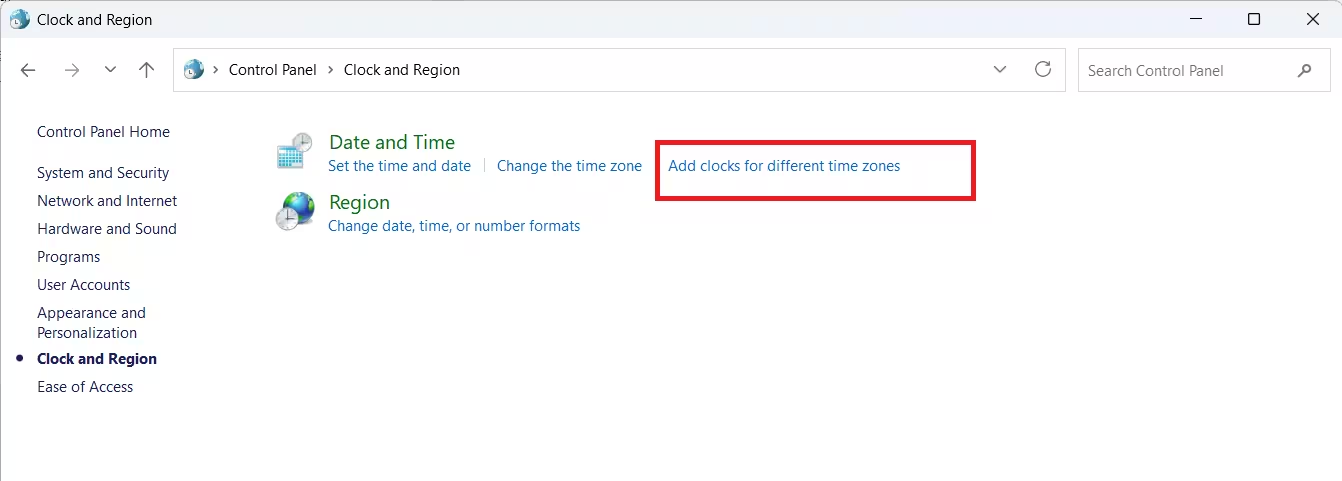
- Select Clock and Region
- Under Date and Time, select Add clocks for different time zones, which opens the Date and Time dialog on the Additional Clocks tab
- The tab has two clock boxes. Check Show this clock on the first one, choose a time zone from the dropdown, and type a display name such as
Perth
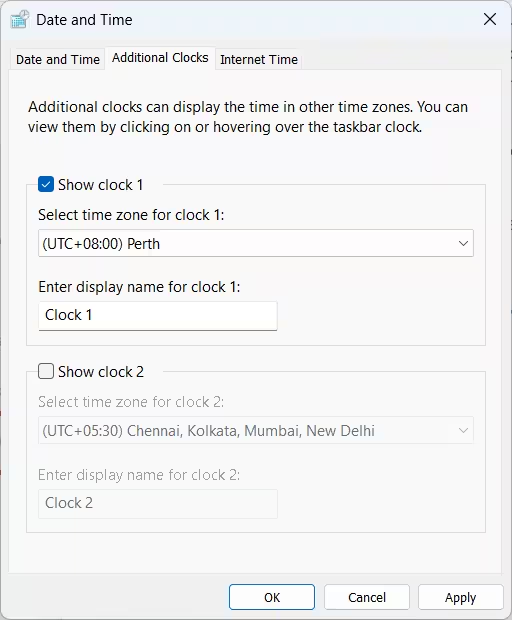
- If a third time zone is needed, check Show this clock on the second box and repeat the same setup
- Select Apply, then OK
Clicking the taskbar clock now shows the local time along with the additional zones added.
To remove a clock later, reopen Add clocks for different time zones from Control Panel, uncheck Show this clock for that entry, and select OK.
Method 2: Add Unlimited Time Zones in the Clock App
This method suits users who need to track more than two additional locations.
- Search for Clock in the Start menu and open it
- Select the World Clock tab in the left sidebar
- Select the + button in the top-right corner, search for a city or time zone, and select it to add it to the list
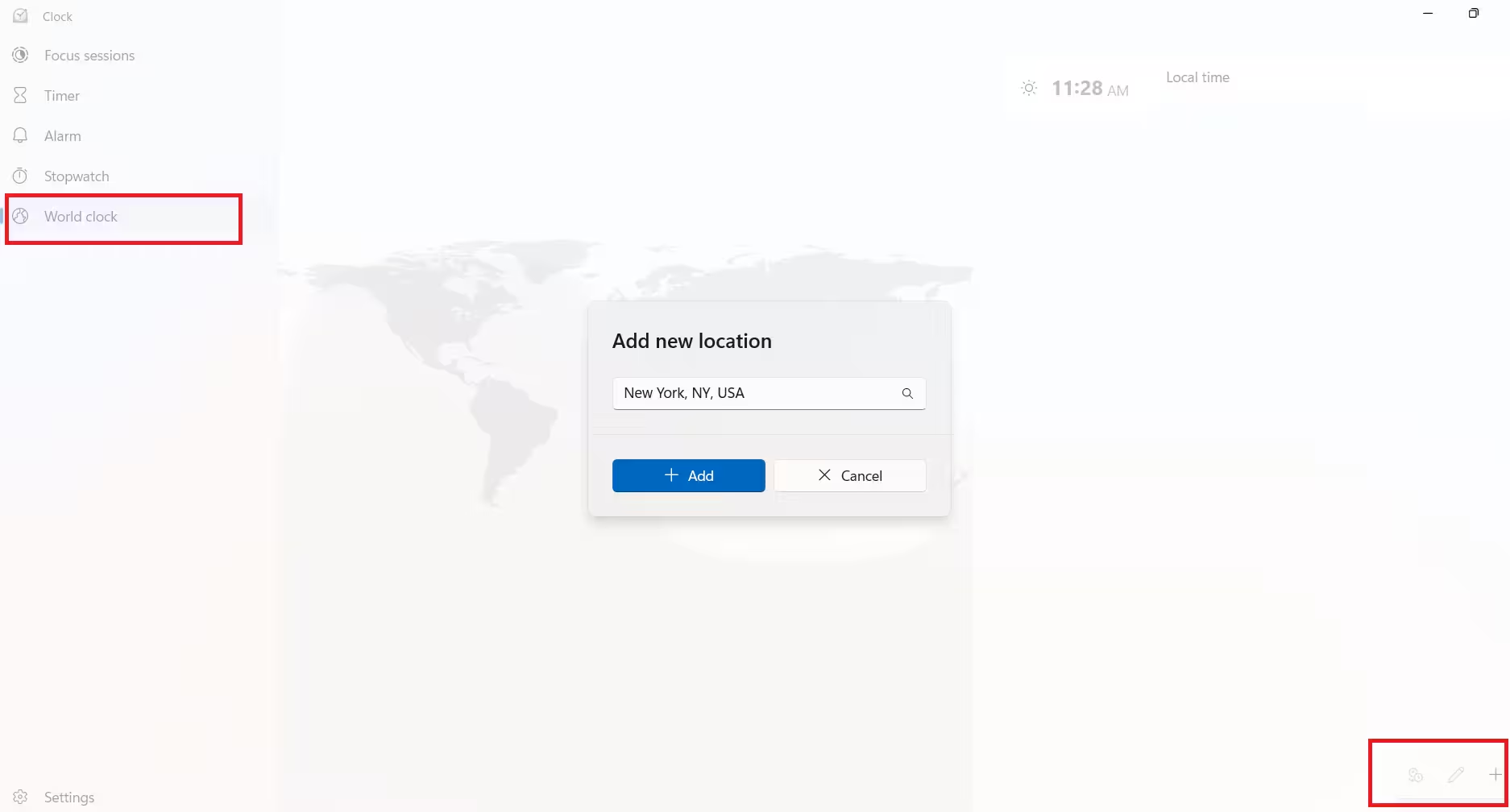
- The city now appears in the World Clock list with its current time
- Repeat to add as many cities as needed, since there is no limit unlike the taskbar option
- Right-click any added clock and select Pin to Start to keep a shortcut in the Start menu’s Pinned section
- Select Compare in the bottom-right corner to view multiple time zones side by side across a day, using the calendar selector to check a specific date
To remove a clock, select the Edit (pencil) button in the bottom-right corner, then select delete next to the entry you want to remove.
With both methods set up, the choice comes down to how many zones actually need tracking.
Which Method to Use
The taskbar method works best for one or two time zones checked constantly, since they stay visible from the clock flyout. The Clock app works better for tracking several time zones at once, since entries are listed rather than limited to two slots.
Frequently Asked Questions
How many additional clocks can Windows 11 show on the taskbar?
The taskbar Additional Clocks feature supports up to two extra time zones alongside the local time.
Do the World Clock entries in the Clock app sync with the taskbar?
No, the two features are separate. Taskbar clocks are configured through Control Panel, while World Clock entries are managed independently inside the Clock app.
Can the display name for a taskbar clock be changed later?
Yes, reopen Add clocks for different time zones from Control Panel > Clock and Region, edit the name field, and select OK to save the change.
Does adding extra clocks affect the system’s actual time zone?
No, the local time zone used for scheduling and timestamps stays unchanged. Additional clocks are for reference display only.
Can a World Clock entry be removed from the Clock app?
Yes, use the Edit (pencil) button in the World Clock tab, then select delete next to the entry to remove it.
What does the Compare feature in the Clock app do?
It shows two or more added time zones side by side across a 24-hour timeline, with a calendar selector to check times on a specific date.
Can a World Clock entry be pinned to the Start menu?
Yes, right-click the entry in the World Clock list and select Pin to Start to add a shortcut to the Pinned section.
Read More

