Forgetting a Windows 10 password locks you out of your files, apps, and settings. Command Prompt offers a built-in way to reset a local account password without installing extra software. This guide covers three methods: one for when you still have access to an admin account, one using Advanced Startup when you cannot sign in but have no installation media, and one for when you are completely locked out with only a USB or DVD.
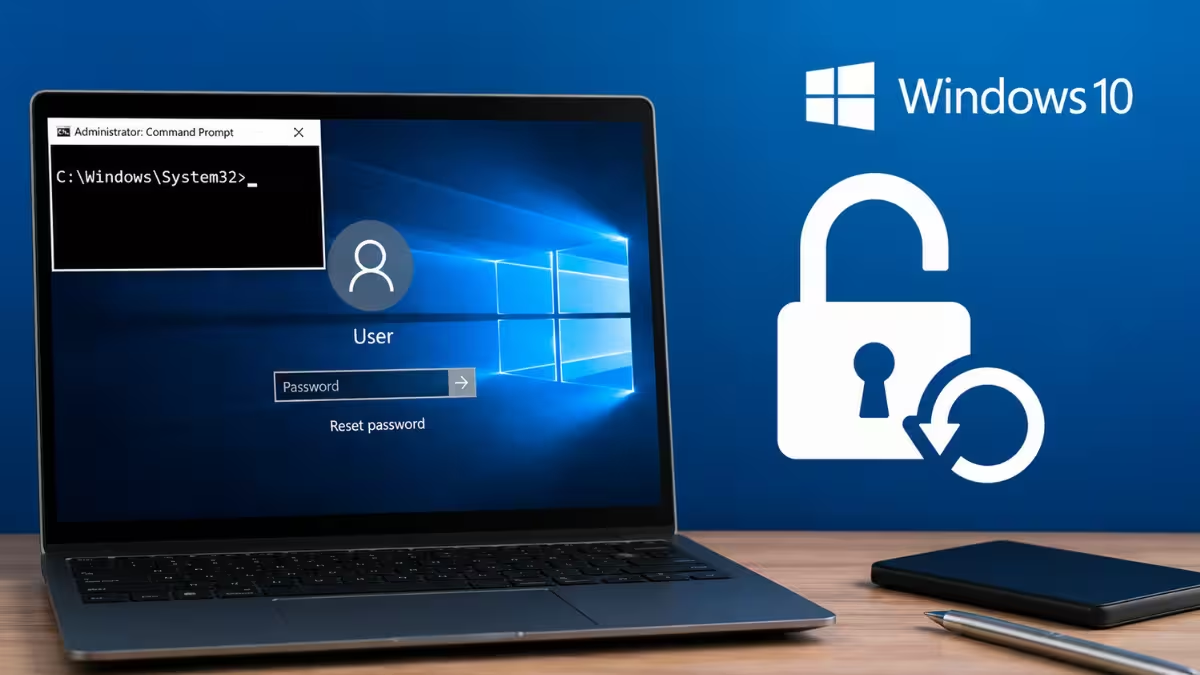
What Causes Windows 10 Password Lockouts
Password lockouts usually come down to a few common situations.
- You changed the password recently and forgot the new one.
- Caps Lock or a different keyboard layout caused repeated failed attempts.
- A synced Microsoft account password changed on another device.
- An old local account password was never updated and got forgotten over time.
- Command Prompt was not running with elevated or SYSTEM-level rights, which triggers a “System error 5 has occurred. Access is denied” message when running net user.
Method 1: Reset Windows 10 Password With CMD (Admin Access)
If you can still sign in to any admin account on the PC, this is the fastest option.
- Sign in with an account that has admin rights, or boot into Safe Mode with Command Prompt if your usual account is locked.
- Press
Win + Xand select Command Prompt (Admin) or Windows Terminal (Admin). - If the command in the next step returns “System error 5 has occurred. Access is denied,” run
net user Administrator /active:yesfirst to enable the hidden built-in Administrator account, then sign out and back in as Administrator before continuing. - Run
net userto list all user accounts on the machine. - Run
net user AccountName NewPassword, replacingAccountNamewith the exact username andNewPasswordwith the new password. - Press Enter. Command Prompt confirms the command completed successfully.
- Restart the PC and sign in with the new password.
Method 2: Reset Windows 10 Password With CMD (Advanced Startup)
Use this method if you cannot sign in but do not have a Windows installation USB or DVD on hand.
- On the sign-in screen, hold Shift and click Restart. If you cannot reach the sign-in screen, restart the PC and interrupt startup three times in a row to force Windows into Automatic Repair, which leads to the same menu.
- Select Troubleshoot, then Advanced options, then Command Prompt.
- Sign in with an administrator account when prompted. If no admin account is available here, use Method 3 instead.
- Run
net user AccountName NewPassword, replacingAccountNamewith the exact username andNewPasswordwith the new password. - Close Command Prompt, select Continue, and sign in with the new password.
Method 3: Reset Windows 10 Password With CMD (Fully Locked Out)
This method works even if you cannot sign in to any account and have no admin account to fall back on. It uses a swap trick that replaces the Ease of Access tool on the lock screen with Command Prompt.
- Boot the PC from a Windows 10 installation USB or DVD. You may need to change the boot order in BIOS or UEFI first.
- On the setup screen, press
Shift + F10to open Command Prompt. - Identify your Windows drive letter by running
dir C:anddir D:until you find the correct drive. - Run these two commands, replacing
D:with your actual Windows drive letter:
   copy D:\windows\system32\utilman.exe D:\windows\system32\utilman.exe.bak
copy D:\windows\system32\cmd.exe D:\windows\system32\utilman.exe- Remove the installation media and restart the PC normally.
- On the lock screen, click the Ease of Access icon in the bottom right corner. This now opens Command Prompt running as SYSTEM instead of the accessibility tool.
- Run
net user AccountName NewPasswordto set a new password for your account. - Close the window and sign in with the new password.
- Boot into the installation media again afterward and restore the original file by running
copy D:\windows\system32\utilman.exe.bak D:\windows\system32\utilman.exe. This step matters for security since leaving the swap in place gives anyone at the lock screen SYSTEM-level Command Prompt access.
Frequently Asked Questions
What if the account is a Microsoft account, not a local account?
The net user command changes the local cached password on the device, not the online Microsoft account password. Sign in once with the old password if possible, or use Microsoft’s account recovery page to reset the password online, then let the device sync.
What if BitLocker is enabled on the drive?
Some systems prompt for a BitLocker recovery key during this process, especially when accessing the drive from installation media. Keep your recovery key available, since it is usually stored in your Microsoft account or was printed out when BitLocker was first enabled.
Does this method work on Windows 11 too?
The same net user command and file swap trick work on Windows 11 with the same steps, though the visual layout of the setup screen and lock screen differs slightly.
How do I stop Windows 10 from asking for a password every time?
Once you are back in, open User Accounts from Control Panel, select Manage User Accounts, and uncheck the box that requires a username and password to sign in. This removes the sign-in prompt but also leaves the PC accessible to anyone who turns it on, so avoid this on shared or portable devices.

