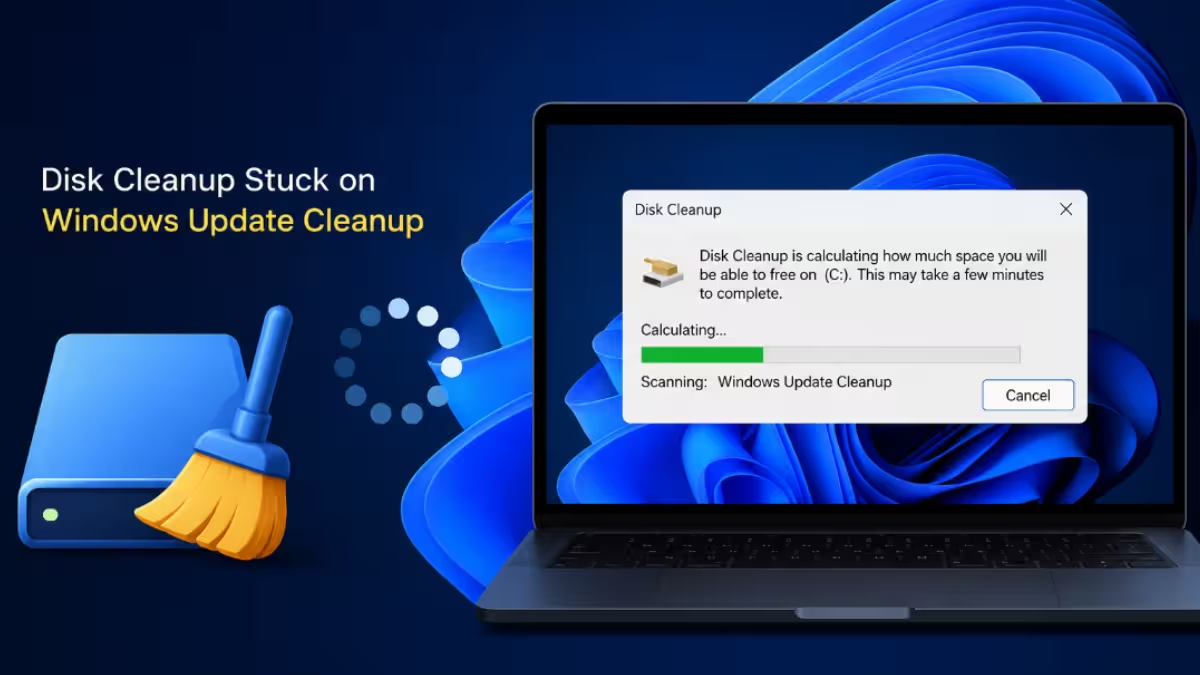
Disk Cleanup can sit frozen on the Windows Update Cleanup category for hours instead of the few minutes it normally takes, and in some cases it never finishes at all. The stall usually traces back to a bloated update cache, a corrupted system file, or a background process locking the files Disk Cleanup needs to remove. The seven fixes below are ordered from quickest and safest to try first through to more involved repairs, so you can work through them without wasting time on the wrong one.
What Causes Disk Cleanup to Get Stuck on Windows Update Cleanup
The freeze almost always comes down to one of these four issues.
- A large or corrupted
SoftwareDistributionfolder holding excessive leftover update files. - Damaged system image files that block the cleanup process from completing.
- Background processes or antivirus software locking files that Disk Cleanup needs to delete.
- Low system resources (CPU, RAM, or disk space) slowing the operation to a crawl.
1. Run the Windows Update Troubleshooter
Start here since it is automated, reversible, and catches the most common causes without any manual file deletion. Microsoft documents the tool in its Windows Update troubleshooting guide.
- Open Settings > Update & Security > Troubleshoot.
- Select Windows Update and click Run the troubleshooter.
- Follow the on-screen prompts and let the tool apply any fixes it finds.
2. Run System File Checker to Repair Corrupted Files
SFC is faster than DISM and resolves a large share of corrupted-file issues on its own, so try it before reaching for DISM.
- Open Command Prompt as an administrator.
- Run
sfc /scannow. - Wait for the scan to finish and follow any repair instructions it gives.
3. Run DISM to Fix System Image Corruption
If SFC reports it cannot fix some files, or the freeze continues, run DISM next to repair deeper corruption in the system image.
- Open Command Prompt as an administrator.
- Run
DISM /Online /Cleanup-Image /ScanHealthto check for corruption. - Run
DISM /Online /Cleanup-Image /RestoreHealthto repair any damage found. - Restart the computer once the process completes.
4. Delete the SoftwareDistribution Folder
Windows stores temporary update files in the SoftwareDistribution folder, and a corrupted file inside it can stall Disk Cleanup. This is safe since Windows rebuilds the folder automatically, but it is more hands-on than the automated fixes above.
- Open File Explorer and navigate to
C:\Windows\SoftwareDistribution. - Select all contents inside the folder and delete them (administrative privileges may be required).
- Restart the computer and run Disk Cleanup again.
If Windows blocks the deletion because the Windows Update service is using the folder, stop the service first through Services before retrying.
5. Run Disk Cleanup in Clean Boot
Background applications sometimes lock files that Disk Cleanup needs, so a clean boot removes that interference. Try this once the simpler fixes above have failed, since setting it up and reverting it takes more steps.
- Press
Win + R, typemsconfig, and press Enter. - In the Services tab, check Hide all Microsoft services, then click Disable all.
- Open the Startup tab, click Open Task Manager, and disable all startup items.
- Restart the computer and run Disk Cleanup again.
6. Remove the Windows.old Folder
The Windows.old folder stores a backup of the previous Windows installation after an upgrade, and a corrupted copy can interfere with cleanup. Treat this as a later step since deleting it removes your ability to roll back to the previous Windows version.
- Open Command Prompt as an administrator.
- Run
takeown /F C:\Windows.old\* /R /Ato take ownership of the folder. - Run
cacls C:\Windows.old\*.* /T /grant administrators:Fto grant full access. - Run
rmdir /S /Q C:\Windows.oldto delete the folder. - Restart the computer and attempt Disk Cleanup once more.
7. Run CHKDSK to Fix File System Errors
Underlying disk corruption is the least common cause on this list, and chkdsk requires a full restart and disk scan, so save it for last.
- Open Command Prompt as an administrator.
- Run
chkdsk C: /fand confirm the scan if prompted to run on next restart. - Restart the computer to let the scan complete, then retry Disk Cleanup.
Frequently Asked Questions
Why does Disk Cleanup freeze specifically on Windows Update Cleanup?
This category scans and removes a large volume of old update files, so a bloated or corrupted SoftwareDistribution folder or damaged system image makes the process take far longer than other categories, sometimes appearing frozen.
Is it safe to delete the SoftwareDistribution folder?
Yes. Windows automatically rebuilds this folder as needed. Deleting its contents only removes temporary update files, not any installed programs or personal data.
How long should Windows Update Cleanup normally take?
It typically finishes within a few minutes, but it can take much longer on systems with years of accumulated update files or limited system resources.

