Installer Error 2503 shows up when Windows Installer tries to run an MSI package but fails to complete the installation, update, or removal of an application. The setup usually rolls back and closes before finishing. The full error reads: “The installer has encountered an unexpected error installing this package. This may indicate a problem with the package. The error code is 2503.” Some users also see “Error 2503. Called RunScript when not marked in progress” alongside it.
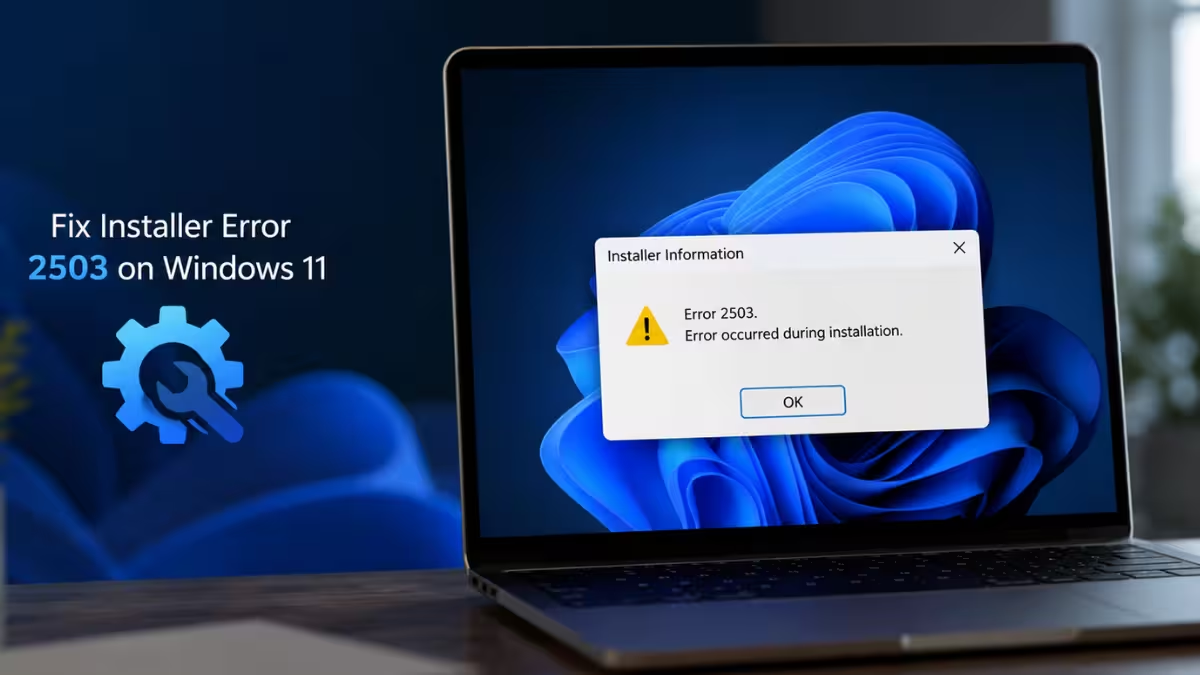
This error affects all Windows versions and is not tied to a specific build. Here are fixes to resolve it on Windows 11.
Note: Administrator access is required for the steps below.
What Causes Installer Error 2503
- Insufficient permissions on the Temp or Installer folders
- A corrupted or unregistered Windows Installer service
- Damaged or missing system files
- Antivirus software blocking the MSI package mid install
Fix 1: Restart Windows Explorer with Admin Privileges
Windows Explorer sometimes runs without the elevated rights an MSI package needs, and restarting it with admin privileges clears that block.
- Press
Ctrl+Shift+Escto open Task Manager. - Find Windows Explorer in the list.
- Right-click it and choose End Task. Wait for it to fully close.
- Open Task Manager again, click File, then Run new task.
- Type
explorerin the box, tick Create this task with administrative privileges, and press Enter. - Try the installation or uninstallation again.
Fix 2: Set Full Control Permissions on the Temp Folder
Windows Installer writes temporary files during setup, and if your account lacks Full Control on that folder, the process stops mid-way with Error 2503.
- Open File Explorer with
Windows+Eand go toC:\Windows. - Locate the Temp folder, right-click it, and choose Properties.
- Open the Security tab and select Administrators under Group or username.
- Check whether Full control is ticked for Administrators and for Users.
- If not, click Change, type
UsersorAdministratorsin the object name field, click Check Names, then OK. - In the Advanced Security settings window, double-click Users (or Administrators), tick Full Control, and click OK.
- Click Apply, then OK in the Advanced Security window, and confirm Full control is enabled in Properties before applying again.
Fix 3: Re-register Windows Installer
If the Windows Installer registration itself is corrupted, no MSI package will run correctly until you re-register it from scratch.
- Press
Windows+Rto open Run. - Type
msiexec /unregand press Enter. - Open Run again, type
msiexec /regserver, and press Enter. - This re-registers Windows Installer on the system.
- Restart your computer and retry the install.
Fix 4: Run the Installer from Command Prompt
Running the MSI file directly through an elevated Command Prompt skips whatever is blocking the normal installer launch.
- Press
Windows+R, typecmd, then pressCtrl+Shift+Enterto launch Command Prompt as admin. Click Yes on the UAC prompt. - Run
cd c:\Windows\Installerin the Command Prompt, then minimize the window. - Open Run again and enter
c:\Windows\Installerto open that folder in File Explorer. - Right-click the column header row (Name, Date modified, etc.) and choose More.
- In the Choose Details window, scroll to Subject, tick it, and click OK. This adds a Subject column showing which application each MSI file belongs to.
- Find the MSI file matching the application you want to reinstall or remove, copy its file name.
- Paste the file name into the Command Prompt window and press Enter to run the installer directly.
Fix 5: Restart the Windows Installer Service
The Windows Installer service itself can stop responding and block MSI packages from running.
- Press
Windows+R, typeservices.msc, and press Enter. - Find Windows Installer in the list.
- Right-click it and select Restart. If the service shows as stopped, click Start instead.
- Retry the installation.
Fix 6: Run SFC and DISM to Repair System Files
Corrupted system files can interfere with the installer even when permissions and the service are fine.
- Open Command Prompt as Administrator.
- Run
sfc /scannowand let the scan finish. - Run
DISM /Online /Cleanup-Image /RestoreHealth. - Restart your computer once both commands complete.
Fix 7: Perform a Clean Boot to Rule Out Conflicts
A background app or service can conflict with Windows Installer and trigger Error 2503.
- Press
Windows+R, typemsconfig, and press Enter. - In the Services tab, check Hide all Microsoft services, then click Disable all.
- Open the Startup tab and click Open Task Manager.
- Disable all startup applications and close Task Manager.
- Restart your computer and retry the installation.
- If the install goes through, turn services back on individually to pinpoint which one was conflicting.
Fix 8: Disable Antivirus Software Temporarily
Security software occasionally treats MSI scripts as suspicious and halts them mid-install. Turn off your antivirus, run the installer, and switch protection back on immediately after. Only do this for installers from a source you trust.
Installer Error 2503 on Windows usually traces back to permission issues on the Temp or Installer folders, a stalled Windows Installer service, or corrupted system files. Running Explorer and the installer with admin rights, re-registering Windows Installer, and repairing files with SFC and DISM resolve the issue in most cases. If it persists, a clean boot or a temporary antivirus disable usually isolates the conflicting program.
Frequently Asked Questions
What causes Installer Error 2503 on Windows?
It’s typically caused by insufficient permissions on the Temp or Installer folders, a corrupted Windows Installer service, damaged system files, or antivirus software blocking the MSI package during setup.
Does Installer Error 2503 happen on all Windows versions?
Yes. This error is not specific to one Windows version and has been reported across Windows 10 and Windows 11 systems.
Is admin access required to fix Error 2503?
Yes. Most of the fixes, including changing folder permissions and re-registering Windows Installer, require administrator rights on the system.

