Windows 11 locks your desktop behind a PIN by default. That becomes a problem if you forget the PIN, or if you simply want to sign in a different way. This guide covers every practical option, from switching to your password on the lock screen to resetting a forgotten PIN through your Microsoft account.

Bypass PIN Windows 11 With Your Password
Windows 11 lets you skip the PIN entirely if you still remember your account password.
- On the lock screen, click Sign-in options below the PIN box.
- Select the key icon to switch to password sign-in.
- Enter your Microsoft account or local account password.
- Press Enter to log in normally.
This works only if password sign-in is still enabled on the device. Some Microsoft accounts have passwordless sign-in turned on, which removes this option.
Remove the PIN From Settings
If you want to stop using the PIN going forward, you can remove it from Windows Settings.
- Press
Win + Ito open Settings. - Go to Accounts > Sign-in options.
- Under PIN (Windows Hello), click Remove.
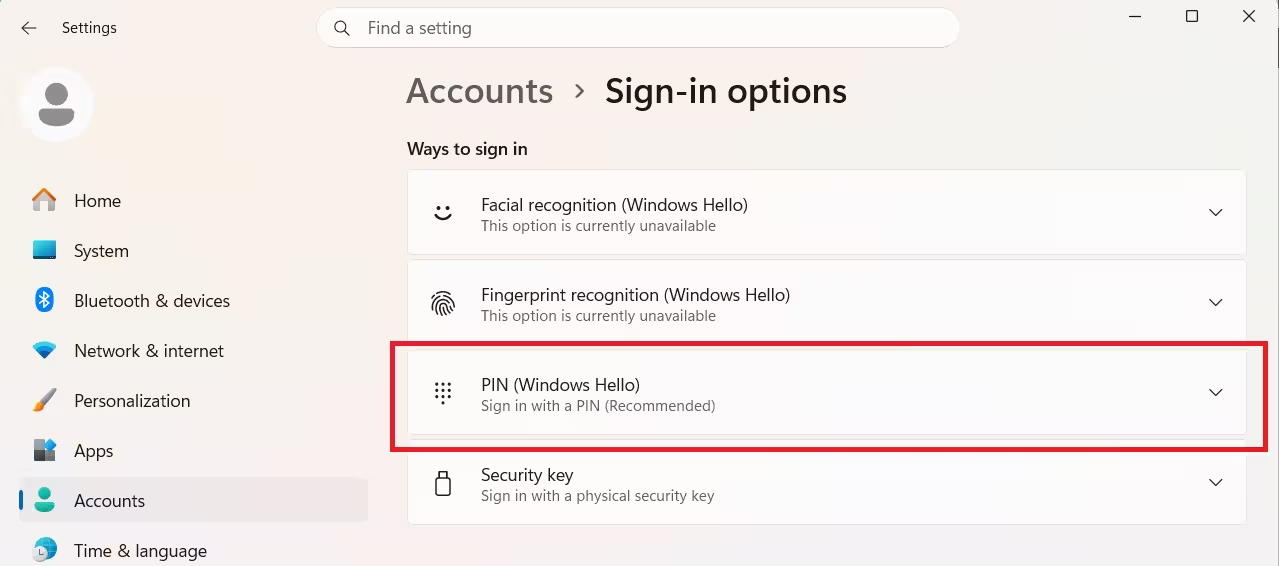
- Confirm your account password when prompted.
- Click OK, then restart your PC.
Once removed, Windows falls back to your account password for sign-in.
Fix a Grayed-Out Remove Button
Sometimes the Remove button under PIN settings stays grayed out and won’t let you proceed.
- This usually happens when Windows Hello is forced as the only sign-in method for your Microsoft account.
- Go to Settings > Accounts > Sign-in options.
- Turn off the toggle labeled For improved security, only allow Windows Hello sign-in for Microsoft account on this device.
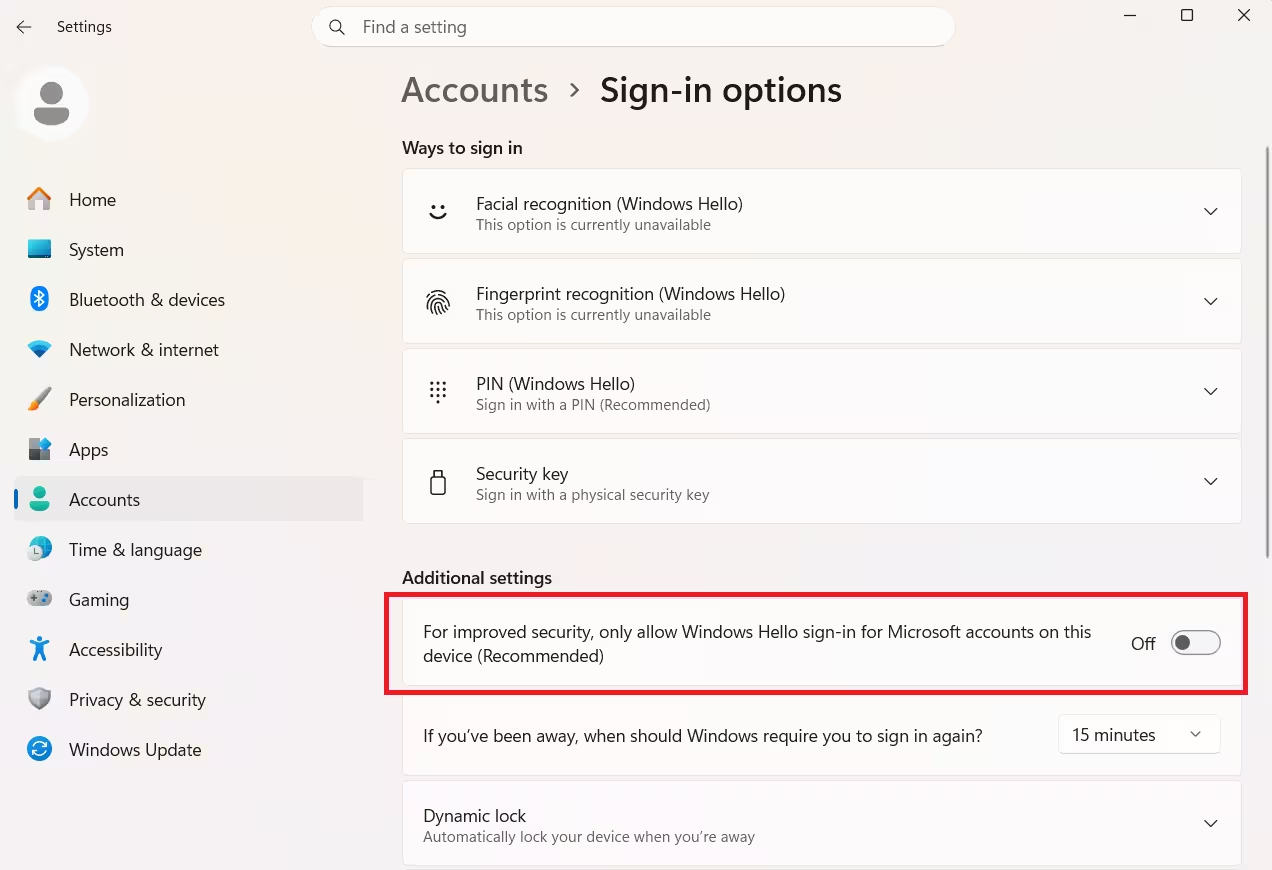
- If the Remove button is still grayed out, open your Microsoft account security settings.
- Turn off the Passwordless account option. This is a setting that lets you sign in without ever typing a password, and it can block PIN removal until it’s off.
- Restart your PC and check the Sign-in options page again.
If the toggle itself is missing from Settings, your device may be managed by a workplace group policy. A group policy is a set of rules IT admins apply to work PCs. In that case, contact your IT admin.
Reset a Forgotten PIN
If you can’t remember the PIN at all, Windows has a built-in recovery flow tied to your Microsoft account.
- On the sign-in screen, click I forgot my PIN under the PIN field.
- Sign in with your Microsoft account password.
- If you don’t remember your password either, reset it first at the Microsoft account recovery page.
- Verify your identity using the email or phone number linked to the account.
- Set a new PIN, or choose to sign in with your password instead.
This is the safest route since it doesn’t touch any system files or registry settings.
Bypass PIN Windows 11 in Safe Mode
If you’re completely locked out and don’t have Microsoft account access on hand, Safe Mode gives you a way back in. Safe Mode is a basic troubleshooting version of Windows that starts up with only essential features running.
- Restart your PC.
- As soon as it starts turning on, press and hold the power button for a few seconds to force it to shut off.
- Turn the PC back on, then force it to shut off again the same way while it’s starting up.
- Repeat this two or three times. Windows will then automatically open a screen called Automatic Repair.
- On the Automatic Repair screen, choose Advanced options > Troubleshoot > Advanced options > Startup Settings > Restart.
- After the PC restarts, press the
F6key on your keyboard to open Safe Mode with Command Prompt. - A black command window will open. Type this command, using your own Windows username and a new password of your choice in place of the placeholders:
net user yourusername newpassword - Press Enter to run the command.
- Type
exitand press Enter to close the command window. - Restart the PC normally.
- Sign in using the new password you just set.
This method only works if there’s already a local administrator account on the PC. A local administrator account is a sign-in that exists directly on the computer, separate from your Microsoft account. If the PC only has a Microsoft account with no local admin account set up, this method won’t work.
Advanced Ways to Bypass PIN Windows 11 (Only for Pros)
These are advanced methods, so proceed with caution. A mistake here can affect your Windows Hello setup or other sign-in features, so use these only if the methods above didn’t work, and back up your files first.
Delete the NGC Folder
The NGC folder stores your PIN data. Deleting it removes the PIN completely and resets Windows Hello, but it requires admin access and exact commands.
- Press
Win + S, type cmd, right-click Command Prompt, and select Run as administrator. - Type this command and press Enter to take ownership of the folder:
takeown /F C:\Windows\ServiceProfiles\LocalService\AppData\Local\Microsoft\Ngc /R /D Y - Type this command and press Enter to grant yourself full permissions:
icacls C:\Windows\ServiceProfiles\LocalService\AppData\Local\Microsoft\Ngc /grant Administrators:F /T - Type this command and press Enter to delete the folder:
rmdir /S /Q C:\Windows\ServiceProfiles\LocalService\AppData\Local\Microsoft\Ngc - Restart your PC. The PIN will be gone, and you can sign in with your password.
Disable Windows Hello Through the Registry
This method blocks PIN sign-in by adding a new registry value. It’s mainly useful when a group policy is blocking the normal removal option.
- Press
Win + R, type regedit, and press Enter to open Registry Editor. - Navigate to
HKEY_LOCAL_MACHINE\SOFTWARE\Policies\Microsoft\Windows\System. - Right-click System, select New, then select DWORD (32-bit) Value.
- Name the new value BlockDomainPINLogon.
- Double-click it and set its value to 1.
- Click OK, then restart your PC.
- Go to Settings > Sign-in options to confirm the PIN is disabled.
Editing the registry incorrectly can cause other Windows features to stop working properly. If you’re not fully comfortable with these steps, it’s safer to stick with the official methods above or ask someone experienced to do it for you.
What Causes PIN Removal Problems on Windows 11
A few common settings usually explain why the PIN won’t budge.
- Passwordless sign-in is turned on for the Microsoft account, which removes the option to use a password instead.
- The PC is a work device with group policy rules that force PIN use.
- Windows Hello is set as the only allowed way to sign in.
- The user profile is damaged, which can make the sign-in options page behave incorrectly.
Frequently Asked Questions
Can I disable the Windows 11 PIN permanently?
Yes. Go to Settings > Accounts > Sign-in options, select PIN (Windows Hello), and click Remove. Once removed, Windows uses your account password for sign-in going forward.
Why won’t Windows 11 let me remove my PIN?
This usually happens because of passwordless account settings, workplace group policy rules, or BitLocker, which is Windows’ built-in drive encryption feature that can restrict changes to Windows Hello. Turning off the passwordless option in your Microsoft account settings resolves it in most cases.
Can a Windows PIN include letters instead of just numbers?
Yes. Go to Settings > Accounts > Sign-in options, click Change under Windows Hello PIN, and check the box for Include letters and symbols before setting a new PIN.
What if I forgot both my PIN and my Microsoft account password?
Reset your account password first at the Microsoft account recovery page using your registered email or phone number, then use the I forgot my PIN option on the sign-in screen to set a new PIN.

