Staring at a bright white screen for hours tends to catch up with your eyes by mid afternoon. Windows 11 is addressing that directly with a new accessibility feature called Screen Tint, which lays a soft color overlay across your whole desktop instead of just adjusting brightness or color temperature.
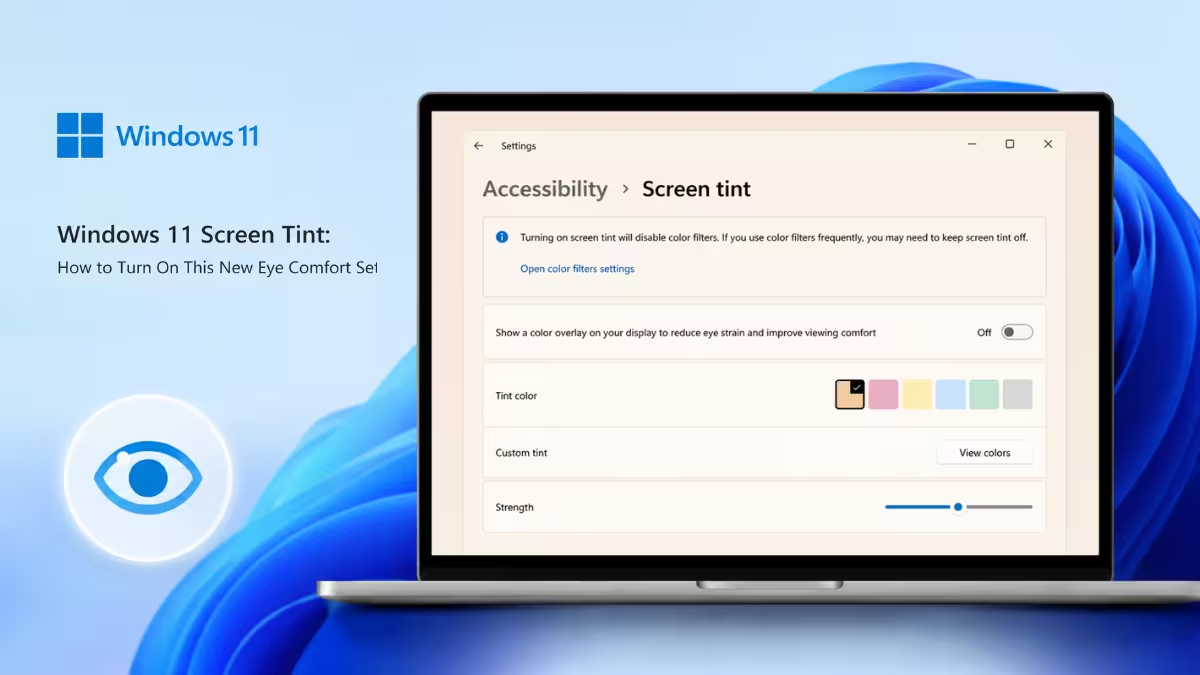
What Is Screen Tint in Windows 11
Nothing about your monitor’s hardware changes when you turn this on. Windows draws the tint as a software layer sitting on top of whatever you’re looking at, whether that’s a folder window, a browser tab, or an open app, so the shift happens the moment you flip the toggle and disappears just as quickly if you turn it back off.
This sets it apart from two features Windows already has. Night Light warms your display in the evening to cut blue light and help you wind down before bed. Color Filters change how colors render so people with color vision deficiencies can tell interface elements apart. Screen Tint targets neither of those problems. It simply softens how intense the whole screen looks, which is useful any time of day, not just at night.
Windows 11 Build Requirements for Screen Tint
Screen Tint is currently rolling out through Windows Insider Preview builds and hasn’t reached the stable channel for every user yet. Here’s the minimum build your PC needs, depending on which update channel you’re on:
- Dev or Canary channel: OS build 28020.2298 or newer
- Beta channel: OS build 26220.8680 or newer
- Release Preview channel: OS build 26300.8497 or newer
- 24H2 or 25H2 (preview): OS build 26100.8737 or 26200.8737, depending on which version you’re running
You can check your own build number by pressing Win + R, typing winver, and hitting Enter.
If you’re on a standard stable release, the setting may not show up for a while. Microsoft tends to expand these accessibility rollouts gradually before they land everywhere.
Even if your build number matches or exceeds what’s listed above, the toggle can still be missing from Settings, since Microsoft sometimes activates these flags in phases rather than for everyone on that build at once. If that happens to you, follow our guide on how to enable Screen Tint if it’s missing to force the setting to appear.
How to Turn On Screen Tint
- Press
Win + Ito open Settings. - Select Accessibility from the left sidebar.
- Scroll to the Vision section and click Screen tint.
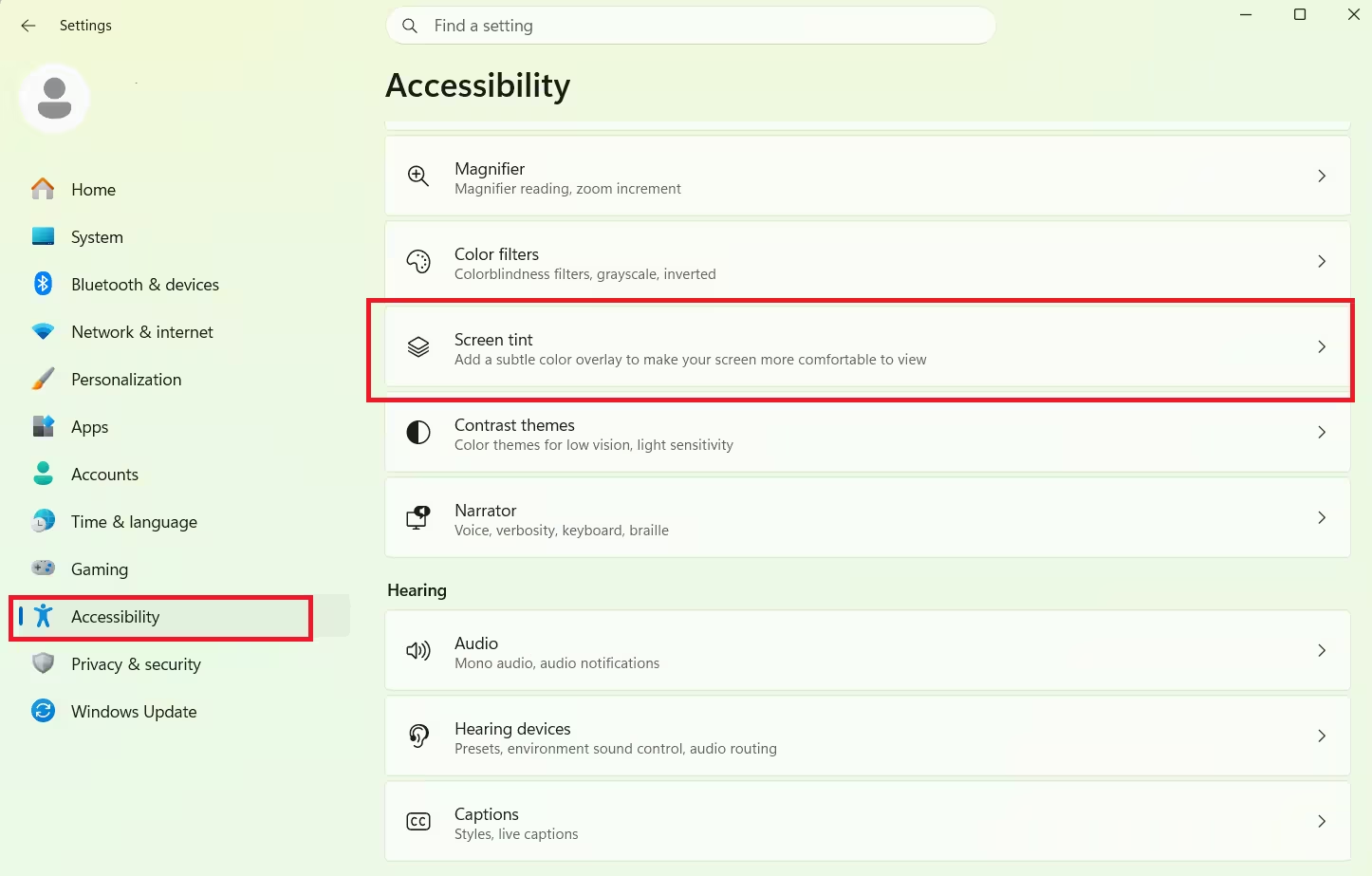
- Flip the Screen tint toggle to On. The overlay shows up right away using the default Calm amber preset.
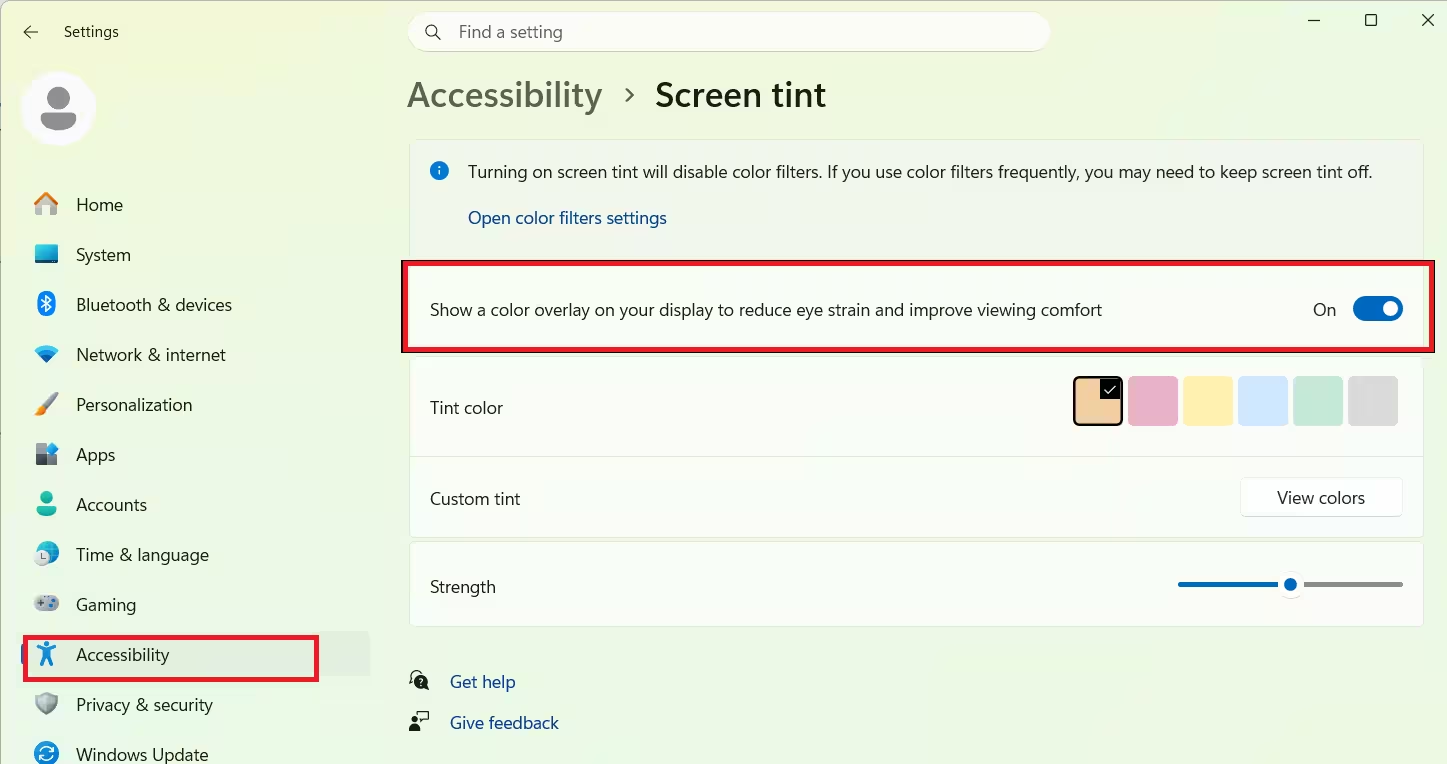
- Pick one of the built-in color presets, or choose Custom tint and click View colors to set your own shade.
- Drag the Strength slider to control how heavy the overlay looks.
Note: These two settings can’t run at once. Flip Screen Tint on and Windows quietly switches Color Filters off in the background, and vice versa. Night Light doesn’t get touched by any of this and keeps running as normal.
Screen Tint Color Presets in Windows 11
Screen Tint comes with six presets, and each one is tuned for a different kind of visual discomfort rather than just being a color choice.
| Preset | Best for |
|---|---|
| Calm amber | Long screen sessions; softens harsh white backgrounds |
| Rose tint | Migraine triggers and fluorescent light sensitivity |
| Soft yellow | Visual stress and reading discomfort |
| Cool blue | Glare sensitivity in bright environments |
| Gentle green | Photophobia and painful white backgrounds |
| Natural grey | Fatigue from stark black-on-white contrast |
If none of these match what you’re after, the custom color picker accepts RGB, HSV, and HEX input, so you can dial in an exact shade if you already know one that works for you.
Best Screen Tint Strength Setting in Windows 11
It’s tempting to push the Strength slider up right away since the effect is obvious the moment you enable it. That’s usually a mistake. A heavy tint starts distorting how photos, videos, and websites actually look, which defeats the point if your work depends on accurate colors.
A better approach is starting around 20 to 30 percent and only raising it if your eyes are still tired after a few hours. Small adjustments tend to hold up better over a full workday than dramatic ones.
Screen Tint and Night Light Together in Windows 11
Because Screen Tint and Night Light solve different problems, Windows lets you run them together. You could keep a light gray or green tint on throughout the day to take the edge off harsh interface colors, then let Night Light warm the display in the evening on top of that same tint. The combination feels more natural than relying on Night Light by itself, since it addresses glare during the day and warmth at night separately.
Does Screen Tint Show Up in Screenshots or Screen Sharing
No. Screen Tint lives at the display level, so it only affects what your own eyes see on the monitor. Take a screenshot, record your screen, or hop on a call and share your window, and the person or file on the other end gets your untouched, regular colors. Nothing you save to disk carries the tint either.
There’s currently no dedicated keyboard shortcut for Screen Tint, unlike Color Filters, which uses Win + Ctrl + C. Pinning the Accessibility settings page to Start is the fastest workaround until Microsoft adds one.
Frequently Asked Questions
Does Screen Tint work the same as Night Light?
No. Night Light only warms your display’s color temperature to reduce blue light before bed. Screen Tint applies a full color overlay to reduce visual intensity at any time of day and can run alongside Night Light.
Can I use Screen Tint and Color Filters together?
No. Windows treats these as mutually exclusive. Turning one on automatically switches the other off.
Why can’t I find Screen Tint in my Settings app?
It’s still rolling out through Insider Preview builds. If your version number is below the required build, you may need to enable it manually through ViVeTool or the Registry, or wait for Microsoft to expand the rollout.
Will Screen Tint change how my screenshots look?
No. It only alters what you see on your monitor. Screenshots, recordings, and shared screens always display your normal colors.
Related Guides
- Windows 11 KB5095093: New Features, ViveTool Commands, and How to Install
- ViveTool Codes Windows 11: Complete List
- How to Check if Windows 11 Is Installed: Winver, Settings & More
Windows 11 Error Fixes

