If sound is coming out louder from one side of your speakers or headphones, Windows has a built in balance control that can fix it in under a minute. This guide covers the exact steps for Windows 11 and Windows 10, along with fixes for HDMI audio and per app balance issues.
What Causes Left/Right Audio Imbalance on Windows
Audio balance problems usually come from a small number of common sources.
- Outdated or corrupted audio drivers
- Incorrect balance settings left over from a previous configuration
- Faulty headphone jacks, cables, or Bluetooth connections
- Windows 11 24H2 driver updates that silently reset balance settings when a new default audio driver profile loads
If the sliders look centered but one side still sounds off, check Settings > Accessibility > Audio and confirm Mono audio is turned off. That toggle has its own balance control and overrides the per-device setting, which can make one side go silent even though device balance looks fine.
How to Change Audio Balance on Windows 11
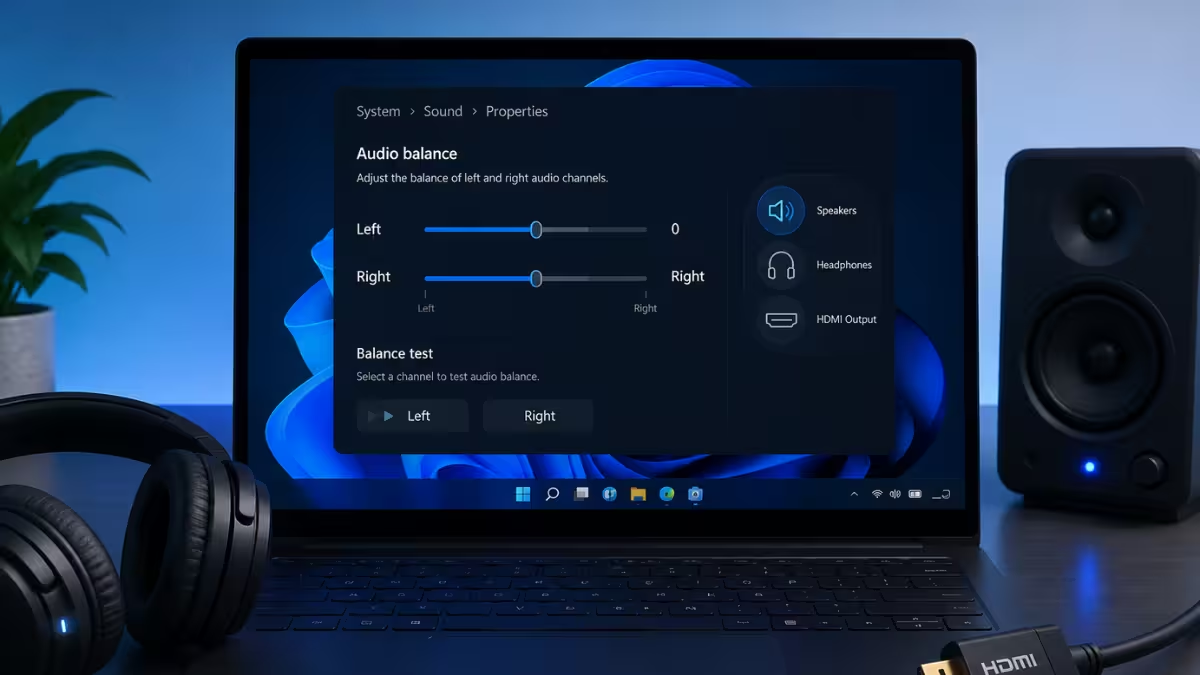
Windows 11 puts the balance slider inside the per device sound settings.
- Open Settings and go to System > Sound.
- Under Output, select the device you’re using (speakers, headphones, or HDMI output).
- Click on the device name to open its properties page.
- Scroll to the Left/right balance section.
- Drag the sliders to adjust the left and right channel levels until the sound is centered.
Changes apply instantly, so you can test as you move the sliders.
How to Change Audio Balance on Windows 10
Windows 10 uses the older Sound control panel for balance adjustments.
- Right click the speaker icon in the taskbar and select Sounds.
- In the Playback tab, select your active output device and click Properties.
- Go to the Levels tab.
- Click Balance next to the volume slider.
- Adjust the L and R values, then click OK to save.
How to Fix Audio Balance on HDMI, TVs, and External Monitors
HDMI outputs (TVs, monitors, AV receivers) sometimes don’t expose a balance slider directly. If that happens:
- Set the HDMI display as the default playback device first, since balance controls only appear for the active default device.
- Update the GPU’s audio driver (Nvidia, AMD, or Intel) rather than the generic Windows driver, since manufacturer drivers often add the missing balance tab.
- If no balance option appears at all, use app level balance settings in your media player instead.
How to Set Per-App Audio Balance Using Volume Mixer
Windows also lets you set volume and balance per app, which is useful if only one program sounds off center.
- Open Settings > System > Sound.
- Scroll down to Volume mixer.
- Find the app in the list and click on it.
- Adjust that app’s balance independently of the system wide setting.
Frequently Asked Questions
Why is my left speaker louder than my right on Windows 11?
This is usually caused by an unbalanced slider setting rather than a hardware fault. Check Settings > System > Sound > [device] > Left/right balance and confirm both sliders sit at the same level.
Does resetting the audio driver fix balance problems?
Reinstalling or updating the audio driver can resolve balance issues caused by driver corruption, but it won’t fix a physical hardware fault like a damaged cable or jack.
Can I set different balance levels for headphones and speakers at the same time?
Yes. Windows saves balance settings per device, so headphones and speakers can each have their own independent left/right levels.
Does audio balance also affect my microphone?
No. The balance controls in Sound settings only affect playback output. Microphone volume and balance are controlled separately, under the Recording tab rather than Playback.

