Windows shows the “Select an app to open this file” pop-up when it cannot find an app assigned to open a file type, so it asks every single time instead of launching one automatically. In most cases, setting a default app in Settings clears it up right away. If it keeps returning even after that, the cause usually sits deeper, in a corrupted registry entry, a startup program, a scheduled task, or a leftover reference from an app you uninstalled. The methods below cover both the quick fix and these less obvious causes, in the order most likely to resolve it fastest.
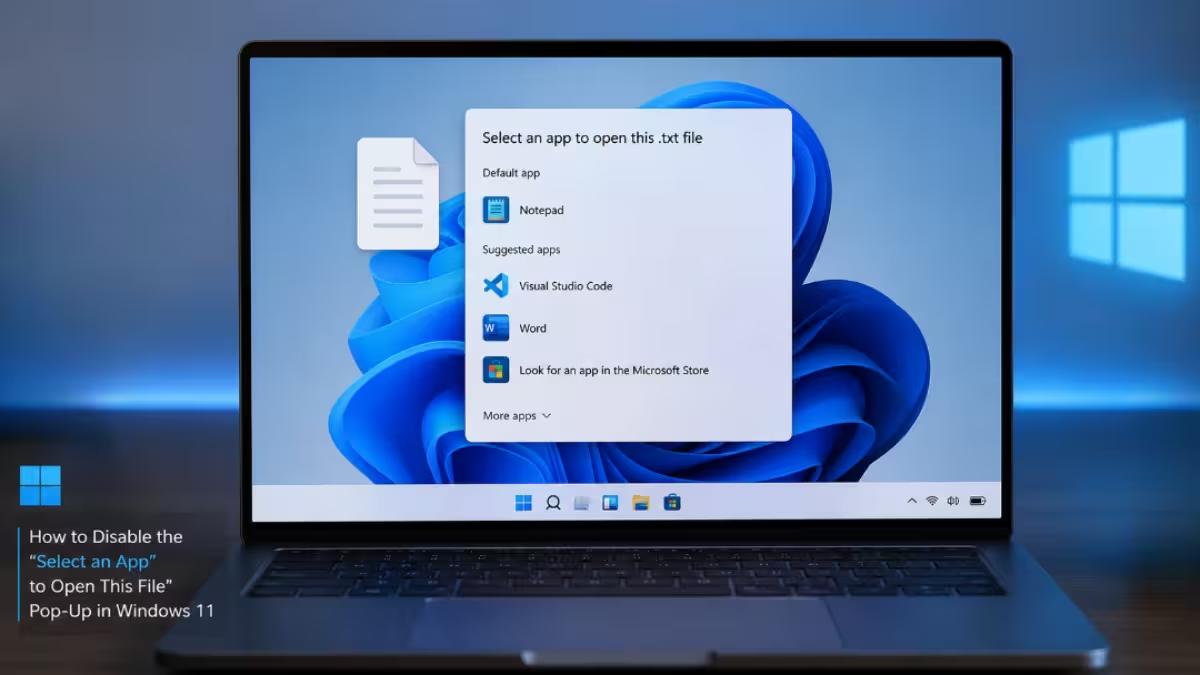
Method 1: Identify the File Type Triggering the Prompt
Knowing which file extension or protocol Windows is asking about narrows down which fix actually applies.
- Wait for the pop-up to appear again
- Note the file extension or protocol name shown in the dialog
- Search for that file type in Settings → Apps → Default apps to see if an app is already assigned
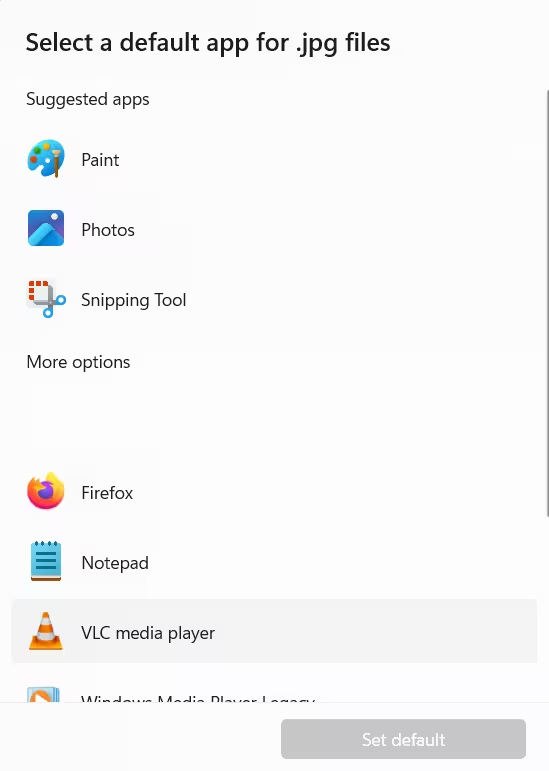
If an app is already listed as default for that extension, the association is breaking somewhere else, such as startup apps or a scheduled task, not in Default apps itself.
Method 2: Set a Default App from Settings
The most reliable way to stop the pop-up is to assign a default app directly instead of waiting for Windows to ask each time.
- Open Settings (
Win + R, typems-settings:) then go to Apps → Default apps - Search for the file extension (e.g.,
.jpg,.pdf) or the app you want as default
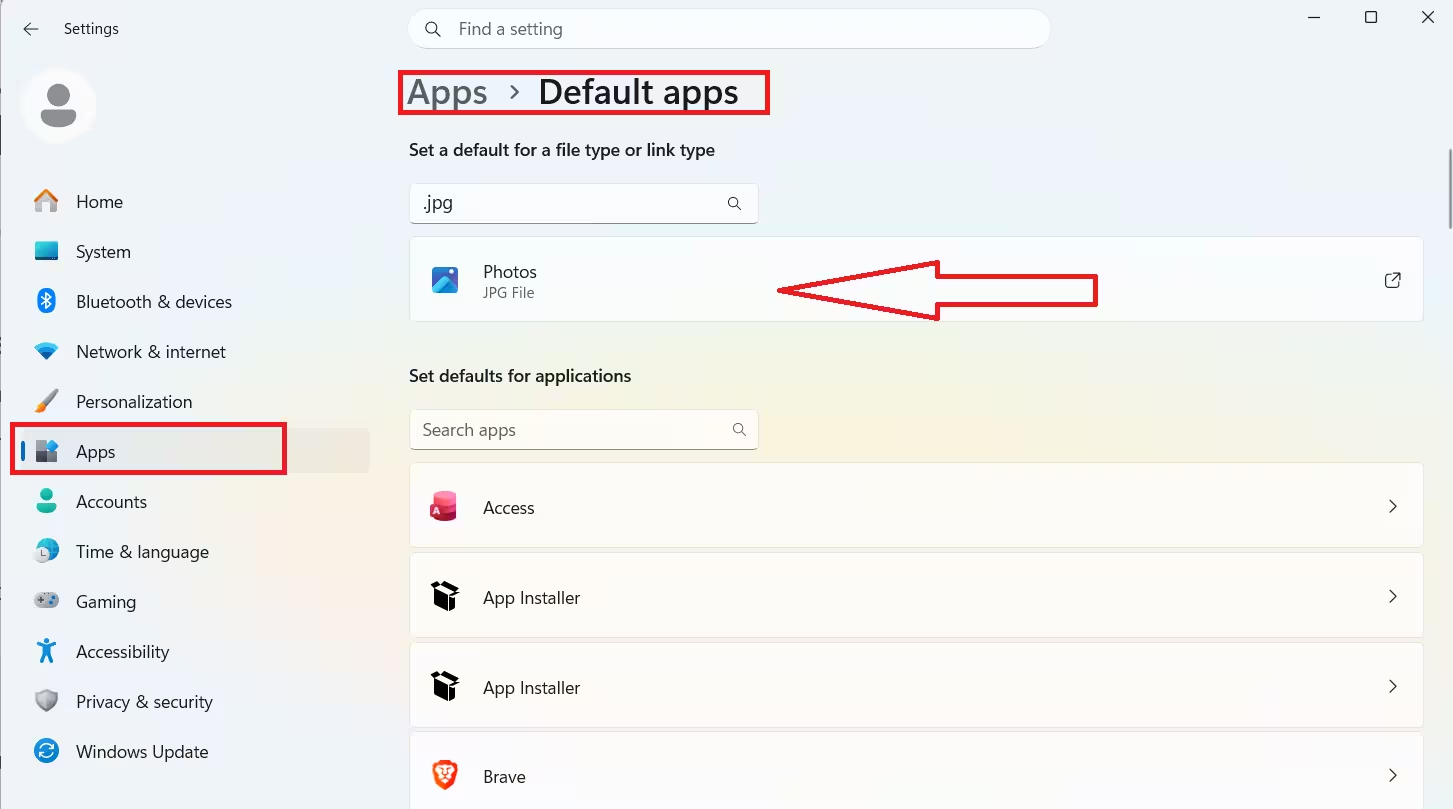
- Click the file type and select the app you want Windows to use going forward
Method 3: Set a Default the Moment the Prompt Appears
If the pop-up is already open, you can resolve it there instead of going through Settings.
- In the “How do you want to open this file?” dialog, select your preferred app
- Check the box labeled Always use this app to open .xxx files
- Click OK
If that checkbox is missing or grayed out, the file association is broken at the registry level, and the next method fixes that.
Method 4: Rebuild the File Association via Registry
Use this when Windows keeps showing the prompt even after you have picked a default, since it means the stored UserChoice entry is corrupted.
- Press
Win + R, typeregedit, and press Enter - Navigate to:
HKEY_CURRENT_USER\SOFTWARE\Microsoft\Windows\CurrentVersion\Explorer\FileExts- Find the key matching your file extension (e.g.,
.pdf) - Delete the
UserChoicesubkey under it - Reboot or restart File Explorer, then reopen the file and set the default app again
Back up the registry before editing, since incorrect changes here can affect other file types.
Method 5: Check Startup Applications
A startup program can trigger the prompt if it tries to open a file type with no app assigned every time it launches.
- Press
Ctrl + Shift + Escto open Task Manager - Open the Startup apps tab
- Disable any recently installed or unfamiliar startup programs
- Restart your computer and check if the pop-up returns
If the prompt stops, re-enable the disabled items one at a time to find which one was causing it.
Method 6: Review Scheduled Tasks
A scheduled task referencing a missing file or application can trigger the same prompt on its own schedule.
- Press
Win + Sand search for Task Scheduler - Look through recently created or modified tasks
- Disable any task that points to a missing application or unknown file
- Restart your computer and check if the pop-up returns
Method 7: Reinstall or Remove the Missing Application
If you recently uninstalled a program, Windows may still try to open files through leftover references to it.
- Identify which application used to handle the affected file type
- Reinstall it if you still need that functionality
- If you don’t need it, remove its remaining shortcuts and startup entries instead
- Restart your computer
Method 8: Test with a New User Account
A corrupted user profile can cause file association settings to break repeatedly even after you reset them.
- Open Settings → Accounts → Other users
- Click Add account and create a new local or Microsoft account
- Sign in with the new account
- Check whether the pop-up still appears
If the prompt doesn’t show up under the new account, your original profile is the source of the problem.
Method 9: Reset All Default Apps
Use this only if the pop-up shows up across many file types at once, since it clears every custom association you have set.
- Open Settings → Apps → Default apps
- Click Reset next to “Reset to Microsoft recommended defaults”
The “Select an app to open this file” pop-up in Windows 11 is usually resolved by setting a correct default app through Settings or the prompt itself. When the checkbox to remember that choice is missing or the prompt keeps returning, the cause is often deeper, a corrupted registry entry, a startup program, a scheduled task, or leftover references from an uninstalled app. Working through these methods in order should identify and permanently stop whatever is triggering the prompt on your system.
Frequently Asked Questions
Why does Windows 11 keep asking me to select an app to open a file?
This happens when the file type has no default app assigned, or its stored association was removed after a Windows update, app uninstall, or registry corruption.
Why is the “Always use this app” checkbox missing from the pop-up?
The checkbox disappears or grays out when the UserChoice registry key for that file type is corrupted. Rebuilding the association through the registry resolves this.
Does resetting default apps delete any files?
No. Resetting default apps only clears app associations for file types. It does not delete or affect the files themselves.
Why does the prompt keep appearing even after I set a default app?
This usually means something outside the default apps list is triggering it, such as a startup program or scheduled task trying to open a file type with no assigned app, or a corrupted user profile.
Can an uninstalled app still cause this pop-up?
Yes. If a program is uninstalled but leaves behind shortcuts, startup entries, or scheduled tasks that reference it, Windows can still try to open files through those leftover references and trigger the prompt.

