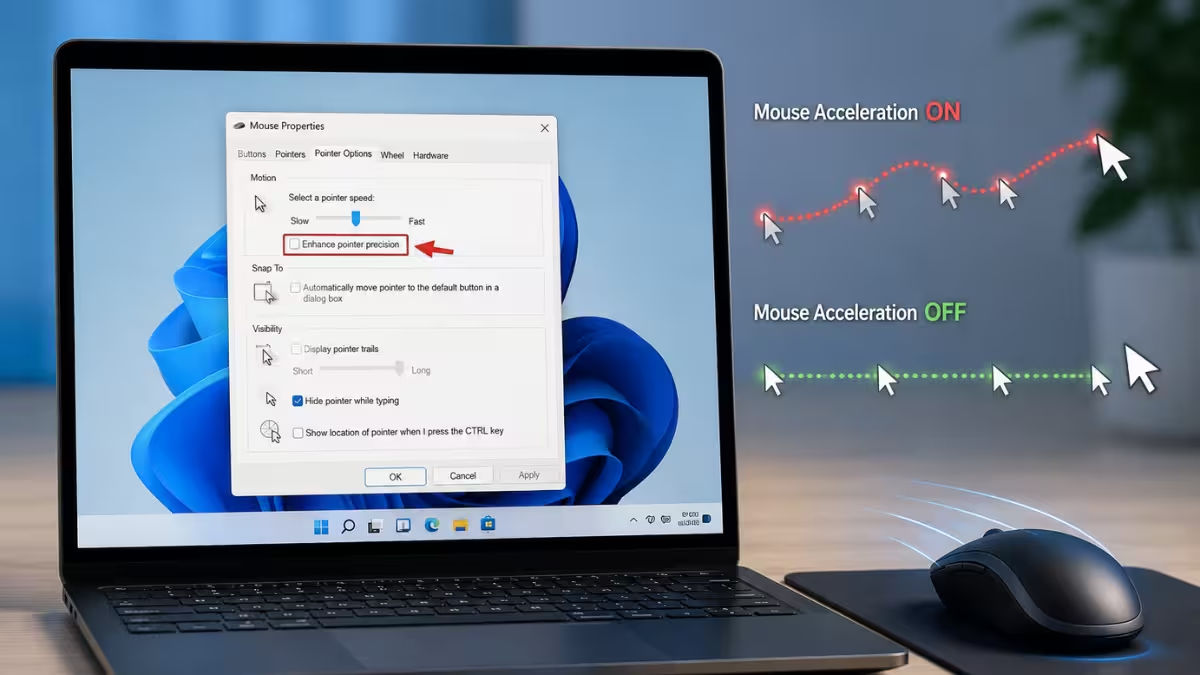
Mouse acceleration changes how far the cursor moves based on how fast the mouse is physically moved, which can make aiming and precise clicks feel inconsistent. Windows 11 controls this behavior through a setting called Enhance Pointer Precision, and turning it off restores a fixed, 1:1 relationship between mouse movement and cursor movement. Gamers and designers who need consistent aim or pointer control usually turn this off, while casual users rarely notice a difference.
Method 1: Turn Off Mouse Acceleration Through Settings
This method uses the Settings app to reach the classic mouse properties panel.
- Open Settings using
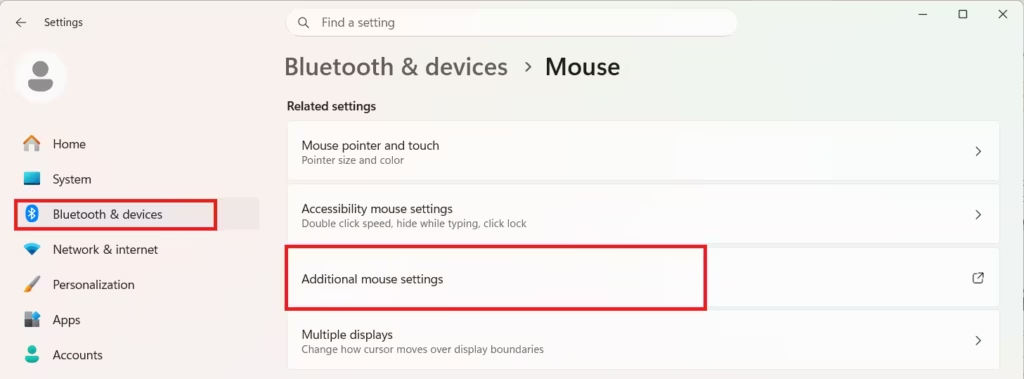
Win + I. - Go to Bluetooth & devices > Mouse.
- Select Additional mouse settings under Related settings.
- Switch to the Pointer Options tab.
- Uncheck Enhance pointer precision.
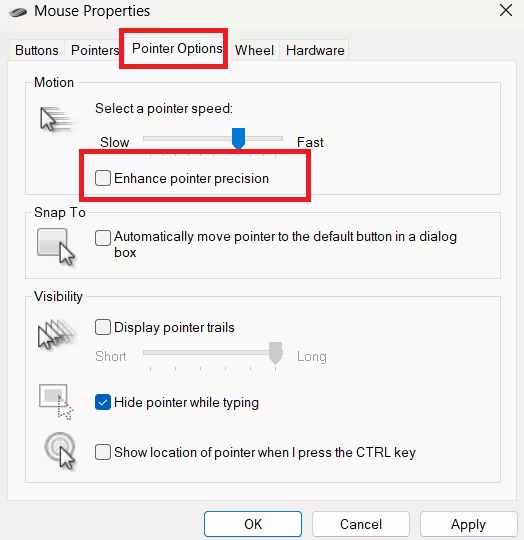
- Click Apply, then OK.
Method 2: Turn Off Mouse Acceleration Using the Run Command
This method skips the Settings app and opens the mouse properties window directly.
- Press
Win + Rto open Run. - Type
main.cpland press Enter. - Switch to the Pointer Options tab.
- Uncheck Enhance pointer precision.
- Click Apply, then OK.
Method 3: Turn Off Mouse Acceleration Using the Registry Editor
This method resets acceleration at the driver level and helps when the Settings checkbox alone does not fully remove it.
- Press
Win + R, typeregedit, and press Enter. - Navigate to
HKEY_CURRENT_USER\Control Panel\Mouse. - Set
MouseSpeedto0. - Set
MouseThreshold1to0. - Set
MouseThreshold2to0. - Sign out or restart the PC for the changes to fully apply.
What Causes Mouse Acceleration in Windows 11
- Enhance Pointer Precision is enabled by default on most Windows 11 installations.
- Some mouse manufacturer software applies its own acceleration curve independently of Windows.
- Certain games apply in-game mouse smoothing or acceleration separate from the OS setting.
- The Settings toggle alone sometimes does not fully remove acceleration at the driver level, which is why registry values can still show acceleration enabled.
Third-Party Mouse Software
Tools like Logitech G Hub or Razer Synapse can override Windows pointer settings with their own acceleration profiles. If the cursor still feels inconsistent after disabling Enhance Pointer Precision, check the sensitivity or acceleration settings inside that software as well.
No restart is required. The change applies as soon as Apply is clicked.
Frequently Asked Questions
Does turning off mouse acceleration affect gaming performance?
It does not affect performance, but it makes cursor movement consistent since the same physical distance always produces the same on-screen movement, which many gamers prefer for aiming.
Is Enhance Pointer Precision on by default in Windows 11?
Yes, most Windows 11 installations have Enhance Pointer Precision enabled out of the box unless it was manually changed before.
Do I need to restart my PC after disabling mouse acceleration?
No restart is needed. The setting takes effect immediately after clicking Apply in the Mouse Properties window.
Will disabling this setting also remove acceleration from gaming mouse software?
No, gaming mouse software such as Logitech G Hub or Razer Synapse applies its own acceleration settings separately, so those need to be checked and adjusted individually.
Can I turn mouse acceleration back on later?
Yes, the process is reversible. Reopen the Pointer Options tab and check Enhance Pointer Precision again to restore the original behavior.
How do I check if mouse acceleration is really off?
Reopen the Pointer Options tab in Mouse Properties and confirm the Enhance Pointer Precision box is unchecked. If it stays unchecked after reapplying, acceleration is disabled.

