Every Windows 11 release has a fixed servicing window, and it ends on a set date regardless of whether the copy is activated. Windows 11 does not shut down when that date passes, but it stops receiving the monthly security patches that keep it protected. Here is how to check which version is installed and when its support runs out.
Check Your Windows 11 Version and Build
The expiration date depends entirely on which version and edition is installed, so this is the first thing to confirm.
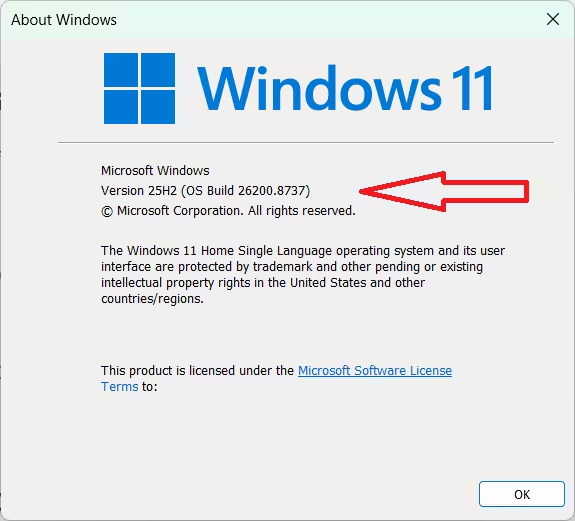
- Press
Win + R, typewinver, and press Enter. A small window shows the exact version (such as 24H2 or 25H2) and build number.
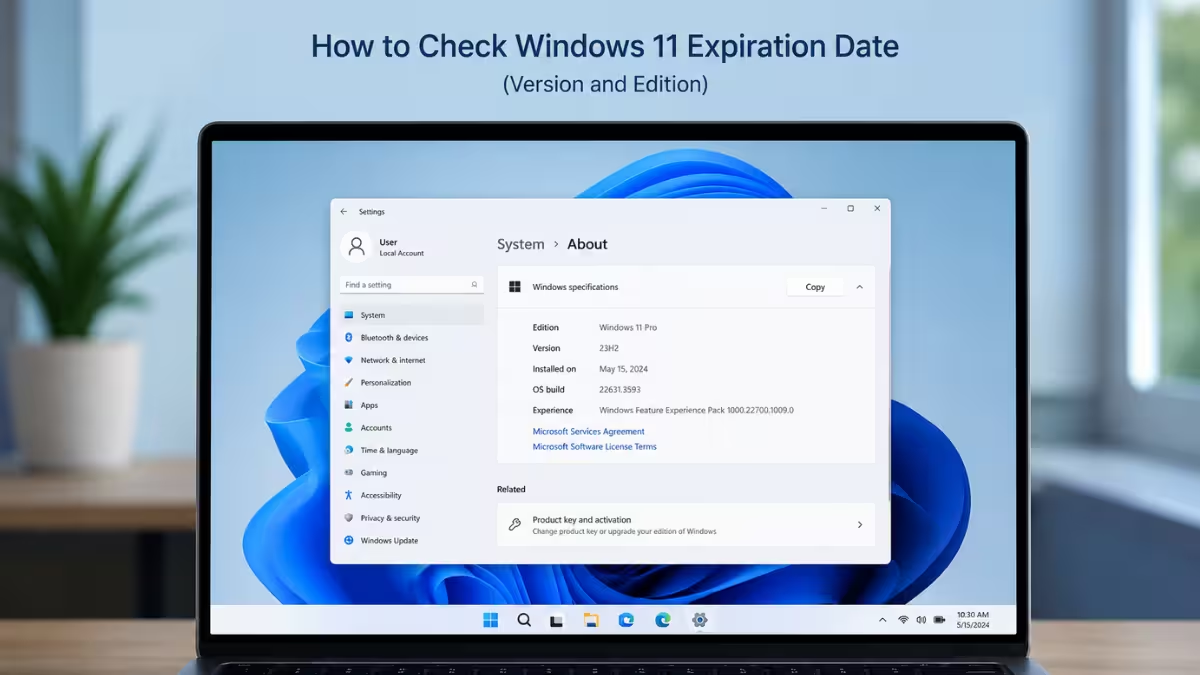
- Alternatively, open Settings > System > About and scroll to the Windows specifications section, which lists the version, edition, and installation date.
Windows 11 Expiration Checker
Home & Pro editions · Instant lookup
Not sure which version you're on? Press Win + R, type winver, and press Enter.
Note: Dates apply to Home and Pro editions. Enterprise and Education editions follow a longer support window.
How to Find Your Windows 11 Expiration Date on Microsoft
Once the version and edition are known, Microsoft’s own lifecycle page gives the exact retirement date for that combination.
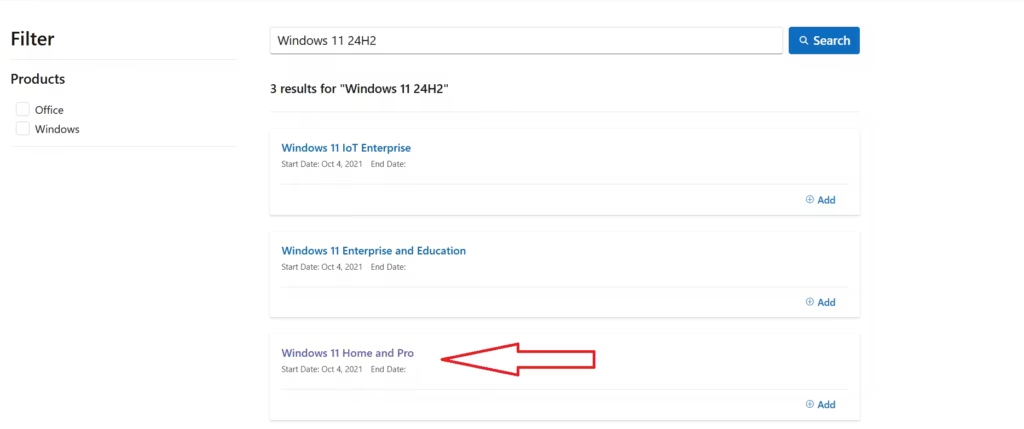
- Open the Microsoft Lifecycle Policy search tool in a browser.
- Search for the exact version, such as “Windows 11 24H2.”
- Match the result to the correct edition (Home, Pro, Enterprise, or Education), since each has a different end date.
Current Windows 11 Servicing Dates by Edition
Microsoft assigns a shorter servicing window to consumer editions and a longer one to business editions: Home and Pro installations are covered for roughly two years after each release, while Enterprise and Education installations remain covered for close to three years.
- Windows 11, version 23H2 (Home/Pro): end of servicing was November 11, 2025.
- Windows 11, version 24H2 (Home/Pro): end of servicing is October 13, 2026.
- Windows 11, version 24H2 (Enterprise/Education): end of servicing is October 12, 2027.
- Windows 11, version 25H2 (Home/Pro): end of servicing is October 12, 2027.
- Windows 11, version 25H2 (Enterprise/Education): end of servicing is October 10, 2028.
- Windows 11, version 26H1 (Home/Pro): released February 10, 2026, with end of servicing on March 14, 2028.
Devices on 24H2 Home or Pro that are not managed by an IT department typically receive the 25H2 update automatically once eligible, through Settings > Windows Update > Check for updates.
Does the PC Stop Working After That Date?
No. The device continues to boot, run programs, and open files exactly as before. The change is behind the scenes: Microsoft simply stops issuing fixes for that specific release, so any vulnerability discovered afterward has no official patch on that version. The practical risk builds up gradually the longer an unsupported version stays in use, rather than causing any sudden failure.
Check Activation and Trial or Insider Build Expiration
A separate type of expiration applies to Windows Insider Preview builds, Enterprise Evaluation copies, and installations that were never activated. These carry their own hard expiration date rather than a servicing window.
- Open Command Prompt or Terminal as Administrator.
- Run:
slmgr /xpr- This reports either permanent activation or the exact expiration date for a trial, Evaluation, or Insider build.
- For full license details, including edition and activation ID, run:
slmgr /dlvWhat If Your PC Can’t Upgrade to the Next Version?
Some PCs stop receiving new Windows 11 feature updates not because of a servicing date, but because the hardware no longer meets Microsoft’s requirements, most commonly TPM 2.0, Secure Boot, or CPU generation. In that case, Windows Update will not offer 25H2 even before 24H2’s servicing window closes.
- Open the PC Health Check app (search for it in the Start menu, or download it from Microsoft if not installed) to confirm eligibility for the next version.
- If the PC is not eligible, options are limited to running the current version until its servicing date, replacing the hardware, or moving to a different operating system. Windows 11 does not offer a paid extension program for Home or Pro editions the way older Windows releases sometimes did; once a version’s servicing window closes on ineligible hardware, there is no official way to keep receiving updates on that same install.
Frequently Asked Questions
Does a genuine Windows 11 license expire?
No. A properly activated retail, OEM, or volume license does not carry a hard expiration date. Each feature update version still has a servicing window, but the underlying license itself stays valid as long as it remains activated.
What happens when an Evaluation copy of Windows 11 expires?
The system restarts automatically at set intervals, and eventually the desktop becomes unusable until it is upgraded to a full retail or volume license.
How do I remove the expiration watermark on Windows 11?
Activate Windows through Settings > System > Activation if the watermark is related to activation. If it relates to an outdated version nearing end of servicing, update through Settings > Windows Update instead.
Why isn’t my PC getting the Windows 11 25H2 update?
This usually means the hardware doesn’t meet the requirements for the newer version, most often TPM 2.0, Secure Boot, or CPU generation. Running the PC Health Check app confirms whether the device is eligible, and if it isn’t, the update will not appear regardless of how many times Check for updates is selected.
What does “24H2” or “25H2” actually mean in a Windows 11 version number?
It refers to the year and half of the year the version was released. 24H2 means the second half of 2024, and 25H2 means the second half of 2025. Windows 11 version 26H1, released in February 2026, breaks that pattern slightly since it arrived in the first half of the year rather than the second. Each of these annual or interim releases has its own independent servicing window.
Related Tech How-To
- Windows 11 Version 26H1 Explained: Snapdragon X2 Exclusive, Features, and Release Details
- How to Use Windows 11 Update Assistant to Upgrade to the Latest Version
- Windows 11 KB5121767: Emergency Update Fixes Dell Shutdown and Overheating Issues
Windows Error Fixes

