Microsoft Edge sometimes starts behaving oddly after installing an extension, updating Windows, or changing settings by accident. The homepage might switch to something unfamiliar, a new search engine takes over, or the browser feels sluggish for no clear reason. Resetting Edge fixes most of these issues by restoring the homepage, search engine, and startup behavior to their original state.
Edge offers two ways to do this. The first method resets browser preferences while keeping favorites, passwords, and history untouched. The second method deletes the entire browser profile for cases where the first method doesn’t resolve the problem. This guide covers both, along with when to use each one.
What Resetting Edge Does
A reset undoes changes made to browser preferences without touching personal data stored in the profile.
Running the reset brings back Edge’s original homepage, new tab page, and default search engine, and it turns off every installed extension along with any pinned tabs or tiles set up over time. Bookmarks, saved logins, and browsing history stay exactly as they were, and no cookies or stored site data get wiped in the process.
Method 1: Reset Edge Through Settings
This is the standard method and works whenever Edge opens normally.
- Open Microsoft Edge and click the three-dot menu in the top right corner.
- Select Settings.
- Click Reset settings in the left sidebar.
- Choose Restore settings to their default values.
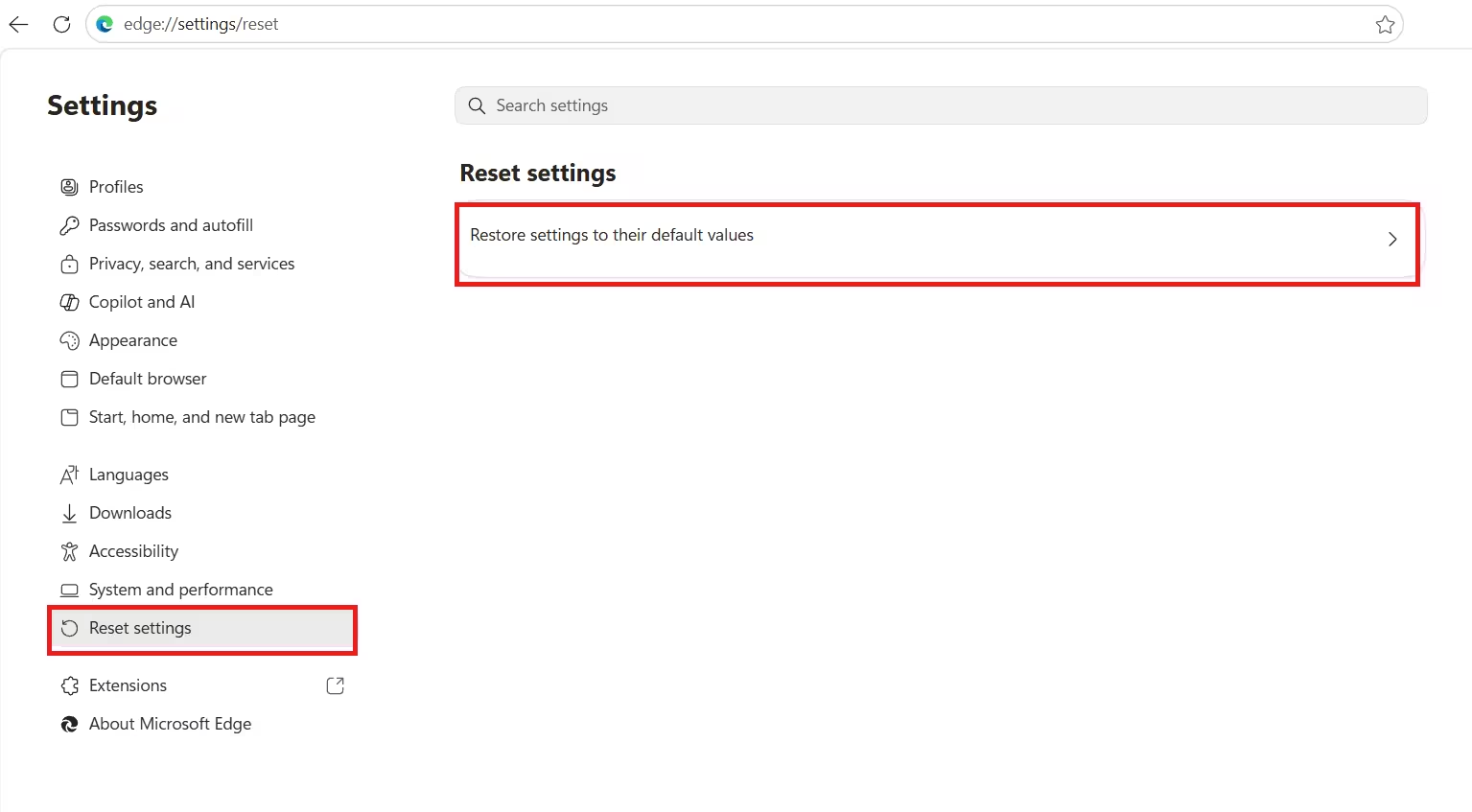
- Click Reset to confirm.
Edge applies the changes immediately and does not require a restart.
When to Use a Full Reset Instead
The first method handles most day-to-day issues, but some problems live deeper than a settings reset can reach.
A repeated crash on launch, being logged out over and over, or the exact same issue coming right back after using Method 1 usually points to a damaged profile file rather than a simple setting gone wrong. Since Method 1 only touches preferences and leaves the underlying profile data alone, it won’t clear that kind of corruption. Deleting the profile folder in Method 2 removes those files directly.
Method 2: Full Reset by Deleting the Edge Profile Folder
This method wipes the entire browser profile and fixes issues a soft reset can’t touch.
- Open Start, search for Task Manager, and open it.
- Go to the Processes tab and search for Microsoft Edge.
- Select the Microsoft Edge group of processes and click End task to close all Edge processes.
- Open File Explorer, type
%LOCALAPPDATA%\Microsoftin the address bar, and press Enter. - Right-click the Edge folder and select Delete.
- Open Microsoft Edge again to go through the initial setup as a fresh profile.
If sync is off or no Microsoft account is signed in, export favorites and confirm passwords are saved before deleting the folder, since unsynced data on that device can’t be recovered afterward. If signed in with a Microsoft account and sync is enabled, favorites, passwords, history, and extensions download again automatically. Extensions can be re-enabled from edge://extensions.
A soft reset through Edge’s Settings menu solves most issues with hijacked homepages, unwanted extensions, or cluttered startup tabs. If Edge keeps crashing or the problem returns right after a soft reset, deleting the profile folder resolves issues stored in a corrupted browser profile.
Frequently Asked Questions
Does resetting Edge delete my passwords?
No. A soft reset through Settings does not affect saved passwords, autofill data, or browsing history. A full reset that deletes the profile folder removes locally stored passwords unless they are synced to a Microsoft account.
Will resetting Edge remove my extensions permanently?
A soft reset only disables extensions without deleting them, and they can be turned back on from the Extensions page. A full reset removes extensions from the device, though synced extensions download again automatically after sign-in.
What is the difference between a soft reset and a full reset?
A soft reset through Settings restores browser preferences like homepage and search engine while keeping favorites, passwords, and history intact. A full reset deletes the entire Edge profile folder, wiping all local settings and data so the browser starts completely fresh.
Related Edge Errors & Fixes
- How to Fix Microsoft Edge “Cannot Sign In to Work Profile” (Error Code 3, 65, 4000)
- How to Restore Last Session in Microsoft Edge (Windows 10 & 11)
- Multiple Same Passkeys Showing Up in Chrome or Edge? Here’s the Fix
- How to Import Chrome Passwords to Microsoft Edge and Enable Autofill
- Microsoft Edge Update Fixes High CPU Bug on macOS, Patches Android Security Flaw
- Microsoft Teams Browser Prompt Now Forces Users to Choose Edge or Default Browser

