Windows 11 gives users two ways to pause a PC without shutting it down completely, and most people pick whichever one is on top of the Start menu without knowing what it actually does. Sleep and Hibernate solve different problems, and picking the wrong one regularly leads to drained batteries, lost work, or a laptop that never truly powers off.
What Is Sleep Mode in Windows 11?
Sleep, also called Standby, keeps the system's RAM powered while cutting power to almost everything else, including the display, storage, and most peripherals. Because RAM holds the exact state of every open app, window, and document, waking a PC from Sleep takes about one to two seconds.
The tradeoff is that RAM needs a continuous trickle of power to hold its contents. A laptop left in Sleep for a full day will still lose noticeable battery, and if the battery drains completely before the user wakes it, everything in RAM is lost since there was nothing backing it up on disk.
Most laptops sold in the last few years use Modern Standby (also called S0 low power mode) instead of the older S3 sleep state. Modern Standby keeps parts of the system semi-active in the background, allowing Windows Update, mail sync, and Wi-Fi connectivity to continue even while the lid is closed. This is why some Modern Standby laptops feel warm or lose more battery than expected after a few hours in a bag.
Battery drain in Sleep varies by hardware, but most modern laptops draw somewhere between 1 to 5 watts while sleeping, which typically works out to a loss of 1 to 3 percent battery per hour. Left overnight, that can add up to 8 to 24 percent of a full charge gone by morning, even though the laptop was never actually in use.
What Is Hibernate Mode in Windows 11?
Hibernate takes a different approach. Instead of keeping RAM powered, it writes the entire contents of RAM to a hidden file on the system drive called hiberfil.sys, then shuts the PC down completely. No power is drawn once hibernation completes, since the machine is effectively off.
Waking from Hibernate takes longer than Sleep, usually five to fifteen seconds depending on how much data needs to be read back from disk into RAM, but it is still considerably faster than a full cold boot with all apps reopened manually.
Because Hibernate writes state to disk rather than relying on continuous power, it is the safer option for long gaps between uses. A laptop hibernated before a two-week trip will resume in the same state it was left in, with no risk of losing open documents even if the battery sits at zero the entire time.
One requirement worth knowing: Hibernate needs free disk space roughly equal to the amount of installed RAM, since it needs to store a full memory snapshot. On a 16 GB laptop, that means hiberfil.sys can take up close to 16 GB of drive space.
Why Hibernate Is Hidden by Default
Many Windows 11 laptops, especially those from OEMs shipping Modern Standby hardware, do not show Hibernate as an option in the Start menu's power controls out of the box. Microsoft leaves it disabled on these systems since Modern Standby is meant to make Sleep efficient enough to replace it for most users.
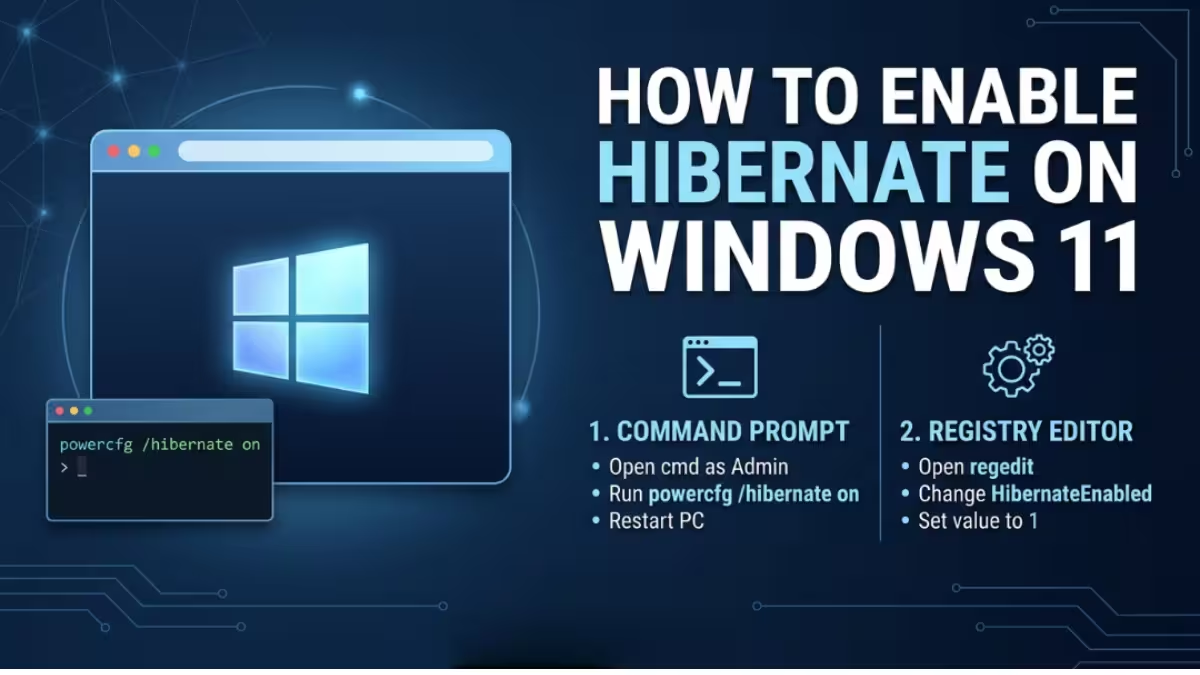
Hibernate can still be enabled manually through Control Panel by opening Power Options, selecting Choose what the power buttons do, then clicking Change settings that are currently unavailable and checking the Hibernate box before saving.
A quicker route is through the terminal. Right-click the Start button, choose Terminal (Admin), then run:
powercfg /hibernate onOnce the command completes, Hibernate appears in the Start menu's power options right alongside Sleep and Shut down.
Sleep vs Hibernate: The Practical Difference
| Factor | Sleep | Hibernate |
|---|---|---|
| Where state is stored | RAM | Disk (hiberfil.sys) |
| Wake speed | 1-2 seconds | 5-15 seconds |
| Power draw while paused | Small, continuous | None |
| Safe on full battery drain | No, unsaved data can be lost | Yes, state is on disk |
| Best for | Short breaks, minutes to a few hours | Long gaps, overnight or longer |
| Disk space needed | None | Roughly equal to installed RAM |
Which One Should You Use
Sleep makes sense for short breaks during the day, stepping away for lunch, or closing the lid between meetings, since the near-instant wake speed outweighs the small battery cost. Hibernate is the better call for anything longer than a few hours, particularly for laptops that will sit unused overnight, during travel, or in storage, since it protects open work without draining the battery at all.
Desktop users on a stable power supply rarely need Hibernate at all, since Sleep already draws minimal power when plugged into a wall outlet. Laptop users who frequently work away from a charger benefit the most from enabling and using Hibernate for anything beyond a short pause.
Frequently Asked Questions
Does Hibernate drain the battery on Windows 11?
No. Once a PC finishes hibernating, it is powered off completely, so it draws no battery at all. The only power used is the brief moment during the hibernate and resume process itself.
Why is Hibernate missing from my Start menu?
Most Windows 11 laptops with Modern Standby hardware hide Hibernate by default. It can be turned back on through Power Options in Control Panel under Choose what the power buttons do.
Is Sleep bad for a laptop battery overnight?
Sleep is not damaging to the battery, but it does draw a small continuous amount of power to keep RAM active, so a laptop left in Sleep overnight can lose a meaningful percentage of charge, especially with Modern Standby enabled.
Can I lose unsaved work in Sleep mode?
Yes, if the battery fully drains while a PC is in Sleep, everything held in RAM is lost since Sleep does not write anything to disk. Hibernate avoids this risk entirely.
Does Hibernate use a lot of disk space?
Yes, Hibernate reserves disk space roughly equal to the amount of RAM installed, since it needs to store a full memory snapshot in hiberfil.sys. A system with 16 GB of RAM will use close to 16 GB of drive space for this file.
Does using Hibernate wear out an SSD or hard drive?
Hibernate writes more data to the drive than Sleep does, since it saves the full RAM contents each time it activates. On a modern SSD this extra write activity is negligible for normal daily use, since SSDs are rated for far more write cycles than casual hibernation would ever reach. On older mechanical hard drives, frequent hibernation adds a small amount of wear over time, but it is not significant enough to justify avoiding Hibernate when it is otherwise the better fit.