The taskbar takes up screen space that many users prefer to reclaim, especially on smaller displays or during full-screen work. Windows 11 includes a built-in auto-hide option that tucks the taskbar out of view until it is needed. This guide covers how to turn it on, what changes once it is enabled, and how to fix it if the taskbar stops reappearing.
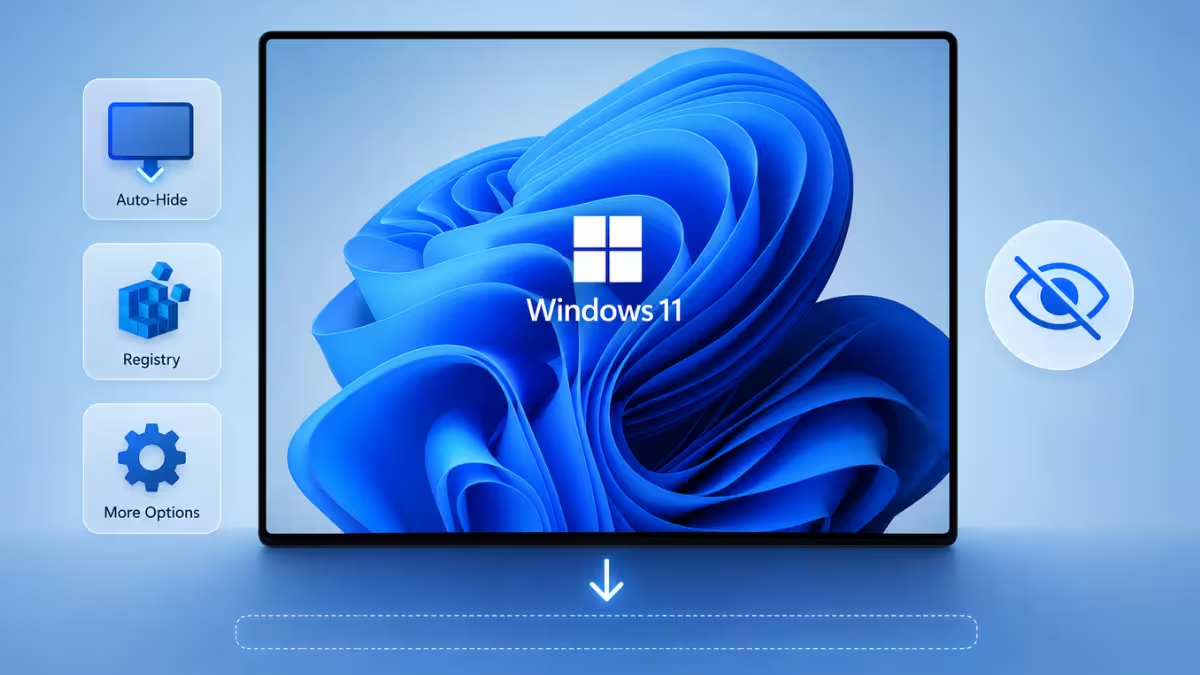
How to Enable Taskbar Auto-Hide in Windows 11
Windows 11 lets users hide the taskbar automatically to free up screen space.
- Right-click an empty area of the taskbar and select Taskbar settings. Alternatively, go to Settings > Personalization > Taskbar.
- Click Taskbar behaviors to expand the section.
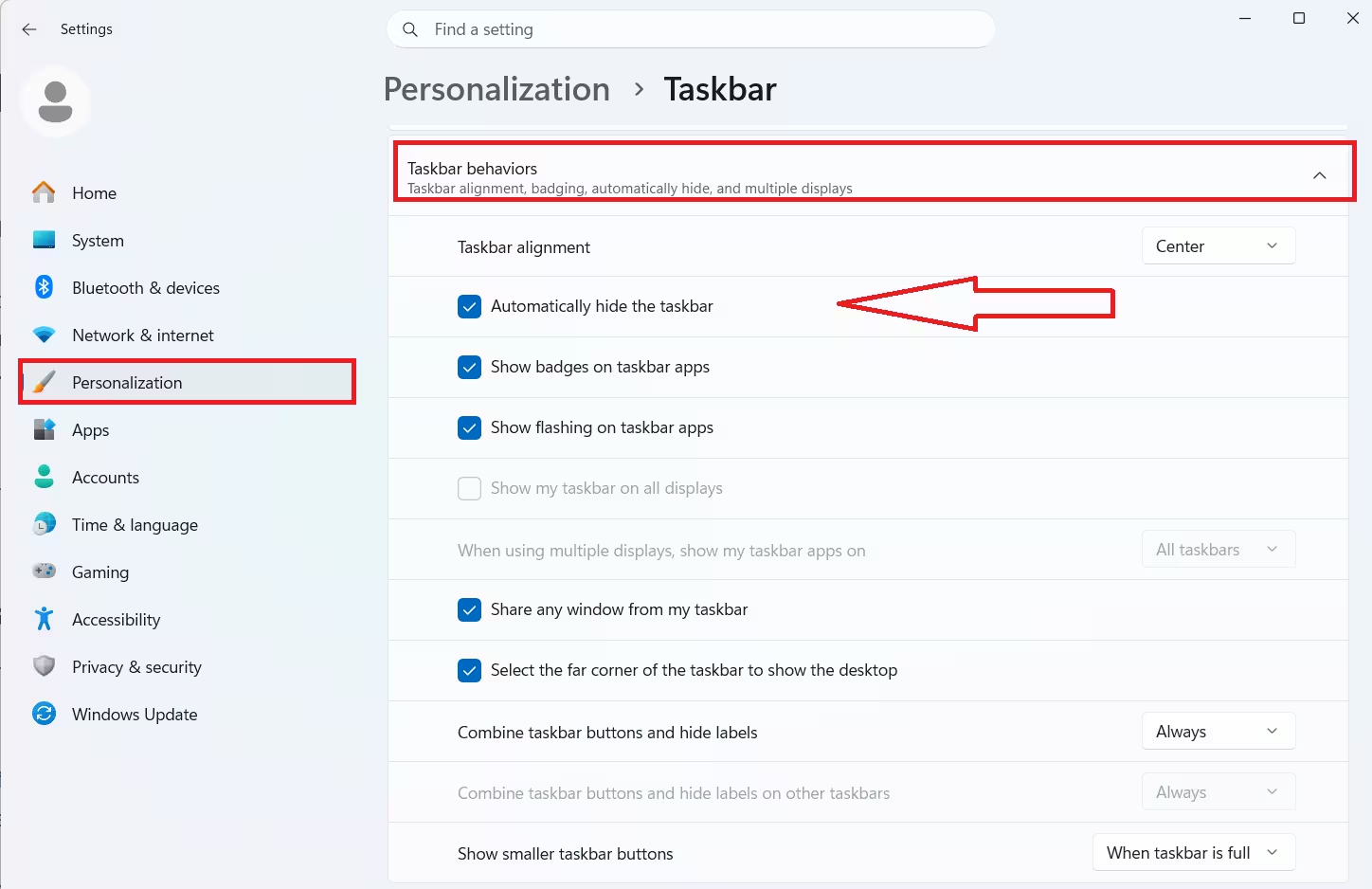
- Check the box next to Automatically hide the taskbar.
The taskbar now disappears during normal use and reappears when the mouse moves to the bottom edge of the screen.
What Happens After Enabling Auto-Hide
The taskbar stays hidden while working in any app, including full-screen windows.
Moving the cursor to the very bottom of the screen brings the taskbar back into view. On a touchscreen device, swiping up from the bottom edge does the same. The setting applies across desktop mode, since Windows 11 no longer separates tablet mode behavior the way older versions did.
For extra screen space alongside auto-hide, Win + D minimizes all open windows, and pressing it again restores them.
Fixing Taskbar Not Reappearing
Some users find the taskbar does not reappear even after hovering at the bottom edge.
Restarting Windows Explorer through Task Manager usually resolves this. Open Task Manager with Ctrl + Shift + Esc, find Windows Explorer in the process list, right-click it, and select Restart. If the issue continues, toggle Automatically hide the taskbar off and back on from Taskbar settings.
Beyond the built-in auto-hide toggle, a few other methods can hide taskbar elements more selectively or more permanently.
Method 1: Hide Taskbar Notification Icons
Beyond hiding the whole taskbar, individual notification icons can also be hidden from view.
- Right-click an empty area of the taskbar and select Taskbar settings.
- Click System tray icons to expand the section.
- Toggle off any icons that are not needed, such as Pen menu or Touch keyboard.
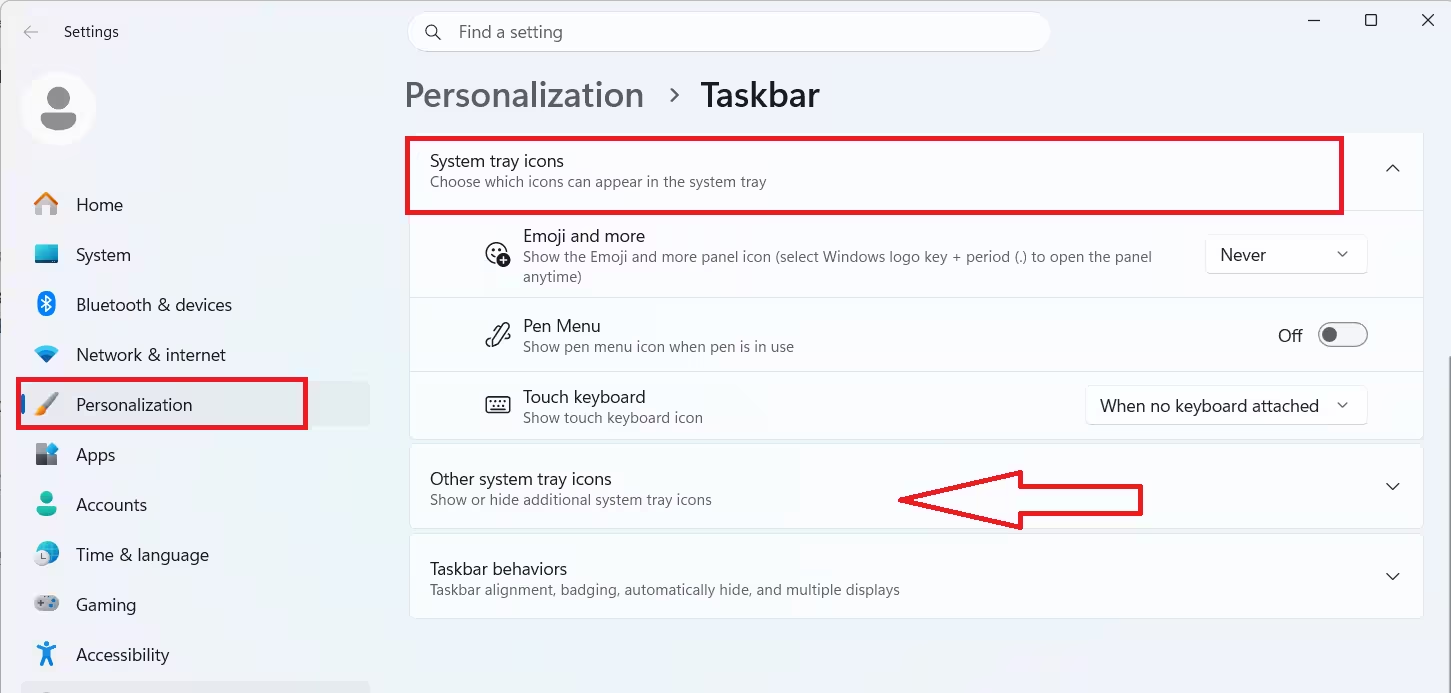
- For app tray icons, click Other system tray icons and toggle off any that should stay hidden.
This keeps the notification area clean even when the taskbar itself stays visible.
Method 2: Hide the Taskbar Using Registry Editor
Windows 11 does not offer a permanent hide option in Settings, but a registry tweak can force it.
- Press
Win + R, typeregedit, and press Enter. - Navigate to
HKEY_CURRENT_USER\Software\Microsoft\Windows\CurrentVersion\Explorer\StuckRects3. - Double-click the Settings value.
- Locate the second byte of the binary data and change it to
03. - Close Registry Editor and restart the PC.
Back up the registry before making this change, since incorrect edits can cause system issues. This method hides the taskbar more aggressively than auto-hide and does not reveal it on hover in some configurations, so reverting the byte value back to its original setting is the way to undo it.
Method 3: Hide the Taskbar Completely
Windows 11 does not include a native option to remove the taskbar entirely with no hover reveal.
Third-party tools such as TaskbarHider offer this functionality for users who want the taskbar gone at all times. Kiosk mode or fullscreen-only apps can also achieve a similar effect for specific use cases, though this is not a built-in Windows setting.
Frequently Asked Questions
Does hiding the taskbar affect performance?
No, auto-hiding the taskbar is a display setting and has no impact on system performance.
Can I hide the taskbar only on a second monitor?
Yes, since Taskbar settings includes a Multiple displays section with a Show my taskbar on all displays toggle that can be turned off to hide the taskbar on secondary monitors.
Will auto-hide work in tablet mode?
Yes, since newer Windows 11 versions merged desktop and tablet taskbar behavior under the same auto-hide setting.
Is the registry method safe to use?
The registry method is safe as long as only the specified byte value is changed, though backing up the registry first is recommended in case of mistakes.
Can the taskbar be hidden without third-party software?
Yes, since the built-in auto-hide toggle and the registry edit both hide the taskbar without requiring any additional apps.