Xbox Game Bar is the overlay that opens with Win + G on Windows 11, built for screen recording, screenshots, and chatting with friends during gameplay. Many users never touch these features, and the overlay can still open by accident, record clips in the background, or add extra overhead to games and third-party screen recording software. It has also been known to conflict with certain titles, causing stutters or crashes during gameplay.
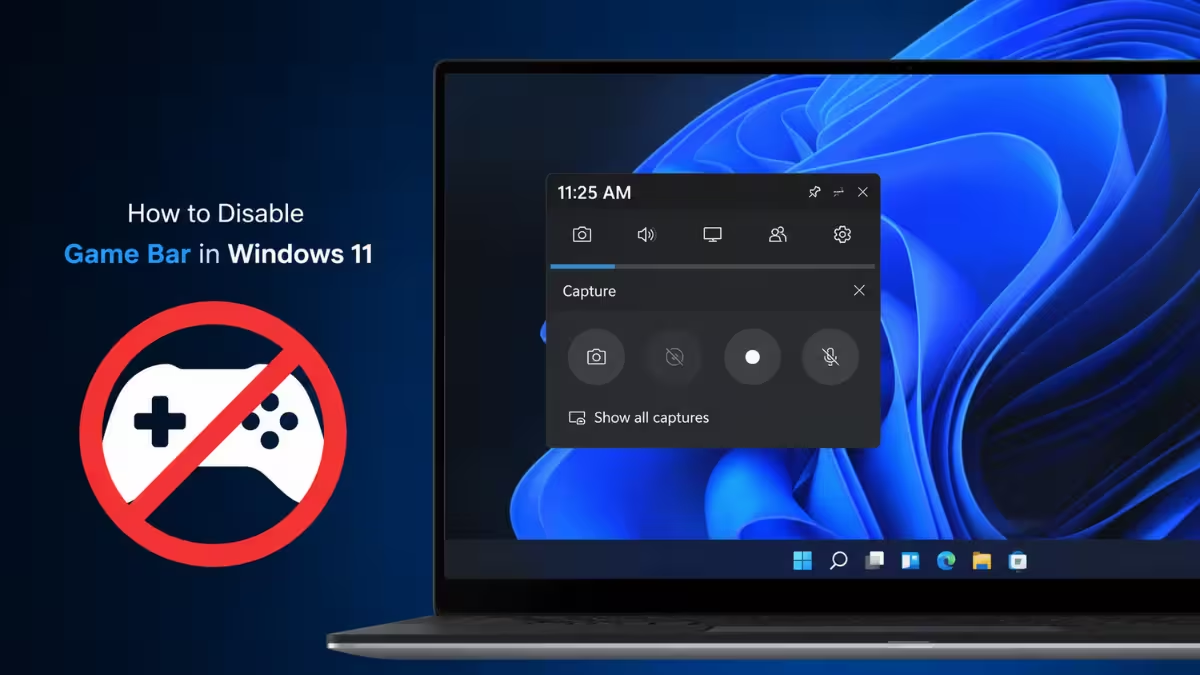
There is no single switch that removes Game Bar completely on its own. Turning off the main toggle stops the overlay from opening, but background recording, controller access, and update-related reinstalls each need a separate step. This guide covers every method, from the quickest Settings toggle to a full removal through PowerShell, along with how to confirm the change actually worked.
Method 1: Turn Off Game Bar in Settings
This is the fastest method and works for most Windows 11 Home and Pro users.
- Open Settings using
Win + I. - Go to Gaming > Xbox Game Bar.
- Toggle the switch to Off.
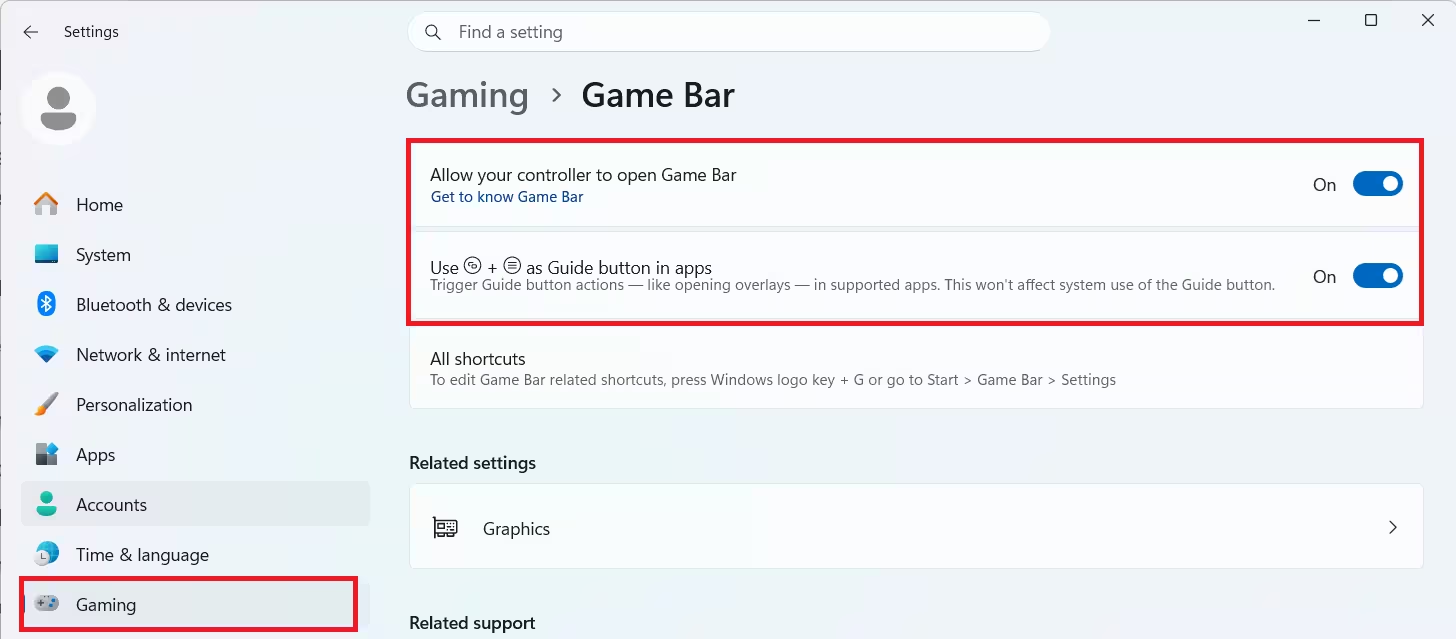
- On the same page, also turn off Open Xbox Game Bar using this button on a controller, since this toggle works independently and can still open the overlay even after the main switch is off.
- Restart the PC to fully clear the Game Bar process from memory.
Method 2: Disable Background Recording (Captures)
Turning off the main toggle does not always stop background clip recording, so this step closes that gap.
- In Settings, go to Gaming > Captures.
- Turn off Record in the background while I’m playing a game.
- Also disable Show my captures on the profile card if I share a screenshot or clip, if visible.
Method 3: Disable Game DVR via Group Policy (Pro and Enterprise)
Group Policy blocks Game Bar at a system level and prevents it from re-enabling itself after updates.
- Press
Win + R, typegpedit.msc, and press Enter. - Navigate to User Configuration > Administrative Templates > Windows Components > Windows Game Recording and Broadcasting.
- Open Enable/disable Game DVR and set it to Disabled.
- Click Apply, then restart the PC.
This method is not available on Windows 11 Home since it lacks the Group Policy Editor.
Method 4: Disable Game DVR via Registry Editor
Use this if Group Policy Editor is unavailable, since it edits the same underlying setting directly.
- Press
Win + R, typeregedit, and press Enter. - Navigate to
HKEY_CURRENT_USER\System\GameConfigStore. - Find
GameDVR_Enabledand set its value to0. - If the key does not exist, right-click the empty space, select New > DWORD (32-bit) Value, name it
GameDVR_Enabled, and set it to0. - Restart the PC for the change to apply.
Always back up the registry before editing it, since incorrect changes can affect system stability.
Method 5: Uninstall Game Bar Completely via PowerShell
Use this method if the settings toggles are not enough and Game Bar needs to be fully removed from the system.
- Search for PowerShell, then click Run as administrator.
- To remove Game Bar for the current user only, run these commands one at a time:
Get-AppxPackage *Microsoft.XboxGameOverlay* | Remove-AppxPackage
Get-AppxPackage *Microsoft.XboxGamingOverlay* | Remove-AppxPackage- To remove Game Bar for all user accounts on the PC, run these instead:
Get-AppxPackage -AllUsers *Microsoft.XboxGameOverlay* | Remove-AppxPackage
Get-AppxPackage -AllUsers *Microsoft.XboxGamingOverlay* | Remove-AppxPackage
A Windows feature update can reinstall these components later, so this removal may need to be repeated after major updates.
Method 6: Reinstall Game Bar via PowerShell
Use this if Game Bar was removed with PowerShell and is needed again later.
- Open PowerShell as administrator.
- Run this command to reinstall Game Bar for the current user:
Get-AppxPackage *Microsoft.XboxGamingOverlay* | Foreach {Add-AppxPackage -DisableDevelopmentMode -Register "$($_.InstallLocation)\AppXManifest.xml"}- To reinstall it for all users, run this command instead:
Get-AppxPackage -allusers *Microsoft.XboxGamingOverlay* | Foreach {Add-AppxPackage -DisableDevelopmentMode -Register "$($_.InstallLocation)\AppXManifest.xml"}Game Bar can also be reinstalled directly from the Microsoft Store by searching for Xbox Game Bar and selecting Install.
How to Confirm Game Bar Is Disabled
Check these points after applying any of the above steps to make sure the change actually took effect.
- Press
Win + G. If Game Bar was only disabled through Settings, nothing should open. If it was removed with PowerShell, Windows may prompt to find an app in the Microsoft Store instead. - Connect a controller and press the Xbox button. The overlay should not appear if the controller toggle was turned off.
- Open Task Manager from the taskbar and check the Processes tab for any Game Bar or capture-related entries still running.
Seeing other Xbox-related services in Task Manager is normal, since components like Gaming Services and the Xbox app are separate from Game Bar and are not removed by these steps.
How to Fix Win + G Still Opening Game Bar
If the shortcut still triggers Game Bar after disabling it in Settings, this section covers the remaining cause.
Go back to Settings > Gaming > Xbox Game Bar and recheck the main toggle. Windows sometimes reverts it after a feature update, so it needs to be turned off again and the PC restarted before the shortcut fully stops responding.
Frequently Asked Questions
Does disabling Game Bar affect game performance?
No, Game Bar itself has minimal performance impact. Disabling it mainly stops background recording and the overlay popup, not frame rates.
Will disabling Game Bar remove screenshot shortcuts?
Yes, shortcuts tied to Game Bar such as Win + Alt + PrtScn stop working once Game Bar is disabled. Other Windows screenshot tools like Snipping Tool remain unaffected.
Can Game Bar be disabled for one game only?
No, the Settings and registry toggles apply system-wide. Per-game control is not available through Windows settings.
Is it safe to delete Game Bar completely?
Uninstalling Game Bar through PowerShell is possible but not recommended, since some Xbox app features depend on shared components. Disabling it through Settings or Registry Editor is safer and fully reversible.
Why does Game Bar keep turning back on after a Windows update?
Feature updates can reinstall built-in Windows components, including Game Bar, even after it was removed with PowerShell. Registry and Group Policy changes typically survive updates better, but PowerShell removals may need to be repeated afterward.
Read More
- EA FC 27 Pre-Order Guide: Editions, Prices, and Bonuses Explained
- Minecraft Bedrock: Sulfur Cube No Longer Hostile, Here’s Why
- Can You Play Big Walk for Free? PS Plus Essential Access Explained
- Escape from Tarkov Codes: All Active Codes and Rewards
- How to Get Cryogenic Coolant in Palworld 1.0
- How to Get Illuminant Bat in Palworld: Location & Capture Guide

