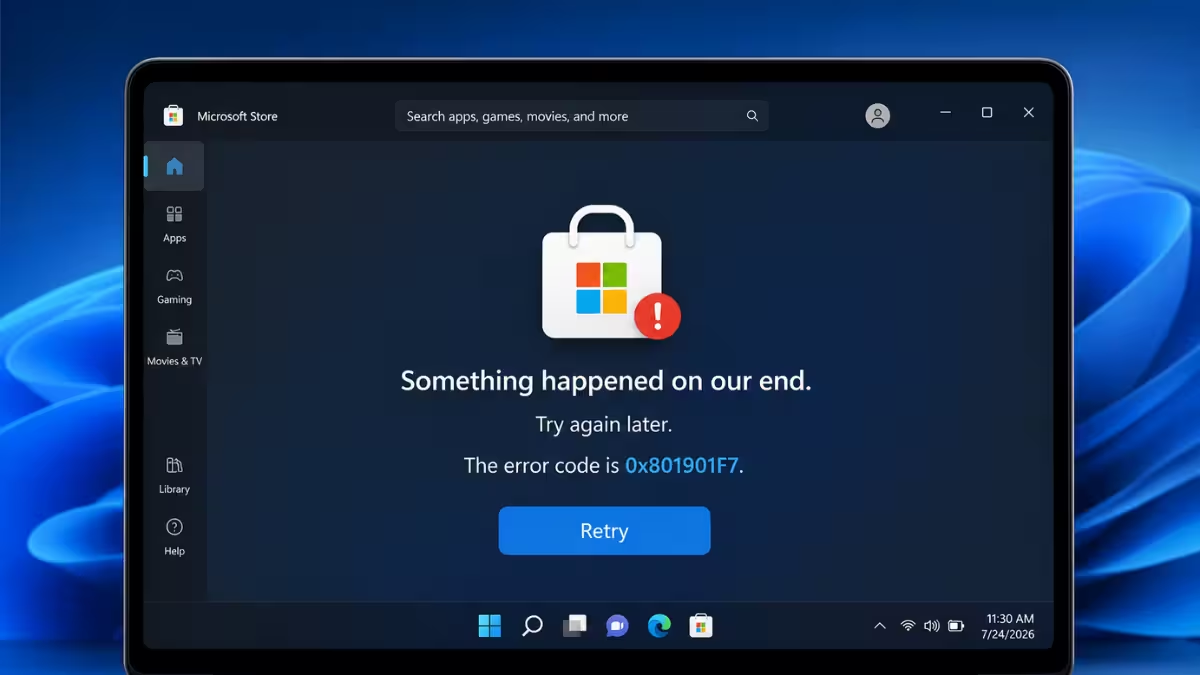
Microsoft Store throws error 0x801901F7 with "The Server Stumbled" when it fails to complete an update, install, or licensing check. The error also shows up in Windows Update and Mail app sync attempts, since all three rely on the same underlying account and licensing services. It usually points to a broken Store cache, a stuck account sync token, a stopped background service, or a network path that blocks the Store's connection to Microsoft's servers.
In most cases the fix is local and takes only a few minutes, working through a cache reset, a service restart, or a proxy check. On occasion the error traces back to a Microsoft-side outage instead, so if none of the local fixes work, it's worth ruling that out before you spend more time troubleshooting. This article walks through both, starting with the fastest fix and working toward the deeper ones.
What Causes Error 0x801901F7
This error is not always a problem on your PC, but a few local factors trigger it repeatedly.
- Corrupted or outdated Microsoft Store cache
- Stuck or invalid account sync tokens tied to the Microsoft account
- A stopped Microsoft Account Sign-in Assistant service
- Group Policy or proxy settings blocking Store traffic
- Pending Windows Update components that the Store depends on
Fix 1: Restart Your PC
A simple restart clears temporary service and network glitches that trigger this error, so try it before anything else.
- Close Microsoft Store and any open apps.
- Restart your PC from the Start menu.
- Open Microsoft Store again and retry the update or install that failed.
Fix 2: Reset the Microsoft Store Cache
A corrupted cache is the next most common trigger for 0x801901F7, and resetting it takes one command.
- Press
Win + Rto open Run. - Type
wsreset.exeand press Enter. - Wait for the blank Command Prompt window to close on its own. This can take up to a minute.
- Microsoft Store opens automatically once the reset finishes.
- Try the update or install that failed again.
Fix 3: Re-sign In to Your Microsoft Account
If the cache reset doesn't fix it, a stuck sync token on your Microsoft account is often the next cause.
- Open Settings and go to Accounts.
- Select Email & accounts or Your info, depending on your Windows build.
- Sign out of the Microsoft account linked to the Store.
- Restart the PC.
- Sign back in with the same Microsoft account and open Microsoft Store to confirm the error is gone.
Fix 4: Restart the Microsoft Account Sign-in Assistant Service
This service handles Microsoft account authentication for the Store, so a stopped service causes this exact error.
- Press
Win + R, typeservices.msc, and press Enter. - Scroll down to Microsoft Account Sign-in Assistant and double-click it.
- Set Startup type to Manual.
- If Service status shows Stopped, click Start, then Apply and OK.
- Restart your PC and open Microsoft Store to test.
Fix 5: Delete the Windows Store Database File
Deleting the Store's local database forces it to rebuild from scratch, which clears corruption the cache reset alone can't fix.
- Open File Explorer and navigate to
C:\Windows\SoftwareDistribution\DataStore. - Locate
DataStore.edband delete it. You may need administrator permission. - Restart your PC.
- Launch Microsoft Store again and check if the error is gone.
Fix 6: Check Group Policy and Proxy Settings
On managed or work PCs, a policy or proxy can block the Store's connection to Microsoft's servers even when the rest of the system is healthy.
- Press
Win + R, typegpedit.msc, and press Enter. - Navigate to
Computer Configuration > Administrative Templates > Windows Components > Store. - Confirm Turn off the Store application is set to Not Configured or Disabled.
- Go to Settings > Network & Internet > Proxy and turn off any manual proxy that isn't required.
- If the error persists, open Command Prompt as administrator, run
netsh winhttp reset proxy, and restart the PC.
Fix 7: Install Pending Windows Updates
Store components can fall out of sync with the OS build, so clearing pending updates removes that gap.
- Open Settings > Windows Update.
- Select Check for updates and install everything listed, including optional quality updates.
- Restart when prompted.
- Open Microsoft Store again and try the failed action.
Fix 8: Check Microsoft's Service Status
Some occurrences of this error trace back to a Microsoft-side outage rather than anything on your PC, so it's worth ruling out before you dig further.
- Visit Microsoft's service health status page in your browser.
- Check for any active incidents affecting Microsoft Store, Windows Update, or account sign-in services.
- If an incident is listed, wait for Microsoft to resolve it and retry the Store action afterward.
Error 0x801901F7 usually clears up with a restart, a Store cache reset, or a quick account re-sign-in, and most readers won't need to go past the first few fixes. If the error persists, work through the service, database, and network checks in order, and rule out a Microsoft-side outage last if nothing local resolves it.
Frequently Asked Questions
Does error 0x801901F7 mean my Microsoft account is banned?
No. The error is tied to a communication failure between the Store and Microsoft's servers, not an account restriction.
Can a VPN cause error 0x801901F7?
Yes. A VPN or proxy can interrupt the Store's connection to Microsoft's servers, so disabling it temporarily is worth testing.
Will resetting the Store cache delete my installed apps?
No. wsreset.exe clears the Store's cache only. It does not remove apps you've already installed.
How long does the "Server Stumbled" error usually last?
It depends on the cause. A local cache or sync issue clears within minutes once you apply the right fix, while a server-side outage can take longer and resolves only when Microsoft fixes it on their end.
Is error 0x801901F7 the same on Windows 10 and Windows 11?
Yes. The error and its causes are the same on both versions, though the exact menu paths for some fixes, such as Settings, differ slightly between the two.
Related Windows Error Fixes
- How to Fix Microsoft Store Error 0x80073CF9 on Windows 11 and 10
- How to Fix Microsoft Store Error 0x800704CF
- How to Find Your BitLocker Recovery Key in Your Microsoft Account
- How to Roll Back Your PC to an Earlier State Using Point-in-Time Restore on Windows 11
- How to Use Microsoft Program Install and Uninstall Troubleshooter