Microsoft Teams stores temporary files, images, and session data in a local cache to load faster on each launch. Over time this cache can grow large or become corrupted, causing Teams to lag, freeze, or show outdated messages and profile pictures. Clearing the cache forces Teams to rebuild these files fresh, which resolves most performance and sync issues.
When Should You Clear Teams Cache on Windows 11?
These are the most common symptoms that point to a bloated or corrupted cache.
- Teams takes unusually long to load or gets stuck on the sign-in screen.
- Messages, channels, or files fail to sync or update properly.
- Profile pictures, images, or icons appear broken or missing.
- The app feels sluggish or freezes during normal use.
- Recurring error messages appear even though your internet connection is stable.
Clearing the cache only removes local temporary files. Your chats, files, teams, and channels stay stored safely in your Microsoft 365 account and are not affected.
Close Microsoft Teams Completely
Teams needs to be fully closed before its cache files can be deleted, otherwise Windows will block the deletion since the files are in use.
- Right-click the taskbar and select Task Manager.
- Look for Microsoft Teams or ms-teams.exe under the Processes tab.
- Select it and click End Task.
- Check for any background processes named Teams.exe and end those too.
Method 1: Clear Cache Using File Explorer
This is the most direct way to remove Teams cache files on Windows 11.
- Press
Win + Rto open the Run dialog. - Type
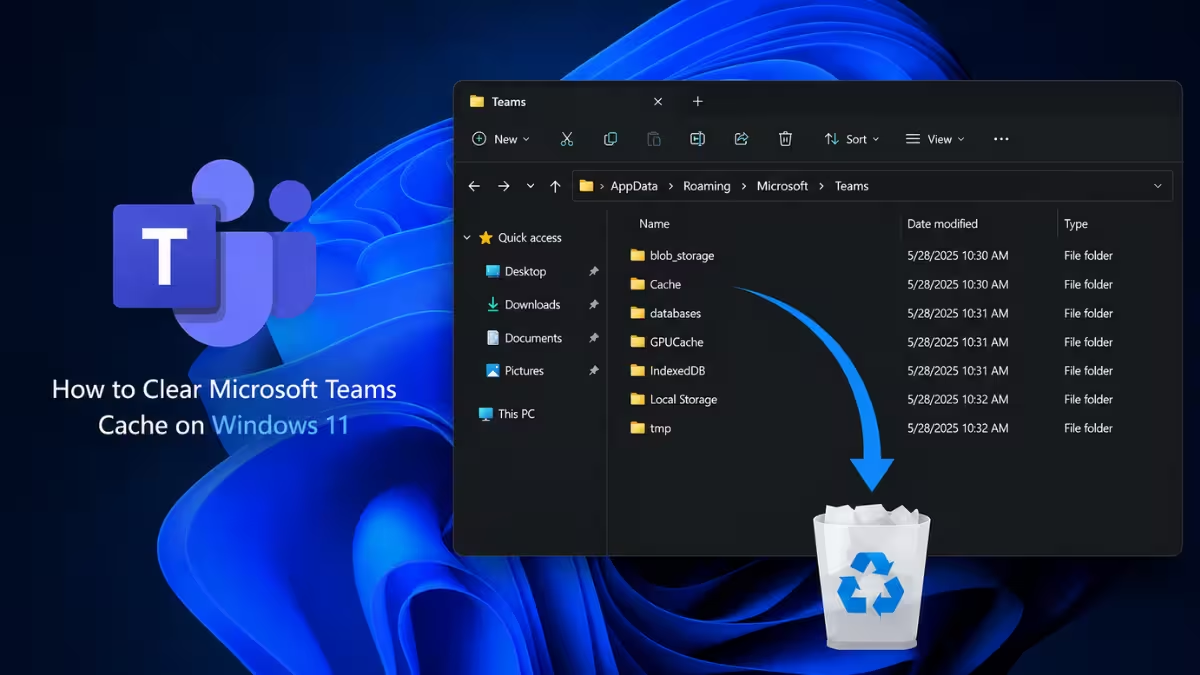
%appdata%\Microsoft\Teamsand press Enter. - Open each of the following folders and delete their contents: Cache, blob_storage, databases, GPUCache, IndexedDB, Local Storage, tmp.
- Close File Explorer and relaunch Teams.
If you're using the new Teams client built on WebView2, the cache instead lives in a different location.
- Press
Win + R, type%localappdata%\Packages\MSTeams_8wekyb3d8bbwe\LocalCache, and press Enter. - Delete the folder contents the same way as above.
- Restart Teams and sign back in.
Method 2: Clear Cache Using Settings (Reset App)
Windows 11 lets you reset an app's data directly from Settings without deleting the whole cache manually.
- Open Settings and go to Apps > Installed apps.
- Find Microsoft Teams in the list and click the three-dot menu next to it.
- Select Advanced options.
- Scroll down and click Reset.
This clears all cached and stored data for Teams, similar to a fresh install. You'll need to sign in again afterward.
Verify the Cache Was Cleared
After clearing the cache, reopen Teams and confirm it launches normally and that chats, calls, and file sharing work without lag or errors. If issues persist, sign out and back into your Microsoft account to force a full resync.
Frequently Asked Questions
Where is the Microsoft Teams cache located on Windows 11?
For classic Teams, the cache is stored at %appdata%\Microsoft\Teams. For the new Teams client, it's stored at %localappdata%\Packages\MSTeams_8wekyb3d8bbwe\LocalCache.
Does clearing the Teams cache delete my chats or files?
No. Cache files are only local copies used to speed up loading. Your chats, files, teams, and channels remain stored in your Microsoft 365 account and are unaffected.
Will I need to sign in again after clearing the Teams cache?
Yes, in most cases. Clearing the cache removes local session data, so Teams will usually prompt you to sign back in the next time it opens.
Why does Teams take longer to open after clearing the cache?
Teams has to rebuild the deleted cache files from scratch on the next launch, which can make the first startup slower than usual. Subsequent launches return to normal speed once the cache is rebuilt.
How often should I clear the Teams cache on Windows 11?
There's no fixed schedule. Only clear the cache when you notice issues like slow performance, sync problems, or outdated content, rather than doing it as routine maintenance.
Related Guides
- Microsoft Teams Efficiency Mode: What It Does and How to Turn It Off
- Microsoft Teams Keeps Asking for Location Permission on Mac: How to Fix It
- How to Add Contacts in Microsoft Teams (When "Add Contacts" Is Missing)
- Microsoft Teams Browser Prompt Now Forces Users to Choose Edge or Default Browser
- Microsoft Teams Expands "People Skills" to Profile Cards, Rolling Out March 2026
- Microsoft Teams Automatic Work Location Delayed Again, Now Rolling Out in March 2026
- Microsoft Teams to Roll Out Brand Impersonation Warnings for Scam Calls