ChatGPT error 503 shows up when OpenAI’s servers cannot handle your request at that moment. It usually clears on its own within minutes, but a few checks help you confirm whether the problem sits with OpenAI or with your own browser and network.

What Causes ChatGPT Error 503
The error points to a temporary capacity or routing problem rather than anything wrong with your account or prompt.
- Server overload from high global traffic on OpenAI’s infrastructure
- Scheduled maintenance or a backend deployment in progress
- A regional routing issue between your device and OpenAI’s servers
- An unstable connection caused by a VPN, proxy, or browser extension
Fix 1: Check OpenAI Status Page First
Before changing any settings, confirm whether the outage is on OpenAI’s end.
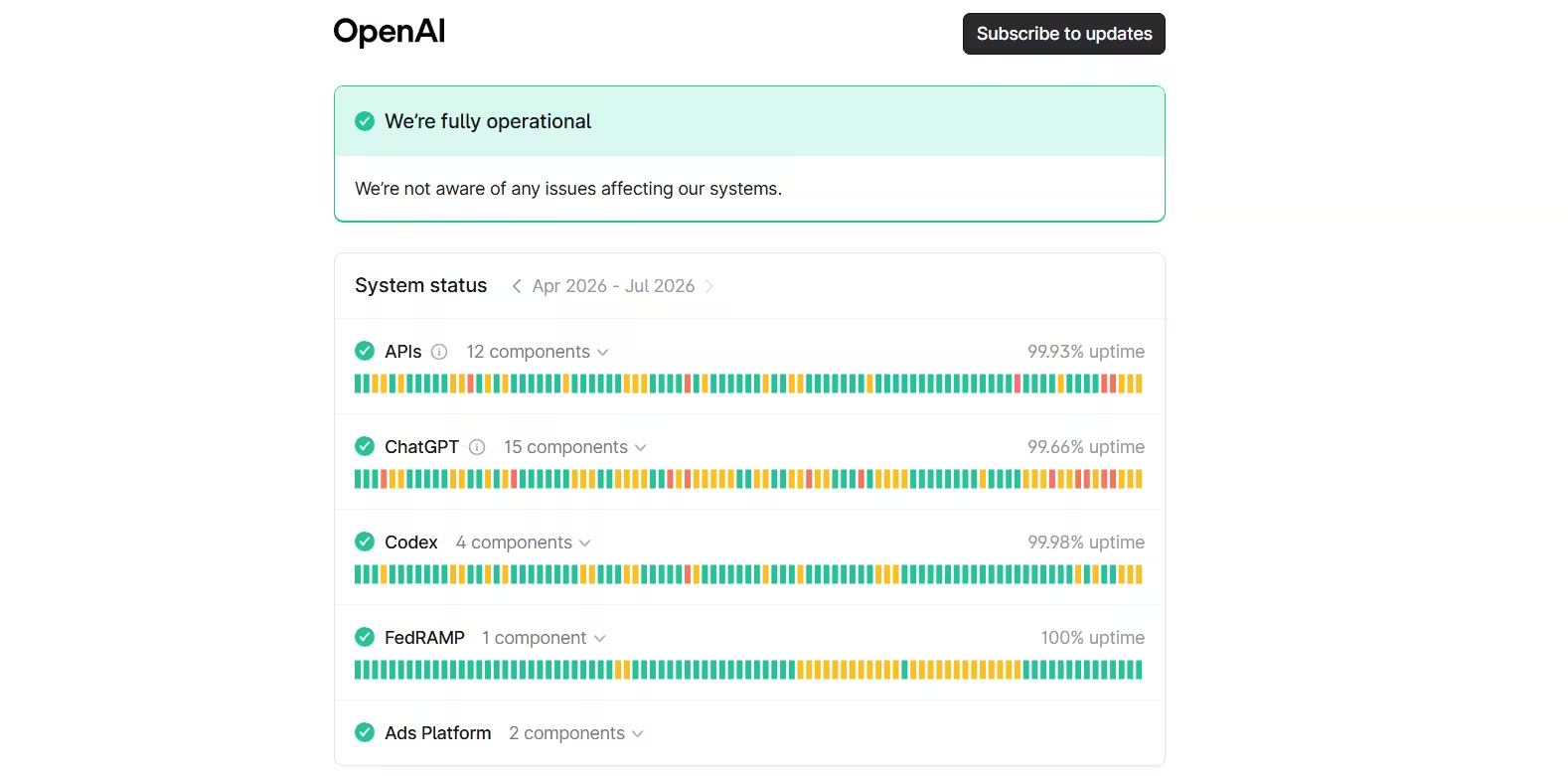
Open OpenAI’s status page and look for an active incident tagged against ChatGPT, login, or file uploads. If an incident is listed, the 503 is server-side and no local fix will remove it. Wait for OpenAI to post a resolution instead of refreshing repeatedly, since repeated requests during an active incident only add load to an already strained system.
Fix 2: Refresh Once and Start a New Chat
A single refresh often clears a 503 that was only a momentary blip.
Reload the page one time and give it a few seconds. If the error persists, open a new chat instead of retrying inside the same thread. Long conversations with heavy context are more likely to trip errors, and a fresh thread avoids whatever broken state the old one picked up.
Fix 3: Test in a Private or Incognito Window
This isolates whether the issue comes from your browser profile.
Open ChatGPT in a private or incognito window with no extensions loaded. If it works there, the problem lives in your regular profile, most likely a cached script, a stale cookie, or an extension conflict. Clear the site’s cookies and cache in your normal browser afterward to fix it permanently.
Fix 4: Disable Extensions, VPN, and Secure DNS
Third-party tools running in the background frequently interfere with ChatGPT’s connection.
Turn off ad blockers, script blockers, password managers, and any privacy extensions one at a time. Also disable VPNs, proxies, and secure DNS filtering, since these can route your traffic through servers that ChatGPT’s system flags or drops. Reload after each change to see which one was responsible.
Fix 5: Switch Networks or Devices
If the error only happens on one network, the routing problem sits outside ChatGPT entirely.
Try ChatGPT on mobile data if it fails on Wi-Fi, or the other way around. Office networks, school networks, and some public Wi-Fi setups apply firewall rules or DNS filtering that block or slow requests to ChatGPT’s servers. A different network usually confirms this within seconds.
How to Tell If It’s an Outage or Your Device
Run a quick two-part test before assuming either side is at fault.
Start by checking scope. Load ChatGPT on a second device using a different network, such as your phone on mobile data instead of your usual Wi-Fi. If the 503 shows up there too, the fault sits with OpenAI and no local change will remove it. If the second device loads fine, the problem is specific to your original browser or network.
If the problem turns out to be local, narrow it further with a private window. Open ChatGPT in incognito mode with extensions disabled. A page that loads there points to a cached file, cookie, or extension conflict on your main profile. A page that still fails in private mode on the same network points to the network itself, most often a VPN, proxy, or firewall rule blocking the connection.
This sequence usually tells you within a minute whether to wait out an outage or keep troubleshooting your own setup.
Is It 503, or a Different ChatGPT Error?
Not every failed request is a 503, and mixing it up with a similar error wastes time on the wrong fix.
A 429 error looks the closest to a 503 on the surface, since both stop your request cold, but the cause is the opposite. A 503 means OpenAI’s servers are overloaded regardless of what you did. A 429 means your own account or client sent too many requests too quickly, and the fix is to slow down rather than wait for OpenAI.
A 500 error and a 502 error both happen further along the same request chain. A 500 means the server accepted your request but hit an unexpected fault while generating a reply. A 502 means a gateway in front of ChatGPT got a broken response from whatever service sits behind it. Both respond to the same short wait and retry that works for a 503, so if you are unsure which one you are looking at, the immediate steps do not change.
A plain network error is different in kind from all of these, since it means your device never reached OpenAI’s servers in the first place. That points you toward your Wi-Fi, VPN, or browser rather than anything happening on OpenAI’s side.
Frequently Asked Questions
Does ChatGPT error 503 mean my account is banned?
No. A 503 is a temporary service availability issue and has nothing to do with account status, billing, or bans.
How long does a ChatGPT 503 error usually last?
Most 503 errors clear within a few minutes to an hour. Wider outages tied to a status page incident can take longer to resolve.
Will refreshing the page repeatedly fix a 503 error faster?
No. Repeated refreshing does not speed up recovery and can add unnecessary load during an active outage. One refresh is enough to test if the error has cleared.
Is a 503 error different from ChatGPT being slow?
Yes. A 503 blocks the request outright with an error message, while slowness means the request goes through but takes longer than expected to respond.
Related Error Fixes
- How to Fix ChatGPT Error 401 Unauthorized (App and API Guide)
- How to Fix ChatGPT Error 404 “Page Not Found”
- How to Fix ChatGPT Error in Message Stream (Step-by-Step)
ChatGPT Guides

