Developer Mode gives you a root shell, lets you sideload Android apps and opens system files to modification, but it also erases every local file and turns off ChromeOS boot security checks. This guide shows you how to turn on Developer Mode on a Chromebook laptop, tablet or Chromebox, what to back up first and how to turn it off again.
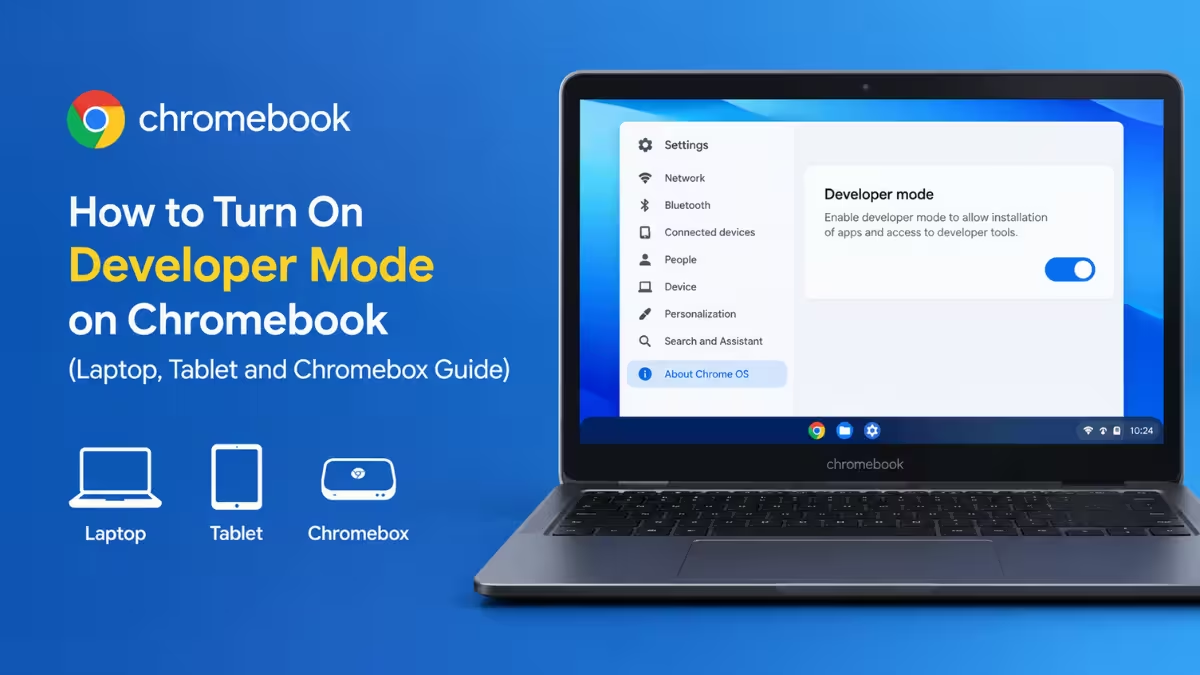
What Is Developer Mode on a Chromebook?
Developer Mode turns off Verified Boot, the check ChromeOS runs at every startup to confirm nobody altered the system.
With that check off, you can run commands as root, install custom firmware, load another operating system and sideload APK files. Google documents the feature openly in its Chromium OS debug button reference, so you are using a built-in switch, not an exploit.
Every Chromebook also shows an OS verification is OFF screen at each boot while the mode stays on. That screen is permanent and cannot be hidden.
Do You Need Developer Mode? Alternatives That Skip the Wipe
Many tasks people associate with Developer Mode now work without it, and the alternatives keep your data and your security intact.
- Linux apps: Open Settings, go to Advanced, then Developers, and turn on the Linux development environment. It runs inside a protected container, so no wipe happens.
- APK sideloading: Recent ChromeOS versions let you install APK files through Android Debug Bridge from the Linux environment.
- Terminal diagnostics: Press
Ctrl + Alt + Tto open Crosh for ping, battery and network tests. - Experimental features: Visit
chrome://flagsfor hidden toggles that need no special mode.
Use Developer Mode only when you need a root shell, custom firmware, a different operating system or system-level changes the options above cannot cover.
What to Do Before Turning On Developer Mode
Switching modes triggers a Powerwash, which deletes all local accounts and files. Prepare the device before you press any keys.
- Copy the Downloads folder to Google Drive, a USB drive or an SD card. Nothing in Downloads syncs by default.
- Write down your Wi-Fi password, because you must reconnect after the wipe.
- Plug in the charger. A battery that dies during the wipe can leave the device needing a recovery USB.
- Use the built-in keyboard. External USB keyboards often fail to register the recovery combination.
Why Developer Mode Is Blocked on School and Work Chromebooks
Enterprise policy disables Developer Mode on managed devices, and the block sits in the firmware.
A school or employer that manages your Chromebook almost always turns the feature off. If Ctrl + D does nothing or an administrator message appears, ask your IT team, because no key combination overrides that block.
Method 1: How to Turn On Developer Mode on a Chromebook Laptop
This method covers most Chromebooks with a built-in keyboard.
Step 1: Boot into Recovery Mode
Hold Esc + Refresh, the circular arrow key in the top row, then press the Power button once. Let go of all three when the screen changes to a message about a missing or damaged system or a request for a recovery USB. The message looks alarming but means you reached the right screen.
Step 2: Press Ctrl + D
Press Ctrl + D on the recovery screen. The screen never mentions this shortcut, and it is the only route to Developer Mode from here.
Step 3: Confirm the Prompt
A prompt asks whether you want to turn OS verification off. Press Enter, or use the arrow keys to highlight Confirm and then press Enter, depending on your ChromeOS version.
Step 4: Wait for the Wipe
The Chromebook reboots and shows Preparing system for Developer Mode. The wipe takes 5 to 15 minutes, and older models with slow eMMC storage can run past 20. Keep the lid open and the charger connected, and do not press keys.
Step 5: Skip the Warning Screen
When the wipe finishes, the OS verification is OFF screen appears. Press Ctrl + D to boot immediately, or wait about 30 seconds for the beep and an automatic boot. This screen returns at every startup while Developer Mode stays on.
Never press Space on this screen. Space turns verification back on and starts another full wipe.
Step 6: Set Up the Device Again
You land on the Welcome screen. Choose a language, connect to Wi-Fi and sign in with your Google account. Synced Drive files, bookmarks and extensions return within minutes, while unsynced local files stay gone.
Step 7: Confirm Root Shell Access
Press Ctrl + Alt + T to open Crosh and type shell. A bash prompt means Developer Mode works. An error means the switch did not take effect, so repeat Steps 1 to 4. Keep this shell open if you plan to apply the security steps further down.
Method 2: How to Turn On Developer Mode on a Chromebook Tablet (No Keyboard)
Tablets and detachables have no full keyboard, so you use hardware buttons instead.
- Turn the tablet off.
- Hold Volume Up, Volume Down and Power together for about 10 seconds, then release. The recovery screen appears.
- Use the volume buttons to move through the recovery menu and select the option to enable Developer Mode.
- Press Power to confirm.
- Choose Boot from Internal Disk when the boot options appear.
The same Powerwash runs, so back up your files first. When the wipe finishes, follow Steps 6 and 7 of Method 1 to set up the tablet and confirm root shell access. Step 7 needs a keyboard, so connect one first.
Method 3: How to Turn On Developer Mode on a Chromebox or Chromebit
Desktop units have a small recovery button instead of a key combination.
- Shut the device down.
- Push a paperclip into the recovery button hole.
- Power the device on while the paperclip stays pressed.
- Release the paperclip when the recovery screen appears.
- Press
Ctrl + Don a connected keyboard and follow the confirmation prompt.
The wipe starts after you confirm. Continue from Step 4 of Method 1 to finish the setup.
Developer Mode Risks and How to Reduce Them
Anyone with physical access can open a root shell without a password once Verified Boot is off. Run these steps in the shell from Step 7 to reduce that risk.
- Run
chromeos-setdevpasswdin the shell to set a root password. - Keep automatic updates on, because ChromeOS still updates in Developer Mode.
- Avoid public Wi-Fi for banking or other sensitive sessions.
- Use a spare device or a secondary Google account for experiments instead of your main work machine.
How to Turn Off Developer Mode on a Chromebook
Turning the mode off restores Verified Boot and wipes the device a second time.
- Restart the Chromebook.
- Press Space at the OS verification is OFF screen. This is the same key Step 5 told you to avoid, so press it only when you want to leave Developer Mode.
- Confirm when prompted.
- Wait for the Powerwash to finish and set up the device again.
Back up your files before you start, because this wipe erases everything local, just like the first one.
Developer Mode Not Working on a Chromebook
Most failures come from timing, a managed device or an interrupted wipe.
Esc + Refresh + Power Reboots Normally
Hold Esc + Refresh first, keep holding, then tap Power and continue holding the first two keys for another second or two. Use the built-in keyboard, not an external one.
Ctrl + D Does Nothing
Your Chromebook is probably managed by a school or business. Only the managing organization can lift that block, as the section on school and work Chromebooks above explains.
The Device Freezes on the Preparing Screen
Wait a full 30 minutes before you assume it failed, because slow storage takes that long. If the screen stays frozen after that, create a recovery USB with the Chromebook Recovery Utility on another computer and reinstall ChromeOS.
The Shell Command Returns an Error
Developer Mode did not engage. Check that the OS verification is OFF screen appears at boot. If it does not, repeat the recovery steps from the start.
Frequently Asked Questions
Does Developer Mode delete my files?
Yes. Both turning it on and turning it off trigger a Powerwash that removes all local data and accounts. Files synced to Google Drive return after you sign in, but everything stored only on the device is lost.
Does Developer Mode void the Chromebook warranty?
Enabling the mode alone does not void a hardware warranty on most devices, since Google built the feature into the firmware. Flashing custom firmware or installing another operating system can affect coverage, and support teams often ask you to return to normal mode before they diagnose software problems.
Can I enable Developer Mode on a school or work Chromebook?
No. Administrators block it through enterprise policy, and no shortcut bypasses that restriction. Contact your IT department if you have a legitimate need.
Do ChromeOS updates still install in Developer Mode?
Yes. Updates download and install on the usual schedule. If you modified system files, an update can fail or overwrite your changes.
Do I need Developer Mode to run Linux apps or sideload APKs?
No. The built-in Linux environment runs without it, and modern ChromeOS supports APK installs through Android Debug Bridge inside that environment. Choose Developer Mode only when you need deeper system access.
Read more
- How to Fix DHCP Lookup Failed Error on Windows and Chromebook
- Android Auto Signal Icon Fix Is Rolling Out: What Google Confirmed
- How to Improve Apple Music Audio Quality With Lossless, Hi-Res and EQ Settings
- Apple Pencil Tip Replacement: How Often to Change It and How to Do It
- How to Fix Chrome High Memory Usage on Windows, Mac, and Linux

