Staring at an empty canvas wastes more time than building the map itself. AI mind mapping tools fix that. You type a topic or drop in a PDF, and the software hands you a structured map with branches you can edit, expand or rearrange.
The catch is that these tools differ a lot once you go past the first draft. Some let the AI keep working on the same map as you edit it. Others generate a fresh map every time you ask for a change. Some read PDFs and YouTube videos, while others only accept a typed prompt.
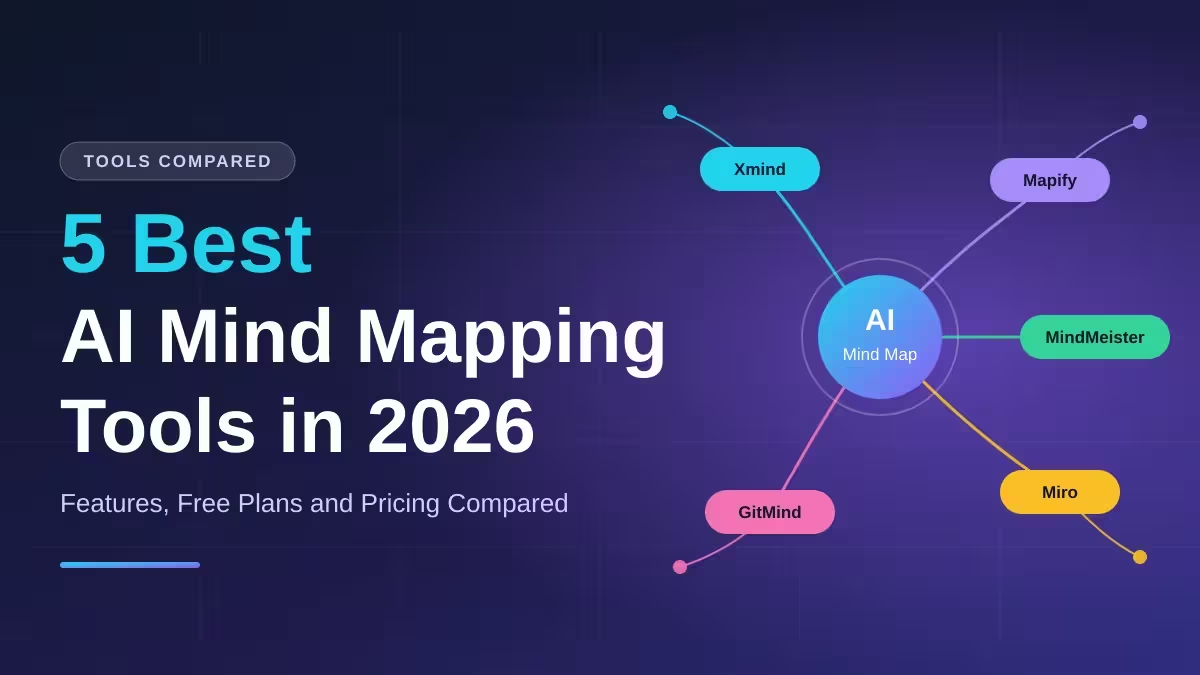
We picked five tools that cover the most common needs: classic mapping, document conversion, budget use, team workshops and simple online collaboration.
What Is an AI Mind Mapping Tool?
An AI mind mapping tool builds a visual map of connected ideas for you. You give it a prompt, a document or a link, and it creates a central topic with branches and sub-branches. Most tools also expand a branch on request, summarize long content and let you restructure the map by hand.
Like other AI productivity tools, they help people plan projects, outline articles, break down study material and run team brainstorms. The real value is speed. The AI gives you a first draft in seconds, and you spend your time improving it instead of starting from nothing.
AI Mind Mapping Tools Compared: Features, Free Plans and Pricing
| Tool | Best For | Builds Maps From Files | Free Plan | Paid Plans Start At |
|---|---|---|---|---|
| Xmind | Polished classic mapping with an AI chat | Yes (Premium tier only) | 10 maps, 10 AI credits | About $4.92/month (annual) |
| Mapify | PDFs, YouTube videos and research papers | Yes (paid plans) | 30 one-time credits | About $5.99/month (annual) |
| GitMind | Budget file-to-map conversion | Yes, even on free | 3 maps | About $4.92/month (annual) |
| Miro | Team workshops and whiteboard sessions | No, prompts only | 3 boards | $8/member/month |
| MindMeister | Beginners and simple team collaboration | Limited | 3 maps | About $3.50/month (annual) |
How We Picked These AI Mind Mapping Tools
We compared each tool on the same points, so the list reflects real differences instead of marketing claims.
- AI that knows your map: Does the chat edit the same map, see your manual changes and keep your work, or does it regenerate a new map every time?
- File input: Can it build a map from a PDF, video, audio file or web page, or only from a typed prompt?
- Manual control: Can you rename, drag and restructure nodes yourself?
- Free plan value: Does the free tier support real work, or does it run out after a few credits?
- Collaboration and export: How well do teams work together, and which export formats come free?
Prices in this guide come from each vendor's recent public pricing. They change often, so confirm the current number on the vendor's site before you subscribe.
1. Xmind: Best for Polished Maps With an AI Chat Assistant
Xmind has built polished, presentation-ready mind maps for more than a decade, and its AI now does real work instead of a one-time generation. The AI chat keeps editing the same map, understands what already sits on the canvas and can reference files you upload during the conversation.
You can start from a prompt, pick a Thinking Mode for deeper output and switch the generation language. After that, you get full manual control over every branch. Xmind supports several structures, including tree charts, logic charts, timelines and fishbone diagrams, so one tool covers study notes, article outlines and project plans.
Its Zen Mode hides everything except your map, which helps when you need to think without distractions. Native apps run on Windows, macOS, Linux, iOS and Android, and the desktop focus makes it a strong pick for solo users.
Pros
- AI chat edits the existing map and stays aware of its content
- Clean, professional map designs with many layout styles
- Native desktop and mobile apps on every major platform
- Exports to PDF, PNG and Office formats
Cons
- File-to-map input sits in the Premium tier and skips audio and video
- AI actions beyond generate and expand are thin (no AI summarize or relationship suggestions)
- Real-time collaboration trails cloud-first tools like Miro
- SVG and Markdown exports need a paid plan
Pricing: The free plan allows 10 maps and 10 AI credits. Pro costs $10 per month or $59.04 per year (about $4.92 per month). Premium adds file input and more AI usage. Check the Xmind pricing page for current rates.
Pick it if: you want beautiful, structured maps you control by hand, with an AI assistant that helps instead of taking over.
2. Mapify: Best for Turning PDFs and YouTube Videos Into Mind Maps
Mapify starts from content you already have. Paste a YouTube link, upload a PDF or add an audio file, and it pulls out the main ideas and arranges them into a structured map. For students facing a 50-page paper or anyone who wants the gist of a long webinar, this saves serious reading time.
Its chat works as a real copilot. It edits the map in place, knows what the map contains and keeps the node edits you made by hand. Summarizing sits at the core of the tool, and you can also expand branches or reorganize a section through chat in multiple languages.
Mapify runs on the web, as a Chrome extension, and on iOS and Android.
Pros
- Converts PDFs, YouTube videos, audio, documents and images into maps
- AI chat respects your manual edits instead of wiping them
- Strong summarizing for research and lecture content
- Available on web, browser extension and mobile
Cons
- You cannot build a map from a blank canvas; every map starts from AI generation
- Editing the map at all requires a paid plan
- The free tier gives only 30 one-time credits and exports PNG only
- The chat grounds itself on one file at a time
Pricing: The free plan includes 30 one-time credits. Basic costs $9.99 per month (about $5.99 per month billed annually), Pro costs $19.99 per month and Unlimited costs $29.99 per month.
Pick it if: your work starts with documents, papers or videos and you want a quick visual summary you can keep refining.
3. GitMind: Best Free AI Mind Map Generator for Files and Web Pages
GitMind punches above its price. It turns PDFs, YouTube videos, audio, websites and images into mind maps, and that conversion works on the free plan with limited credits. Built-in OCR lets it read text from images and scanned documents too.
Beyond mind maps, GitMind handles flowcharts and org charts in the same app. AI actions like Expand, Summarize and multi-language generation are wide for a budget tool. Real-time collaboration and apps for web, Windows, macOS, Linux, iOS and Android make it easy to share maps with classmates or a small team.
The weak spot is the AI chat. It runs separately from your map, so it does not see what is on the canvas. When it suggests an expansion, you copy the answer into a node yourself.
Pros
- File-to-map conversion from PDFs, videos, audio, websites and images on the free plan
- Mind maps, flowcharts and org charts in one tool
- Real-time collaboration with broad platform support
- Low annual pricing
Cons
- AI chat does not know your map or check your source file
- Free plan caps you at 3 maps with node and storage limits
- Design customization stays basic next to Xmind
- No SVG, Markdown or CSV export
Pricing: The free plan allows up to 3 maps. Paid plans start at about $4.92 per month on the annual Basic plan, and Pro costs $19 per month. See the GitMind pricing page for the latest tiers.
Pick it if: you want to map PDFs, videos and web pages without paying much, and you don't mind running AI actions manually.
4. Miro: Best for Team Brainstorming and Live Workshops
Miro is less a mind mapping app and more an endless shared whiteboard where mind maps sit next to sticky notes, flowcharts and project boards. If your team already runs remote workshops, this is where the mapping should happen.
You can type a prompt and Miro's AI builds a mind map on the board. Its AI can also take a messy pile of sticky notes from a meeting and organize them into a coherent map. The chat edits the same map and understands the canvas, and you can expand nodes with questions, ideas or topics, or translate and fix text.
Voting, timers and comments turn brainstorming into a live session, and integrations with Slack, Notion, Google Drive and Jira push ideas straight into project workflows.
Pros
- Best-in-class real-time collaboration and facilitation tools
- AI generates maps from prompts and clusters sticky notes
- Huge template library for workshops and planning
- Deep integrations with popular work apps
Cons
- AI follow-up edits can scramble the map layout
- No map generation from PDFs, audio or video
- The crowded canvas makes focused solo mapping harder
- Many AI features sit behind paid plans
Pricing: The free plan includes 3 boards. Starter costs $8 per member per month, Business costs $20 per member per month and Enterprise uses custom pricing. Visit Miro's pricing page for details.
Pick it if: your team already lives in Miro and wants AI mapping inside the same space where it plans and collaborates.
5. MindMeister: Best for Beginners and Simple Online Collaboration
MindMeister keeps things simple, and that is its biggest strength. It has the easiest learning curve on this list, a clean browser interface and strong real-time collaboration with unlimited collaborators, even on the free plan.
The AI stays focused. It generates a first-draft map from a prompt or a file, and an AI Expand button grows any branch you select. There is no chat, no AI summarize and no restructuring, so the AI acts as a starting point rather than a partner.
MindMeister connects with MeisterTask, which lets you turn map branches into tasks with priorities and due dates. A presentation mode also turns your map into a slideshow for meetings.
Pros
- Fastest tool to learn on this list
- Unlimited collaborators on every plan, including free
- MeisterTask link turns ideas into tasks
- Presentation mode for sharing maps in meetings
Cons
- AI covers only first-draft generation and branch expansion
- Limited file input with no audio or video support
- Free exports are restricted
- No desktop app
Pricing: The free plan allows up to 3 maps. Personal costs about $42 per year (roughly $3.50 per month), Pro about $66 per year and Business about $102 per year. Check MindMeister pricing before you subscribe.
Pick it if: you are new to mind mapping or need a simple shared space where a group can brainstorm together.
Free vs Paid: What You Actually Get on Each Plan
Every tool here offers a free plan, but the limits shape what you can really do.
| Tool | What Free Gives You | When to Upgrade |
|---|---|---|
| Xmind | 10 maps and 10 AI credits | You want file input, more AI credits or SVG and Markdown export |
| Mapify | 30 one-time credits, PNG export only | You want to edit the map or export PDF, SVG and Markdown |
| GitMind | 3 maps with limited AI credits | You need more maps, storage and AI credits |
| Miro | 3 boards | You want the full AI feature set and more boards |
| MindMeister | 3 maps, unlimited collaborators | You need more maps and fewer export limits |
GitMind and Xmind give the most practical free starting point, because you can build real maps without paying. Mapify's free plan works only as a trial, since its credits run out and don't renew.
Which AI Mind Mapping Tool Should You Choose?
Match the tool to where your ideas come from and who works on the map with you.
- You build maps from your own thinking: Xmind gives the best balance of manual control and helpful AI.
- Your ideas start in PDFs, papers or videos: Mapify reads them and keeps refining the result with you.
- You want file conversion on a tight budget: GitMind handles PDFs, videos and websites even on its free plan.
- Your team runs live workshops: Miro puts AI mapping inside a full collaboration board.
- You want something simple to share with a group: MindMeister gets everyone mapping in minutes.
Limits of AI Mind Mapping You Should Know
AI saves time, but it doesn't replace your judgment. Keep these limits in mind before you trust a generated map.
- Repetitive or off-topic branches: The AI can clutter a map with ideas that don't fit your goal.
- Missing context: It doesn't know your business, course or audience unless you spell it out.
- Manual cleanup: Most generated maps need renaming, reordering and pruning.
- Large maps slow down: Some tools lag or lose their layout when a map grows very big.
- Over-reliance: Letting the AI do all the thinking can weaken your own understanding, especially when you study.
Treat every AI-generated map as a first draft and shape it until it matches how you think about the topic.
How to Create a Better AI Mind Map Step by Step
- Write a specific prompt. A vague prompt like "Marketing" produces a generic map. Try "Plan a 6-month digital marketing strategy for a small eco-friendly skincare brand targeting college students" instead. The audience, timeframe and goal sharpen every branch.
- Expand only the weak branches. If "Social Media" looks thin, ask the tool to expand that node with specific content ideas instead of regenerating the whole map.
- Add source material. If your tool supports files, drop in a PDF or video link so the map follows real content.
- Add your own layer. Color-code priorities, mark action items with icons and delete anything that doesn't match your project.
- Review the full map. Check that the structure is logical, simplify crowded areas and export it in the format you need.
Frequently Asked Questions
Can AI create a mind map for me?
Yes. All five tools here can build a mind map from a typed prompt in seconds. Mapify and GitMind can also build one from a PDF, YouTube video, audio file or web page, and Xmind offers file input on its Premium tier.
Which AI mind mapping tool is free?
GitMind gives the most useful free plan for file conversion, with 3 maps and limited AI credits. Xmind's free plan allows 10 maps and 10 AI credits, while Miro and MindMeister each give 3 free boards or maps. Mapify offers only 30 one-time credits on its free plan.
Which tool turns a PDF or YouTube video into a mind map?
Mapify and GitMind both convert PDFs and YouTube videos into maps. GitMind also handles websites, audio and images on its free plan, while Mapify keeps file input on paid plans.
Which AI mind mapping tool is best for teams?
Miro suits teams that run workshops with sticky notes, voting and timers. MindMeister works better for simpler group brainstorming because it is easier to learn and allows unlimited collaborators on the free plan.
Can ChatGPT make mind maps?
ChatGPT can outline a topic in text, but it does not give you an editable visual map. A dedicated tool like Xmind or Mapify lets you drag, rename and expand branches on a real canvas.
Are AI-generated mind maps accurate?
They make a strong first draft but not a finished product. File-based tools tend to follow the real structure of your document closely, while prompt-only maps can feel generic. Always review the branches and edit them by hand.