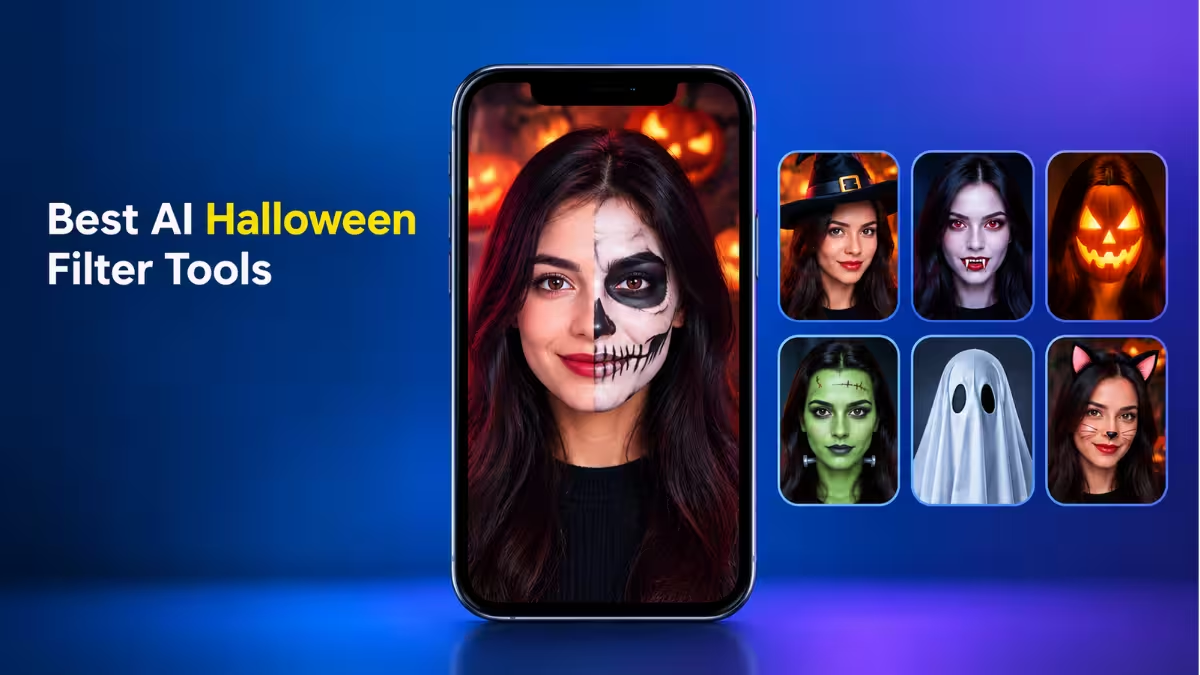
A good Halloween look used to mean face paint, fake blood and an hour in front of the mirror. Now you can upload a selfie and get a zombie, witch or skeleton portrait in seconds. The catch: dozens of tools promise the same thing, and they differ a lot in free limits, watermarks, video support and what they do with your photo.
We compared the popular options and picked five that each do something well. Use the quick table to shortlist, then read the details for the one that fits your plan.
Best AI Halloween Filters Compared: Free Limits, Video and Watermarks
AI Halloween filters turn a single selfie into a vampire, zombie or witch in seconds, and this table shows how the five tools differ on video, sign-up, watermarks and photo deletion.
| Tool | Best For | Video Effects | Sign-Up Needed | Free Watermark | Photo Deletion |
|---|---|---|---|---|---|
| RightHair AI Halloween Filter | Quick face filters | No | For daily credits | Not stated | Claims no storage |
| Media.io | Huge template library | Yes | Yes | Not stated | Within 7 days |
| MindVideo AI | Photo plus video clips | Yes | Yes | Yes | Within 24 hours |
| Photor.ai | Character-style presets | No | Optional | Not stated | Claims no storage |
| FlexClip | Full Halloween videos | Yes | Yes | Not stated | Not stated |
1. RightHair: Best Free AI Halloween Filter for Quick Selfies
RightHair mainly builds hair and face tools, and its Halloween filter follows the same simple pattern. You drop in a photo, pick a look such as vampire, zombie, witch, skeleton, clown, pumpkin or ghost, and download the result in HD. There is no template maze and no prompt to write, so you can finish in under a minute.
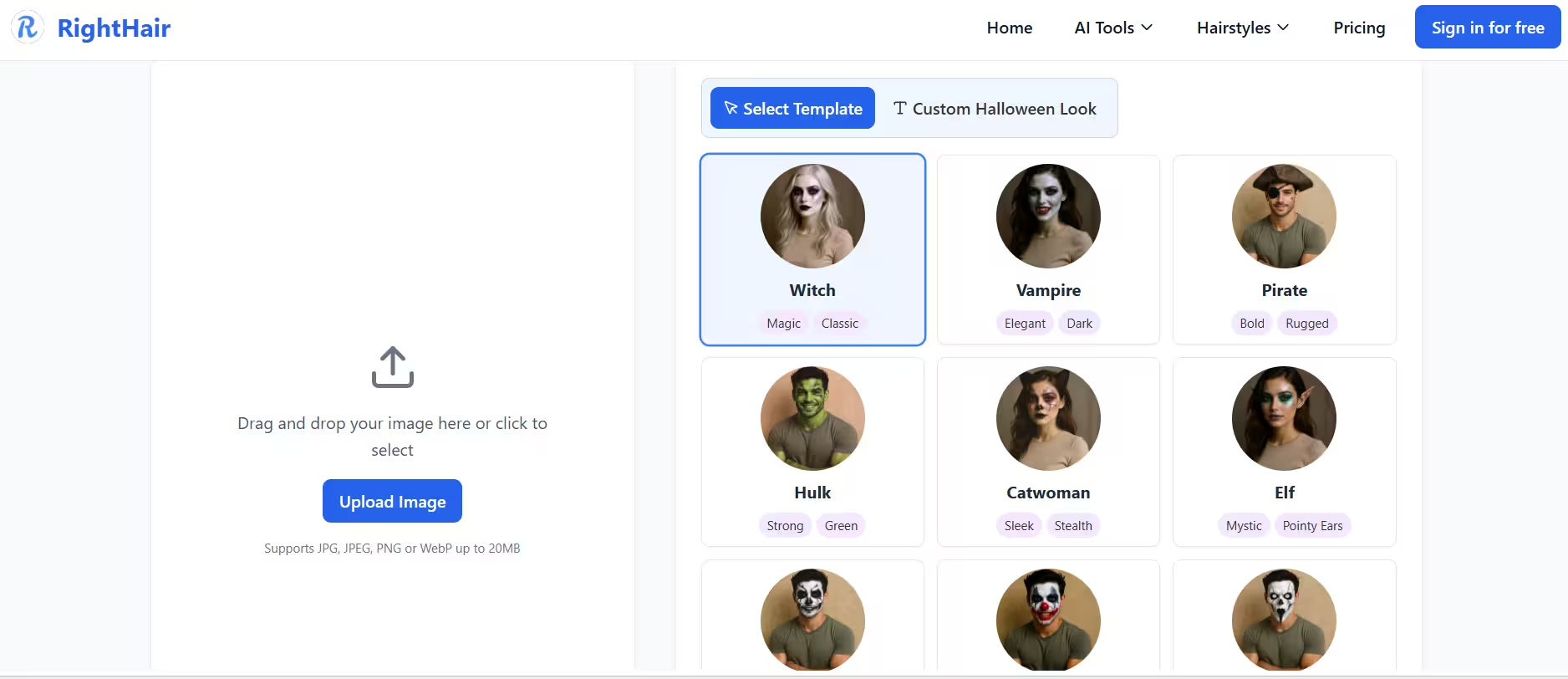
Signing in unlocks 10 free credits every day, which covers casual use. The site advertises "no registration," but those daily credits do need an account, so expect to log in. It accepts JPG, JPEG, PNG and WebP files up to 20MB, runs in the browser, and handles photos only, not video. Choose it when you want one quick Halloween profile picture.
Pros
- 10 free credits every day
- No prompts or templates to learn
- HD downloads in the browser
Cons
- Needs a sign-in despite the "no registration" claim
- Photos only, no video
2. Media.io: Best for Halloween Templates and Video Effects
Media.io treats Halloween as a full content hub. Photo effects, short video effects, spooky sounds and animations all live in one place, backed by more than 2,000 templates.
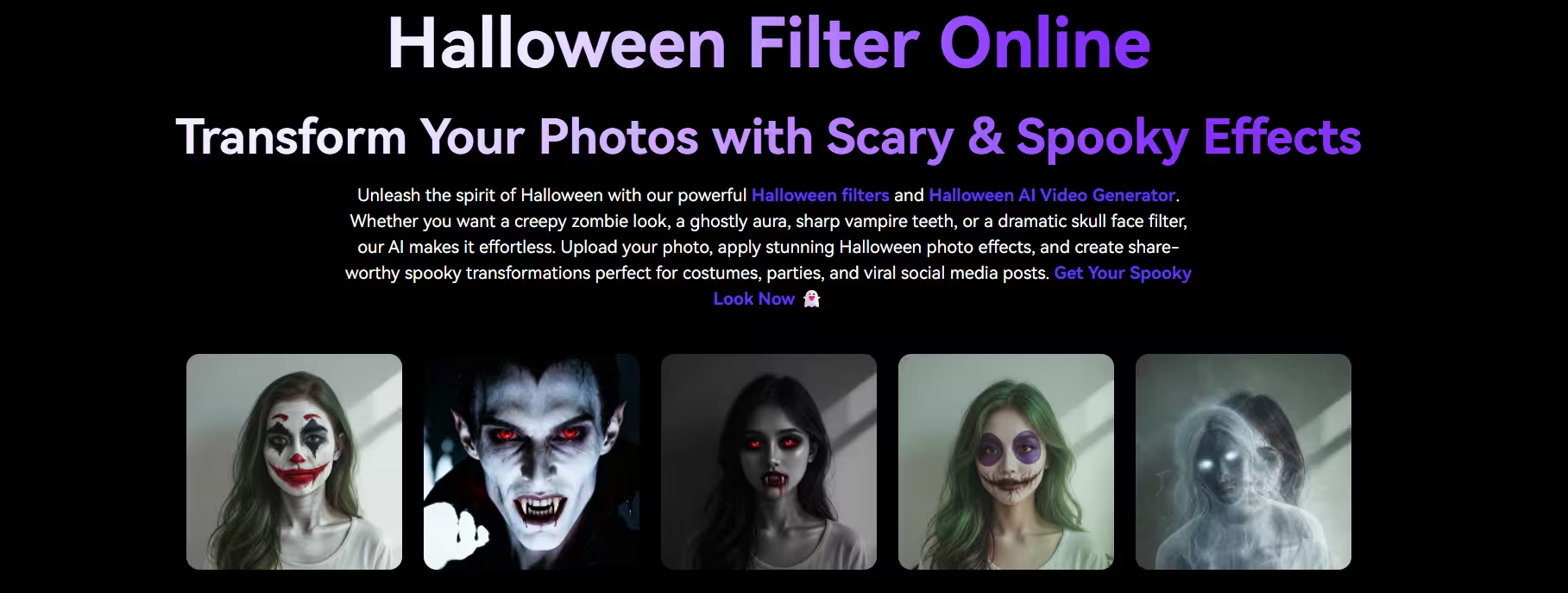
Its real advantage is engine choice. You can run effects through Nano Banana, Kling, Sora 2, Veo 3, Seedream, Runway and others, then refine the result by typing plain instructions like "add moonlit fog" or "make the eyes glow." Face and costume stay consistent across edits, which helps when you plan a carousel post.
- Ready-made looks include zombie, skeleton, vampire, ghost, gothic, Joker-style, Beetlejuice-style and Tim Burton-style
- Exports in 1:1, 9:16 and 16:9 for Instagram, TikTok, Stories and YouTube
- Requires an account, and uploads stay on its servers for up to seven days
Pick it if you create content regularly and want the widest range of styles.
Pros
- More than 2,000 templates
- Many AI engines to choose from
- Photo and video effects in one place
Cons
- Account required
- Uploads stay on its servers for up to seven days
3. MindVideo AI: Best for Halloween Photos and Video Clips
MindVideo splits Halloween into photo filters and video templates. The photo filters restyle your portrait, and the video templates turn the same upload into a short spooky clip, so one photo can feed both your profile and your Reels.
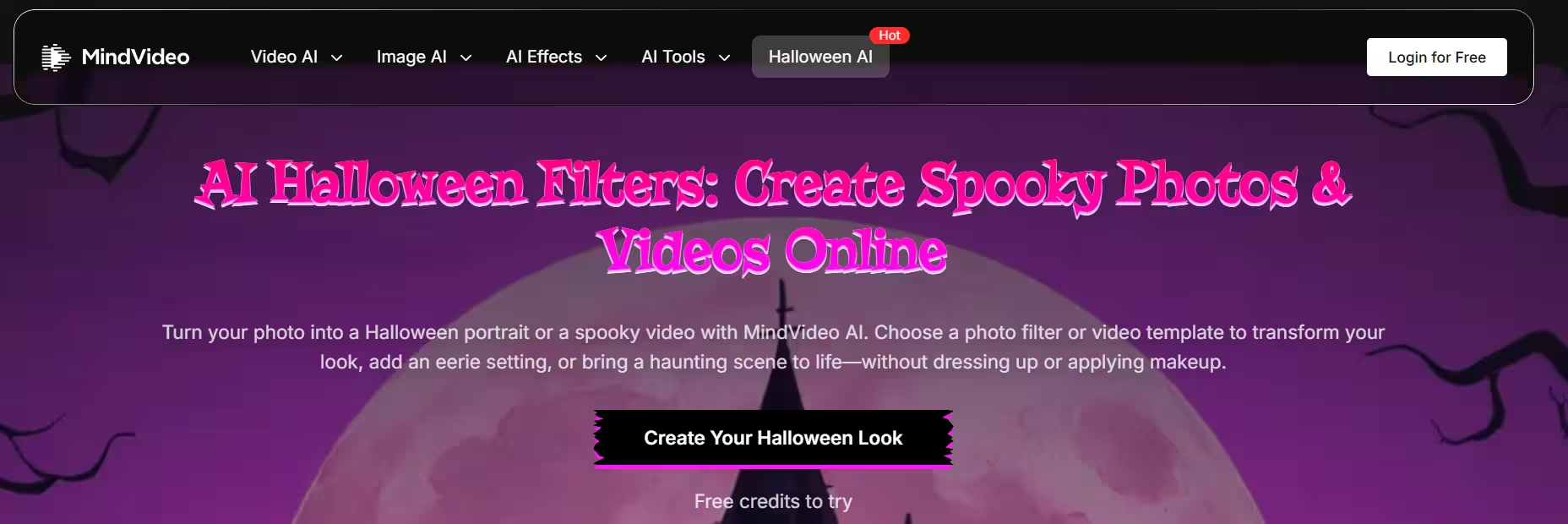
The tool puts heavy weight on keeping you recognizable. A witch, vampire or Ghostface-style look still reads as you. It also works as a costume preview, since you can test a few looks before you buy anything.
You earn free credits through sign-up, daily check-ins and friend invites. Upload a clear half-body or full-body photo, because tight close-ups give weaker results. MindVideo deletes uploads within 24 hours and says it does not train AI on them. The trade-off: free results carry a watermark, and commercial use needs a paid plan.
Pros
- Photo filters and video clips from one upload
- Keeps your face recognizable
- Deletes uploads within 24 hours and does not train AI on them
Cons
- Free results carry a watermark
- Commercial use needs a paid plan
- Works best with half-body or full-body photos
4. Photor.ai: Best for Zombie, Vampire and Skeleton Presets
Photor.ai gives you a clean menu of named presets: Skeleton, Joker, Clown Face, Zombie, Vampire, Beetlejuice, Ghost, Gothic, Black Widow Makeup and Tim Burton. Tap one, and add your own prompt only if you want to tweak it.
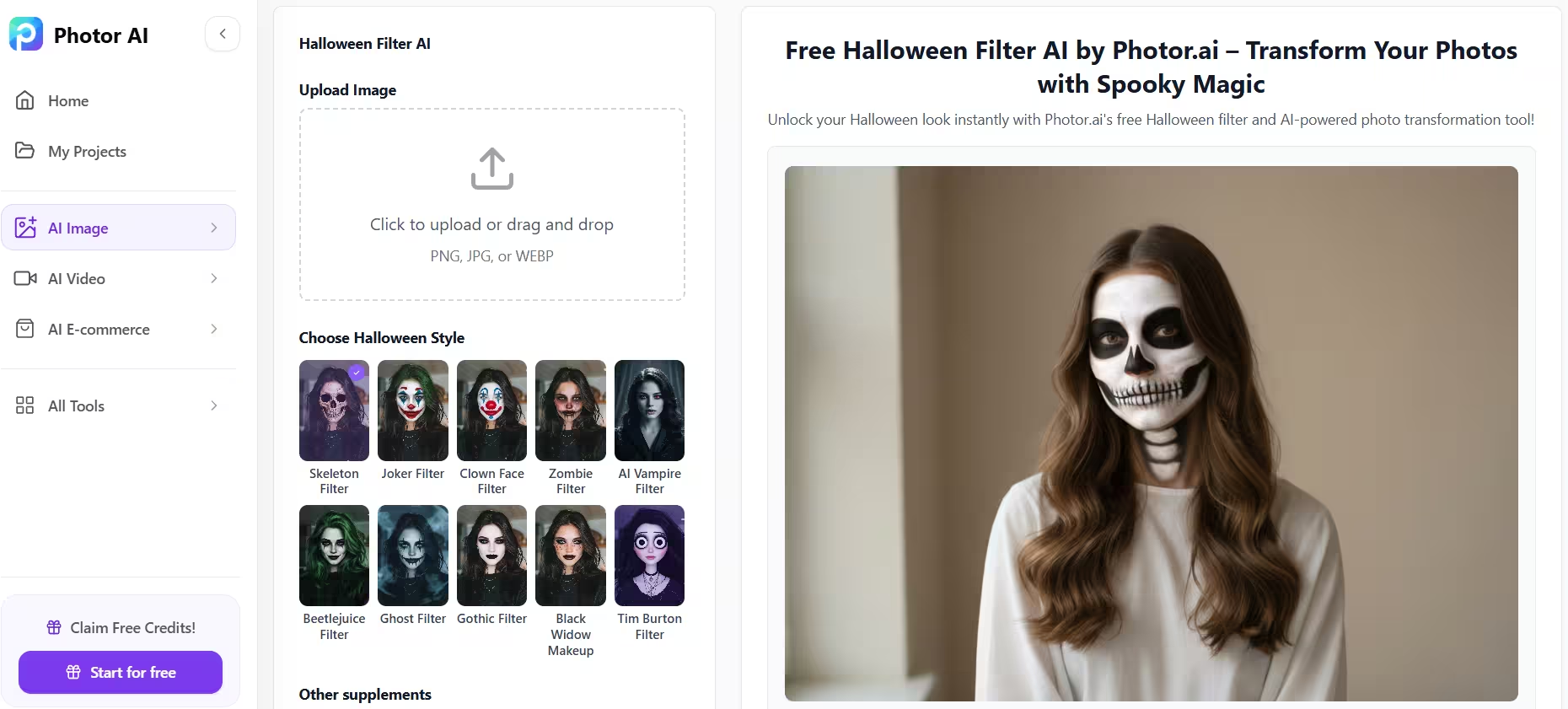
The results aim for makeup-artist realism, with effects that adapt to your facial structure and lighting. If a style does not land, you can switch to another image model from the same page. The tool runs in the browser on desktop and mobile, and it says it does not store or share your uploads.
Start free, then subscribe for more credits. Free images allow personal use only, so brands and freelancers need a paid plan. It suits anyone who wants classic horror characters without writing prompts.
Pros
- Ready presets, no prompt required
- Realistic, makeup-style results
- Says it does not store uploads
Cons
- Free images allow personal use only
- Credits need a subscription
- No video
5. FlexClip: Best for Halloween Videos and Party Invites
FlexClip behaves more like a Halloween video studio than a selfie filter. AI image generation, image-to-image restyling, background removal and an AI video generator sit inside a full editor.
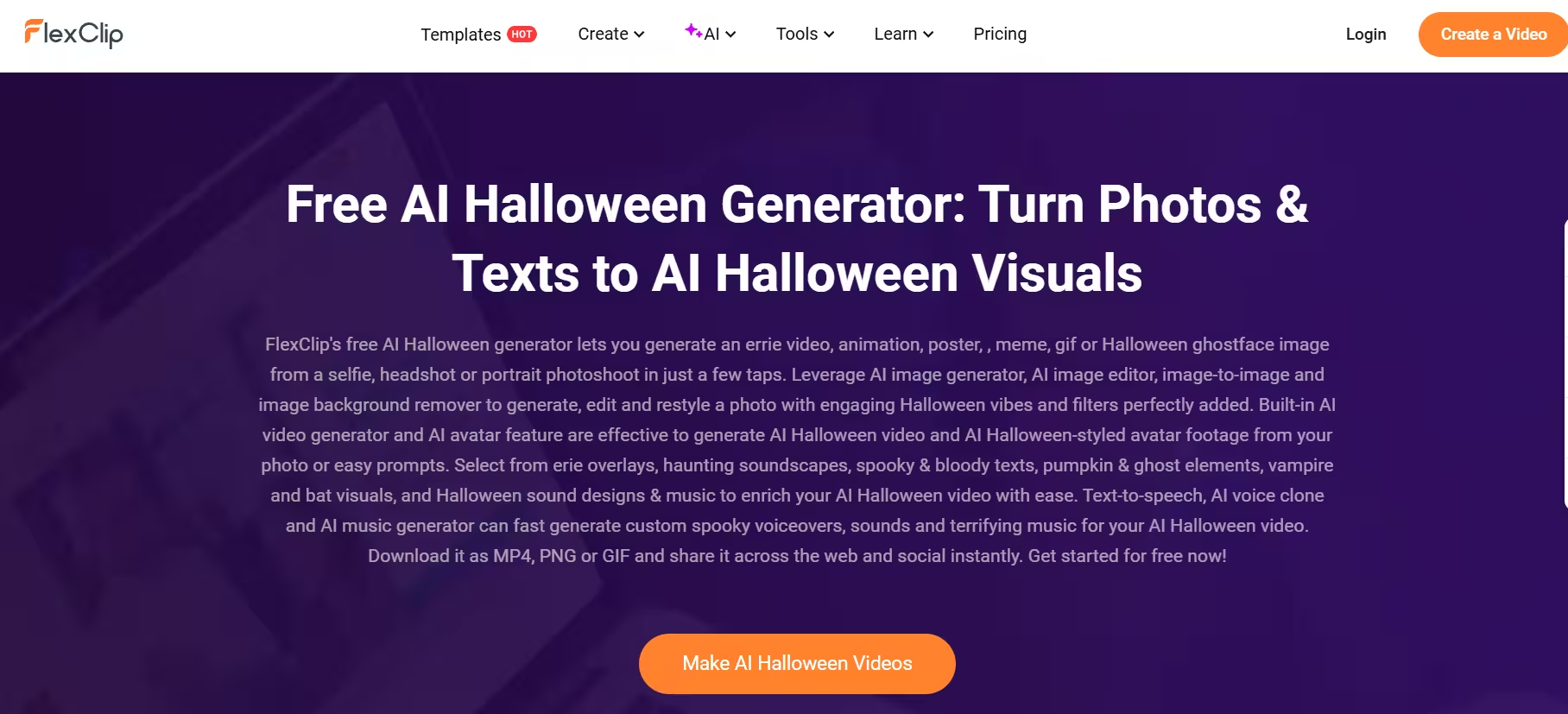
You can build a party invite, a haunted music intro, a spooky reel or a GIF in one project. Add text-to-speech voiceovers, cloned voices or AI-generated music, then layer on eerie overlays, bat and pumpkin graphics and sound effects. Export as MP4, PNG or GIF in several ratios.
Expect a steeper learning curve than one-tap filters. If all you need is a profile picture, FlexClip is overkill. If you want a finished video, it covers every step.
Pros
- Full video editor with templates
- Voiceovers, music and sound effects
- Exports MP4, PNG and GIF
Cons
- Steeper learning curve
- Overkill for a single profile picture
Which AI Halloween Filter Should You Choose?
- For one quick selfie: RightHair or Photor.ai
- For video clips: MindVideo AI or Media.io
- For full edited videos and invites: FlexClip
- For the most styles and AI engines: Media.io
How to Add a Halloween Filter to a Photo with AI in 3 Steps
The process looks almost identical across all five tools. Follow these steps and you will have a result in under a minute.
- Pick a clean source photo. Choose a sharp, well-lit picture where your face points toward the camera. Take off sunglasses and skip photos with heavy beauty filters already applied.
- Choose your look. Tap a preset such as zombie or vampire, or type a short description if the tool accepts prompts. Start with one style, then try others on the same photo.
- Generate, check and download. Zoom in on the eyes, hands and hairline, since AI slips there most often. If something looks off, regenerate or switch styles before you download and share.
Halloween Profile Picture Ideas You Can Make with AI
A seasonal profile picture is the most popular reason people try these tools. These ideas work well on Instagram, Discord, TikTok and WhatsApp:
- Pale vampire portrait: Moody lighting, dark collar and subtle fangs
- Skeleton face paint: Black and white makeup on a plain studio backdrop
- Moonlit witch: Dark hat, deep blue tones and a small glowing lantern
- Friendly ghost glow: Soft mist and a faint light around your face for a cute, not scary, look
- Pumpkin masquerade: Warm orange light and an autumn leaf backdrop
- Pet in a pumpkin cape: A fun option for dogs and cats, if the tool supports pet photos
Crop to a square before you upload, and keep your face centered so the platform's round frame does not cut off the effect.
AI Halloween Filter Prompts You Can Try
Tools that accept written prompts, like Media.io and Photor.ai, respond best to short, specific instructions. Copy these and swap in your own details:
- Vampire: "Turn me into an elegant vampire with pale skin, subtle fangs and a dark red collar. Keep my face and hairstyle. Candlelight from the left, no blood."
- Skeleton: "Add clean black and white skeleton makeup to my face. Keep my expression and clothing. Plain dark background, soft orange side light."
- Witch: "Dress me as a moonlit witch with a black hat and a navy cape. Keep my face recognizable. Teal fog behind me, friendly mood."
- Ghost: "Make me look like a vintage ghost, semi-transparent with a soft glow and faint mist. Keep my pose. Dim blue lighting."
- Pumpkin: "Place me in a warm pumpkin patch at dusk with glowing jack-o-lanterns behind me. Keep my face and outfit unchanged."
Always name what should stay the same, such as your face, hairstyle and pose. That one line prevents most "I do not look like myself" results.
Are AI Halloween Filters Safe? What Happens to Your Photo
Every tool on this list processes your photo on its servers, and some pass it to outside AI model providers. Retention ranges from "never stored" to seven days. Before you upload, check three things: how long the tool keeps photos, whether it trains AI on them, and whether it requires your main email or social login. Avoid uploading children's photos, and ask friends before you turn them into zombies.
How to Get Better Halloween Filter Results
- Use a clear, well-lit, front-facing photo.
- Remove sunglasses, hats and heavy beauty filters before uploading.
- Pick a simple background so the AI focuses on you.
- Try the same photo in two or three styles, since results vary by look.
- Crop for your platform: square for profile pictures, vertical for Stories and Reels.
Frequently Asked Questions
Which AI Halloween filter is completely free?
None offer unlimited free use. Most give daily or sign-up credits. RightHair's 10 daily credits and MindVideo's free credits from sign-up, check-ins and invites make them the most generous for casual users.
Which tool can turn a photo into a Halloween video?
MindVideo AI and Media.io animate your photo into short spooky clips. FlexClip goes further with a full editor, voiceovers and music.
Can I use AI Halloween filters on my pet?
Yes, with the right tool. Photor.ai says it handles pet photos along with portraits and artistic scenes.
Can I use the results for business marketing?
Usually only on paid plans. MindVideo and Photor.ai restrict free results to personal use and unlock commercial rights with a subscription.
Do these tools keep my photos?
Policies differ. MindVideo deletes uploads within 24 hours and Media.io within seven days. RightHair and Photor.ai say they do not store uploads at all.