A Blue Screen of Death that mentions BTHport.sys can look confusing because most users never install or manage this file directly. It belongs to the Windows Bluetooth stack, so the crash usually appears when your PC has a Bluetooth driver issue, a faulty wireless driver package, or a conflict with a low-level system utility.
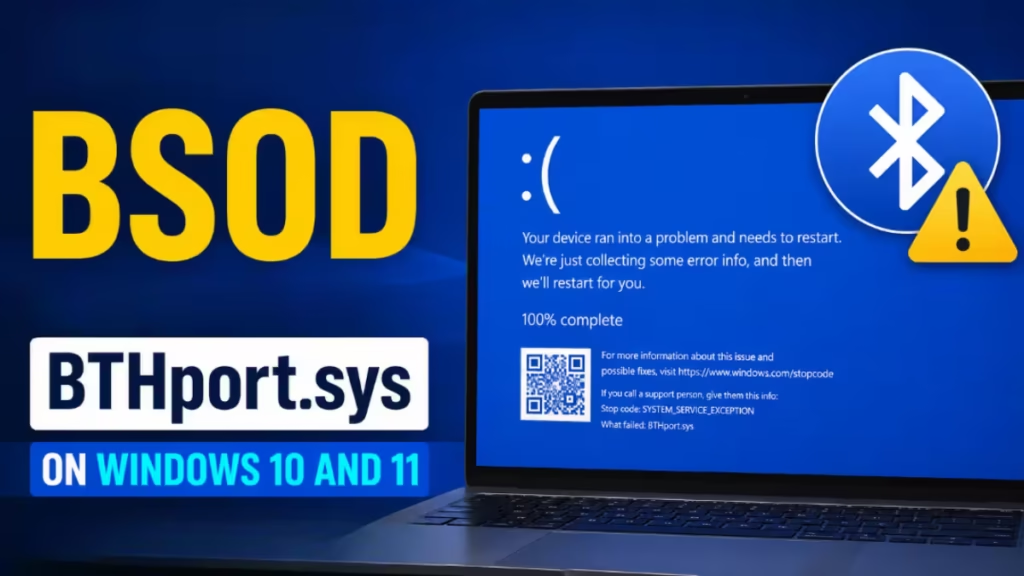
This guide covers every fix for the BTHport.sys BSOD on Windows 10 and Windows 11.
What Is BTHport.sys?
BTHport.sys is a Microsoft Bluetooth port driver. Windows uses it to manage communication between the operating system and Bluetooth hardware.
This file works alongside other Bluetooth-related drivers such as:
- BTHUSB.sys
- BthEnum.sys
- ibtusb.sys
- OEM Bluetooth drivers from Intel, Realtek, Qualcomm, MediaTek, or Broadcom
When Windows crashes and shows BTHport.sys on the stop screen, the real cause often sits deeper in the Bluetooth driver stack. A third-party Bluetooth driver, an outdated Wi-Fi driver, a BIOS issue, or a system utility can all trigger the crash.
Common Stop Codes That Appear With BTHport.sys
The BTHport.sys crash does not always show the same stop code. Different underlying causes produce different errors on the same blue screen.
Some of the most common stop codes reported alongside BTHport.sys include:
- KMODE_EXCEPTION_NOT_HANDLED (0x0000001E): This stop code appears when a kernel-mode driver triggers an unhandled exception. Exception code 0xC000001D within this crash means a driver tried to execute an invalid CPU instruction, which points to a corrupted or incompatible Bluetooth or wireless driver.
- SYSTEM_SERVICE_EXCEPTION (0x0000003B): This crash occurs when a system service or driver causes an exception in kernel mode. Bluetooth drivers and low-level monitoring tools such as MSI Afterburner are common triggers.
- DRIVER_IRQL_NOT_LESS_OR_EQUAL (0x000000D1): This stop code appears when a driver accesses memory at an incorrect interrupt request level. An outdated or corrupted Bluetooth or Wi-Fi driver can produce this crash.
- PAGE_FAULT_IN_NONPAGED_AREA (0x00000050): This error appears when a driver tries to access a memory page that does not exist. Faulty Bluetooth drivers and conflicting third-party drivers are common causes.
- DRIVER_POWER_STATE_FAILURE (0x0000009F): This crash often appears when a Bluetooth device fails to transition correctly between power states, such as after waking from sleep or hibernate.
If your crash shows a different stop code, the troubleshooting steps below still apply because the root cause is usually the same Bluetooth driver stack.
Is BTHport.sys the Real Cause?
In most cases, no. BTHport.sys is a Microsoft system file, and Windows rarely crashes because this file alone has gone bad. It appears in the crash because Bluetooth activity was happening when another driver failed.
The more likely causes include:
- Corrupted or outdated Intel, Realtek, or Qualcomm Bluetooth driver
- Outdated Intel Wi-Fi driver sharing the same wireless chipset
- Old BIOS or chipset driver
- Conflict with MSI Afterburner or RivaTuner Statistics Server (RTCore64.sys)
- Faulty Bluetooth dongle or USB Bluetooth device
- Damaged Windows system files
- Driver conflict after a Windows update
Focus on the Bluetooth driver package and other low-level drivers rather than trying to replace BTHport.sys itself.
Before You Start: Confirm BTHport.sys Is in Your Crash Dump
Before working through the fixes below, confirm that BTHport.sys actually appears in your crash dump. Windows saves a minidump file each time a BSOD occurs, and reading it tells you exactly which driver was active when the crash happened.
Download and install BlueScreenView (free, no installation required) or WhoCrashed. Open the tool after your next crash or point it at your existing dump files located at:
C:\Windows\MinidumpLook for BTHport.sys in the crash details. If you also see another .sys file listed near it, such as RTCore64.sys or a third-party driver, note that filename. It often points to the direct cause and will help you identify which fix to prioritize.
If crash dumps are not saving, open System Properties > Advanced > Startup and Recovery > Settings and set Write debugging information to Small memory dump (256 KB). Restart, reproduce the crash, then check the Minidump folder.
Fix 1: Reinstall the Bluetooth Driver
Start with the Bluetooth driver because the crash directly involves the Bluetooth stack.
- Right-click the Start button.
- Open Device Manager.
- Expand Bluetooth.
- Right-click your Bluetooth adapter.
- Select Uninstall device.
- Tick Attempt to remove the driver for this device if the option appears.
- Click Uninstall.
- Restart your PC.
After the restart, Windows may install a basic Bluetooth driver automatically. Do not stop there. Go to your laptop, motherboard, or PC manufacturer’s support page and install the latest Bluetooth driver for your exact model.
If your system uses Intel Bluetooth, install the latest Intel Bluetooth package from the OEM support page. OEM drivers usually match the device firmware better than generic drivers from Windows Update.
Fix 2: Update the Wi-Fi Driver Too
Many users update only the Bluetooth driver, but that alone may not solve the issue.
Intel wireless cards often combine Bluetooth and Wi-Fi in the same hardware module. A faulty Wi-Fi driver can affect the same wireless chipset and trigger Bluetooth-related crashes.
Update both:
- Intel Bluetooth driver
- Intel Wi-Fi driver
Use the support page from your laptop or motherboard manufacturer. OEM drivers take priority over generic downloads. If the OEM page offers only older drivers, you can use the Intel Driver and Support Assistant as a fallback to find current Intel wireless packages.
Fix 3: Remove MSI Afterburner and RivaTuner Temporarily
MSI Afterburner and RivaTuner Statistics Server use a low-level kernel driver called RTCore64.sys. These tools monitor hardware sensors, control GPU settings, and inject overlays into games. They can trigger a Blue Screen After Installing Graphics Driver or other kernel-level crashes when they conflict with system drivers.
If you see RTCore64.sys in your crash dump alongside BTHport.sys, this fix applies directly to your situation.
Uninstall both if installed:
- MSI Afterburner
- RivaTuner Statistics Server
Restart your PC and use it normally for a few days.
If the BSOD stops, you found a strong suspect. You can reinstall the latest version later, but avoid aggressive overclocking, undervolting, or overlay injection until the system stays stable.
Fix 4: Run a Clean Boot to Isolate Conflicting Software
A clean boot starts Windows with only Microsoft services and drivers running. It removes third-party software from the equation entirely, which makes it much easier to identify whether a background program is causing the crash.
- Press Win + R, type
msconfig, and press Enter. - Open the Services tab.
- Tick Hide all Microsoft services.
- Click Disable all.
- Open the Startup tab and click Open Task Manager.
- Disable every startup item listed.
- Close Task Manager and click OK in msconfig.
- Restart your PC.
Use the system in this state for a day or two. If the BSOD stops, a startup program or third-party service is responsible. Re-enable items in small groups, restarting after each batch, until the crash returns. The last group you enabled contains the problem.
Fix 5: Update BIOS and Chipset Drivers
Bluetooth crashes can also come from firmware and chipset problems that sit below the driver level.
Update these items from your PC or motherboard manufacturer:
- BIOS or UEFI firmware
- Chipset driver
- Intel Management Engine driver (if available)
- USB controller driver (if listed)
- Wireless driver package
A BIOS update can improve hardware compatibility and fix low-level issues that Windows updates cannot reach.
Before you update the BIOS, read the manufacturer’s instructions carefully. Keep the laptop plugged in and do not interrupt the update.
Fix 6: Run SFC and DISM
If Windows system files have corruption, Bluetooth stack drivers can crash even when the hardware driver looks fine.
Open Command Prompt as administrator and run DISM first:
DISM /Online /Cleanup-Image /RestoreHealthAfter DISM finishes, run SFC:
sfc /scannowRestart your PC after both commands finish.
DISM repairs the Windows component store. SFC checks and repairs protected system files using the repaired store as a source. Running them in this order gives SFC the best chance to fix any corruption it finds.
Fix 7: Disconnect External Bluetooth Devices
If you use a USB Bluetooth dongle, wireless controller, headset adapter, or other Bluetooth accessory, disconnect it for testing.
Some crashes happen because of:
- Faulty USB Bluetooth dongle
- Bad USB port
- Buggy headset driver
- Game controller driver conflict
- Bluetooth audio device firmware issue
Test your PC without any external Bluetooth devices for a while. If the crashes stop, reconnect one device at a time until the problem returns.
Fix 8: Turn Off Bluetooth for Testing
This is not a permanent fix, but it helps confirm whether the Bluetooth driver stack is the cause.
Turn off Bluetooth from:
Settings > Bluetooth and devices > Bluetooth
Use the PC for a while with Bluetooth disabled. If the BSOD stops, the Bluetooth driver stack becomes the main suspect.
You can also disable the Bluetooth adapter from Device Manager for deeper testing. Right-click the adapter and select Disable device.
Fix 9: Roll Back the Bluetooth Driver
A Windows update can replace or modify wireless drivers. After that, the system may crash even if everything worked fine before.
Check whether the BSOD started after:
- A Windows cumulative update
- A driver update from Windows Update
- A BIOS update
- A Bluetooth headset installation
- An MSI Afterburner or RivaTuner update
- A new wireless adapter or dongle installation
If the issue started after a driver update, roll back the Bluetooth driver:
- Open Device Manager.
- Expand Bluetooth.
- Right-click your Bluetooth adapter.
- Select Properties.
- Open the Driver tab.
- Click Roll Back Driver if the option appears.
If Windows does not show the rollback option, uninstall the driver and install the correct version manually from the OEM support page.
Fix 10: Check for Conflicting Programs
Some third-party programs install low-level drivers or kernel-mode services that can conflict with the Bluetooth stack.
Common culprits include:
- Antivirus or security tools with deep kernel access
- RGB lighting control software
- Fan and thermal monitoring utilities
- Hardware overclocking tools
Use BlueScreenView or WhoCrashed (see the “Before You Start” section) to identify any unfamiliar .sys file mentioned alongside BTHport.sys. Search for that filename to identify which program installed it. That gives you a specific target to uninstall rather than working through software one by one.
Fix 11: Check Windows Update History
Windows Update occasionally pushes driver updates that cause crashes with different stop codes across multiple sessions.
Check your update history:
- Open Settings.
- Go to Windows Update.
- Click Update history.
- Look for any driver updates installed around the time the BSOD started.
If a specific driver update matches the timeline, uninstall it from Settings > Windows Update > Update history > Uninstall updates.
You can also pause updates temporarily while testing to prevent Windows from reinstalling the problematic driver automatically.
What to Avoid When Troubleshooting BTHport.sys BSOD
Do not download BTHport.sys from random websites. It is a Windows system file, and replacing it manually can break your system.
Avoid these actions:
- Do not replace BTHport.sys manually.
- Do not use third-party driver fixer tools such as Driver Booster, Driver Easy, or similar “Update All” utilities. These tools frequently install mismatched or unsigned drivers that make BSOD problems worse.
- Do not install random Bluetooth drivers from unknown sites.
- Do not ignore RTCore64.sys if it appears in the crash details.
- Do not assume the Microsoft driver is always the root cause.
Focus on the Bluetooth hardware driver, Wi-Fi driver, BIOS, chipset, and low-level monitoring tools.
FAQs
What is BTHport.sys in Windows?
BTHport.sys is a Microsoft Bluetooth port driver. Windows uses it to manage Bluetooth communication between the operating system and Bluetooth hardware.
Does BTHport.sys mean my Bluetooth driver caused the BSOD?
Not always. BTHport.sys appears because the crash happened inside the Bluetooth stack. The real cause may be an Intel, Realtek, Qualcomm, or other third-party Bluetooth driver.
What does KMODE_EXCEPTION_NOT_HANDLED mean with BTHport.sys?
KMODE_EXCEPTION_NOT_HANDLED means a kernel-mode component triggered an exception that Windows could not handle safely. When it appears with BTHport.sys, a corrupt or incompatible Bluetooth driver is usually responsible.
Should I delete or replace BTHport.sys?
No. Do not delete or replace BTHport.sys. It is a Windows system file. Reinstall or update the Bluetooth driver instead.
Can MSI Afterburner cause a BTHport.sys BSOD?
Yes. MSI Afterburner and RivaTuner use RTCore64.sys, a low-level kernel driver. If this driver appears in the crash details alongside BTHport.sys, uninstall those tools temporarily and test system stability.
Why does BTHport.sys BSOD happen after sleep or hibernate?
The crash after sleep or hibernate usually points to a Bluetooth driver that fails to handle power state transitions correctly. Updating the Bluetooth driver and BIOS often resolves this.
Should I update both Bluetooth and Wi-Fi drivers?
Yes. Many Intel wireless cards combine Bluetooth and Wi-Fi in one hardware module. Updating both drivers gives you a better chance of fixing the crash.

