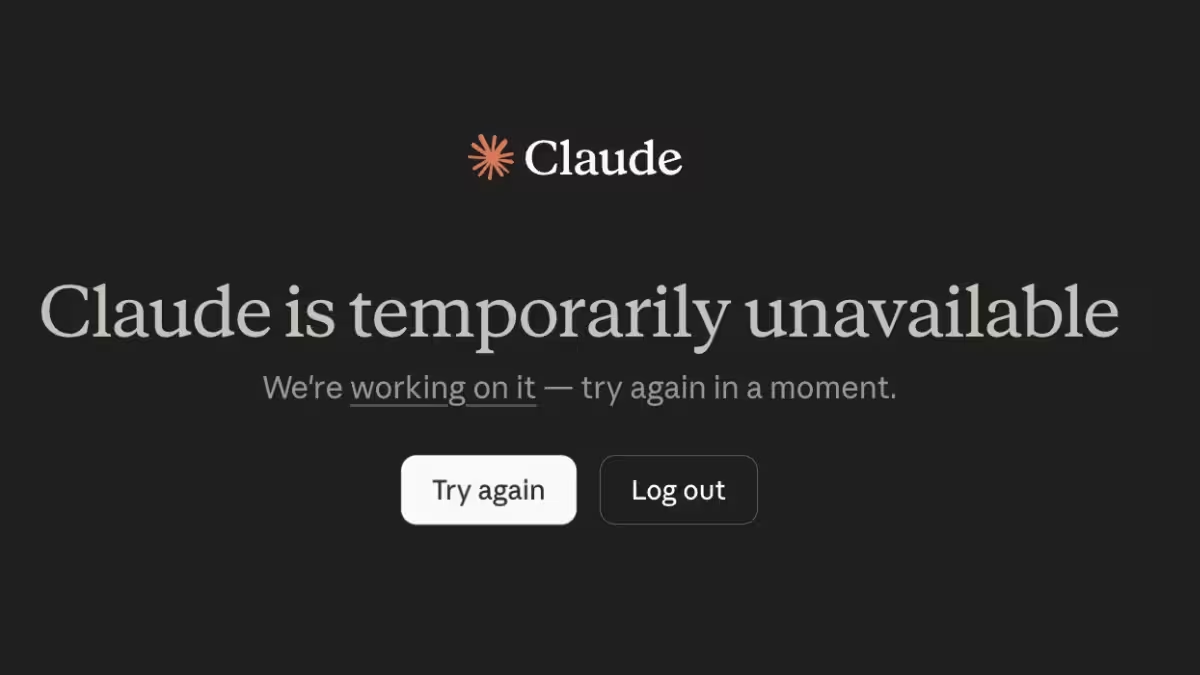
Claude AI chat errors hit at the worst possible moments. Whether you get a blank screen, a cut-off response, or a login loop that refuses to quit, each error has a specific cause and a specific fix. This guide covers every common Claude AI not working scenario and walks you through the fastest way to resolve each one.

1. Claude Says "At Capacity" or Shows a 529 Error
Anthropic's servers throw this error when they handle more traffic than they can serve at that moment. It hits hardest during peak US working hours (roughly 9 AM to 6 PM Eastern time) and clears on its own without you doing anything on your end.
How to fix it:
- Wait 10 to 30 minutes and try again.
- Try during off-peak hours. Early mornings and late evenings see lower server load.
- Upgrade to Claude Pro ($20/month). Paid subscribers get priority server access and hit this error far less often.
- Check Anthropic's status page to confirm whether a broader outage is active.
If you hold a Claude Pro subscription and still hit this repeatedly, check the status page first. An active incident may explain the problem.
2. Claude Cuts Off Responses Mid-Sentence
Claude stops generating before it finishes when one of three things happens: you hit the context window limit, Claude encounters an internal processing error, or a network interruption breaks the connection mid-stream.
How to fix it:
- Type "continue" or "continue from where you left off" and send it. Claude picks up exactly where it stopped in most cases.
- Break large requests into smaller chunks. Asking Claude to write a 5,000-word document in one prompt causes cutoffs regularly. Split it into sections instead.
- For very long conversations, paste the key context back in at the start of a new session. Claude's context window is large but not unlimited, and older content drops out in extended threads.
- Check your internet connection. A weak or unstable connection causes mid-response dropouts.
See also: How to Install Claude Code on Windows in 5 Minutes (2026)
3. Claude Shows an Internal Server Error
Something went wrong on Anthropic's servers while processing your request. This error is almost always temporary and resolves within a few minutes without any action on your side.
How to fix it:
- Wait 2 to 3 minutes, then refresh the page and resubmit your prompt.
- Hard refresh your browser with Ctrl + Shift + R (Windows) or Cmd + Shift + R (Mac).
- Check status.anthropic.com. A widespread internal server error often points to a platform-level incident Anthropic already knows about and is actively fixing.
- Clear your browser cache and cookies, then reload Claude.
If the error keeps returning after 15 minutes and the status page shows no active incidents, try a different browser or switch to a private window.
4. Claude Login Loop (Can't Stay Signed In)
Claude logs you in but immediately redirects back to the login page, or your session keeps expiring. This happens when your browser blocks cookies, when a cached session token goes stale, or after Anthropic pushes an auth-related update.
How to fix it:
- Clear your browser cookies specifically for claude.ai. Go to browser settings, find site data, and delete cookies for claude.ai only.
- Disable browser extensions that block cookies or scripts (Privacy Badger, uBlock, ad blockers). Turn them off temporarily and try logging in again.
- Try a different browser entirely. If Chrome loops, switch to Firefox or Edge.
- On mobile, sign out of the Claude app fully, force-close it, then sign back in.
- Disable your VPN temporarily. Some VPN exit nodes trigger Anthropic's fraud detection and break session handling.
5. Claude File Uploads Keep Failing
Claude rejects your file or shows an upload error when the file exceeds the size limit, uses an unsupported format, or when the upload pipeline itself hits a temporary server issue.
How to fix it:
- Check the file size. If your file is large, compress it or split it into smaller files before uploading.
- Confirm the file format. Claude supports PDFs, common image formats (PNG, JPG, WEBP), and text-based files. It does not support every file type.
- Retry the upload. Anthropic has confirmed temporary upload pipeline issues in the past that resolve within minutes on their own.
- Convert the file. If a PDF fails, copy the text content and paste it directly into the chat instead.
- Check the status page for any active upload-related incidents before spending time troubleshooting locally.
6. Claude Not Responding or Stuck Loading
You send a message but Claude shows a loading indicator without ever returning a response. If Claude throws an explicit sending error instead, see our guide on how to fix Claude error sending message. Otherwise, this usually points to a network problem, a browser issue, or a server-side timeout rather than anything wrong with your account.
How to fix it:
- Check your internet connection first. Run a quick speed test or load another site to confirm your connection works.
- Hard refresh the page (Ctrl + Shift + R on Windows / Cmd + Shift + R on Mac).
- Start a new conversation. A stuck session sometimes blocks all responses in that thread, while a fresh conversation loads fine.
- Disable browser extensions temporarily. Some script-blocking extensions interfere with Claude's response stream.
- Switch browsers. If Claude loads fine in another browser, the issue is specific to your primary browser's configuration.
- On mobile, switch from cellular data to WiFi. Slow or unstable cellular connections cause Claude to time out before it delivers a response.
7. Claude Gives a 429 Rate Limit Error
You sent too many requests too quickly. Claude applies rate limits to prevent overuse, and a 429 means you exceeded those limits for your current plan or API key.
How to fix it:
- Wait before sending another request. Free tier users face tighter limits. Pause for a few minutes and the limit resets automatically.
- Upgrade your plan. Claude Pro users get significantly higher usage limits than free accounts.
- If you use the Claude API directly, implement exponential backoff in your code. Start with a 30-second wait after the first 429, then double the wait time with each retry.
- Reduce request frequency. Spreading out large prompts with short waits between each one keeps you under the threshold.
How to Check if Claude Is Down Right Now
Before spending time troubleshooting on your end, confirm whether the issue is on Anthropic's side. Visit status.anthropic.com to see real-time service health. The page shows active incidents, degraded performance reports, and maintenance windows across claude.ai, the Claude API, and Claude Code.
You can also subscribe to status updates on that page so Anthropic sends you a notification when an incident opens and when engineers resolve it.
Quick Reference: All Claude Errors
| Error | Cause | Fastest Fix |
|---|---|---|
| At Capacity / 529 | Server overload | Wait or upgrade to Pro |
| Response cut off | Context limit or network drop | Type "continue" |
| Internal Server Error | Server-side failure | Wait 2 to 3 min, refresh |
| Login loop | Expired session or blocked cookies | Clear cookies, try different browser |
| Upload failing | File size, format, or temp server issue | Retry or paste content directly |
| Stuck loading | Network timeout or browser issue | Hard refresh, start new conversation |
| 429 Rate Limit | Too many requests | Wait and use exponential backoff |
Most Claude AI not working errors resolve within a few minutes without any action on your side. When they do not, the steps above cover every common scenario. If you still hit a problem after working through this guide, drop a comment below with the exact error message and your platform (web, mobile, or API) and we will help you track down the fix.
FAQs
Why does Claude AI keep saying it is at capacity?
Claude shows the "at capacity" message when Anthropic's servers handle more traffic than they can serve, usually during peak US working hours. Wait 10 to 30 minutes and try again, or upgrade to Claude Pro for priority access.
Why does Claude AI stop responding mid-sentence?
Claude cuts off responses when it hits the context window limit, encounters an internal processing error, or loses the network connection. Type "continue" and send it. Claude picks up from where it stopped in most cases.
What is a Claude AI 529 error?
A 529 error means Anthropic's servers are temporarily overloaded. It is a server-side issue, not a problem with your account or browser. Wait a few minutes and retry. If it persists, check status.anthropic.com for an active incident.
How do I fix Claude AI not loading or stuck on a blank screen?
Hard refresh your browser with Ctrl + Shift + R on Windows or Cmd + Shift + R on Mac, then start a new conversation. If the issue continues, clear your browser cache, disable extensions, or switch to a different browser.
Is Claude AI down right now?
Visit status.anthropic.com to check real-time service health. The page shows active incidents, degraded performance, and maintenance windows across claude.ai, the Claude API, and Claude Code.