A small blank white window opens in the top left corner of the screen every time you start or unlock Windows 11, sits there for a few seconds, then closes without any input from you. This happens because of a Chrome scheduled task, not malware or a corrupted Windows install.
What Causes the Blank White Window
The issue comes from one specific background task that Chrome runs when you sign in.
Chrome installs a scheduled task named RunPlatformExperienceHelperOnUnlock inside a folder called GoogleUserPEH in Task Scheduler. This task fires up Chrome’s Platform Experience Helper process, which handles update checks and syncing between Chrome and its installed extensions in the background. Windows runs this task every time you unlock your PC or sign in, and the helper briefly opens an empty window before closing it.
Chrome updates can re-enable the task even after you disable it, since Chrome resets its own scheduled tasks during updates. The task also does not exist on every Chrome installation, so some PCs with Chrome never show this window.
Fix 1: Disable the RunPlatformExperienceHelperOnUnlock Task
This stops Windows from running the Chrome helper at unlock, which removes the window immediately.
- Press Windows + S and search for Task Scheduler.
- Open Task Scheduler and expand Task Scheduler Library on the left.
- Select the GoogleUserPEH folder.
- Locate RunPlatformExperienceHelperOnUnlock in the list on the right.
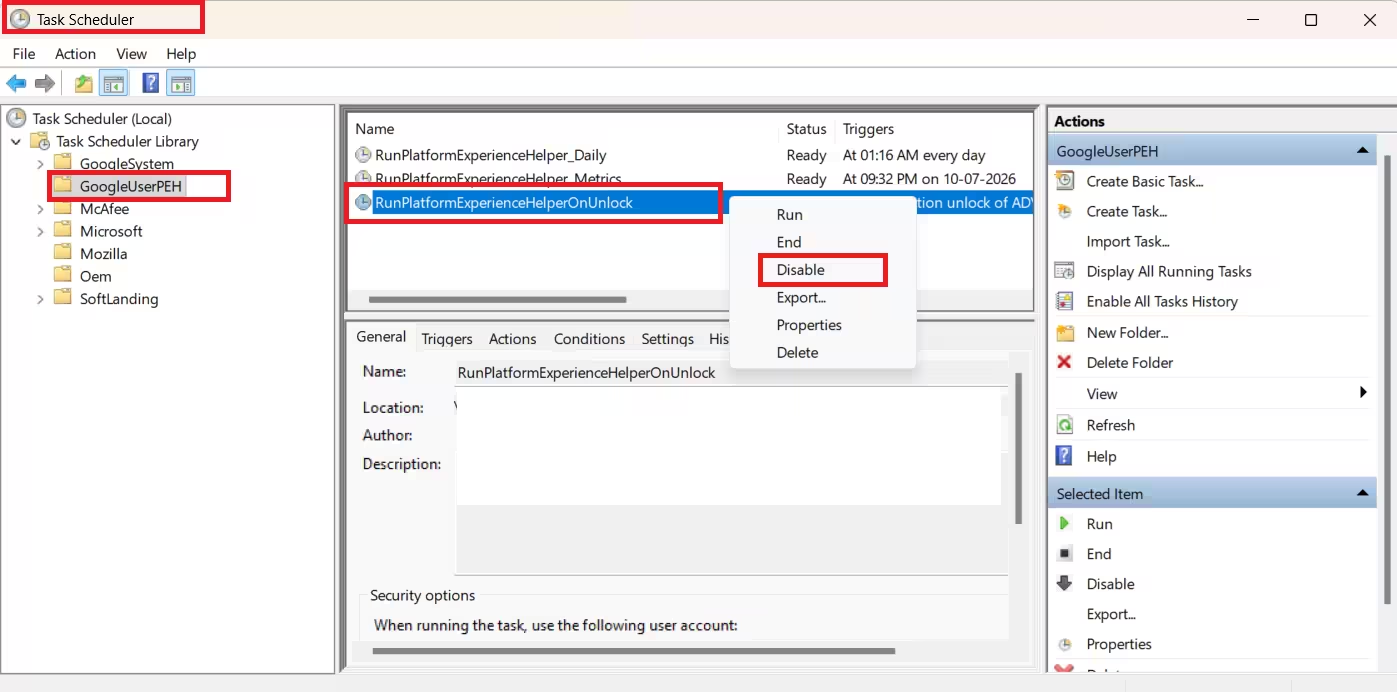
- Right-click the task and select Disable.
- Restart your computer, or lock and unlock Windows to confirm the window no longer appears.
The task status changes from Ready to Disabled, and Windows stops launching it at unlock. Disabling it does not affect your files, Chrome bookmarks, or system stability, since the task only controls a background helper process.
Fix 2: Re-Disable the Task After a Chrome Update
Chrome updates can silently switch the task back to Ready, which brings the blank window back.
- Open Task Scheduler again.
- Go to the GoogleUserPEH folder.
- Check whether RunPlatformExperienceHelperOnUnlock shows Ready instead of Disabled.
- Right-click it and select Disable again.
Run this check after any major Chrome update if the window returns. Chrome has not shipped a permanent fix for this behavior, so the task can reset itself each time the browser updates.
If you rarely use Chrome, uninstalling it removes the GoogleUserPEH folder along with the task inside it, so nothing is left for Windows to run at unlock.
Go to Settings > Apps > Installed apps, find Google Chrome, click the three-dot menu, and select Uninstall. Switch to a different Chromium-based browser like Edge if you still want a similar browsing experience without Chrome’s background tasks.
Frequently Asked Questions
Is disabling RunPlatformExperienceHelperOnUnlock safe?
Yes. The task only controls a Chrome background helper and is not required for Windows or Chrome to function normally. You can re-enable it anytime from Task Scheduler if needed.
Why does the blank window come back after I disable the task?
Chrome updates reset some of the browser’s own scheduled tasks, including this one. Check Task Scheduler after major updates and disable the task again if it shows Ready.
Does this affect Windows 10 as well?
Yes. The same Chrome task causes the identical blank white window on Windows 10, and the fix through Task Scheduler works the same way on both versions.

