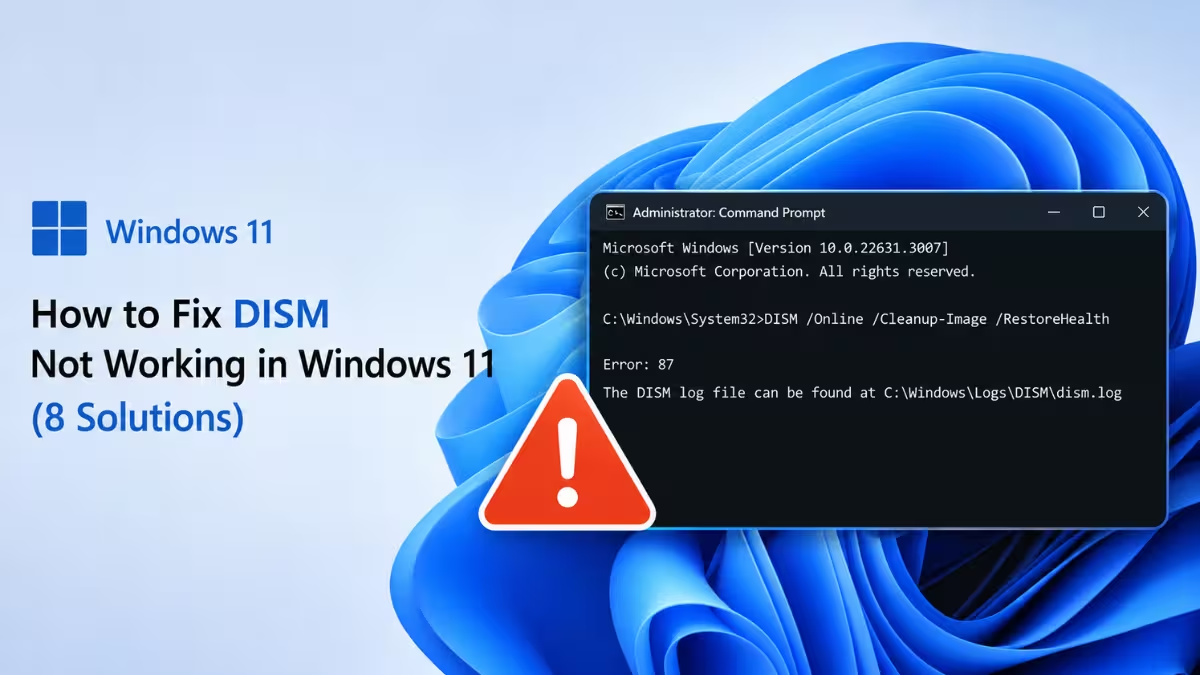
DISM is the tool Windows relies on to repair a damaged component store, yet the tool itself often refuses to run or stalls partway through on Windows 11. Errors like 0x800f081f, Error 87, and a RestoreHealth command that never finishes are common symptoms, and each points to a different underlying cause. The fixes below are ordered from the quickest checks to the more involved repairs, so working through them in order saves time.
What Causes DISM to Stop Working
DISM failures usually trace back to a small set of underlying issues.
- Corruption in the Windows component store or missing system files
- Windows Update components that DISM relies on being broken or paused
- Incorrect command syntax, especially commands copied from older Windows versions
- Third-party antivirus or firewall software blocking DISM from reaching Microsoft servers
- Disk or file system errors preventing DISM from accessing required files
Fix 1: Run DISM as Administrator
DISM requires elevated privileges to access protected system areas, and running it from a standard Command Prompt window is a common reason it silently fails.
- Press
Win + Xand choose Terminal (Admin) or Command Prompt (Admin). - Run
DISM /Online /Cleanup-Image /CheckHealth. - Run
DISM /Online /Cleanup-Image /RestoreHealth. - Let the command run fully before closing the window, since it can appear to hang at certain percentages for several minutes.
Fix 2: Run StartComponentCleanup
If the RestoreHealth command gets stuck, fails repeatedly, or reports that pending operations are preventing servicing, this clears out old component store files that may be blocking the repair.
- Open Terminal (Admin) or Command Prompt (Admin) as in Fix 1.
- Run
DISM /Online /Cleanup-Image /StartComponentCleanup. - If DISM reports that pending actions are preventing servicing, also run
DISM /Online /Cleanup-Image /RevertPendingActions. - Restart the PC, then run the RestoreHealth command again.
Fix 3: Reset Windows Update Components
If DISM hangs while downloading repair files, fails with Windows Update-related errors, or RestoreHealth doesn't complete when using Windows Update as the source, this resets the update pipeline DISM depends on.
- Open Terminal (Admin) or Command Prompt (Admin) as in Fix 1.
- Stop the update services by running
net stop wuauserv,net stop cryptSvc,net stop bits, andnet stop msiserverone at a time. - Rename the update cache folders by running
ren C:\Windows\SoftwareDistribution SoftwareDistribution.oldandren C:\Windows\System32\catroot2 catroot2.old. - Restart the services by running
net start wuauserv,net start cryptSvc,net start bits, andnet start msiserver. - Restart the PC and run the DISM command again.
Fix 4: Use a Windows ISO as the Repair Source
If DISM reports error 0x800f081f or says the source files could not be found, Windows Update is likely unable to supply the repair files DISM needs.
- Download the Windows 11 ISO from Microsoft's official website that matches the edition and build installed on the PC.
- Right-click the ISO and select Mount.
- Note the drive letter assigned to it in File Explorer.
- Open Terminal (Admin) or Command Prompt (Admin) as in Fix 1.
- Run
DISM /Online /Cleanup-Image /RestoreHealth /Source:WIM:D:\Sources\install.wim:1 /LimitAccess, replacingD:with the actual drive letter of the mounted ISO. If the ISO contains aninstall.esdfile instead, use/Source:ESD:D:\Sources\install.esd:1 /LimitAccessinstead.
Fix 5: Run DISM in Safe Mode or Clean Boot
Third-party software and background services can interfere with DISM's access to system files, and running it in a stripped-down environment removes that interference.
- Open Settings > System > Recovery > Advanced startup and select Restart now.
- After the PC restarts, go to Troubleshoot > Advanced options > Startup Settings > Restart.
- Choose Safe Mode.
- Run the DISM commands again from an elevated prompt inside Safe Mode.
Fix 6: Check for Firewall or Antivirus Interference
An overprotective firewall or third-party antivirus can block DISM's connection to Microsoft servers, which prevents online repair from completing. This test is only meant to confirm whether the firewall is the cause, so the firewall should be switched back on immediately after.
- Search for Windows Defender Firewall in the Start Menu and open it.
- Select Turn Windows Defender Firewall on or off.
- Set both Public and Private networks to off temporarily.
- Retry the DISM command.
- Turn the firewall back on afterward regardless of the result.
Fix 7: Run CHKDSK
If DISM fails repeatedly without a clear error message, gets stuck during the scan, or disk corruption is suspected, this checks the drive itself for errors that could be blocking DISM's access to files.
- Open Terminal (Admin) or Command Prompt (Admin) as in Fix 1.
- Run
chkdsk C: /f /r. - If prompted to schedule the scan for the next restart, type
Yand press Enter. - Restart the PC and let the scan run; this can take a while depending on drive size and condition.
- Once Windows starts normally, run the DISM command again.
Fix 8: Repair Install as a Last Resort
If DISM continues to fail even with a valid repair source from Fix 4, the servicing components themselves may be too damaged for DISM to fix on its own.
- Use the same mounted Windows 11 ISO from Fix 4, or mount it again if it was already unmounted.
- Run Setup.exe from the mounted drive.
- When prompted, choose Keep personal files and apps.
- Complete the installation. This replaces damaged servicing components while keeping installed apps and files intact.
Frequently Asked Questions
What does error 87 mean in DISM?
Error 87 points to incorrect command syntax rather than a system problem. It usually happens when a command copied from an older Windows version is missing a slash or uses an unsupported flag on Windows 11.
Can antivirus software cause DISM to fail?
Yes. Third-party antivirus tools can intercept DISM's file operations or block its connection to Windows Update servers, which stops the repair process partway through.
Does DISM need an internet connection to work?
Only when using Windows Update as the repair source. If Windows Update is broken or unavailable, DISM can use a mounted Windows ISO as a local repair source instead.
Should I run SFC or DISM first?
Run DISM first when the component store itself is suspected of corruption, since SFC pulls replacement files from that same store. If SFC scannow reports errors it cannot fix, running DISM RestoreHealth beforehand often resolves them.
Is it normal for DISM to appear stuck at a certain percentage?
Yes. The RestoreHealth operation commonly pauses at 20% and 40% for several minutes while it scans the component store. Interrupting it at these points can cause further corruption, so it should be left to run unless it stays frozen for over an hour.