Microsoft releases Windows 11 Insider Preview builds through the Windows Insider Program, giving users early access to features, UI changes, and fixes months before they reach the stable channel. Setting one up involves enrolling your device, picking an experience that matches your risk tolerance, choosing a version to test, and pulling the build through Windows Update. The process takes about 10 to 15 minutes plus restart time, and it works on any genuine, activated copy of Windows 11 or Windows 10.
Avoid installing preview builds on your primary machine. Use a spare computer or a virtual machine, since these builds are still under development and can include bugs or unfinished features.
Before you start, make sure your PC meets the standard Windows 11 system requirements and is signed in with a Microsoft account, not a local account. Insider Program enrollment will not appear as an option under a local account. If you are still on Windows 10, skip ahead to the Windows 10 upgrade path below instead of Step 1.
Step 1: Join the Windows Insider Program
This step links your device to the Insider Program so it can receive preview builds through Windows Update.
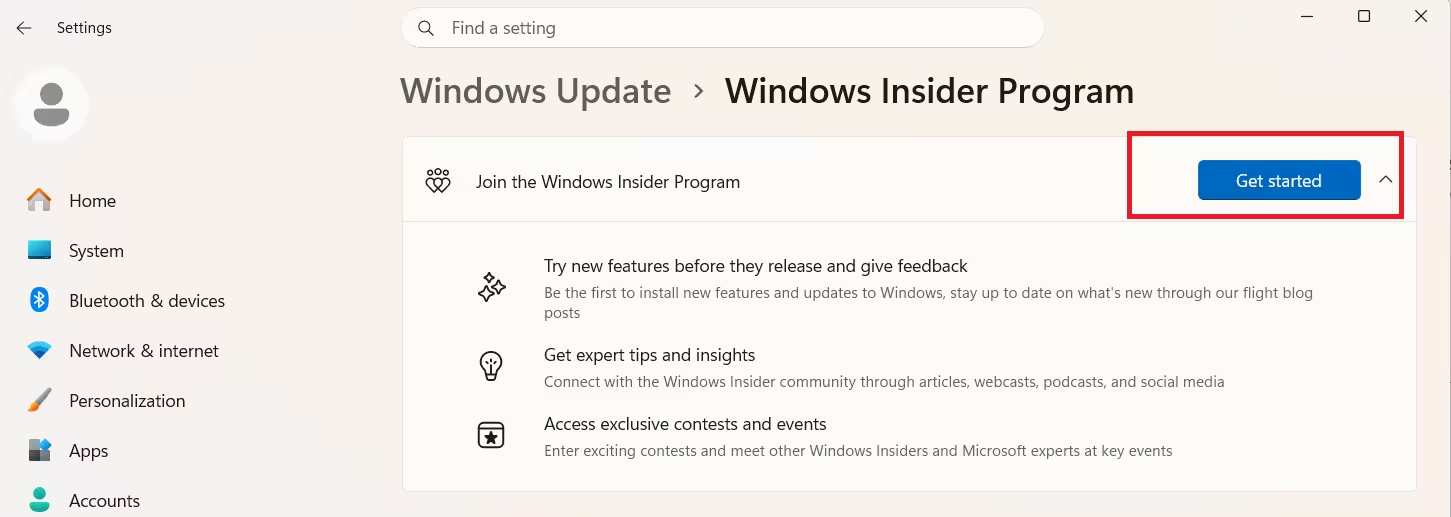
- Open Settings and go to Windows Update.
- Scroll down and select Windows Insider Program.
- Click Get started.
- Continue with your currently signed-in Microsoft account, or click Edit to choose a different one.
- Click Continue, then review and accept the program terms.
Step 2: Choose Your Insider Experience and Version
You land on the experience selection screen right after accepting the terms in Step 1. Microsoft is rolling out new experience names that replace the older channel system, though some devices may still show the legacy names. If your screen shows Canary, Dev, Beta, and Release Preview channels instead, treat Dev as the equivalent of Experimental and follow the same channel descriptions below.
- Experimental: Replaces the older Canary and Dev channels. Includes the newest platform changes and features Microsoft is actively developing. Least stable, meant for enthusiasts and technical users.
- Beta: More stable builds with upcoming features enabled by default. Recommended for most testers.
- Release Preview: Near-final builds closest to what ships to the public. Best for users who want minimal risk.
On devices with the new experience, select this by turning on Show Release Preview instead of picking it as a separate option in the list above.
After selecting Experimental or Beta, click Advanced options and choose the version you want to test, such as 25H2, 26H1, or a listed Feature Platform. Confirm your choice, then click Restart. A restart prompt appears right after you confirm, so save any open work before continuing.
Step 3: Restart and Install the Build
This is the restart prompt mentioned at the end of Step 2. It fully applies your experience and version selection before your device can pull the preview build.
- Restart your PC when prompted.
- After restart, return to Settings > Windows Update.
- Click Check for updates.
- Download and install the listed Insider Preview build. Insider builds can run several GB in size, so the download and install steps often take longer than a regular monthly update.
- Restart again when the installation completes.
If a new build becomes available later, it downloads and installs automatically. You can also force it anytime from Settings > Windows Update with Check for updates.
Step 4: Verify the Installed Build
Confirming the build number ensures the update installed correctly.
- Press
Win + R, typewinver, and press Enter. - Check the build number shown against the one announced for your experience on the Windows Insider blog.
Other Ways to Install a Preview Build
Steps 1 to 4 above cover the standard path from an existing Windows 11 install. The two methods below are alternatives, not additional steps, for readers on Windows 10 or those who want a specific build via ISO.
Upgrade from Windows 10 to Windows 11 Insider
- Open Settings > Update & Security > Windows Insider Program.
- Click Get started, then link your Microsoft account.
- Under Pick your Insider settings, select Dev Channel or Canary Channel. The build only downloads if your PC meets Windows 11 system requirements.
- Click Confirm, then Restart.
- After restart, go to Update & Security > Windows Update and click Check for updates, then Download & install and Restart.
Install from an ISO file
Downloading an ISO lets you perform a clean install or in-place upgrade to a specific Insider build, and it automatically enrolls the device in the Insider Program.
- Download the Insider Preview ISO from the Windows Insider site, or the UUP Dump site for a specific build.
- Right-click the ISO file and select Mount.
- Open the mounted virtual drive and double-click Setup.
- Choose update download settings, click Next, then Accept the terms.
- Click Install to upgrade and keep your files, or Change what to keep and select Nothing for a clean install.
- Complete the out-of-box setup screens (region, keyboard, account sign-in, PIN, and privacy settings) to finish.
After setup, confirm enrollment under Settings > Windows Update > Windows Insider Program, since a clean install should enroll the device automatically but is worth double-checking.
Frequently Asked Questions
Can I switch channels after enrolling?
Yes. Go back to Settings > Windows Update > Windows Insider Program and pick a more stable option, such as moving from Experimental to Beta, at any time.
Do Insider Preview builds affect my files?
Preview builds run on production systems, but bugs are possible. Back up important files before installing any preview build, and avoid using a preview build on your primary machine.
How do I leave the Windows Insider Program?
Go to Settings > Windows Update > Windows Insider Program and turn on Unenroll device. The system performs an in-place upgrade to the current stable version, preserving your apps, settings, and data.
Are Insider Preview builds free?
Yes. Joining the Windows Insider Program and installing preview builds costs nothing, but it requires a genuine, activated copy of Windows 11 or Windows 10. Preview builds themselves still need to be activated using your existing license, or a product key if the installation is new.
What hardware is needed to install a build?
Any PC that already meets the standard Windows 11 system requirements covered in the prerequisites above can run Insider Preview builds. No extra hardware is needed, though Experimental builds occasionally require newer drivers for full feature support.
Why is my PC not receiving the preview build?
This usually happens when the experience or version selection has not fully applied yet. Restart the PC once after selecting your settings, then check for updates again. A temporary Insider Program server-side rollout delay can also cause this.