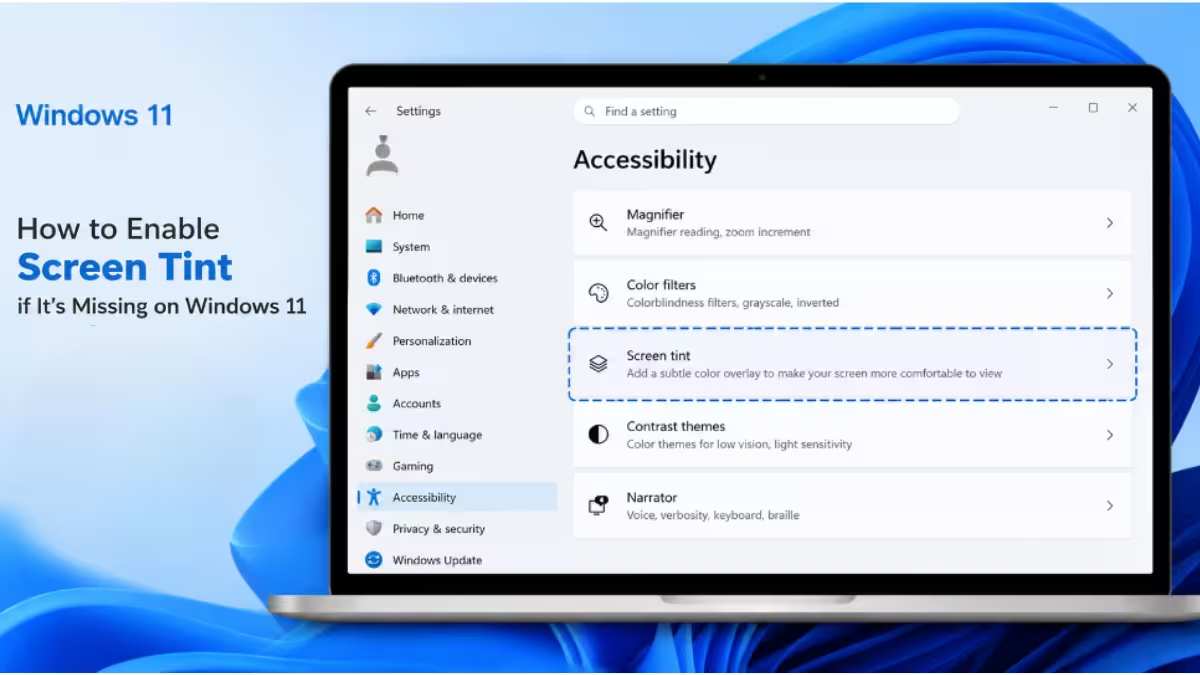
Screen Tint sometimes stays hidden even on a PC that meets every build requirement, with no error or explanation, the toggle just isn’t there. You don’t have to wait for Microsoft to flip the switch on your device. Using a free tool called ViVeTool, you can force the flag on yourself in a few minutes, and the process is safe to undo if you change your mind.
Why Screen Tint Is Missing on Windows 11
Microsoft often activates new accessibility settings in phases rather than switching them on for every device on a qualifying build at once. That means your OS build number can meet the requirement while the toggle still doesn’t appear under Settings > Accessibility. This has nothing to do with anything broken on your PC, the feature is simply sitting behind a flag Microsoft hasn’t flipped for your device yet.
ViVeTool Download for Screen Tint
You only need one tool for this, ViVeTool, a free and open source utility built by the Windows enthusiast community for switching on hidden feature flags before Microsoft rolls them out broadly. No other software or system changes are required.
Step-by-Step: Enable Screen Tint With ViVeTool
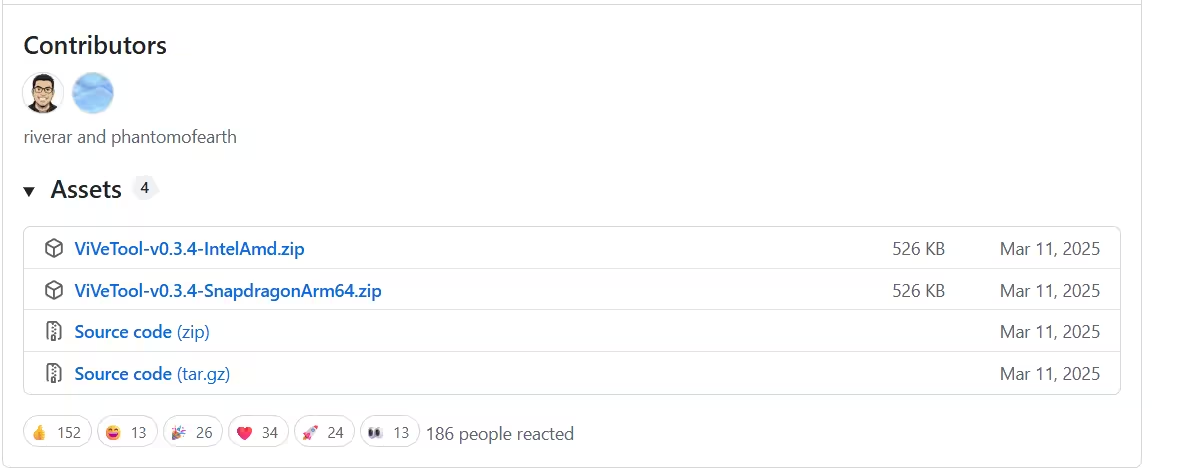
- Go to the ViVeTool GitHub releases page and download the latest release zip. Pick the file that matches your processor,
IntelAmdfor regular Intel or AMD PCs, orSnapdragonArm64if you’re on an ARM-based Windows laptop.
- Right-click the downloaded zip and select Extract All to unzip it into a folder.
- Open the extracted folder. You’ll see a file named
vivetoolwith an Application (.exe) type. - Right-click
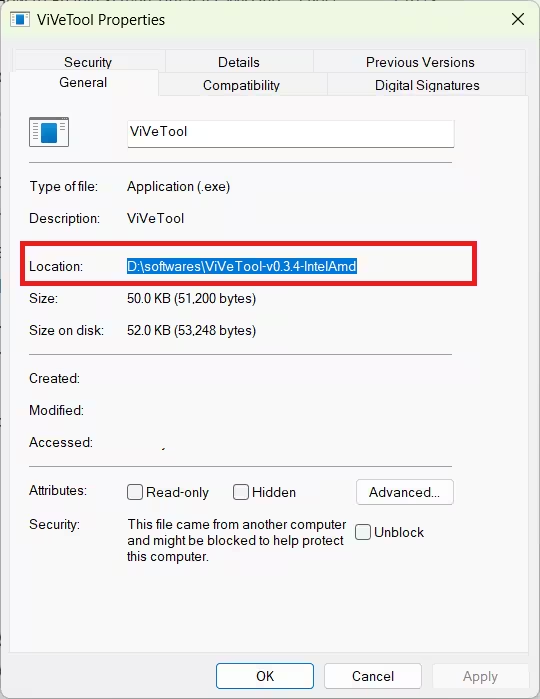
vivetool.exeand select Properties to check its exact location. Look at the Location field, for exampleD:\softwares\ViVeTool-v0.3.4-IntelAmd. Confirming this matters, since where your browser saves and extracts downloads can vary from PC to PC.
- Click Start, type
cmd, right-click Command Prompt, and choose Run as administrator. Click Yes on the User Account Control prompt. - Use
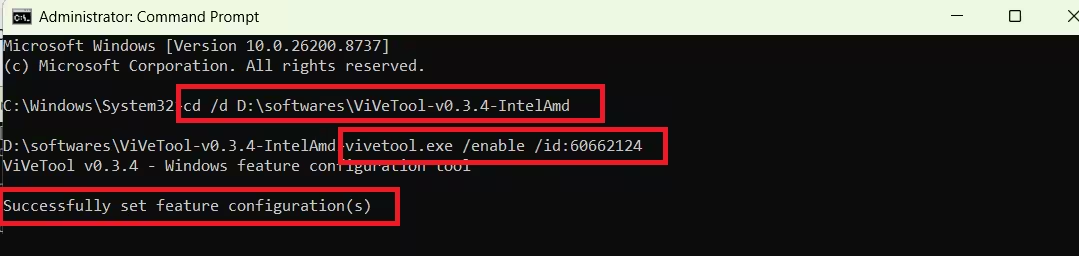
cd /dalong with the folder path you copied from Properties to jump straight to that location, no matter which drive it’s on:
cd /d D:\softwares\ViVeTool-v0.3.4-IntelAmdReplace the path above with your own folder location, exactly as it appeared in the Properties window. The /d switch lets cd change drives in the same command, so this works no matter which drive your files are saved on.
- Once the prompt shows your folder path, run:
vivetool.exe /enable /id:60662124- Wait for the confirmation message that reads
Successfully set feature configuration(s).
- Restart your PC. The flag doesn’t take effect until after a reboot.
- Open Settings > Accessibility and check the Vision section for Screen tint.
Note: This method has been tested and confirmed working on a Windows 11 25H2 build (26200.8737) that wasn’t enrolled in the Windows Insider Program, so it’s a reliable path even outside Insider testing.
How to Disable Screen Tint via ViVeTool
If Screen Tint doesn’t behave the way you expect, or you simply want to revert the flag, the process is fully reversible.
- Open Command Prompt as an administrator again.
- Navigate back to the same ViVeTool folder using the same
cd /dcommand from Step 6. - Run:
vivetool.exe /disable /id:60662124- Restart your PC.
This returns the flag to its original state with no leftover changes. ViVeTool itself never installs anything system-wide, so deleting the extracted folder afterward removes it completely.
Alternative: Enable Screen Tint Through the Registry
If you’d rather skip ViVeTool, the same flag can be flipped through the Registry.
- Press
Win + R, typeregedit, and press Enter. - Navigate to
HKEY_CURRENT_USER\Software\Microsoft\ScreenTint. If theScreenTintkey doesn’t exist, right-click Microsoft, choose New > Key, and name itScreenTint. - Inside that key, right-click and create a new DWORD (32-bit) Value named
Active. - Set its value to
1to turn Screen Tint on, or0to turn it off. - Sign out and back in, or restart your PC, for the change to apply.
Frequently Asked Questions
Is enabling Screen Tint through ViVeTool safe?
Yes. ViVeTool only toggles a feature flag inside Windows, it doesn’t install background services or modify core system files. The change is fully reversible with the /disable command.
Do I need to be enrolled in the Windows Insider Program for this to work?
No. This method has been confirmed working on a standard, non-Insider Windows 11 installation, as long as the OS build number meets the minimum requirement.
What if the Screen tint option still doesn’t appear after restarting?
Double check that you ran Command Prompt as an administrator and that the confirmation message appeared after running the enable command. If it still doesn’t show up, your specific build may not have the underlying feature code present yet, in which case you’ll need to wait for a future update.
Can I go back to the way things were before?
Yes. Run the same ViVeTool command with /disable instead of /enable, then restart. There’s no trace left behind once the flag is turned off.

