Claude Skills are modular folders of instructions, scripts, and templates that Claude loads automatically when they are relevant to a task. Instead of repeating the same instructions in every conversation, a skill lets Claude remember how you want a specific job done and apply that automatically.
What Are Claude Skills
A Claude Skill is a self-contained folder built around a single file called SKILL.md.
That file holds a short YAML header with the skill’s name and description, followed by the instructions Claude follows whenever the skill is active. A skill can also include supporting scripts, templates, or reference files that Claude pulls in only when the task calls for them. This keeps most of the skill’s content out of Claude’s active context until it is actually needed.
How Claude Decides Which Skill to Use
Installing several skills does not slow Claude down, and the reason comes down to how it loads them.
At the start of a conversation, Claude only reads the name and description of every skill you have installed, just enough to know each one exists and roughly what it covers. When your request matches a skill’s description, Claude pulls in the full instructions from that skill’s SKILL.md file. Only then, if the task calls for it, does Claude open any bundled scripts, templates, or reference files sitting inside that skill’s folder. This is why the description matters more than the instructions themselves. A vague description like “helps with reports” may never trigger at the right moment, while a specific one that states exactly when to use the skill will fire reliably and stay out of the way otherwise.
Where Claude Skills Work
Skills are available across three separate Claude products, and each one handles installation a little differently.
On claude.ai, several pre-built skills such as PowerPoint, Excel, Word, and PDF are already active for creating and editing documents, and you can upload your own custom skills as a zip file. In Claude Code, skills live directly in your project’s filesystem and Claude discovers them automatically. On the Claude API, skills are uploaded to a workspace and attached to a request using a skill_id.
| Platform | Install Location | Format |
|---|---|---|
| Claude.ai | Settings > Skills | .zip upload |
| Claude Code | ~/.claude/skills/ (personal) or .claude/skills/ (project) | Folder with SKILL.md |
| Claude API | Skills API upload | Zip or individual files, referenced by skill_id |
How to Install Skills on Claude.ai
This is the fastest option if you are not working from a code editor.
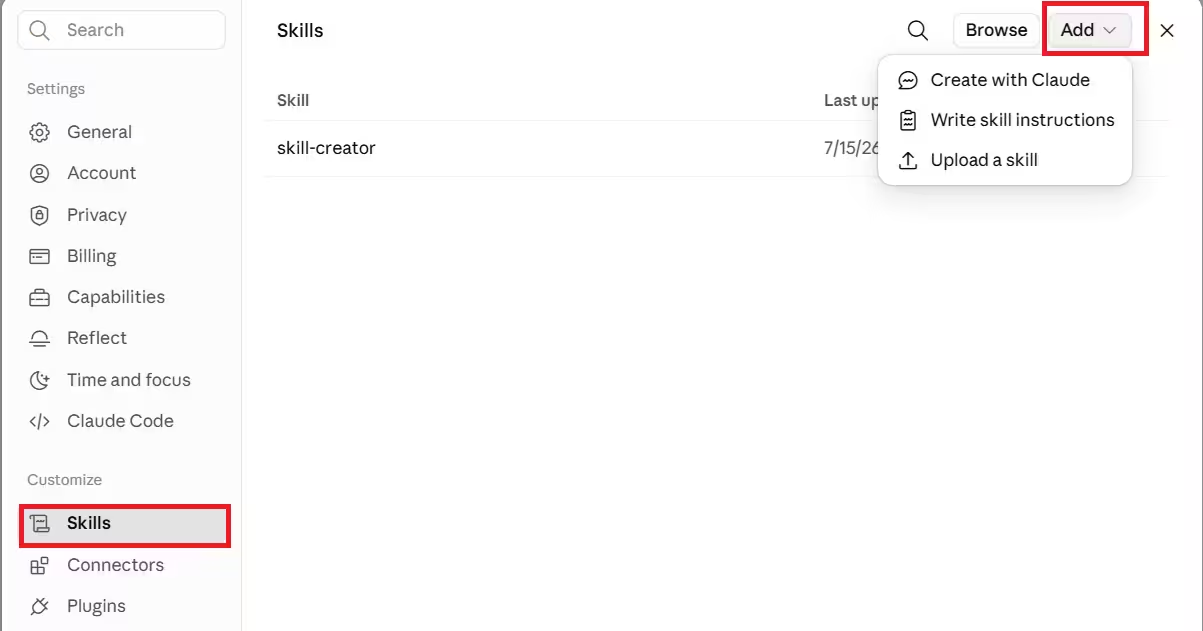
Go to Settings > Skills in claude.ai, then click Add and choose one of three options: Upload a skill if you already have a .zip file, Create with Claude to build one through a guided conversation, or Write skill instructions to type one directly. Use Browse instead if you want to see ready-made skills first. Once added, the skill shows up in the Skills panel along with when it was last updated and who authored it. This is available on the free plan, not just paid plans.
If you already worked through a task with Claude in a normal conversation and liked how it handled the process, you do not need to start over in the Skills panel. Instead, tell Claude directly in that chat to turn what you just did into a skill, and it will draft the name, description, and instructions based on what already happened. Review the draft before saving it, particularly the description, since that is what decides when Claude uses the skill later.
How to Install Skills in Claude Code
Claude Code skills are just folders sitting in a specific directory, so there is no upload step involved.
For a skill you want available in every project, place the folder inside ~/.claude/skills/. For a skill tied to one specific project that you want to share with your team through version control, place it inside .claude/skills/ in the project’s root directory instead. Claude Code watches these folders for changes, so editing a skill’s SKILL.md file takes effect in your current session without a restart. If you create a brand new top-level skills folder that did not exist when the session started, you will need to restart Claude Code so it picks up the new directory.
You can also install skills packaged as plugins through Claude Code’s plugin marketplace system, for example:
/plugin marketplace add anthropics/skills
/plugin install document-skills@anthropic-agent-skills
Once a plugin-based skill is installed, you can invoke it just by describing the task, or by mentioning the skill by name.
How to Use Skills on the Claude API
On the API, skills are uploaded once to your workspace and then referenced in individual requests.
Upload a custom skill as a zip archive or as individual files through the Skills API. Once it is created, you will get back a skill_id that you reference when attaching the skill to an agent or request. Pre-built Anthropic skills like xlsx, docx, pptx, and pdf are already available in every workspace, so they do not need this upload step. A single request can include up to 8 skills, and Skills on the API run inside a sandboxed container with no network access and no runtime package installation, so anything a custom skill needs must already be included in the bundle.
How to Create a Custom Skill
Building your own skill starts with a single markdown file.
Create a folder, and inside it add a SKILL.md file with a YAML header containing the skill’s name and description, followed by plain-language instructions for how Claude should complete the task. You can add supporting scripts or reference documents in the same folder if the task needs them. Once the folder is in place, Claude Code discovers it automatically from .claude/skills/, or you can zip it and upload it through claude.ai or the API.
How to Control Which Skills Claude Uses
Once you have more than one or two skills installed, it helps to manage which ones Claude is allowed to invoke.
In Claude Code, you can restrict this through the permissions system. To turn off skills entirely, deny the Skill tool in /permissions. To allow only specific ones, use a rule like Skill(review-pr *), and to block a specific skill while leaving the rest available, use a deny rule such as Skill(deploy *). Any skill that sets disable-model-invocation: true in its SKILL.md header will not be triggered automatically at all, and has to be called directly.
Security Checks Before Installing a Skill
A skill runs with your permissions, so it is worth treating it the same way you would treat installing new software.
Only install skills from sources you trust, and review what a skill’s scripts actually do before adding it to a project with access to sensitive files or production systems. This matters more for skills pulled from community repositories than for Anthropic’s own pre-built skills, since a script bundled inside a skill has the same network and file access as any other program running on your machine.
Troubleshooting Common Skill Issues
A few problems come up more often than others, and most trace back to the same handful of causes.
If a skill does not appear after uploading a .zip file, check that the SKILL.md file sits at the top level of the folder inside the zip, not nested inside a subfolder. If a skill is installed but never seems to trigger, the description in its SKILL.md header is usually too vague.
Claude matches your request against that description, so rewrite it to state clearly what the skill does and when to use it, then try being explicit in your request, such as asking Claude to use the skill by name. In Claude Code, if a newly added skill is not picked up, confirm you placed it inside ~/.claude/skills/ or .claude/skills/ and not a different folder, and restart the session if you created a brand new top-level skills directory.
How to Update a Skill
Your workflow will change over time, and a skill should change with it.
On claude.ai, open the Skills panel, select the skill you want to change, and edit its instructions directly if in-place editing is available. If it is not, download the skill file, open it in a text editor or drop it into a new Claude conversation and ask Claude to revise specific parts, then upload the updated version and remove the old one. In Claude Code, editing the SKILL.md file directly in its folder takes effect in your current session right away, with no restart needed. Whenever a skill stops firing after an edit, check the description first, since that is what controls whether it activates.
Frequently Asked Questions
Do I need to restart Claude Code after installing a skill?
No, in most cases. Editing an existing skill’s SKILL.md file takes effect immediately in the current session. A restart is only needed if you create a brand new top-level skills directory that did not exist when the session started.
What is the difference between a personal skill and a project skill in Claude Code?
A personal skill goes in ~/.claude/skills/ and is available across every project on your machine. A project skill goes in .claude/skills/ inside a specific repository and is shared with your team through version control, so it only applies to that project.
Can I use the same skill in Claude Code and on the API?
Yes, but the setup is different for each. Claude Code reads skills directly from the filesystem, while the API requires the skill to be uploaded through the Skills API first, after which it is referenced by its skill_id.
How many skills can I attach to a single API request?
Up to 8 skills per request on the Claude API.
Do I need a paid plan to use Skills on claude.ai?
No. The Skills panel, including uploading a skill, creating one with Claude, and writing skill instructions directly, is accessible on the free plan.
Are pre-built document skills like PDF and Word available in Claude Code?
No. The pre-built document skills, including PowerPoint, Excel, Word, and PDF, are available on claude.ai and the API, but not inside Claude Code.
Related Guides
- Is Claude Code Down? Check Live Status Now
- How to Stop Hitting Claude Usage Limits: Tips That Actually Work
- Claude Mythos Coming to Claude Code: What You Need to Know (2026)
Error Fixes

