If you're a Monster Hunter Wilds player and keep hitting ERROR S9041-TAD-W72T, this guide covers every confirmed fix, from quick network tweaks to in-game workarounds.
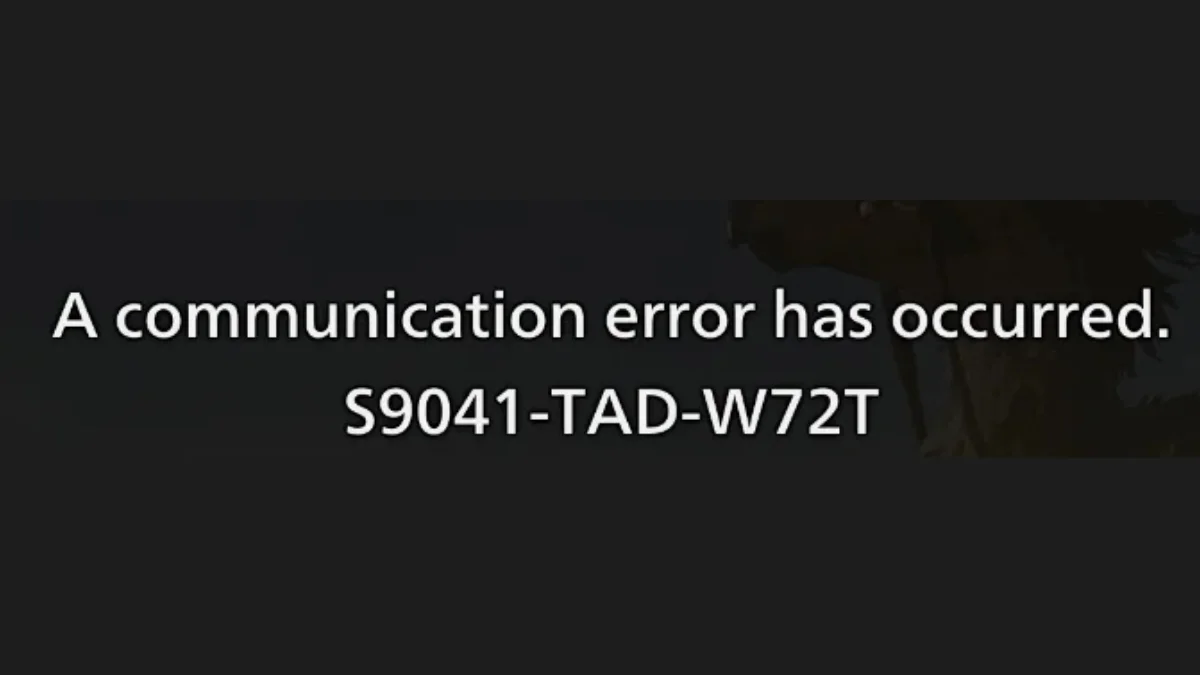
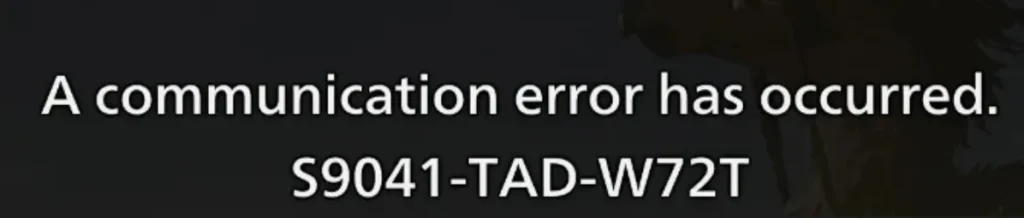
What is ERROR S9041-TAD-W72T?
This error is a communication failure between your device and Capcom's game servers. It tends to appear when:
- Trying to join online lobbies.
- Accessing multiplayer features.
- Loading online save data or beta character data.
The error is not always caused by your device or internet, and many times, it is linked to Capcom's servers or regional IP blocks affecting certain countries.
Who is Affected?
The error has been most commonly reported by players in:
- Europe (especially Germany, France, Romania)
- Some parts of Asia
- South America (Brazil)
Players in the US and other unaffected regions have reported smooth online gameplay, indicating that the issue is likely tied to regional server configurations or restrictions.
Common Causes of ERROR S9041-TAD-W72T
| Cause | Description |
|---|---|
| Regional IP Block | Certain countries/regions may face temporary IP blocks. |
| Network Issues | IPv6 conflicts, router issues, or firewall blocking game traffic. |
| Capcom Server Problems | Temporary server-side issues with Capcom's online infrastructure. |
| ISP Routing Issues | Some ISPs may have problematic routes to Capcom servers. |
How to Fix ERROR S9041-TAD-W72T
1. Use a VPN or Cloudflare WARP (Most Effective Solution)
This is currently the most successful fix for players in affected regions. By connecting through a server in a different country (like the US or UK), players have been able to bypass the error and access online features normally.
Option A: Paid VPN
Install a VPN, connect to a US or UK server, launch Monster Hunter Wilds, and test online features.
Option B: Cloudflare WARP (Free)
Cloudflare WARP (also known as 1.1.1.1) is a free tool that reroutes your traffic through Cloudflare's network and has resolved this error for multiple players without needing a paid VPN.
Steps:
- Download the Cloudflare WARP app from
1.1.1.1. - Enable WARP mode.
- Launch Monster Hunter Wilds and test online features.
2. Disable Crossplay
Several players fixed the error by turning off the Crossplay setting inside the game.
Steps:
- Open Monster Hunter Wilds settings.
- Navigate to Network or Online settings.
- Disable Crossplay.
- Restart your PC completely.
- Relaunch the game and attempt to connect online.
Note: Some players reported a shader recompile triggered after this restart, after which online connectivity returned to normal.
3. Disable IPv6 (PC Only)
Some users have found that disabling IPv6 resolves the error by simplifying how the network connects to Capcom servers.
Steps to Disable IPv6:
- Open Control Panel > Network and Sharing Center > Change Adapter Settings.
- Right-click your active internet connection and select Properties.
- Uncheck Internet Protocol Version 6 (TCP/IPv6).
- Click OK.
- Restart your PC.
4. Check Firewall and Antivirus Settings
Overzealous firewalls or antivirus programs may block Monster Hunter Wilds from connecting to the internet properly.
Steps:
- Add
MonsterHunterWilds.exeto your firewall exceptions list. - If the issue persists, try resetting Windows Firewall to its default settings via Control Panel > Windows Defender Firewall > Restore defaults.
- Temporarily disable antivirus software to test if it is interfering.
5. Restart Your Router and System
Sometimes a simple reboot of your modem/router and PC/console can refresh your connection to the game servers.
- Power off your router for 5 minutes.
- Restart your PC or console.
- Relaunch the game and check.
6. Use the Hunting Squad Workaround
Players have found that joining through a Hunting Squad lobby can bypass the standard connection error.
Steps:
- Create a Hunting Squad in-game.
- Join your own Squad lobby instead of a standard recommended lobby.
- This method results in fewer disconnects and may let you access online features even when direct lobby joins fail.
7. Use the Online Single Player and Alma Workaround
Players have discovered that choosing Online Single Player mode may trigger the error once, but the game then falls back to a connected state where you can join lobbies through Alma.
Steps:
- Choose Online Single Player from the main menu.
- Wait for the error to appear and let the game proceed.
- Once you are in-game, approach Alma (the NPC handler).
- Use Alma's interface to join a lobby directly.
This method lets you access multiplayer content without going through the standard lobby selection screen that consistently throws the error.
8. Monitor Capcom's Server Status
Since this error is sometimes caused by Capcom server-side issues, always check:
- Monster Hunter Wilds Official Twitter
- Capcom Support Forums
- Steam Community Discussions
If a widespread outage is happening, the issue is not on your end.
What If None of These Work?
If you have tried everything and the error persists, it is worth:
- Contacting Capcom Support directly.
- Providing your region, ISP details, and a DxDiag report (for PC players).
- Waiting for official patch notes or updates addressing connectivity issues.
ERROR S9041-TAD-W72T can be incredibly frustrating, especially for players eager to team up with friends or join online hunts. While the VPN and Crossplay fixes have worked for many, Capcom needs to address the root cause, whether it is regional filtering, server load balancing issues, or ISP routing conflicts.
For now, try the solutions listed above, and follow our fdaytalk games page for the latest updates.