The error “Failed to enumerate objects in the container. Access is denied” appears in Windows when you try to change permissions on a file or folder but your account does not own it or lacks the rights to modify its security settings.

Windows assigns every file and folder an owner. If your account is not the owner, Windows blocks any permission changes and throws this error. The fix requires you to take ownership of the folder first, then adjust the permissions.
This guide covers every working fix for Windows 10 and Windows 11.
What Causes the “Failed to Enumerate Objects in the Container” Error
Two main conditions trigger this error:
- Permission conflict: Your account does not have the rights to view or change the folder’s security settings, even if you are an administrator.
- Wrong ownership: The folder belongs to another user account, the SYSTEM account, or TrustedInstaller.
Other common triggers include folders migrated from a different Windows installation, folders from an old or deleted user profile, and folders locked by a virus or malware that modified the permission settings.
Fix 1: Change Folder Ownership via File Explorer
This is the most reliable fix and the method Microsoft recommends.
- Right-click the folder that shows the error and select Properties.
- Open the Security tab and click Advanced.
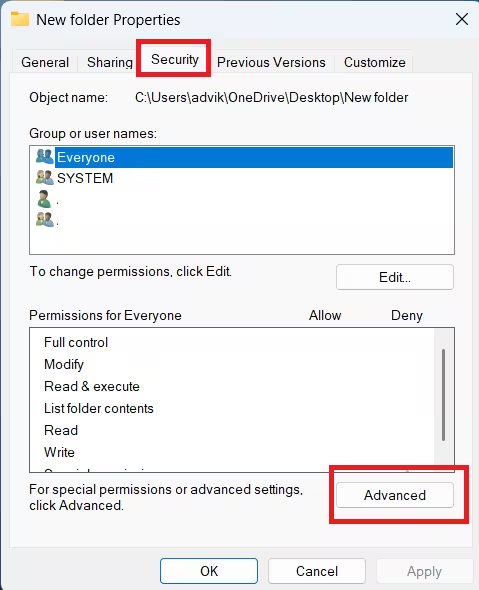
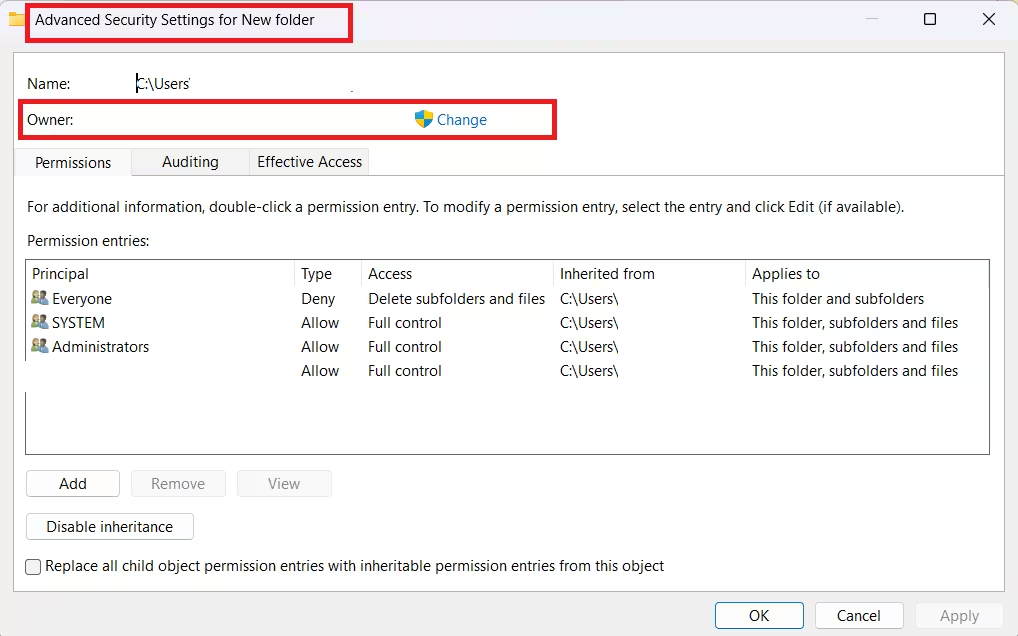
- At the top of the Advanced Security Settings window, click Change next to the current owner.
- Type your Windows username in the Enter the object name to select box.
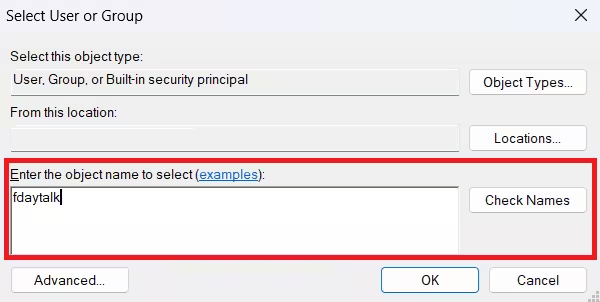
- Click Check Names to verify your account, then click OK.
- Back on the Advanced Security Settings screen, check Replace owner on subcontainers and objects.
- Also check Replace all child object permission entries with inheritable permission entries from this object.
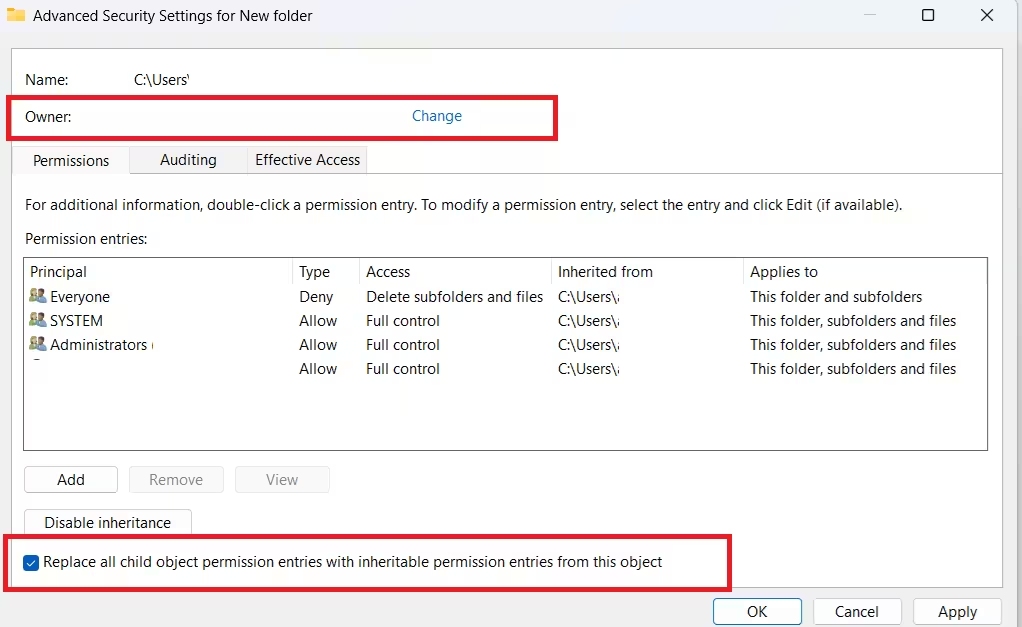
- Click Apply, then click OK. Click Yes on the confirmation prompt.
- Close the Properties window, reopen it, go back to Security, and verify your account has Full Control. If it does not, click Edit, select your account, check Full Control, and click Apply.
Fix 2: Take Ownership Using an Elevated Command Prompt
If the File Explorer method does not work, the command line gives you direct control over file ownership.
- Press Win + S, type cmd, right-click Command Prompt, and select Run as administrator.
- Click Yes on the User Account Control prompt.
- Run the following command. Replace
X:\FULL\PATH\TO\FOLDERwith your actual folder path:
takeown /F "X:\FULL\PATH\TO\FOLDER" /r /d y- Once ownership transfers, run this command to grant your account full control:
icacls "X:\FULL\PATH\TO\FOLDER" /grant Administrators:F /tThe /r flag applies the takeown command recursively to all subfolders. The /t flag on icacls covers every file inside the folder.
How to find the full folder path: Open File Explorer, navigate inside the folder, and copy the path from the address bar at the top.
Fix 3: Temporarily Disable User Account Control
UAC can block permission changes even when you run as an administrator. Lowering it temporarily removes that restriction.
- Press Win + S and search for Change User Account Control settings. Open it.
- Drag the slider all the way down to Never notify.
- Click OK. If a UAC prompt appears, click Yes.
- Restart your PC.
- After restarting, try taking ownership using Fix 1 or Fix 2.
- Once you fix the permissions, return UAC to its original setting and restart again.
Do not leave UAC permanently disabled. It protects your system from unauthorized changes and is an important Windows security feature.
Fix 4: Enable the Built-in Administrator Account
Windows includes a hidden built-in Administrator account that bypasses most permission restrictions. It can take ownership of folders that a standard admin account cannot touch.
- Open Command Prompt as administrator.
- Run:
net user administrator /active:yes- Sign out of your current account.
- Sign in to the Administrator account that now appears on the login screen. It has no password by default.
- Navigate to the folder, apply Fix 1 or Fix 2 to take ownership, and set the correct permissions.
- Sign out and log back into your regular account.
- Disable the built-in Administrator account again:
net user administrator /active:noAlways disable this account after you finish. Leaving it active is a security risk.
Fix 5: Run CHKDSK, SFC, and DISM Scans
Corrupted system files or file system errors can break folder permissions and trigger this error. Windows has three built-in tools to repair these issues.
- Open Command Prompt as administrator.
- Run CHKDSK first. Replace
c:with the drive letter where the folder is located:
chkdsk c: /f /rIf prompted to schedule a scan on the next restart, type Y and press Enter. Restart your PC to let CHKDSK run.
- After the restart, open Command Prompt as administrator again and run the DISM scan:
DISM /Online /Cleanup-Image /RestoreHealth- Once DISM finishes, run the SFC scan:
sfc /scannow- Restart your PC after both scans complete.
If SFC reports corrupted files it could not repair, running DISM first and then repeating the SFC scan on Windows usually resolves the issue.
Fix 6: Run a Full Virus and Malware Scan
Viruses and malware can modify file and folder permissions to block your access. If fixes 1 through 5 do not solve the error, a malware infection may be the root cause.
Run a full system scan using Windows Security or a trusted third-party antivirus:
- Press Win + S and search for Windows Security. Open it.
- Select Virus and threat protection.
- Click Scan options.
- Select Full scan and click Scan now.
- Wait for the scan to finish, then remove any threats it detects.
- Restart your PC and try changing folder permissions again.
Some malware specifically targets system folder permissions. If Windows Security does not detect anything, consider running Microsoft Defender Offline Scan to catch threats that hide from standard scans.
Fix 7: Boot into Safe Mode and Retry
Safe Mode loads Windows with a minimal set of drivers and services, which shuts out third-party apps that might be locking the folder or interfering with permission changes.
On Windows 11:
- Press Win + I to open Settings.
- Go to System, then Recovery.
- Click Restart now next to Advanced startup.
- After your PC restarts, navigate to Troubleshoot > Advanced options > Startup Settings and click Restart.
- Press 4 or F4 to start in Safe Mode.
On Windows 10:
- Press Win + I to open Settings.
- Go to Update and Security, then Recovery.
- Under Advanced startup, click Restart now.
- Navigate to Troubleshoot > Advanced options > Startup Settings and click Restart.
- Press 4 or F4 to boot into Safe Mode.
Once in Safe Mode, apply Fix 1 or Fix 2 to take ownership of the folder. Safe Mode prevents background apps and services from holding locks on the folder, which makes the ownership transfer more likely to succeed.
If Windows fails to boot into Safe Mode correctly, use the installation media to access the Advanced Startup options from outside Windows.
Troubleshooting Guide: Which Fix to Try First
| Situation | Best Starting Fix |
|---|---|
| Folder owned by another user | Fix 1 (File Explorer ownership) |
| Fix 1 fails or returns an error | Fix 2 (takeown command) |
| Standard admin account blocked | Fix 4 (Built-in Administrator) |
| Permissions broken across many files | Fix 5 (CHKDSK, SFC, DISM) |
| Suspecting malware involvement | Fix 6 (Full malware scan) |
| All other methods fail | Fix 7 (Safe Mode) |
The “failed to enumerate objects in the container access is denied” error always comes down to ownership. Taking ownership of the folder via File Explorer or the takeown command fixes the problem in most cases. If those do not work, the built-in Administrator account or Safe Mode gives you the access level needed to push the change through. Run SFC and DISM only if the permissions stay broken after ownership transfers correctly.

