Firefox 151 adds a long-requested feature to its built-in VPN: the ability to choose your server location. You can now pick from five supported countries or let Firefox automatically select the best connection for your network.
This guide covers how to turn on the Firefox built-in VPN, select a server location, manage your data limit, and exclude specific websites from VPN protection.
What Is the Firefox Built-In VPN?
The Firefox built-in VPN is a free, browser-level privacy tool that routes your traffic through a secure proxy server and masks your IP address. It launched with Firefox version 149 and has already attracted over one million sign-ups.
Unlike Mozilla VPN, which protects your entire device, the built-in VPN only covers traffic that originates inside Firefox. It is free to use and requires no subscription, but you do need a Mozilla account to activate it.
It is also worth understanding that a VPN encrypts your traffic and hides your IP address, but it does not protect you from every type of cyberattack.
What Is New: Server Location Picker in Firefox 151
Before Firefox 151, the VPN automatically routed your traffic through the best available server with no option to change it. The new update adds a country picker so you can control where your browsing traffic appears to come from.
The five currently supported locations are:
- Canada
- France
- Germany
- United Kingdom
- United States
This change makes it possible to use the VPN for browsing region-specific content, including streaming. Keep in mind that the 50 GB monthly data limit will drain quickly with heavy streaming use.
Mozilla has confirmed that more countries will be added in future releases. The rollout is staged, so the location picker may not appear immediately even if you are in a supported region.
How to Turn On the Firefox Built-In VPN
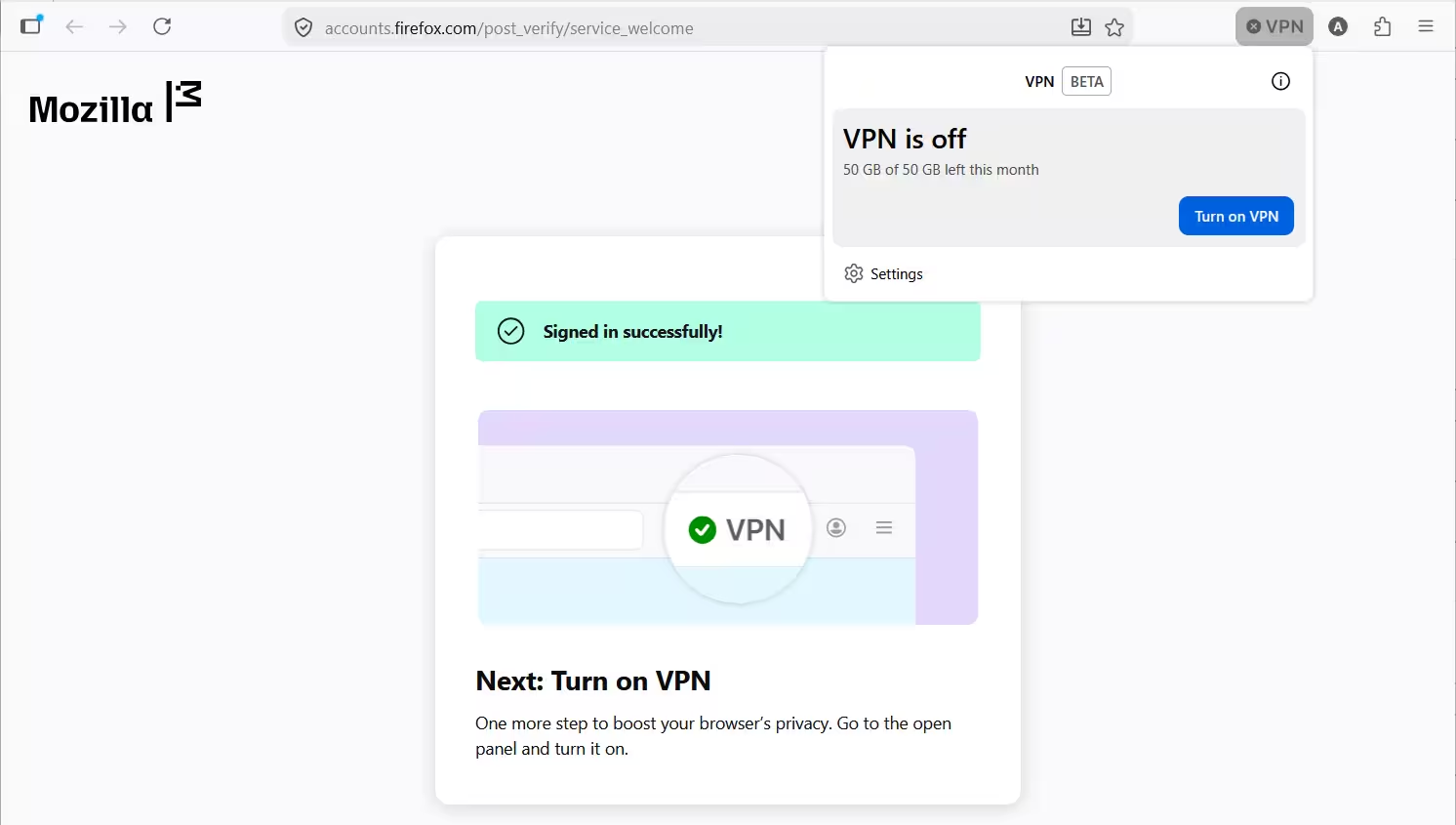
- Open Firefox 151 or later.
- Look for the VPN icon in the top-right corner of the toolbar.
- Click Get started to begin the setup process.
- Sign in with your Mozilla account. If you do not have one, create a free account on the sign-in page.
- Once you sign in, the VPN panel will open automatically.
- Click Turn on VPN to activate it.
If the VPN icon is not visible in the toolbar, right-click the toolbar, select Customize Toolbar, and drag the VPN icon back into place.
How to Choose a Server Location in Firefox Built-In VPN
- Click the VPN icon in the toolbar to open the VPN panel.
- You will see a list of available countries: Canada, France, Germany, United Kingdom, and United States.
- Click the country you want your traffic routed through.
- To let Firefox pick automatically, select Recommended at the top of the list.
Mozilla plans to add more locations over the coming months.
Does Firefox Free Built-In VPN Have a Data Limit?
The Firefox built-in VPN includes a 50 GB monthly data limit. Here is how it works:
- Firefox notifies you as you approach the limit.
- When you reach the limit, the VPN pauses automatically.
- Your data resets at the start of each calendar month.
If you need unlimited data or protection beyond the browser, you can upgrade to Mozilla VPN. Mozilla VPN covers all apps and services on your device, not just Firefox.
How to Exclude Specific Websites from VPN Protection
If you want certain sites to bypass the VPN, you can add them to an exception list.
- Click the Firefox menu button and go to Settings.
- Navigate to Privacy and Security and scroll down to the VPN section. You can also open the VPN panel from the toolbar and click the gear icon to reach Settings.
- Click Manage website settings.
- Add the website URLs you want to exclude from VPN protection.
- Click Save Changes.
To remove a site from the exception list, select it and click Remove website. To clear all exceptions at once, click Remove all websites.
How to Disable the Firefox Built-In VPN
To turn off the VPN completely:
- Open the VPN panel from the toolbar.
- Click Turn off VPN.
To remove the VPN icon from the toolbar, right-click the icon and select Remove from Toolbar. You can add it back at any time through the Customize Toolbar menu.
Other Changes in Firefox 151
The server location picker is the headline feature, but Firefox 151 ships with several other useful additions.
Clear Private Session Button
A new flame-shaped button now appears next to the address bar in Private Browsing windows. One click wipes cookies, history, logins, and other session data without closing the window.
Stronger Fingerprinting Protection
Firefox updated its Enhanced Tracking Protection to reduce the number of users identifiable by common tracking techniques by about 14% on average. On macOS, that reduction reaches roughly 49%.
AI Controls on Mobile
The AI controls tab is now available on iOS and Android. Features include translations, voice search, and Shake to Summarize, though availability depends on your location.
FAQs: Firefox Built-In VPN
Is Firefox built-in VPN completely free?
Yes. Firefox built-in VPN is free and requires no subscription. You only need a free Mozilla account to activate it.
How do I pick a server location in Firefox VPN?
Open the VPN panel from the toolbar, select your preferred country from the list, and Firefox will route your traffic through that location.
What countries are available in Firefox built-in VPN?
Currently the US, UK, Canada, France, and Germany are supported. Mozilla has confirmed more countries will be added in future updates.
Does Firefox built-in VPN protect my entire device?
No. It only protects traffic inside the Firefox browser. For full device protection across all apps, you need Mozilla VPN.
What happens when I hit the 50 GB data limit on Firefox VPN?
Your VPN pauses automatically until the data resets at the start of the next calendar month. You can upgrade to Mozilla VPN for unlimited usage.

