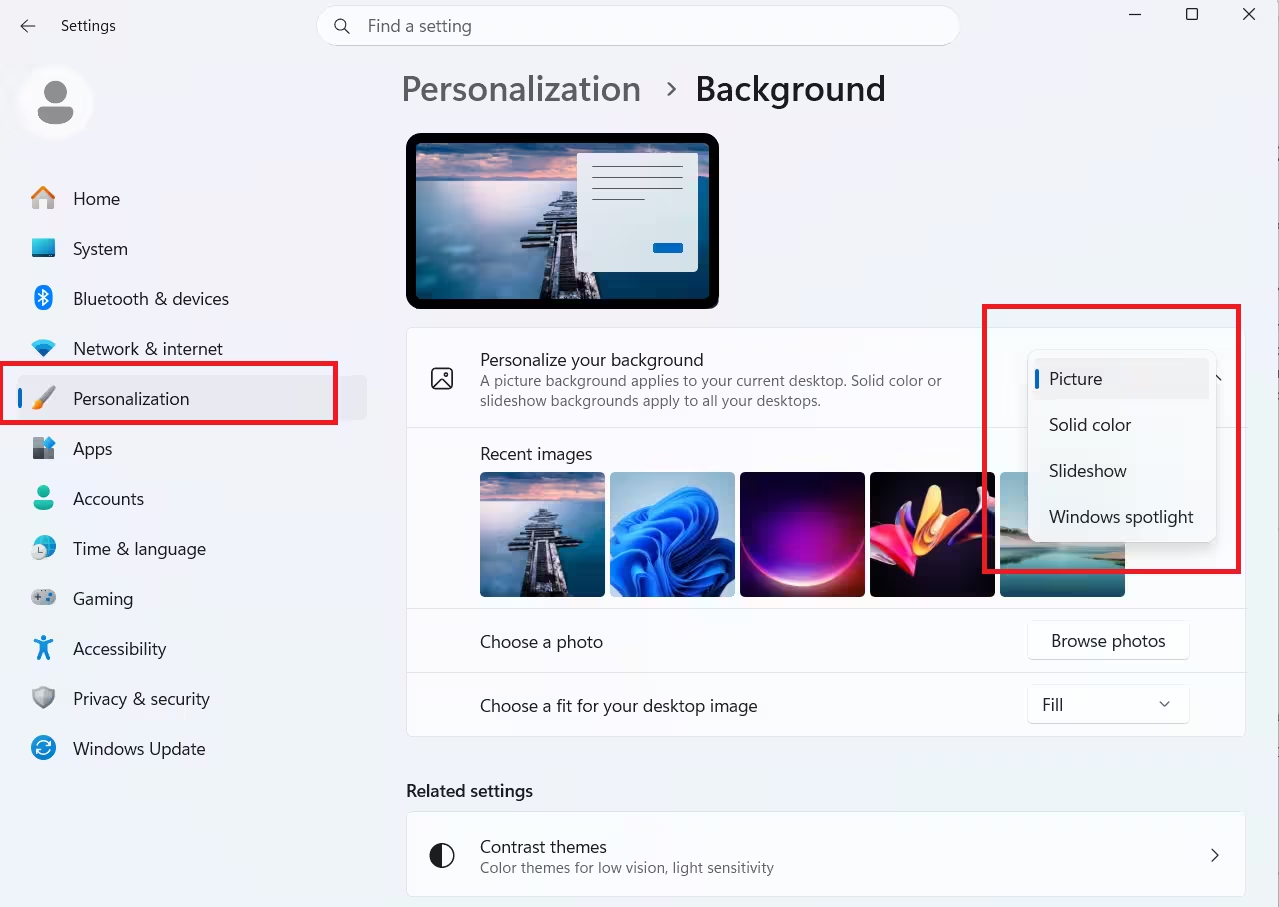
Windows 11 does not include native support for live wallpapers. If you open Settings and go to Personalization > Background, you get four options: Picture, Solid color, Slideshow, and Windows Spotlight. There is no video, GIF, or animated wallpaper option built into the operating system.
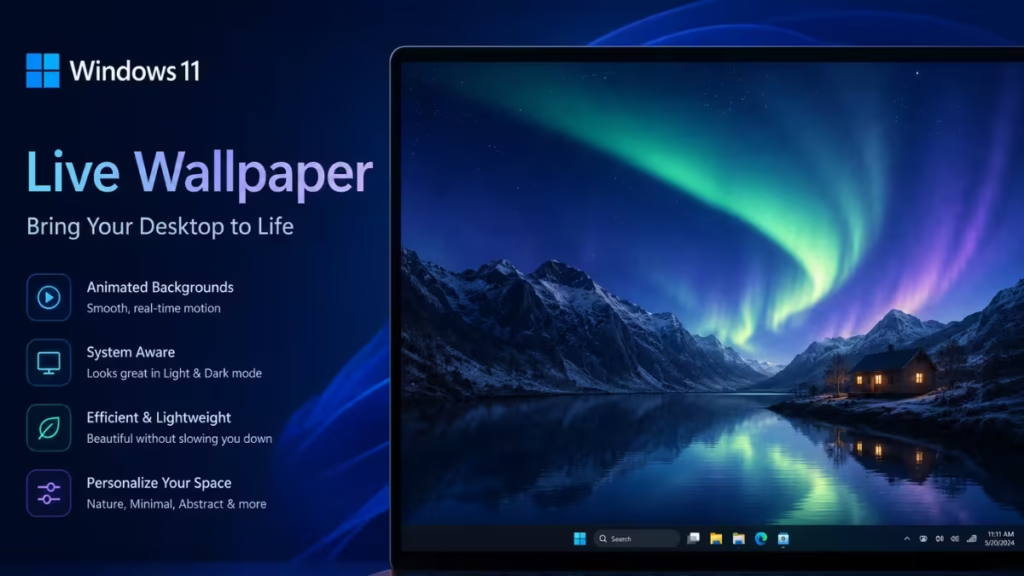
That does not mean your desktop has to stay static. Windows 11 includes several built-in tools that create a dynamic, changing desktop without requiring any third-party software. This guide covers all six methods, including the best way to use each one.
Can You Set a True Live Wallpaper in Windows 11 Without an App?
No. As of 2026, Windows 11 does not natively support:
- Animated GIF wallpapers
- MP4 or WebM video wallpapers
- Interactive wallpapers that respond to mouse or audio input
- 3D animated scenes running on the desktop
If you want true video or animated wallpaper playback on your desktop, you need a third-party application such as Lively Wallpaper or Wallpaper Engine.
However, Windows 11 gives you several built-in options that make your desktop feel more alive without installing extra software:
- Desktop Slideshow: Rotates through a folder of your own images at a set interval
- Windows Spotlight: Automatically downloads and displays high-quality images from Microsoft
- Theme Packs: Switch between curated wallpaper and color collections
- Lock Screen Personalization: Uses Spotlight, slideshows, and dynamic content on the lock screen
- Screen Saver: Adds motion when your PC sits idle
The most effective no-app substitute for a live wallpaper is a fast-changing desktop slideshow using high-quality images. It will not play like a video, but it creates a dynamic effect while staying fully within Windows.
Method 1: Use the Windows 11 Desktop Slideshow
The built-in slideshow background feature is the most practical way to get a live-wallpaper-like effect without installing anything. Windows automatically rotates through a folder of images on your desktop.
Step 1: Create a Wallpaper Folder
- Open File Explorer.
- Navigate to Pictures, or another location you prefer.
- Right-click an empty area and select New > Folder.
- Name the folder something clear, such as Live Wallpaper Slideshow.
- Add several images to the folder.
For the best result, use images that match your monitor’s resolution:
- 1920 x 1080 for Full HD displays
- 2560 x 1440 for QHD displays
- 3840 x 2160 for 4K displays
Images much smaller than your screen may appear blurry or stretched.
Step 2: Open Background Settings
- Right-click an empty area of the desktop.
- Select Personalize.
- Click Background.
Step 3: Select Slideshow
- Under Personalize your background, open the drop-down menu.
- Select Slideshow.
- Click Browse next to Choose a picture album for a slideshow.
- Select the folder you created.
- Click Choose this folder.
Windows immediately starts cycling through images from that folder.
Step 4: Set How Often the Wallpaper Changes
After selecting your folder, configure the Change picture every interval:
- 1 minute
- 10 minutes
- 30 minutes
- 1 hour
- 6 hours
- 1 day
For the most dynamic feel, choose 1 minute. Windows 11 does not offer a sub-minute interval through Settings, so one minute is the fastest standard option available.
Step 5: Enable Shuffle
Turn on Shuffle the picture order if you want Windows to pick images randomly. Leave shuffle off if your folder contains images arranged in a specific sequence.
Step 6: Choose a Fit
Use the Choose a fit for your desktop image menu to control how images display:
- Fill: Crops slightly to cover the full screen. Best for most wallpapers.
- Fit: Shows the whole image but may leave visible borders.
- Stretch: Forces the image to fill the screen and may distort it.
- Tile: Repeats smaller images across the desktop.
- Center: Places the image in the middle without resizing.
- Span: Spreads the image across multiple monitors.
Fill works best for most setups. If you use a dual-monitor or ultrawide display, try Span with a panoramic wallpaper designed for your total screen width.
Method 2: Create a Fake Live Wallpaper from Animation Frames
You can convert a short animation or video into still image frames and run them as a Windows slideshow. The result is not smooth video playback, but it creates a subtle transitional motion effect when frames are arranged in sequence.
This method works best for slow-moving visuals:
- Sunrise and sunset sequences
- Cloud movement
- Day-to-night landscape shifts
- Animated pixel art backgrounds
- Changing color gradients
- Seasonal scenes such as snowfall frames
How It Works
The shortest standard wallpaper change interval in Windows 11 is one minute. This makes the technique more useful as a gradual scene transition than a fluid animation. For example, 60 images of a sky shifting from morning to night, advancing every minute, would create a full 60-minute daylight cycle on your desktop.
Step 1: Prepare the Image Sequence
Create or collect images that represent different stages of the scene. Name them in order using leading zeros so Windows sorts them correctly:
wallpaper-001.jpg
wallpaper-002.jpg
wallpaper-003.jpg
Use leading zeros (001 instead of 1) so the file order stays correct.
Step 2: Put All Images in One Folder
Place all frames in a single dedicated folder. Do not mix unrelated images if you want the sequence to stay in order.
Step 3: Turn Off Shuffle
Go to Settings > Personalization > Background, select Slideshow, choose your folder, and make sure Shuffle the picture order is disabled.
Step 4: Set the Interval to 1 Minute
Set Change picture every to 1 minute. The sequence will advance one frame per minute.
A folder of 144 images creates a complete two-and-a-half-hour wallpaper cycle, which works well for a gradual workspace background effect throughout the day.
Method 3: Use Windows Spotlight for Automatic Desktop Images
Windows Spotlight automatically downloads and applies high-quality images from Microsoft. It is not animated, but it refreshes your desktop without requiring you to manage wallpaper folders yourself.
Spotlight is the easiest no-app option if you want a live wallpaper Windows 11 experience that requires zero maintenance.
How to Enable Windows Spotlight for the Desktop
- Right-click the desktop and select Personalize.
- Click Background.
- Open the Personalize your background drop-down.
- Select Windows Spotlight.
Windows sets a Spotlight image as your wallpaper and updates it automatically. A small Learn about this picture icon may appear on the desktop. Double-clicking it opens details about the current image.
How to Change the Current Spotlight Image
If you dislike the current image, right-click the Learn about this picture icon and select Switch to next picture, if your Windows 11 build includes that option.
You can also indicate whether you like or dislike the image. Windows uses that feedback to personalize future Spotlight selections.
When to Use Spotlight vs. Slideshow
| Feature | Best For |
|---|---|
| Windows Spotlight | Automatic fresh wallpapers with no setup |
| Slideshow | Your own curated wallpaper collection |
| Image sequence slideshow | Slow transitional animation effect |
Method 4: Apply a Built-In Theme Pack
Windows themes bundle wallpapers, accent colors, sounds, and cursor settings together. They are not live wallpapers, but they give your desktop a coordinated look without a separate wallpaper utility.
How to Apply a Built-In Theme
- Open Settings.
- Go to Personalization > Themes.
- Scroll through the available themes.
- Click a theme to apply it.
Windows 11 includes several default themes depending on your edition and update version, including light, dark, glow, captured motion, and flow-inspired designs.
How to Get More Themes from Microsoft Store
- Go to Settings > Personalization > Themes.
- Click Browse themes.
- Choose a theme from Microsoft Store.
- Click Get.
- Return to Settings > Personalization > Themes and apply it.
Many Microsoft themes include multiple wallpapers and use automatic slideshow behavior. Nature, cityscape, animals, and panoramic themes work especially well for a dynamic-feeling desktop.
Method 5: Customize the Lock Screen with Dynamic Content
The Windows desktop cannot display a true live wallpaper without software, but the lock screen supports several dynamic features that make your PC feel more active when you return from sleep or sign in.
Use Windows Spotlight on the Lock Screen
- Open Settings.
- Go to Personalization > Lock screen.
- Next to Personalize your lock screen, choose Windows Spotlight.
The lock screen displays changing images from Microsoft and may also show facts, tips, and location information for each image.
Use a Lock Screen Slideshow
- Go to Settings > Personalization > Lock screen.
- Choose Slideshow from the lock screen background menu.
- Click Browse and select a folder of images.
This works well for family photos, travel images, artwork, or any visual collection you want to see when your PC is locked.
For the cleanest look, turn off extra lock screen tips if the option appears. Depending on your Windows 11 version, this setting shows as Get fun facts, tips, tricks, and more on your lock screen.
Method 6: Use the Built-In Screen Saver for Motion When Idle
Screen savers still exist in Windows 11. They do not replace your desktop wallpaper while you work, but they add motion when your computer sits idle.
How to Enable a Screen Saver
- Open Settings.
- Go to Personalization > Lock screen.
- Scroll down and click Screen saver.
- Open the Screen saver drop-down menu.
- Choose an option: Bubbles, Mystify, Ribbons, or Photos.
- Set the Wait time.
- Click Apply, then OK.
Best Screen Saver Options
- Bubbles: Floating transparent bubbles over the full screen
- Ribbons: Moving colored ribbons on a dark background
- Mystify: Animated lines moving continuously across the screen
- Photos: A slideshow of images from a folder you specify
Bubbles, Ribbons, and Mystify are the only built-in animated visual options in Windows 11. They appear only when the screen saver activates, not behind your desktop icons during normal use.
Tips to Make Your Slideshow Look More Like a Live Wallpaper
A basic slideshow can feel plain, but a few adjustments make a significant difference.
Use a Consistent Visual Theme
Choose images that share a style. Examples that work well:
- All cyberpunk city wallpapers
- All mountain landscape shots
- All dark abstract backgrounds
- All space and nebula images
- All minimalist color gradients
A consistent folder makes the desktop feel intentional. A mixed folder of screenshots, portraits, and random images tends to look cluttered.
Match Images to Your Monitor’s Resolution
Use wallpapers with the same aspect ratio as your display:
- 16:9: Most laptops and monitors, such as 1920 x 1080 or 3840 x 2160
- 16:10: Some productivity laptops, such as 1920 x 1200 or 2560 x 1600
- 21:9: Ultrawide monitors, such as 3440 x 1440
- 32:9: Super ultrawide setups, such as 5120 x 1440
If images do not match your screen, Windows may crop important parts or add borders.
Use Dark Wallpapers for Better Icon Readability
Dynamic wallpapers can make desktop icons harder to read. If you keep icons on the desktop, choose darker or less busy images. Abstract gradients, blurred landscapes, and dark city scenes work well. Arrange icons on the plain area of the wallpaper, such as a region with empty sky or a solid dark background.
Set Accent Colors to Match the Wallpaper
Windows 11 can automatically pick an accent color from your background.
- Open Settings.
- Go to Personalization > Colors.
- Set Accent color to Automatic.
This makes the Start menu, quick settings highlights, and other interface elements coordinate with your current wallpaper.
Choose Dark or Light Mode to Fit Your Wallpaper
Go to Settings > Personalization > Colors and select Dark, Light, or Custom. Dark mode works better with dynamic wallpaper folders because bright backgrounds can make windows and icons feel harsh. Light mode pairs well with clean, minimal, or high-key images.
How to Use Different Wallpapers on Multiple Monitors
Windows 11 can display different static wallpapers on each monitor. Slideshow behavior across multiple monitors varies by configuration, but you can still build a clean multi-monitor setup with the built-in tools.
Set a Different Picture on Each Monitor
- Go to Settings > Personalization > Background.
- Choose Picture instead of Slideshow.
- Under recent images, right-click a wallpaper thumbnail.
- Select Set for monitor 1 or Set for monitor 2.
Use Span for Panoramic Wallpapers
- Go to Settings > Personalization > Background.
- Choose your wallpaper or slideshow folder.
- Under Choose a fit for your desktop image, select Span.
For two 1920 x 1080 monitors side by side, use a 3840 x 1080 wallpaper. For two 2560 x 1440 monitors, use a 5120 x 1440 panoramic image.
Why Windows 11 Does Not Include True Live Wallpapers
Microsoft has not added full live wallpaper support to Windows 11’s desktop personalization settings. The main reasons are performance, battery life, and reliability.
A true live wallpaper runs continuously in the background and consumes:
- CPU resources
- GPU resources
- System memory
- Battery power on laptops
- Video decoding capacity
On a powerful desktop PC, this may not cause noticeable issues. On a laptop, handheld PC, or work machine, a constantly animated wallpaper reduces battery life and adds heat. Windows Spotlight and Slideshow avoid most of these problems because they only swap static images occasionally rather than running a continuous rendering process.
What to Avoid When Setting Live Wallpaper in Windows 1
1. Do Not Download Random “No App” Wallpaper Tools
If a website claims to enable live wallpapers in Windows 11 without software but asks you to download an executable file, that download is still software. Be careful with unknown EXE files from file-sharing sites or pages filled with misleading download buttons.
2. Do Not Use Registry Hacks for Animated Wallpapers
Windows 11 does not have a hidden registry switch that enables video wallpapers. Registry tweaks may change wallpaper behavior in minor ways, but they will not add native MP4, GIF, or interactive wallpaper support.
3. Do Not Fill Your Slideshow Folder with Unorganized Images
A slideshow folder with thousands of random high-resolution images gets messy and hard to manage. Keep the folder curated. A collection of 20 to 200 well-chosen images works far better than a folder containing every wallpaper you have ever downloaded.
Troubleshooting Live Wallpaper Issues in Windows 11
Slideshow Does Not Change Images
Try these fixes:
- Confirm the selected folder contains multiple image files.
- Make sure the files use common formats such as JPG, JPEG, PNG, or BMP.
- Go to Settings > Personalization > Background and reselect the folder.
- Change the interval to a different value, then set it back.
- Restart your PC.
Slideshow Stops on Battery
Some Windows power settings reduce background activity when your laptop runs on battery. Plug in the PC and check whether the slideshow resumes. Also review Settings > System > Power & battery and check your current power mode.
Windows Spotlight Shows the Same Image
If Spotlight does not update:
- Make sure your PC connects to the internet.
- Switch the background to Picture, then back to Windows Spotlight.
- Restart the computer.
- Check for Windows updates under Settings > Windows Update.
Wallpaper Looks Blurry
Use higher-resolution images and select Fill instead of Stretch. Stretching a small image to fill a large display is the most common cause of blurry wallpapers.
Wallpaper Gets Cropped Incorrectly
- Go to Settings > Personalization > Background.
- Find Choose a fit for your desktop image.
- Select Fit to see the whole image, or Fill to cover the full screen.
For the best result, use wallpapers made specifically for your monitor’s resolution and aspect ratio.
Frequently Asked Questions
Does Windows 11 support live wallpapers natively?
No. Windows 11 does not support animated GIF, MP4, or interactive wallpapers on the desktop without a third-party app. Built-in options are limited to static images, slideshow, Windows Spotlight, and solid colors.
What is the closest built-in alternative to a live wallpaper in Windows 11?
The desktop slideshow set to a 1-minute interval with a curated image folder is the closest built-in option. Windows Spotlight is the best choice if you want automatic fresh wallpapers with zero setup.
Can I use a video or GIF as a wallpaper in Windows 11 without an app?
No. Windows 11 cannot play video or GIF files as desktop wallpaper without third-party software. The workaround is to extract frames from a video as still images and run them as a slideshow.
Will a live wallpaper setup slow down my Windows 11 PC?
The built-in slideshow and Spotlight methods use static images and have almost no impact on performance. True animated wallpapers from third-party apps consume CPU and GPU resources, which can slow down older or low-powered machines.
Why does the Windows 11 slideshow stop changing wallpapers on battery?
Windows power-saving settings can pause background activity when your laptop runs on battery. Switching to a higher power mode under Settings > System > Power and battery usually resolves this.

