If you’re a teacher or student using Blooket and suddenly run into a “No Healthy Upstream” error. This frustrating issue can stop you from joining or hosting a game and may leave you wondering what went wrong. In this article, we’ll break down what causes this error, why it happens on Blooket, and how you can fix it in just a few steps.
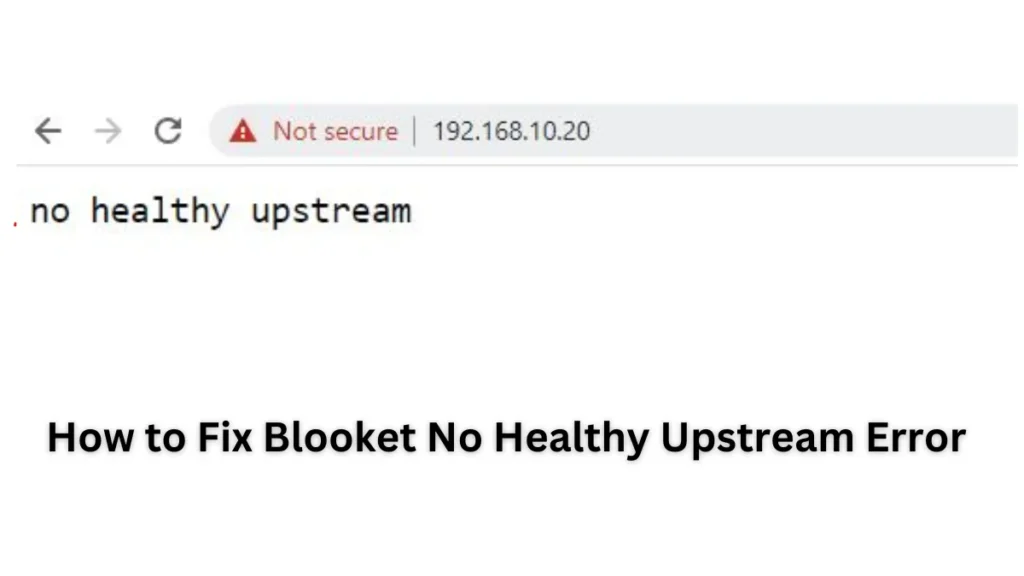
What Is “No Healthy Upstream” Error?
The “No Healthy Upstream” error typically appears when your browser (often Chrome) or network fails to connect to the Blooket server’s backend. In technical terms, it means the system can’t find any available backend servers to handle the request.
This error is common in services that rely on load balancers, like NGINX, Kubernetes, or cloud-based platforms. It signals that none of the upstream servers (the backend services Blooket uses to operate) are responding properly.
Why Does It Happen on Blooket?
Blooket uses services like Firebase and other cloud technologies to host games, user data, and real-time interactions. If your browser or network can’t connect to these backend services, you’ll see this error.
Common causes include:
- Blocked domains like
firebaseio.com - Outdated browsers
- Corrupted browser cache or cookies
- Conflicting extensions (e.g., ad blockers)
- Network/router connectivity issues
- School or enterprise firewalls blocking access
How to Fix Blooket “No Healthy Upstream” Error
Try these step-by-step solutions to get back into your game:
1. Restart Your Router or Network
- Unplug your router/modem and wait 30 seconds.
- Plug it back in and let it reboot.
- Reconnect to the internet and try opening Blooket again.
2. Open Blooket in Incognito Mode
This helps avoid interference from cookies or extensions.
- On Chrome, press Ctrl + Shift + N to open a new Incognito window.
- Go to https://www.blooket.com and try joining/hosting again.
3. Update Google Chrome
- Click the three dots in the top-right of Chrome.
- Go to Help > About Google Chrome.
- Chrome will automatically check and install updates.
- Relaunch the browser once updated.
4. Disable Browser Extensions
- Especially ad blockers, antivirus web shields, or content filters.
- Go to chrome://extensions/ and toggle off suspicious or unnecessary extensions.
- Refresh Blooket after disabling.
5. Allow Access to Required Domains
Blooket depends on services like Firebase (firebaseio.com). If this is blocked by your network:
- Contact your network admin or IT department.
- Ask them to whitelist domains like:
*.firebaseio.com*.blooket.com
6. Use Blooket’s Debugging Tool
Check your browser compatibility and network with their tool: https://debug.blooket.com
It will help you identify what might be blocking Blooket from functioning properly.
Advanced: Is It a Server Issue?
Sometimes, the error might not be on your end. If Blooket’s backend servers are experiencing outages or their upstream connections are unhealthy, even perfect setups won’t work. In that case:
- Check Blooket’s status via https://status.blooket.com
- Follow them on Twitter/X for updates: @PlayBlooket
Quick Fixes
| Possible Cause | Recommended Fix |
|---|---|
| Blocked Domains | Whitelist Firebase & Blooket |
| Chrome Issue | Update or Reinstall Chrome |
| Extensions Conflict | Disable Ad Blockers |
| Network Problem | Restart Router / Try Mobile Hotspot |
| Site Issue | Wait and check server status |
Final Thoughts
The “No Healthy Upstream” error in Blooket can be annoying, especially in the middle of a class or game session. But in most cases, it’s a browser or network-related issue that can be resolved in a few quick steps.
Still having trouble? Try switching devices, or contact Blooket support directly.
Have you faced this issue before? Let us know in the comments how you fixed it!

