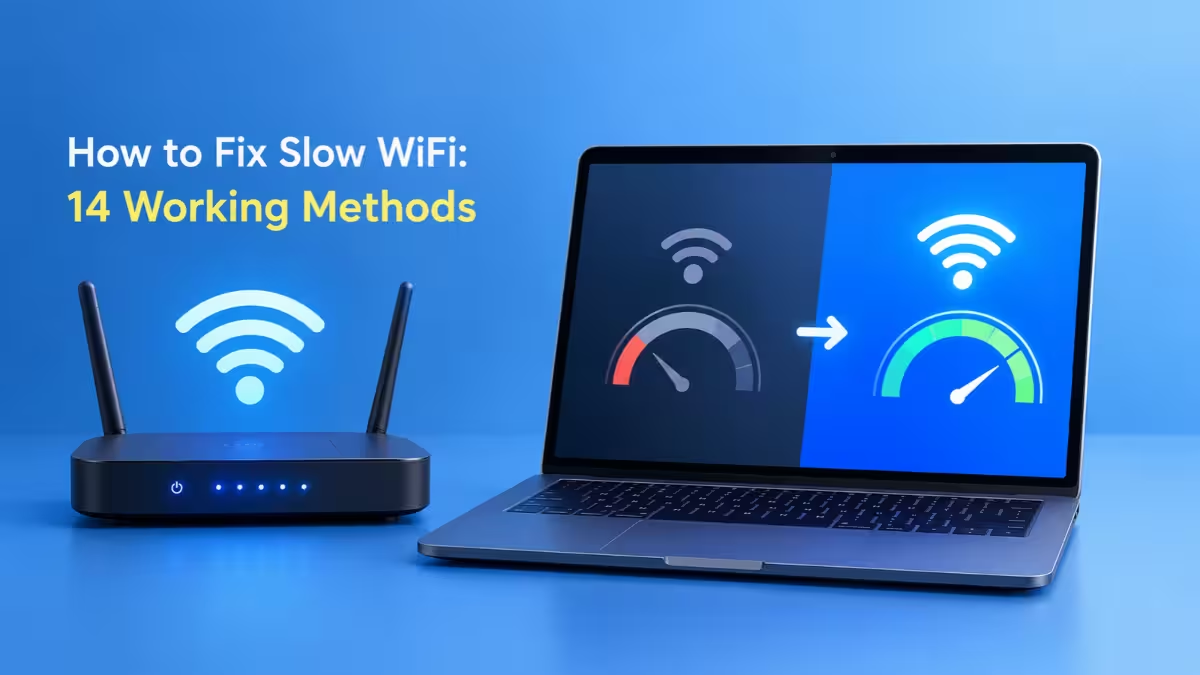
Slow Wi-Fi rarely comes from one cause. A crowded channel, a router hidden behind the TV, a laptop syncing gigabytes to the cloud, or an aging router can each drag your speed down, and several of them often stack together. This guide shows you how to find the real bottleneck first and then apply the methods that match it, starting with free changes and ending with hardware upgrades.
Why Is My Wi-Fi So Slow?
Four problems account for most slow connections, and each one points to a different set of methods below.
- Weak or blocked signal: Distance, walls, and poor router placement cut the speed that reaches your device.
- Interference and crowding: Neighboring networks, microwaves, and too many connected devices fight over the same airtime.
- Outdated hardware or software: An old router, stale firmware, or a broken driver caps speed below what your plan allows.
- Internet line or plan limits: Your ISP, a small plan, or peak-hour congestion slows everything, no matter how good your Wi-Fi is.
Check Whether Wi-Fi or Your Internet Is Slow
A two-minute comparison tells you whether your wireless setup or your internet line causes the problem.
Your internet plan sets the ceiling, and your Wi-Fi decides how much of that ceiling reaches each device. Before you change any setting, run two quick checks:
- Plug a laptop into the router with an Ethernet cable and run a test on Speedtest or Fast.com.
- Unplug the cable, stand in the room where Wi-Fi feels slow, and run the same test again.
Read the results this way:
| Wired result | Wireless result | Likely problem |
|---|---|---|
| Close to your plan | Much lower | Wi-Fi coverage, interference, or router settings |
| Far below your plan | Far below your plan | ISP line, modem, or plan limit |
| Close to your plan | Fine near router, poor in far rooms | Range and obstacles |
| Varies a lot between runs | Varies a lot between runs | Congestion or peak-hour load |
Write down each number. You will retest after every method, and the difference shows you which change actually worked.
Method 1: Restart Your Router and Modem
A clean restart clears stuck connections and memory buildup that routers collect after weeks of nonstop running.
Follow this order so the modem gets a fresh link before the router asks for one:
- Unplug the router and the modem (skip the modem if you have a single combo unit).
- Wait 30 seconds.
- Plug in the modem and wait until its status lights settle, usually one to two minutes.
- Plug in the router and give it another two minutes to boot.
- Restart the phone or laptop that felt slow, then test again.
A restart does not raise your plan's top speed. It only removes temporary faults, which explains why it fixes sudden slowdowns so often. If your router offers a scheduled reboot option, turn it on and set it for a weekly early-morning slot.
Method 2: Move Your Router to a Better Location
Placement changes Wi-Fi speed more than most settings, and it costs nothing.
Radio signals lose strength with distance and with every barrier they cross. Concrete, brick, metal, mirrors, and water absorb or bounce the signal. A router on the floor, inside a cabinet, or in the far corner of the house wastes much of its coverage on outside walls.
Move the router using these guidelines:
- Pick a spot near the middle of the home, close to where people use devices most.
- Raise it to shelf or chest height instead of leaving it on the floor.
- Keep it in the open, away from closets, TV cabinets, and metal furniture.
- Leave at least a meter of space from microwaves, cordless phone bases, and baby monitors.
- Point external antennas straight up for single-floor homes. For two floors, tilt one antenna sideways.
Test from your problem rooms after each move. Even a shift of a couple of meters into open space can lift speeds noticeably in weak spots.
Method 3: Switch to the 5GHz or 6GHz Wi-Fi Band
The band your device joins has a direct effect on how fast it can go.
Dual-band routers broadcast on 2.4GHz and 5GHz, and newer Wi-Fi 6E and Wi-Fi 7 routers add 6GHz. Each band suits different jobs:
| Band | Speed | Range | Crowding | Best use |
|---|---|---|---|---|
| 2.4GHz | Lowest | Longest | Heavy | Smart plugs, cameras, far rooms |
| 5GHz | High | Medium | Moderate | Laptops, phones, TVs in nearby rooms |
| 6GHz | Highest | Shortest | Light | Wi-Fi 6E/7 devices in the same room |
If your router shows two network names, such as HomeNet and HomeNet_5G, connect your laptop, phone, console, and TV to the 5GHz one. Leave smart home gadgets on 2.4GHz, since they need reach more than speed.
If the router uses one name for every band (band steering), open its admin page and confirm the feature stays on. Band steering moves devices to the faster band when they sit close enough.
Method 4: Change Your Wi-Fi Channel
Neighboring networks on the same channel compete for airtime and slow everyone down, which hits apartments hardest.
- Install a Wi-Fi analyzer, such as WiFi Analyzer on Android or NetSpot on Windows and macOS. On Windows, NirSoft's WifiInfoView also works.
- Scan and note which channels nearby networks use.
- Open your router's admin page in a browser. Most routers use
192.168.1.1or192.168.0.1. - Go to the wireless settings and change the channel from Auto to a specific one.
- On 2.4GHz, choose only channel 1, 6, or 11, because those three do not overlap. On 5GHz, the lower channels 36 to 48 usually see less traffic.
- Save, reconnect, and test again.
If you cannot find your router's address, press Win + R, type cmd, and run this command:
ipconfigThe number next to Default Gateway is your router's admin address. The login details usually sit on a sticker under the router, or your ISP can share them if it supplied the device.
Method 5: Stop Background Apps Using Bandwidth
One busy device can make every other device on the network feel slow.
Cloud backups, game downloads, system updates, torrent clients, and a forgotten 4K stream on another screen can quietly take most of your bandwidth. Check for them on each platform:
- Windows: Press
Ctrl + Shift + Escto open Task Manager, open the Processes tab, and sort by the Network column. Pause or close the app at the top. Also check Windows Update for active downloads. - macOS: Open Activity Monitor, select the Network tab, and sort by bytes sent and received.
- Phones: Pause photo backup in Google Photos or iCloud during calls and turn off auto-updates over Wi-Fi if they run at bad times.
- Router: Open the connected devices or traffic page to see which device pulls the most data.
If several people stream and download at the same time, schedule large downloads and backups for late night. Shared bandwidth runs out fast in busy homes.
Method 6: Disconnect Unused Devices From Wi-Fi
Every connected device takes airtime from the router, even when it sits idle in a drawer.
A typical home now runs phones, laptops, TVs, consoles, speakers, cameras, bulbs, and plugs on the same network. Older routers struggle once that list passes 15 to 20 devices.
- Open the Connected Devices or Client List page in your router's admin panel.
- Remove old phones, guest devices, and anything you no longer use.
- Turn off Wi-Fi on devices that stay unused for long periods.
- Move visitors to a guest network so they do not share your main one.
Method 7: Secure Your Wi-Fi From Unknown Users
A neighbor on your network uses the same bandwidth you pay for.
If the device list shows names or MAC addresses you do not recognize, secure the network right away:
- Change the Wi-Fi password to a strong one with at least 12 characters, mixing letters, numbers, and symbols.
- Set security to WPA3 if your router and devices support it. Otherwise, choose WPA2 with AES encryption, and never use WEP or WPA-TKIP.
- Disable WPS, since its PIN feature has known weaknesses.
- Change the router's admin password from the factory default.
- Reconnect your own devices with the new password.
Method 8: Update Router Firmware and Wi-Fi Drivers
Outdated software on the router or the device can cap speed or cause dropouts.
Router firmware: Log in to the admin page and look under Administration, System, or Firmware Update. Install any available update and let the router restart by itself. Do not cut the power during the update. Many mesh systems and newer routers update automatically, so check that the option stays on.
Windows Wi-Fi driver: A Windows update sometimes breaks the wireless driver. To refresh it:
- Open Device Manager from the Start search.
- Expand Network adapters and find the entry with Wi-Fi or Wireless in its name.
- Right-click it and select Update driver. If that does not help, choose Uninstall device, then restart the PC so Windows reinstalls it.
- If the problem continues, download the latest driver from your laptop maker's or adapter maker's support page.
On macOS, Apple delivers Wi-Fi driver updates through regular system updates, so install any pending macOS update.
Method 9: Turn Off Your VPN and Scan for Malware
A VPN routes your traffic through a distant server, which adds delay and cuts speed.
Turn off the VPN and run a speed test. If speed jumps, choose a closer server or a faster protocol such as WireGuard in your VPN app, and switch the VPN off for tasks that need full speed. While you are at it, run a full antivirus scan. Malware that sends data in the background can keep your connection busy even when you do nothing.
Method 10: Enable QoS on Your Router
Quality of Service lets the router serve important traffic first when the network gets busy.
Open your router's admin page and look for QoS, Traffic Management, or Device Priority. Give top priority to your work laptop, video call apps, or game console, and lower priority to backups and downloads. If you already turned on QoS and some devices became slow, check for a bad rule or turn QoS off to restore equal sharing.
Method 11: Use Ethernet for Fixed Devices
Every device you take off Wi-Fi leaves more capacity for the ones that must stay wireless.
A desktop PC, game console, or smart TV stays in one place, so an Ethernet cable makes sense. Wired links give lower latency and steady speed, and they ignore wireless interference. Use a Cat6 cable for gigabit plans. If a cable cannot reach the room, powerline adapters carry the connection through your home's electrical wiring, though their speed depends on the wiring quality.
Also check the cables between the wall, modem, and router. Loose, kinked, or old cables can limit the whole network.
Method 12: Upgrade Your Router or Add Mesh Wi-Fi
When placement and settings still leave dead zones, the hardware has reached its limit.
Use the router's Wi-Fi standard to judge its age:
| Standard | Also called | Verdict today |
|---|---|---|
| 802.11n | Wi-Fi 4 | Replace it |
| 802.11ac | Wi-Fi 5 | Fine for small homes and slower plans |
| 802.11ax | Wi-Fi 6 / 6E | Strong choice for most homes |
| 802.11be | Wi-Fi 7 | Best for fast fiber plans and many devices |
Choose the upgrade that fits your home:
- New Wi-Fi 6 or Wi-Fi 7 router: Suits small and mid-size homes where one unit can cover every room. Wi-Fi 6 features such as OFDMA and MU-MIMO handle many devices far better than older models.
- Mesh system: Suits large homes, multi-floor houses, and thick walls. Several units create one network, and your devices hop to the nearest node as you move.
- Wi-Fi extender: Costs less, but it repeats the signal on the same channel and often halves the speed it delivers. Treat it as a budget fix for one dead room.
If your ISP supplied an old modem-router combo, ask whether it offers a newer model before you buy your own.
Method 13: Check If Your Internet Plan Is Too Slow
Wi-Fi can never deliver more speed than the plan feeding it.
If your wired test sits close to your plan's speed and the home still feels slow, the plan itself has become too small. Use these rough targets:
| Household use | Suggested plan speed |
|---|---|
| One person browsing and HD streaming | 50 Mbps |
| Two to three people with video calls and streaming | 100 to 200 Mbps |
| Families with 4K streams, gaming, and remote work | 300 Mbps or more |
If speed drops only between about 7 PM and 11 PM, your ISP's local network likely gets congested at peak hours. Move big downloads to off-peak times, and ask the ISP about less congested plans or switch providers if one serves your area.
Method 14: Contact Your ISP About Slow Speeds
When wired speed stays low after every method above, the fault likely sits on the provider's side.
Collect evidence first. Run wired speed tests at different times over two or three days and save screenshots. Then contact support and share:
- Your plan speed and your wired test results
- The times when speed drops
- The methods you already tried, including the restart and cable checks
Ask the support team to check your line signal and local congestion. If remote checks do not solve it, request a technician visit. Consistent wired speeds below about 70 percent of the advertised plan give you a fair basis for a complaint.
Frequently Asked Questions
Why does my Wi-Fi slow down only at night?
Evening hours bring the heaviest internet use in most neighborhoods, so your ISP's local network gets crowded. More devices in your own home also come online after work. If daytime tests look normal, schedule heavy downloads for late night or early morning.
Why is Wi-Fi slow on my phone but fast on my laptop?
Your phone may sit on the 2.4GHz band while the laptop uses 5GHz. Phones also carry smaller antennas, and some cases with metal parts weaken the signal. Switch the phone to the 5GHz network and restart it.
How often should I restart my router?
Once a week works well for most homes. Many routers let you schedule an automatic reboot, which saves you from doing it by hand.
Can my neighbor's Wi-Fi slow down mine?
Yes. When nearby routers use the same channel, they compete for airtime. A Wi-Fi analyzer app shows the busy channels so you can move to a quieter one.
Does a VPN slow down Wi-Fi?
Yes. Encryption and the extra trip to a remote server add delay and reduce speed. Choosing a closer server or the WireGuard protocol usually reduces the loss.
How do I know if my router is too old?
Check the model number on the router's label and look up its Wi-Fi standard on the maker's website. A router that supports only Wi-Fi 4 or that you bought more than five years ago likely holds back a modern plan.
Is a mesh system better than a Wi-Fi extender?
For speed and reliability, yes. Mesh nodes work together as one network, while an extender repeats the signal and often cuts its speed in half. Extenders only make sense as a cheap fix for a single weak room.