A dead SSD, a ransomware hit or one careless click on "Delete" can wipe out years of photos, work files and game saves in seconds. Windows ships with a few backup tools, but none of them gives you a fast, reliable way to bring a crashed PC back to life. That job belongs to dedicated backup software.
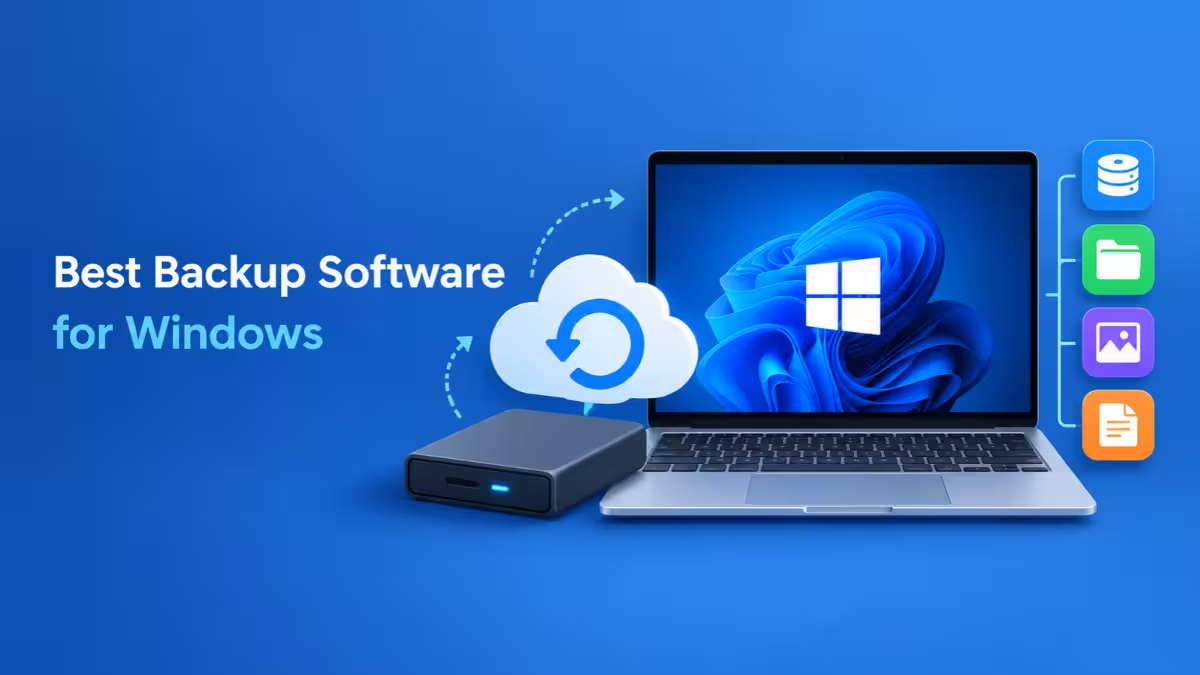
The catch is that "backup" covers several different jobs. Some tools excel at cloning your entire drive so you can restore Windows exactly as it was. Others focus on versioned copies of your documents sent off-site to the cloud. A few try to do everything. This guide sorts the best Windows backup software by what each one does best, so you can match the tool to the problem you actually want to solve.
Best Backup Software for Windows 11 and 10: Quick Picks
Backup tools for Windows fall into three groups: disk imaging for full system recovery, file and cloud backup for off-site copies, and free built-in options, and these eight picks cover all three.
| Software | Best For | Starting Price | Free Version | Disk Imaging | Cloud Option |
|---|---|---|---|---|---|
| EaseUS Todo Backup | Most home users | About $40/year | Yes | Yes | Yes (EaseUS Cloud) |
| Macrium Reflect X Home | System recovery and imaging | About $40/year per PC | No | Yes | No bundled cloud |
| Acronis True Image | Backup plus malware protection | $49.99/year | No | Yes | Yes (Acronis Cloud) |
| AOMEI Backupper | Budget all-rounder | Free / $69.95 lifetime | Yes | Yes | Via cloud folders |
| Veeam Agent for Windows Free | Free whole-PC imaging | Free | Yes | Yes | No |
| Arcserve ShadowProtect SPX | Power users and small business | Paid license | No | Yes | Network targets |
| Backblaze | Hands-off cloud backup | $99/year per PC | No | No | Yes (unlimited) |
| Windows File History | Basic built-in protection | Free | Built in | No | No |
Why Windows Built-In Backup Tools Are Not Enough
Windows includes File History, Backup and Restore (Windows 7) and a Recovery Drive, but together they form a patchwork rather than a plan. File History protects only your user folders and, on Windows 11, no longer lets you choose what it saves. Backup and Restore can create a system image, yet it runs no more often than daily and cannot send backups to the cloud. The Recovery Drive and System Repair Disc have failed often enough in testing that you should not trust them when a drive dies.
Microsoft's OneDrive backup helps with Desktop, Documents and Pictures, but it syncs changes instead of keeping separate versions. If ransomware encrypts a file on your PC, the encrypted copy can overwrite the good one in the cloud. A dedicated backup tool fixes these gaps with versioned copies, bootable recovery media, scheduling and off-site storage.
How to Choose the Right Backup Software for Windows
Before you compare products, decide which failures you want to survive. Each feature below protects you from a different kind of disaster.
File Backup vs Disk Imaging
File backup copies the folders you choose, such as Documents, Pictures and project files. It works best when you delete or corrupt a single file and need yesterday's copy back.
Disk imaging captures your whole drive, including Windows, installed apps, drivers and settings, in one snapshot. When your drive dies, you restore the image to a new drive and pick up where you left off without reinstalling anything.
Most people benefit from both: a regular system image plus frequent file backups.
Bootable Recovery Media
If Windows refuses to start, you need a way to run your backup tool from outside it. Good backup software creates a bootable USB drive (usually WinPE based) that loads the restore environment. Avoid relying on Microsoft's own Recovery Drive for this, as it has a spotty track record.
Full, Incremental and Differential Backups
- Full backup copies everything you selected every time. It is the simplest to restore but eats the most space.
- Incremental backup saves only what changed since the last backup of any kind. It runs fast and stays small, but a restore needs the full backup plus every incremental in the chain.
- Differential backup saves everything that changed since the last full backup. It grows larger over time, but a restore needs only the full backup and the newest differential.
Scheduling, Versioning and Retention
Backups only help if they run without you remembering. Look for daily, weekly or event-based schedules, plus versioning that keeps older copies so a corrupted file does not overwrite your only good one. Retention rules should clean up old versions automatically before your drive fills.
Off-Site and Cloud Support
A backup that sits next to your PC dies in the same fire, flood or theft. You want at least one copy somewhere else, whether that means the vendor's cloud, your own Google Drive or OneDrive account, a NAS at another location or an FTP server.
Encryption
AES-256 encryption keeps your backups private, especially in the cloud or on a portable drive. If you set a private key, store it in a password manager. Lose it and nobody, including the vendor, can unlock your data.
8 Best Backup Software for Windows in 2026 (Free and Paid)
1. EaseUS Todo Backup: Best Overall for Most Users
EaseUS Todo Backup covers nearly every backup job a home user will face, and it does so through one of the cleanest, most logical interfaces in this category. You get system imaging, disk and partition backup, file and folder backup, one-way sync, disk cloning and bootable WinPE recovery media in a single app.
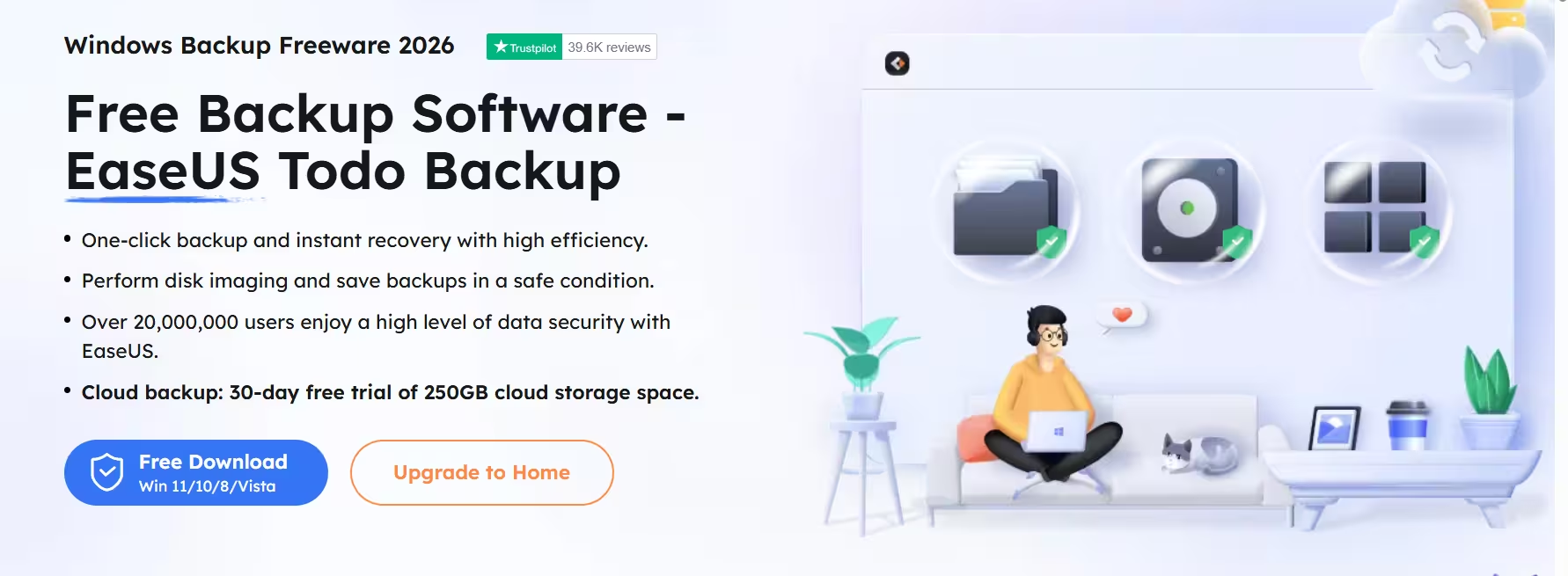
The free edition stands out. It includes imaging, file backup, scheduling and boot media, which already beats what many competitors charge for. It even supports backup from network locations and continuous backup that captures changes at short intervals. You will see occasional upgrade prompts and some speed limits, but the core protection works.
The paid Home edition adds faster performance, more advanced options and access to EaseUS's own cloud storage. It also backs up application data such as Outlook mail, Chrome settings and game saves. A Smart Backup mode automates a weekly cycle of full, differential and incremental images, so you never have to plan backup chains yourself.
Highlights: - Imaging, file backup, sync, cloning and disaster recovery in one tool - Strong free edition with scheduling and bootable media - Choice of yearly subscription or one-time license - Optional cloud plan with 1TB of EaseUS storage
Drawbacks: - No direct support for third-party cloud providers - Minor quirks in file sync - Read the checkout terms carefully, since yearly and lifetime plans differ in cloud and upgrade rights
Pricing: Free edition available. Paid Home plans start at about $40 per year, with options that bundle 1TB of cloud storage or a one-time lifetime license.
Choose it if: You want one easy, dependable tool that handles both everyday file backups and full system recovery.
2. Macrium Reflect X Home: Best for Disk Imaging and System Recovery
Macrium has built its reputation on one thing: getting a broken Windows PC back to exactly how it was. For over 15 years, IT pros have trusted its byte-level images, and the current Reflect X version keeps that focus sharp.

Rapid Delta Restore copies only the blocks that differ between your backup and the current disk, which cuts restore times dramatically. Resumable imaging picks up where it left off if a large backup gets interrupted. Image Guardian blocks unauthorized changes to your backup files, giving you a solid layer of ransomware defense. Rescue media built on WinPE or WinRE lets you restore a machine that will not boot.
Reflect also works well for migrating to a new SSD or laptop. The trade-off is cost and focus. Macrium dropped its free edition and its perpetual Home license, so you now pay an annual subscription. It also has no bundled cloud storage, and its workflow feels heavy if all you want is a quick versioned file backup.
Highlights: - Industry-leading image backup and bare-metal restore - Fast delta restores and resumable imaging - Built-in protection for backup files against ransomware - Excellent for drive migration
Drawbacks: - Subscription only, no free version - No bundled cloud storage - Interface can intimidate beginners
Pricing: Subscription plans start at around $40 per year per PC, with multi-year terms available.
Choose it if: Fast, reliable recovery from a dead drive or broken Windows install matters more to you than anything else.
3. Acronis True Image: Best for Backup Plus Security
Acronis True Image goes beyond backup. It combines full image backup, file backup, active disk cloning and file sync with anti-malware, active ransomware protection and Windows patch management. If you want one subscription that guards your data from both hardware failure and attackers, nothing else matches it.
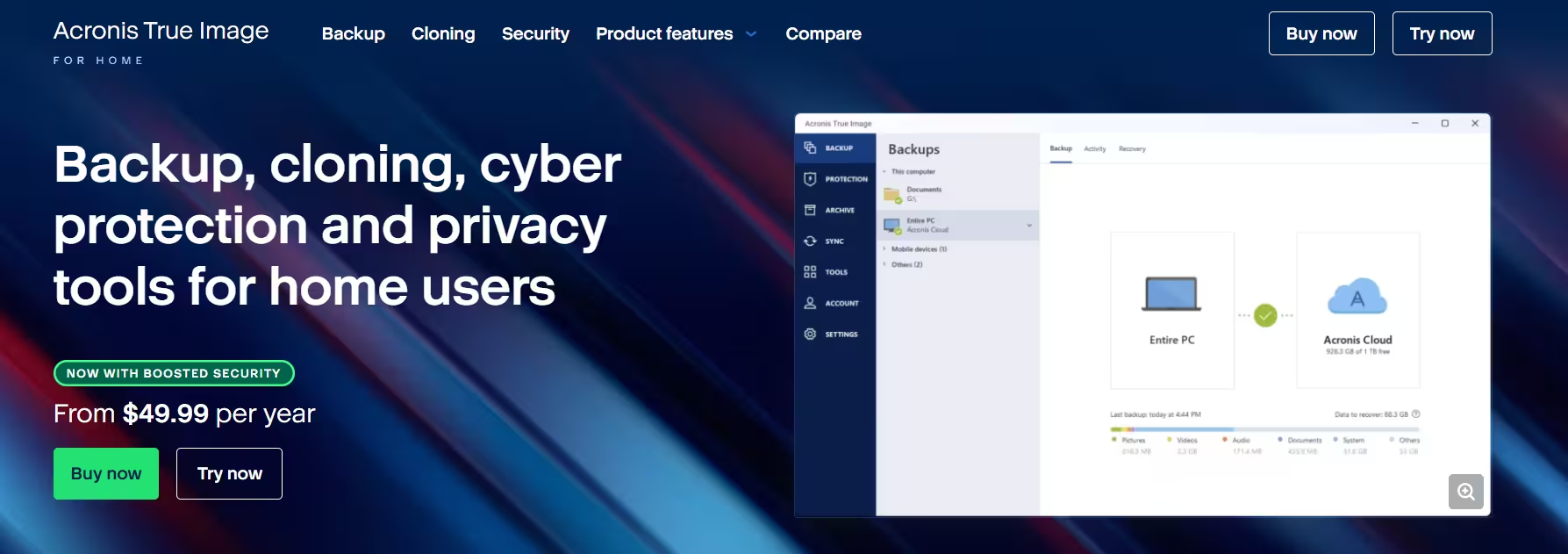
The ransomware module watches for unauthorized encryption and can roll affected files back. Higher tiers add Acronis Cloud storage and can replicate your local backups off-site automatically, so you get the local plus cloud setup without managing two tools. Recovery to different hardware also works, which helps during PC upgrades.
All of that capability comes with weight. True Image installs a large footprint with several always-on background services, collects a fair amount of telemetry and can feel cluttered. It only supports its own cloud, not Google Drive or Dropbox directly, though it does back up to and from network locations.
Highlights: - Imaging, file backup, cloning and sync in one package - Built-in antivirus and ransomware protection - Integrated cloud backup on Advanced and Premium plans - Restores to dissimilar hardware
Drawbacks: - Subscription only - Heavy system footprint and lots of telemetry - No third-party cloud support
Pricing: Essentials costs $49.99 per year, Advanced $72.99 per year and Premium $124.99 per year. Watch for deals, as the Advanced plan with 250GB of cloud storage often drops well below list price.
Choose it if: You want backup and security handled by one vendor and do not mind paying every year.
4. AOMEI Backupper: Best Budget All-Rounder
AOMEI Backupper delivers a lot of tools for very little money. The free Standard edition handles system, disk, partition and file backups with full, incremental and differential options, scheduling and bootable recovery media. It backs up to local disks, external drives, network shares and NAS devices.
The Professional edition unlocks the extras power users want. You get four sync modes (basic, real-time, mirror and two-way), event-based triggers that run a backup when you plug in a specific USB drive, automatic cleanup schemes and Universal Restore for moving an image to a PC with different hardware. It also clones systems, disks and partitions, which makes SSD upgrades painless.
Cloud backup works only through your provider's sync folder rather than a direct connection. That approach works, but it lacks elegance. Some users also find they need a third-party tool like Rufus to create reliable boot media.
Highlights: - Generous free edition - Flexible triggers, including USB plug-in backups - Disk cloning and Universal Restore - One-time lifetime license available
Drawbacks: - Cloud support relies on sync folders - Upgrade prompts in the free version - Mixing sync and backup modes takes careful setup
Pricing: Standard is free. Professional costs $49.95 per year or $69.95 for a lifetime license, with family plans available.
Choose it if: You want imaging, file backup and cloning on a tight budget.
5. Veeam Agent for Microsoft Windows Free: Best Free Disk Imaging
Veeam builds enterprise backup software, and its free Windows agent brings that same engine to a single PC at no cost. It creates image-based backups of your entire computer, chosen volumes or individual files and folders, then stores them on a local drive, NAS or network share.
Bootable recovery media and bare-metal restore make it a real disaster recovery tool, not just a file copier. If your drive fails, you boot from USB and restore the whole system to a new disk. File-level restore lets you pull out a single document without restoring everything.
The big limitation: the free edition allows only one backup job. You also miss out on direct cloud storage and advanced retention options. For one PC with one simple plan, that works fine. Anyone who wants separate jobs for system images and documents will feel boxed in.
Highlights: - Completely free whole-PC imaging - Bare-metal recovery with bootable media - Enterprise-grade reliability
Drawbacks: - Only one backup job in the free version - No direct cloud or FTP destinations - No app-data or profile backup
Pricing: Free. Commercial editions need a paid Veeam license.
Choose it if: You want reliable free system imaging for a single PC.
6. Arcserve ShadowProtect SPX: Best for Power Users and Small Businesses
ShadowProtect SPX focuses on making complete images of your partitions and does it extremely well. Reviewers consistently rank it as one of the most mature and reliable image backup tools for Windows, and it also runs on Linux, which helps in mixed environments.
Its continuous data protection captures changes frequently and reliably. Restores work to the same hardware, different hardware or even virtual drives, and you can boot a backed-up system as a virtual machine to check it or keep working. A timeline view shows your recovery points at a glance.
ShadowProtect does not chase casual users. It handles image backup only, offers no disk cloning tools and greets newcomers with a fairly obscure interface and login dialog. It also costs more than consumer tools.
Highlights: - Rock-solid image backup and continuous protection - Restores to real or virtual drives, including different hardware - Supports Windows and Linux
Drawbacks: - Image-based backup only, no cloning - Steep learning curve for beginners - Pricier than home-focused tools
Pricing: Paid license, priced above typical consumer tools.
Choose it if: You run a small office or home lab and need bulletproof image backups that scale across a network.
7. Backblaze: Best Hands-Off Cloud Backup
Backblaze takes the opposite approach to tools like Macrium. You install it, and it quietly uploads your important files to its cloud with almost no configuration. There is no storage limit, so big video libraries, podcast archives and photo collections cost the same as a few documents.
Security stays strong with multi-factor authentication and an optional private encryption key. If you lose a large amount of data, Backblaze can ship you a physical drive with your files instead of making you download terabytes.
Simplicity has limits. Each subscription covers only one computer, you restore files through the web app, and selecting what to back up feels clunky. It does not create disk images either, so pair it with a local imaging tool for full system recovery. Version history beyond a year costs extra.
Highlights: - Unlimited storage per computer - Set-and-forget setup - Private encryption key option - Restore by mailed drive
Drawbacks: - One computer per license - No disk imaging - Restores only through the web interface
Pricing: $99 per year per computer.
Choose it if: You want an off-site copy of everything without thinking about it.
8. Windows File History: Best Built-In Option
File History comes with Windows and automatically keeps versions of your user folders on an external drive or network share. It costs nothing and beats having no backup at all.
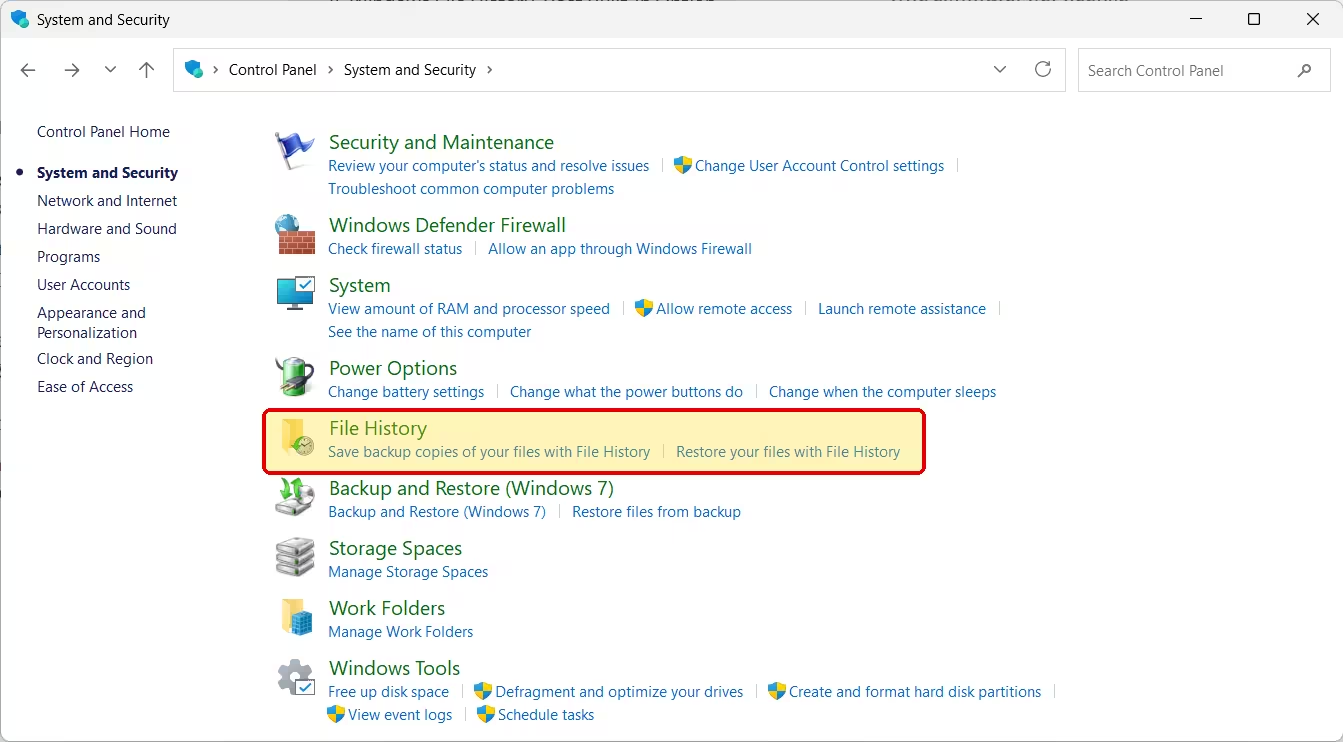
Treat it as a safety net, not a plan. It cannot create off-site copies, offers no real encryption, sometimes fails silently after Windows updates and, on Windows 11, no longer lets you customize which folders it protects. The older Backup and Restore (Windows 7) tool can still create system images, but it depends on Microsoft's unreliable recovery media, so do not count on it for disaster recovery.
Choose it if: You need something running today while you set up a proper tool.
Windows Backup Software Comparison Table
| Software | File Backup | System Image | Cloning | Bootable Recovery | Ransomware Protection | Off-Site Copy |
|---|---|---|---|---|---|---|
| EaseUS Todo Backup | Yes | Yes | Yes | Yes | Basic | EaseUS Cloud, FTP |
| Macrium Reflect X | Yes | Yes | Yes | Yes | Image Guardian | Network only |
| Acronis True Image | Yes | Yes | Yes | Yes | Full suite | Acronis Cloud |
| AOMEI Backupper | Yes | Yes | Yes | Yes | Encryption | Cloud sync folders |
| Veeam Agent Free | Yes | Yes | No | Yes | No | NAS/network |
| ShadowProtect SPX | Limited | Yes | No | Yes | No | Network |
| Backblaze | Yes | No | No | No | Versioning | Yes |
| File History | Yes | No | No | No | No | No |
Best Free Backup Software for Windows
You can protect a Windows PC well without spending anything. Pick the free tool that matches your job:
- EaseUS Todo Backup Free: the best all-round free option, with imaging, file backup, scheduling and bootable media.
- AOMEI Backupper Standard: a strong free choice for scheduled system, disk and file backups, with incremental and differential modes.
- Veeam Agent for Microsoft Windows Free: the best free whole-PC image for one PC, limited to a single backup job.
- Windows File History: free and built in, but best treated as a stopgap.
Free versions usually add ads or upgrade prompts, and they often lock cloud storage and advanced automation behind a paid tier. For one PC with basic needs, that trade-off is acceptable.
How to Back Up Your Windows PC the Right Way (3-2-1 Rule)
No single tool covers every risk perfectly. Follow the 3-2-1 rule: keep three copies of your data, on two different types of storage, with one copy off-site.
For a typical Windows user, that looks like this:
- A weekly system image on an external drive using EaseUS, Macrium, AOMEI or Veeam. This handles drive failure and broken Windows installs.
- Daily or continuous file backups of your documents and photos. Run them more often if you work on files every day.
- An off-site copy through Backblaze or a vendor cloud plan such as EaseUS Cloud or Acronis Cloud. This protects you from theft, fire and ransomware that reaches every drive plugged into your PC.
Then do the step most people skip: test a restore. Boot from your recovery USB at least once and pull a few files out of your backups. A backup you have never restored is only a hope.
Frequently Asked Questions
What is the best backup software for Windows 11?
EaseUS Todo Backup is the best pick for most Windows 11 users because it combines imaging, file backup, cloning and recovery media in an easy interface. Choose Macrium Reflect X if system recovery is your top priority, or Acronis True Image if you also want built-in malware protection.
What is the best free backup software for Windows?
EaseUS Todo Backup Free and AOMEI Backupper Standard give you imaging, file backup, scheduling and boot media at no cost. Veeam Agent Free offers excellent whole-PC imaging but allows only one job.
Is OneDrive or Google Drive enough as a backup?
No. Cloud sync services mirror your files across devices, so a deletion, corruption or ransomware encryption on your PC spreads to the cloud copy quickly. They keep limited version history, but true backups stay separate and unchanged. You can still use these services as a destination for real backup software.
Is disk cloning the same as a backup?
No. A clone creates a current copy of your drive, which helps when you move to a new SSD. It does not keep older versions, so it cannot rescue a file you deleted or corrupted last week. Use versioned image or file backups for ongoing protection.
Will backup software slow down my PC?
On modern hardware, you usually will not notice it. Most tools run in the background or during idle time, and many let you throttle speed or bandwidth. Heavier suites like Acronis use more system resources because of their security features.
How often should I back up my computer?
Back up as often as your data changes. If you work on important files daily, run file backups daily or continuously. A system image once a week, and before major Windows updates, covers most home users.
Do I need to pay for backup software?
Not necessarily. Free tools cover the basics well. Paid versions add faster performance, cloud storage, better automation, ransomware protection and support. Pay when those extras protect something you cannot afford to lose.
Which Windows Backup Software Should You Choose?
EaseUS Todo Backup earns the top spot for most people thanks to its complete feature set, friendly interface and strong free edition. Macrium Reflect X remains the specialist pick for disk imaging and fast system recovery, while Acronis True Image suits anyone who wants backup and security in one subscription. On a budget, AOMEI Backupper and Veeam Agent Free deliver serious protection for little or no money.
Whatever you choose, pair a local image with an off-site copy and test a restore. That combination turns a disaster into a minor inconvenience.