Error Dolphin-028 stops Ubisoft Connect users right at the login screen with a message that says the client failed to sign in and needs a restart. The error blocks every game tied to the launcher, including single-player titles, since it interrupts authentication before any game can load.
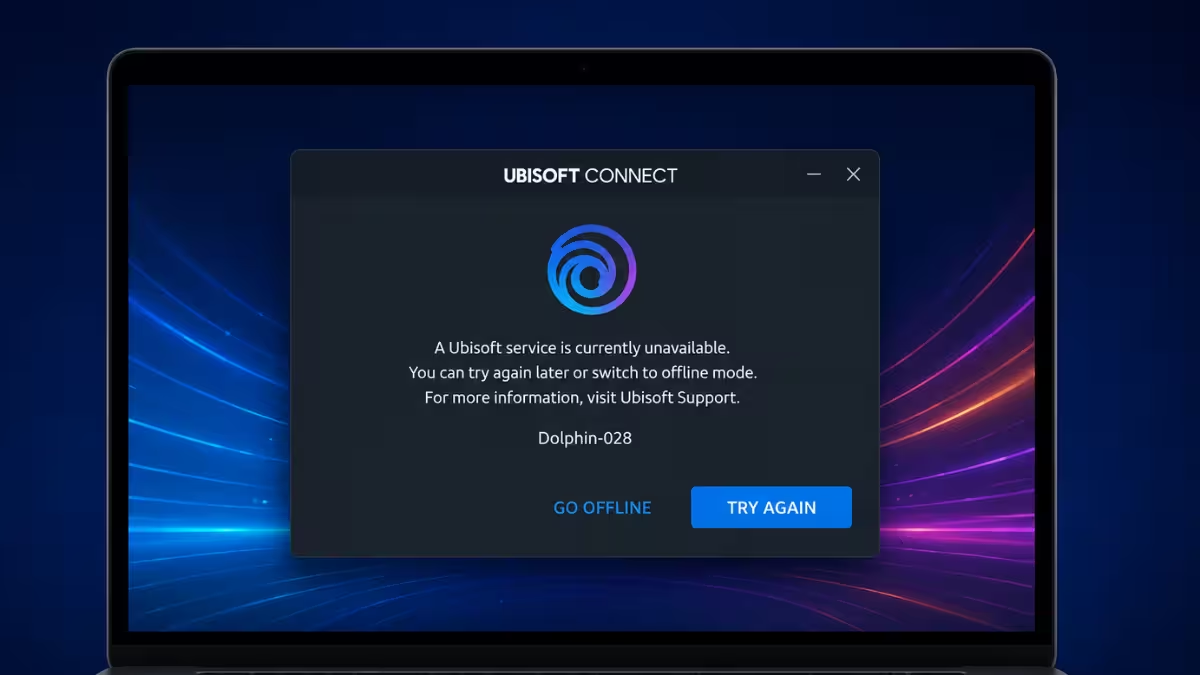
What Causes Error Dolphin-028
The error usually points to a broken handshake between your PC and Ubisoft’s authentication servers. Common triggers include:
- A high MTU value that fragments packets before they reach Ubisoft’s servers
- Corrupted or outdated DNS cache entries
- VPN or traffic-filtering tools interfering with the TLS handshake
- Server-side outages or scheduled maintenance on Ubisoft’s end
Check Ubisoft Server Status First
Before spending time on local fixes, confirm the issue isn’t on Ubisoft’s end. Visit the Ubisoft server status page and look for any reported outages or maintenance windows affecting Ubisoft Connect. If services show as degraded or unavailable, wait for Ubisoft to resolve it before troubleshooting your own network.
Fix 1: Release and Renew Your IP Address
A stale IP lease is one of the most common reasons the login loop starts, and refreshing it clears the problem for a large share of affected users.
- Press
Win + S, type Command Prompt, and select Run as administrator. - Click Yes on the UAC prompt.
- Run
ipconfig /release, thenipconfig /renew. - Restart the PC and try signing in again.
Fix 2: Change Your DNS Server
Slow or unreliable DNS resolution from your ISP can prevent Ubisoft Connect from reaching its login servers in time.
- Press
Win + R, typencpa.cpl, and hit Enter. - Right-click your active network adapter and open Properties.
- Select Internet Protocol Version 4 (TCP/IPv4), then click Properties.
- Choose Use the following DNS server addresses and enter
8.8.8.8as preferred and8.8.4.4as alternate. - Save the changes and restart the computer.
Fix 3: Lower the MTU Size
A high MTU can cause packets to fragment or drop before reaching Ubisoft’s authentication servers, which triggers the login failure.
- Open Control Panel, then go to Network and Internet > Network and Sharing Center.
- Click Change adapter settings, right-click the active adapter, and select Properties.
- Click Configure, go to the Advanced tab, and select Jumbo Packet from the property list.
- Set a lower value, such as 1430, and click OK.
A value of 1430 gives packets enough headroom to pass through most ISP networks without fragmenting.
Fix 4: Disable VPN and Antivirus Temporarily
VPNs and some antivirus suites block or reroute authentication traffic, which makes Ubisoft’s servers reject the session because the region or token looks invalid.
- Right-click the VPN app in the system tray and disconnect or quit it.
- Pause any third-party antivirus temporarily.
- Launch Ubisoft Connect and try logging in again.
- Re-enable both tools once you’re signed in successfully.
Fix 5: Rename the Ubisoft Connect Cache Folders
Renaming the folder instead of deleting it keeps a backup in place in case the launcher needs those files later.
- Close Ubisoft Connect completely through Task Manager if needed.
- Navigate to
C:\Program Files (x86)\Ubisoft\Ubisoft Game Launcher\. - Rename the
cachefolder tocache_backup. - Go to
%LocalAppData%\Ubisoft Game Launcher\and rename thatcachefolder the same way. - Restart Ubisoft Connect to let it rebuild a fresh cache.
Fix 6: Reset Network Settings
A full network reset clears every adapter configuration and any stored VPN settings that might conflict with Ubisoft’s login handshake.
- Press
Win + I, go to Network & Internet, then Advanced network settings. - Click Network reset, then Reset now.
- Confirm the reset and let the PC restart.
- Reconnect to Wi-Fi or Ethernet and try Ubisoft Connect again.
Fix 7: Reinstall Ubisoft Connect
If none of the network-level fixes work, a clean reinstall removes corrupted launcher files without touching your installed games.
- Press
Win + I, go to Apps > Installed apps, and search for Ubisoft Connect. - Click the three-dot menu and select Uninstall.
- Download a fresh copy from Ubisoft’s official site and install it.
- Sign in. Your existing games stay in place and simply relink to the new installation.
Frequently Asked Questions
Does Error Dolphin-028 affect only one game or all Ubisoft games?
It affects every game tied to Ubisoft Connect, since the error blocks the launcher’s authentication step rather than a specific title.
Will reinstalling the game fix Error Dolphin-028?
No. Reinstalling the game rarely helps because the error originates in Ubisoft Connect’s login process, not in the game files themselves.
What is a safe MTU value to try for this error?
Many users report success setting the MTU to 1430, down from the default of 1500.
Is Error Dolphin-028 caused by my PC or by Ubisoft’s servers?
It can come from either side. Server outages and maintenance trigger it just as often as local issues like DNS problems, firewall blocks, or an outdated Ubisoft Connect install, so checking server status first saves time.
Does a VPN cause Error Dolphin-028?
Yes, in many cases. A VPN can make Ubisoft’s servers see a mismatched region or block the authentication token entirely, which triggers the login failure until the VPN is disconnected.
Can console players get Error Dolphin-028 too?
Yes. Xbox and PS5 users see the same error, though the fixes differ slightly and usually involve clearing console cache, adjusting DNS, and checking NAT type instead of PC-specific network settings.