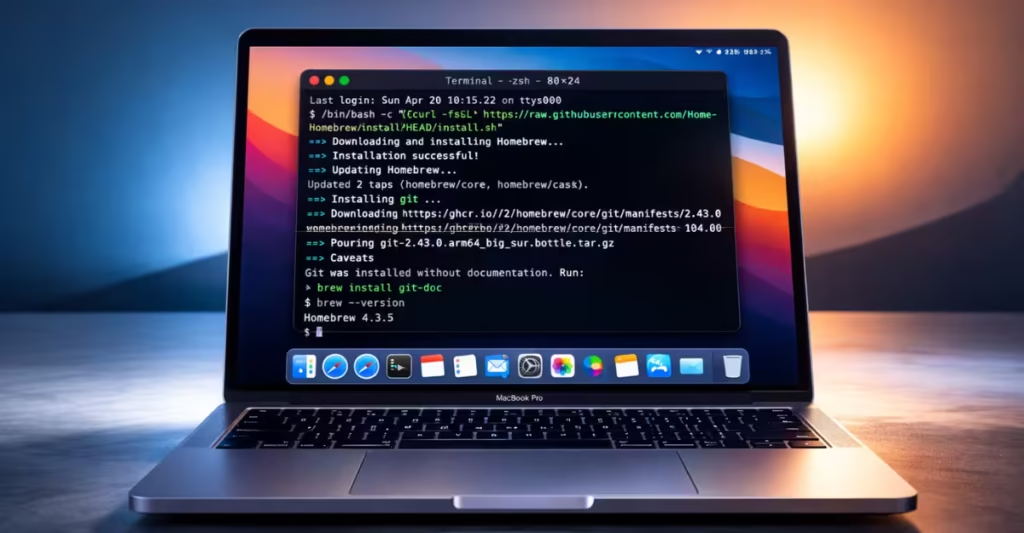
Homebrew is the easiest way to install developer tools and command-line apps on macOS. Instead of downloading files manually, you install software with a single Terminal command. This guide explains exactly how to install Homebrew on macOS, step by step, with no confusion.
What Is Homebrew?
Homebrew is a package manager for macOS. It installs, updates, and removes software safely using the Terminal. Developers and power users rely on it to manage tools like Git, Python, Node.js, and hundreds of other utilities.
Before You Start
Make sure your Mac meets these basic requirements:
- macOS 11 (Big Sur) or later recommended
- Internet connection
- Administrator access (you’ll enter your Mac password once)
Step 1: Open Terminal on Your Mac
You can open Terminal in two simple ways:
- Press Cmd + Space, type Terminal, and press Enter
- Or go to Applications → Utilities → Terminal
Terminal is where you run the Homebrew install command.
Step 2: Install Homebrew Using the Official Command
Copy and paste the command below into Terminal, then press Enter:
/bin/bash -c "$(curl -fsSL https://raw.githubusercontent.com/Homebrew/install/HEAD/install.sh)"What this command does:
- Downloads the official Homebrew installer
- Checks your system for required tools
- Installs Homebrew in the correct location
You may see progress messages. When prompted, enter your Mac password. The password will not appear on the screen while typing.
Step 3: Add Homebrew to PATH (Required)
After installation, Homebrew asks you to add it to your PATH. This step is required so macOS can find the brew command.
For Apple Silicon Macs (M1, M2, M3)
echo 'eval "$(/opt/homebrew/bin/brew shellenv)"' >> ~/.zprofile
eval "$(/opt/homebrew/bin/brew shellenv)"
For Intel Macs
echo 'eval "$(/usr/local/bin/brew shellenv)"' >> ~/.zprofile
eval "$(/usr/local/bin/brew shellenv)"
This change activates Homebrew every time you open Terminal.
Step 4: Verify Homebrew Installation
Check whether Homebrew installed correctly:
brew --versionIf Terminal shows a version number, Homebrew is installed and ready to use.
Step 5: Test Homebrew by Installing a Package
Install a small test package like wget:
brew install wgetIf the installation completes without errors, Homebrew works properly.
Basic Homebrew Commands Every Mac User Needs
brew update        # Update Homebrew itself
brew upgrade       # Upgrade all installed packages
brew install git   # Install a package
brew uninstall git # Remove a package
brew list          # View installed packages
Common Homebrew Installation Issues and How to Fix Them
1. “brew: command not found”
This error means PATH is not set correctly.
- Re-run the PATH command from Step 3
- Close and reopen Terminal, then test again
2.Xcode Command Line Tools Not Installed
Homebrew may require Apple’s command line tools. Install them with:
xcode-select --installAfter installation finishes, rerun the Homebrew install command.
Why You Should Use Homebrew on macOS
Homebrew simplifies software management on macOS by letting you install and manage tools directly from the Terminal. It saves time, reduces errors, and keeps your system clean.
- Installs apps with one command
- Keeps software updated easily
- Avoids manual downloads and installers
- Works smoothly on Intel and Apple Silicon Macs
Homebrew does not change system files or break macOS. You can uninstall any package safely using brew uninstall. If you ever stop using Homebrew, you can remove it completely.

