Spicetify lets you customize the Spotify desktop app on Windows far beyond what Spotify allows on its own. You can change colors, layouts, and fonts, add extensions like pop-up lyrics and keyboard shortcuts, and browse a built-in Marketplace of community themes. The tool runs from the command line, but the setup takes about five minutes once you know the exact steps.
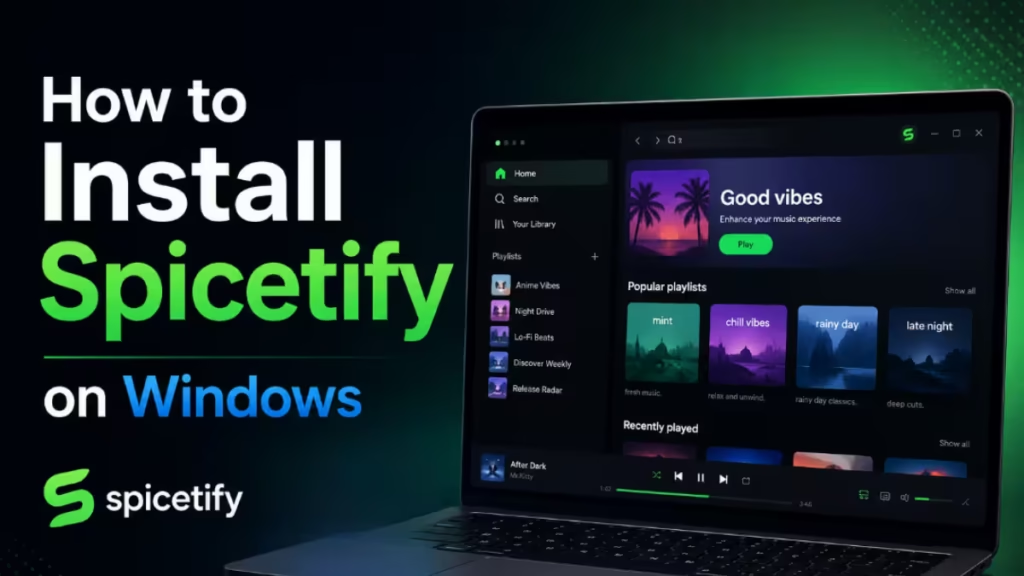
This guide walks you through installing Spicetify on Windows 10 and Windows 11, applying it to Spotify, adding the Marketplace, and fixing the errors that trip up most people.
What You Need Before Installing Spicetify on Windows
Check these requirements first:
- Windows 10 or Windows 11 (64-bit).
- The desktop version of Spotify from the official Spotify website. Do not use the Microsoft Store build. The Store version runs in a sandbox that blocks the file changes Spicetify needs, and it causes most install failures.
- PowerShell, which ships with Windows by default.
- An internet connection, since the installer pulls files from GitHub.
If you already installed Spotify from the Microsoft Store, uninstall it completely, then download the standard installer from spotify.com before you continue.
Step 1: Install the Desktop Spotify App
Download Spotify from the official Spotify website and run the installer. If the Store version is on your PC, remove it first through Settings > Apps, then install the desktop build. Keep the Store version off your machine, because Spicetify and the Store app do not work well together.
Step 2: Open Spotify and Log In
Launch Spotify and sign in to your account. Leave the app open and logged in for at least 60 seconds. Spotify generates the local preference files that Spicetify reads during this time. Skip this on a fresh install and Spicetify will fail to find the files it needs.
Once Spotify finishes any pending update, close it completely before moving on. Spicetify needs to modify Spotify's local files, and those files stay locked while Spotify runs.
To close Spotify properly:
- Right-click the Spotify icon in the Windows system tray (near the clock in the bottom-right corner).
- Select Quit Spotify.
If you do not see the tray icon, press Ctrl + Shift + Esc to open Task Manager, find Spotify in the list, select it, and click End task.
Step 3: Open PowerShell
Press the Windows key, type PowerShell, and open it. You do not need to run it as Administrator for the standard install. Enter every command below in this window.
Step 4: Run the Install Command
Copy the following command, paste it into PowerShell, and press Enter:
iwr -useb https://raw.githubusercontent.com/spicetify/cli/main/install.ps1 | iexThis one line downloads the official Spicetify install script, sets up the Spicetify CLI, and adds it to your system PATH automatically. The process finishes in a few seconds.
During the install, the script asks whether you want to install the Marketplace. Type Y and press Enter to add it. The next section explains what the Marketplace does.
Step 5: Install the Marketplace
The Spicetify Marketplace adds a tab to Spotify's sidebar where you browse and install themes, extensions, and snippets with one click. If you typed Y during Step 4, the Marketplace installs along with the CLI.
If you missed the prompt or the Marketplace does not appear after setup, install it separately. Close Spotify completely, then run this command in PowerShell:
iwr -useb https://raw.githubusercontent.com/spicetify/marketplace/main/resources/install.ps1 | iexAfter it finishes, apply Spicetify again:
spicetify applyOpen Spotify. If the Marketplace installed correctly, a new icon appears in the left sidebar.
Step 6: Verify the Installation
Close and reopen PowerShell so it picks up the new PATH entry. Then check the version:
spicetify -vPowerShell prints a version number such as 2.43.2. If you see a number, the CLI installed correctly.
On the first run, generate the config file and back up Spotify before you apply any changes:
spicetify backup applyThis command copies your original Spotify files, injects the Spicetify modifications, and relaunches Spotify with the changes active. Run spicetify backup apply any time you want to re-apply your setup.
Step 7: Apply Themes and Extensions
Open Spotify and click the Marketplace icon in the sidebar. You will see tabs for Themes, Extensions, Snippets, and Apps. Click any theme to install it, and Spotify reloads with the new look.
Popular 2026 themes include Fluent (matches the Windows 11 design language), Catppuccin (soft pastel variants), Comfy, and Lucid. Extensions add features such as synced lyrics, full-screen mode, and improved shuffle controls.
Alternative: Install Spicetify With Winget
If the PowerShell command fails because of a VPN or a blocked network request, use Winget, the package manager built into Windows 11:
winget install Spicetify.SpicetifyWinget occasionally takes longer to resolve dependencies, but it works reliably when the direct script does not. After it finishes, run spicetify backup apply to set up Spotify the same way.
Spicetify Not Working on Windows: Common Errors and Fixes
1. "Cannot find the Spotify prefs file"
This usually means you installed Spotify from the Microsoft Store. Remove the Store version, install the desktop build, then run Spicetify again.
If you already use the desktop version, point Spicetify at the prefs file directly:
spicetify config prefs_path "C:\Users\YOUR_USERNAME\AppData\Roaming\Spotify\prefs"
spicetify apply
Replace YOUR_USERNAME with your actual Windows account name.
2. Spotify reverts to default after an update
Spotify updates overwrite the patched files. Re-apply Spicetify whenever this happens:
spicetify backup applyIf that does not restore your setup, update Spicetify itself, then apply again:
spicetify update
spicetify restore backup apply
3. PowerShell blocks the install script
If PowerShell refuses to run the script, you likely have a strict execution policy. Run this command to allow scripts for your user account:
Set-ExecutionPolicy -Scope CurrentUser RemoteSignedWhen prompted, type Y and press Enter. Then run the install command again:
iwr -useb https://raw.githubusercontent.com/spicetify/cli/main/install.ps1 | iexThis changes the script policy only for your Windows account, not the entire PC.
4. The "spicetify" command is not recognized
Close PowerShell and open a new window so it loads the updated PATH. If the command still fails, the installer may not have added Spicetify to your PATH, so reinstall using the command in Step 4.
How to Update Spicetify on Windows
Keep the tool current with one command:
spicetify updateThis works only for script-based installations. If you installed through Winget, update through Winget instead with winget upgrade Spicetify.Spicetify.
How to Uninstall or Revert Spotify
To remove every Spicetify change and return Spotify to its original state, run:
spicetify restoreYour config and customization files stay in place, so you can re-apply later if you change your mind.
To remove Spicetify entirely, first restore Spotify, then locate the Spicetify executable:
where spicetifyDelete the file at the path it shows. Then delete the Spicetify folder from your AppData directory:
- Press Windows + R, type
%appdata%\spicetify, and press Enter. - Delete the entire
spicetifyfolder.
For the cleanest reset, uninstall Spotify from Windows Settings after restoring it, delete the Spicetify folder, restart your PC, and reinstall Spotify from the official website.
Spicetify Commands Cheat Sheet for Windows
| Command | What It Does |
|---|---|
iwr -useb https://raw.githubusercontent.com/spicetify/cli/main/install.ps1 | iex | Install Spicetify |
iwr -useb https://raw.githubusercontent.com/spicetify/marketplace/main/resources/install.ps1 | iex | Install Marketplace |
spicetify backup apply | Back up Spotify and apply Spicetify |
spicetify apply | Apply current Spicetify settings |
spicetify restore | Restore Spotify to original state |
spicetify update | Update Spicetify CLI |
spicetify -v | Check installed version |
Frequently Asked Questions
Does Spicetify get my account banned?
No reports of bans exist as of 2026. Spicetify changes only local files and does not break Spotify's terms in any way the service detects.
Does Spicetify work with the Microsoft Store version of Spotify?
It often fails with the Store version because of sandbox restrictions. Use the desktop installer from spotify.com for a reliable result.
Do I lose my themes when Spotify updates?
Yes, Spotify updates overwrite the patched files. Run spicetify backup apply after each update to restore your setup.
Can I undo everything?
Yes. Run spicetify restore to return Spotify to its original, unmodified state at any time.