Hulu error code RUNUNK13 appears when the player cannot load the video you selected. The screen shows this message:
Error playing video We encountered an error playing this video. Please try restarting the video or select something else to watch. Hulu Error Code: RUNUNK13
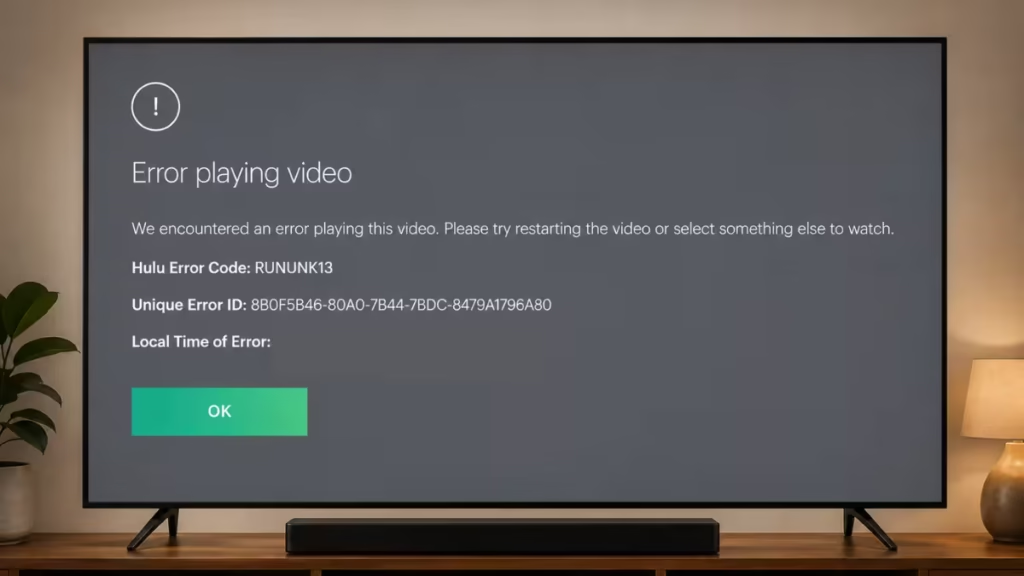
The error can appear on any device: Chrome browser, Android, iOS, Fire TV, Apple TV, Xbox, Roku, or smart TVs. Corrupted cache, a bad network state, hardware acceleration conflicts, and Hulu server problems are the most common causes.
Work through the fixes below in order. Stop as soon as Hulu starts playing correctly.
What Causes Hulu Error Code RUNUNK13
- Corrupted cache or temporary data on your device or browser
- A stale network session between your device and Hulu’s CDN
- Hardware acceleration in Chrome conflicting with the Hulu web player
- An outdated Hulu app version with unpatched playback bugs
- Corrupted downloaded content (for offline playback)
- A temporary Hulu server outage or CDN issue
How to Fix Hulu Error Code RUNUNK13
Fix 1: Switch Video Quality to Data Saver
This fix resolves RUNUNK13 for many users and takes five seconds to test. Hulu’s “Best Available” setting sometimes forces a bitrate the connection cannot sustain, which kills the stream.
On the Hulu web player:
- Start playing any video.
- Click the gear (Settings) icon at the bottom right of the player.
- Select Quality.
- Change it from Best Available to Data Saver.
- Wait a few seconds and see if playback continues.
On Android or iOS:
- Go to Profile in the bottom menu.
- Tap Settings.
- Tap Cellular Data Usage.
- Switch to Data Saver.
If playback works, your connection is the bottleneck. You can try bumping quality back up later to find the highest stable setting.
Fix 2: Reload the Video
Before doing anything else, press the reload or back button, re-open the same title, and press play again. A temporary Hulu CDN hiccup causes RUNUNK13 regularly, and a single reload clears it. If it fails twice in a row, move to the next fix.
Fix 3: Clear the Cache for Your Device
Corrupted cached data is one of the top causes of RUNUNK13. The steps differ by platform.
Chrome browser (Windows/Mac):
- Press
Ctrl + Shift + Delete(Windows) orCmd + Shift + Delete(Mac). - Set the time range to All time.
- Check Cached images and files and Cookies and other site data.
- Click Clear data.
- Reopen Hulu and test.
Android:
- Go to Settings > Apps > Hulu.
- Tap Storage.
- Tap Clear Cache (not Clear Data, which logs you out).
iPhone/iPad: iOS does not expose a direct cache-clear option. Offload the app instead:
- Go to Settings > General > iPhone Storage.
- Find Hulu and tap it.
- Tap Offload App, then reinstall from the App Store.
Amazon Fire TV:
- Go to Settings > Applications > Manage Installed Applications.
- Select Hulu.
- Tap Clear Cache, then Clear Data.
Xbox One:
- Press the Xbox button and go to My Games & Apps.
- Find Hulu and press Menu on your controller.
- Select Manage App > Saved Data.
- Delete saved data for your profile.
Fix 4: Toggle Hardware Acceleration in Chrome
If you stream Hulu in Chrome on a Windows or Mac computer, hardware acceleration can interfere with the Hulu player and produce RUNUNK13. Toggling it is a known fix.
- Open Chrome and go to
chrome://settings/system. - Find Use graphics acceleration when available.
- Toggle it off if it is on (or toggle it on if it was already off).
- Click Relaunch.
- Open Hulu and test playback.
Fix 5: Test on a Different Device or Browser
Open Hulu on a second device or a different browser right now. This one step tells you whether the problem is local or on Hulu’s side.
- If Hulu works on the second device: the issue is isolated to your original device. Continue fixing that device using the steps here.
- If Hulu fails on every device you own: the problem is almost certainly on Hulu’s servers. Skip to Fix 10.
Fix 6: Restart Your Device Properly
A real power cycle clears RAM state that a simple app restart leaves behind.
- Computer: Shut down completely. Do not use sleep or hibernate. Wait 30 seconds, then power on.
- Streaming sticks and boxes (Fire Stick, Chromecast, Apple TV): Most lack a physical power button. Unplug the device from power, wait 60 seconds, and plug it back in.
- Smart TV: Hold the power button on the TV body (not the remote) until it powers off. Wait 30 seconds and turn it on again.
- iPhone/Android: Hold the power button and slide to power off. Do not just restart through software menus.
Fix 7: Update the Hulu App
An outdated Hulu app can produce playback errors that newer versions have already patched.
- Android: Open the Play Store, search Hulu, and tap Update if available.
- iPhone/iPad: Open the App Store, tap your profile icon, scroll to Hulu, and tap Update.
- Fire TV: Go to Apps > Your Apps & Channels, find Hulu, press the three-line menu button, and select Update.
- Apple TV: Go to the App Store, tap your account icon, and check for Hulu updates under Purchased.
- Roku: Roku updates apps automatically. To force it: press Home five times, Up once, Rewind twice, Fast Forward twice. This forces an update check.
- Xbox One: Go to My Games & Apps > Hulu, press the Menu button, and select Manage App to check for updates.
Fix 8: Update Your Device’s Operating System or Firmware
An outdated OS on streaming hardware is a less obvious cause, but pending firmware updates have been known to interfere with Hulu DRM and playback.
- Apple TV: Go to Settings > System > Software Updates > Update Software.
- Amazon Fire Stick: Go to Settings > My Fire TV > About > Check for Updates.
- Chromecast with Google TV: Go to Settings > System > About > System Update.
- Roku: Go to Settings > System > System Update > Check Now.
Do not bother updating Windows, macOS, Android phones, or iPhones for this specific error. An outdated phone OS is not a realistic cause of RUNUNK13.
Fix 9: Restart Your Router and Modem
A stale network session between your router and your ISP can produce inconsistent connections that break Hulu’s stream authentication, which triggers RUNUNK13.
- Unplug the modem from power.
- Unplug the router from power separately.
- Wait 60 seconds.
- Plug in the modem first. Wait until all lights stabilize (roughly 30 to 60 seconds).
- Plug in the router. Wait another 30 seconds.
- Reconnect your streaming device and open Hulu.
If you have a combined modem-router unit, unplug it once, wait 60 seconds, and plug it back in.
Fix 10: Delete and Re-Download Offline Content
If RUNUNK13 appears only on downloaded episodes or movies (not on streamed content), the downloaded file is corrupted. Hulu does not provide a repair option.
- Open the Hulu app and go to Downloads.
- Delete the episode or movie showing the error.
- Navigate to the title and download it again.
- Wait for the download to fully complete before playing.
This fix does not apply if you see RUNUNK13 on streamed content.
Fix 11: Check Whether Hulu Is Down
If none of the above steps have worked, open Downdetector’s Hulu page or check Hulu’s official Twitter account. A spike in reports confirms a server-side outage that you cannot fix. Wait 30 to 60 minutes and try again.
You can also check Hulu’s own status at help.hulu.com.
Fix 12: Reinstall the Hulu App
Reinstalling clears corrupted app data that clearing the cache alone cannot remove. Do this on mobile and TV devices only. If you see RUNUNK13 in a browser, clearing the cache (Fix 3) is the equivalent step.
- Android: Long-press the Hulu icon, tap Uninstall, then reinstall from the Play Store.
- iPhone: Long-press the Hulu icon, tap Remove App > Delete App, then reinstall from the App Store.
- Fire TV: Go to Settings > Applications > Manage Installed Applications > Hulu > Uninstall.
- Apple TV: Long-press the Hulu icon until it jiggles, tap the X to delete, then reinstall from the App Store.
After reinstalling, sign in with your Hulu credentials and test playback immediately before adjusting any settings.
Fix 13: Contact Hulu Support
If RUNUNK13 persists after every fix above and Hulu shows no active outage, the issue may be tied to your specific account or region. Contact Hulu directly:
- Live chat: Available at help.hulu.com (fastest option)
- Phone: Available through the Help Center for subscribers
When you contact support, tell them which device shows the error, which fixes you already tried, and whether the error appears on all titles or specific ones. That information helps them resolve account-level issues faster.
Frequently Asked Questions
What is Hulu error code RUNUNK13?
RUNUNK13 means the Hulu player received your request to play a video but could not complete it. It covers corrupted cache, network failures, CDN issues, and server-side problems all under one error code.
Does RUNUNK13 mean my account is suspended?
No. RUNUNK13 is a playback error, not a subscription or billing error. If you see a message about your subscription, that is a different issue. You can find more on that in the guide covering Hulu error code P-EDU125.
Why does RUNUNK13 only appear on one device?
Device-specific errors point to corrupted local cache, outdated app or firmware, or a hardware acceleration conflict. Use Fix 3 (clear cache), Fix 7 (update app), and Fix 8 (update firmware) for that device first.
Does switching to Data Saver permanently reduce quality?
Only while it is active. Once you resolve the underlying issue, go back to Best Available in the quality settings.
Is RUNUNK13 related to Hulu Live TV?
It can appear on Live TV streams too. If the error only happens on live channels and not on on-demand content, check out the dedicated guide on Hulu Live TV not working for additional steps specific to live playback.

