Malware on a Windows PC can slow down performance, steal login credentials, corrupt files, or lock you out of your data entirely through ransomware. The longer it sits on your system, the more damage it causes.
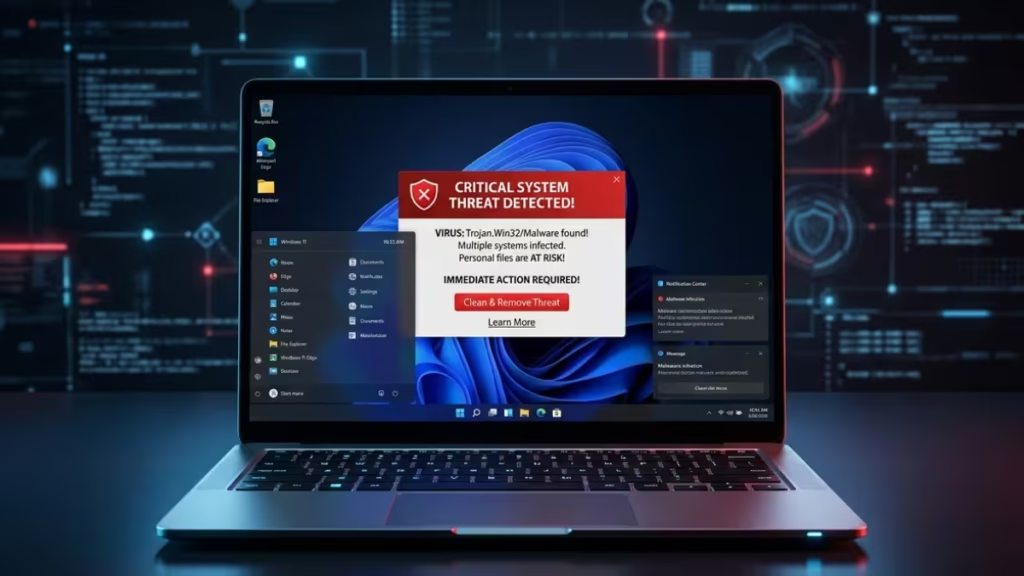
The steps below cover the complete removal process: isolating the machine, clearing hidden files, scanning with Microsoft tools, cleaning via Command Prompt, and resetting your browser so the infection cannot reinstall itself.
Is Your Windows PC Infected? Look for These Signs
These are the most common warning signs:
- Your PC runs significantly slower than usual
- Programs crash or close without warning
- Unfamiliar apps appear in your installed programs list
- Pop-up ads appear even when your browser is closed
- Your browser homepage changed without your action
- Windows Defender or your antivirus has been disabled without your input
- Your network usage spikes for no clear reason
If you see any of these symptoms, start the removal process immediately.
Step 1: Disconnect from the Internet
Disconnecting stops active malware from sending your data to an external server. It also blocks remote attackers from controlling the infection in real time.
Turn off your Wi-Fi or unplug your Ethernet cable before continuing. If you need to download a removal tool, download it first, then disconnect as soon as it finishes.
Step 2: Boot Windows into Safe Mode
Safe Mode starts Windows with only the minimum system processes running. Most malware cannot load at startup in this environment, which makes it much easier to detect and delete.
To enter Safe Mode on Windows 10 or Windows 11:
- Click the Start button, then click the Power icon. Hold the Shift key on your keyboard and click Restart.
- On the recovery screen, select Troubleshoot.
- Select Advanced Options, then Startup Settings.
- Click Restart.
- When the numbered list appears, press 4 or F4 to start in Safe Mode.
Stay in Safe Mode throughout the next several steps.
Step 3: Delete Temporary Files
Malware frequently stores components in your temporary files folder. Clearing this folder removes those files before you run any scan and speeds up the scan itself.
To delete temporary files in Windows 10 or Windows 11:
- Open Settings.
- Go to System > Storage.
- Under Local Disk, click Temporary files.
- Select the file categories you want to remove.
- Click Remove files.
You can also press Windows + R, type %temp%, press Enter, then select all and delete.
Step 4: Run the Windows Malicious Software Removal Tool (MSRT)
Microsoft releases MSRT monthly through Windows Update. It targets the most widespread active malware families, including viruses, worms, and trojans, and reverses changes those threats made to your system.
To run MSRT manually:
- Press Windows + R, type
mrt.exe, and press Enter. - Select Full Scan and click Next.
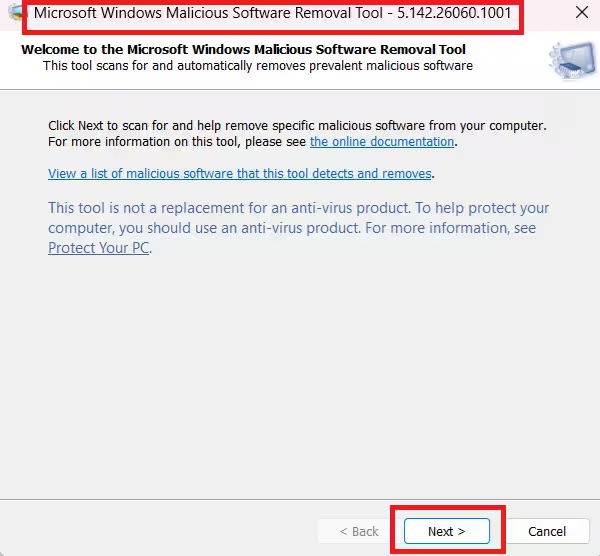
- Wait for the scan to complete. A full scan checks all fixed and removable drives and can take up to an hour.
- If the tool finds malware, follow the on-screen prompts to remove the infected files.
Note: MSRT does not scan mapped network drives. It covers local and removable drives only. If MSRT flags an infection it cannot fully clean, use an up-to-date antivirus product to finish the removal.
MSRT Command-Line Switches (advanced users):
| Switch | Function |
|---|---|
/F | Forces an extended full scan |
/F:Y | Forces an extended scan and auto-removes any infections found |
/N | Detect-only mode: reports malware without removing it |
/Q | Quiet mode: runs without a user interface |
To use a switch, open Command Prompt as administrator and run: mrt.exe /F:Y
Step 5: Run Windows Defender Offline Scan
Windows Defender Offline runs a deep scan before Windows fully loads. It catches rootkits and persistent threats that hide from standard in-session scans.
To run Windows Defender Offline:
- Open Windows Security from the Start menu.
- Click Virus & threat protection.
- Under Scan options, select Microsoft Defender Antivirus (offline scan).
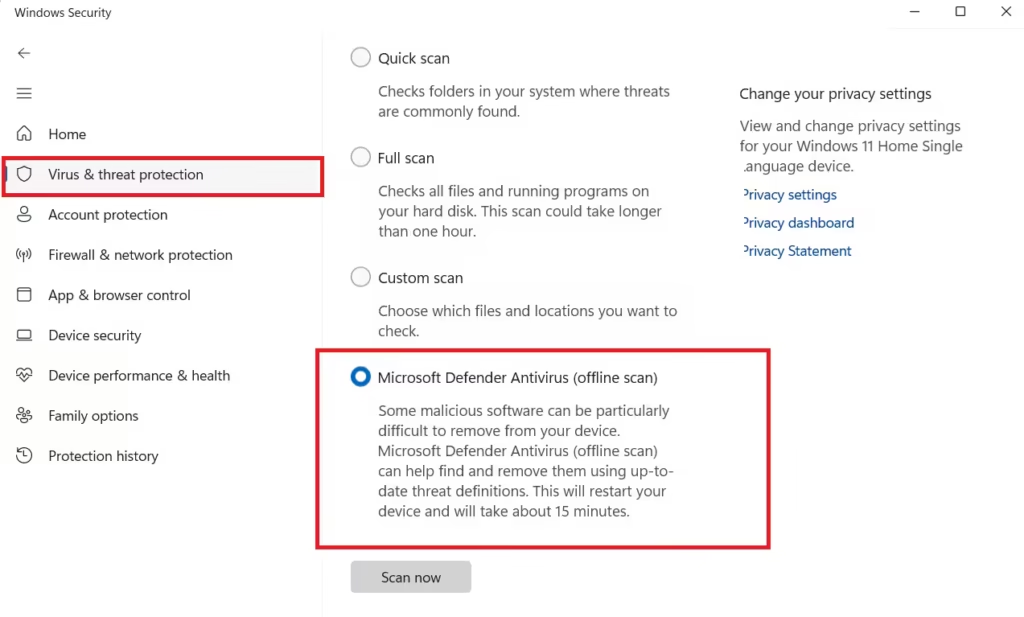
- Click Scan now.
Your PC restarts automatically and runs the scan outside the normal Windows environment. The scan takes roughly 15 minutes. Results appear when Windows boots back up.
Step 6: Remove Malware via Command Prompt
Some malware hides behind system file attributes that prevent standard deletion. CMD lets you strip those attributes and delete the file directly.
Method 1: Remove Hidden Attributes and Delete the File
- Search for CMD in the Start menu, right-click Command Prompt, and select Run as administrator.
- Type the drive letter of the infected drive followed by a colon (for example,
C:) and press Enter. - Run this command to strip hidden, system, and read-only attributes from all files on the drive:
attrib -h -s -r /s /d *.*- Delete a specific suspicious file with:
del filename.exeReplace filename.exe with the actual name of the malicious file.
Method 2: Kill a Malware Process Using Taskkill
- Open Command Prompt as administrator.
- Type
tasklistand press Enter to list all running processes. - Scan the list for unfamiliar or suspicious process names.
- Force-close a suspicious process with:
taskkill /F /IM processname.exeReplace processname.exe with the name of the process you want to terminate.
Caution: Only delete or terminate processes you have confirmed as malicious. Stopping a legitimate Windows system process can destabilize your PC.
Step 7: Check and Reset Your Browser Settings
Malware frequently modifies browser settings to redirect your homepage, inject ads, or reinstall itself through rogue extensions.
Google Chrome:
- Click the three-dot menu in the top right and select Settings.
- Under On startup, verify the homepage is set to a site you recognize.
- Click Extensions in the left sidebar and remove any extension you did not install yourself.
- Clear your cache: go to Privacy and security > Clear browsing data and select All time.
Microsoft Edge:
- Click the three-dot menu and select Settings.
- Click Start, home, and new tabs and verify your startup page.
- Go to Extensions and remove anything unfamiliar.
- Clear cache via Privacy, search, and services > Clear browsing data.
After cleaning your extensions and cache, restart your browser and confirm your homepage loads correctly.
Step 8: Check Running Processes with Resource Monitor
After running your scans, verify that no malware process is still running quietly in the background.
- In the Windows search bar, type Resource Monitor and open it.
- Go to the CPU tab.
- Look for processes with unusual names, high CPU usage with no recognizable publisher, or processes you have never seen before.
- Right-click any suspicious process and select End Process.
If you are unsure whether a process is legitimate, search for its exact name online before ending it.
How to Stop Malware from Returning
Removing an active infection without addressing the root cause leads to reinfection.
- Keep Windows and apps updated: Malware exploits vulnerabilities in outdated software. Open Settings > Windows Update and turn on automatic updates.
- Download software only from trusted sources: Use the Microsoft Store or official developer websites. Avoid cracked software sites and torrent downloads entirely.
- Do not click unverified links: Phishing emails and fake security pop-ups are the most common delivery methods for malware. No bank or service provider asks you to verify credentials through an email link.
- Avoid unknown USB drives: A USB from an unknown source can carry malware that executes automatically on connection.
- Use a VPN on public Wi-Fi: Public networks expose your traffic. A VPN encrypts your connection and reduces interception risk significantly.
- Keep real-time protection active: Windows Defender scans in real time by default. Keep it enabled and run a full manual scan at least once a month.