Downloading a popular PC utility from what looks like the official site and ending up with a cryptojacker quietly mining cryptocurrency on your GPU is exactly what this campaign does. Microsoft Defender Experts identified an active attack operation where cybercriminals build convincing fake download sites for well-known system utilities, trick users into downloading infected archives, and then use your GPU to mine cryptocurrency around the clock.
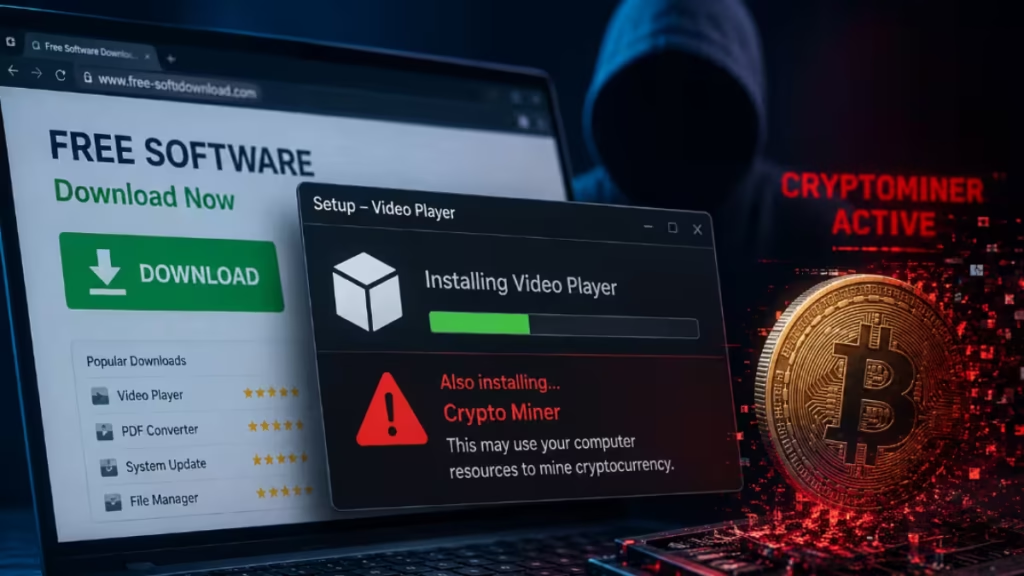
What makes this campaign stand out from older threats is the delivery method. Attackers are not just manipulating search engine results. They are also poisoning AI chatbot responses, getting large language model tools to recommend their malicious domains when users ask about software downloads.
What This Cryptojacking Campaign Is Actually Doing
This is not a mass-infection campaign designed to compromise as many machines as possible. Microsoft’s research confirms the attackers are deliberately targeting users who own high-performance discrete GPUs because those machines make cryptocurrency mining economically worthwhile.
The threat actors built fake download sites that impersonate trusted PC utilities favored by hardware enthusiasts and PC overclockers. Every fake site serves the same payload chain. The goal is persistent, low-profile GPU mining that earns the attackers cryptocurrency while leaving victims with degraded performance and inflated electricity costs.
Beyond the mining activity, the campaign also establishes persistent remote access through abused ScreenConnect deployments, which could later support data theft, lateral movement, or ransomware. This is not just a nuisance threat.
Since March 2026, Microsoft identified more than 150 malicious domains linked to this campaign.
How AI Chatbots Are Being Weaponized
Traditional SEO poisoning manipulates search engine rankings to push malicious sites to the top of results. That technique still works, and this campaign uses it. But in April 2026, Microsoft observed something newer: users who queried AI chatbots for software download recommendations were receiving links to attacker-controlled domains within the generated responses.
Analysis of VirusTotal scan data associated with these domains identified traffic metadata referencing chatbot interactions as a potential referral context. The pattern is consistent with emerging AI search result poisoning techniques, which extend classic SEO poisoning beyond conventional search engines into AI-assisted discovery.
This matters because many users treat AI chatbot responses with more trust than search engine results. If the AI recommends a link, people tend to click without the same skepticism they might apply to an ad or an unfamiliar search result.
Microsoft is explicit that this does not indicate a systemic issue with any specific AI service. The problem is how attackers have learned to influence the content that gets surfaced during AI-assisted searches.
Which Software Is Being Spoofed
The attackers specifically chose applications popular with PC hardware enthusiasts, since that audience is most likely to own a powerful GPU. The fake sites impersonate all of the following utilities:
- CrystalDiskInfo (disk health monitoring)
- HWMonitor (hardware temperature and voltage monitoring)
- Display Driver Uninstaller (DDU) (GPU driver removal tool)
- FurMark (GPU stress testing)
- K-Lite Codec Pack (media codec bundle)
- PDFgear (PDF editing utility)
Each fake site presents a convincing download button that appears to offer the legitimate tool. The download instead retrieves a ZIP archive hosted on campaign-controlled subdomains of gleeze.com, using dynamic DNS infrastructure from Dynu to keep the domains live and rotating.
If you recently downloaded any of these tools from a site that appeared in search results or through an AI chatbot recommendation, you need to run a full Microsoft Defender virus scan immediately.
How the Attack Chain Works
Step 1: DLL Sideloading
The downloaded ZIP contains two files: the legitimate executable for whichever tool the user wanted, plus a malicious file named autorun.dll. When the user launches the legitimate executable, the program automatically loads autorun.dll from the same folder through a technique called DLL sideloading. This requires no exploitation and produces no visible warning or error.
The malicious DLL then uses msiexec.exe to silently install a second malicious DLL named vcredist_x64.dll, named to impersonate the legitimate Visual C++ Redistributable installer. This file is a packaged installer for ScreenConnect remote access software. Microsoft identified nine distinct autorun.dll variants across the campaign.
Step 2: Silent ScreenConnect Installation
ScreenConnect (also marketed as ConnectWise Control) is a legitimate commercial remote management tool. The tool itself is not at fault. The attackers abuse its legitimate capabilities to establish persistent remote access to every compromised machine.
Once installed, the ScreenConnect client continuously attempts to connect to an attacker-controlled server at 193.42.11[.]108 via the host directdownload[.]icu. The attackers gain full hands-on-keyboard access to the compromised system from this point forward.
Step 3: Process Hollowing into Trusted Windows Binaries
Once the ScreenConnect session is active, the attacker drops a binary called SimpleRunPE.exe directly through ScreenConnect’s file-transfer feature. This binary attempts process hollowing into legitimate Microsoft-signed .NET binaries that ship with Windows. The target list includes:
- InstallUtil.exe
- RegAsm.exe
- RegSvcs.exe
- MSBuild.exe
- AppLaunch.exe
- AddInProcess.exe
- aspnet_compiler.exe
The malware launches the chosen target in a suspended state and uses API calls such as WriteProcessMemory, SetThreadContext, and ResumeThread to hollow the process and inject malicious mining code. The mining code then runs under the identity of a trusted, Microsoft-signed Windows binary, making detection significantly harder.
Step 4: GPU Profiling and Mining
Before mining begins, the hollowed binary sends a detailed reconnaissance report to the attacker’s command-and-control server, including the GPU model, CPU model, total RAM, GPU temperature, current GPU usage, Windows version, local IP address, and even which antivirus product the victim has installed.
The C2 address sits inside an AES-128-CBC encrypted blob inside the binary, decrypting at runtime to wss://minemine.gleeze[.]com:8443/ws. The malware also hardcodes a TLS certificate fingerprint to pin the connection.
After profiling, the malware downloads one of three GPU-focused miner programs at runtime: gminer, lolMiner, or SRBMiner-MULTI, depending on which best suits the compromised hardware.
Step 5: Persistence and Evasion
The malware establishes six separate persistence mechanisms to survive reboots and manual removal attempts:
| Mechanism | Trigger |
|---|---|
| Scheduled task: “Windows System Health” | On user logon |
| Scheduled task: “Windows System Health Monitor” | On system boot with 1-hour delay |
| Scheduled task: “Windows System Health Check” | Every 5 minutes |
| Registry Run key (machine-wide) | On any user logon |
| Registry Run key (user-level) | On current user logon |
| Startup folder shortcut (RuntimeHost.lnk) | On current user logon |
Every five seconds, the malware checks whether all six persistence mechanisms are still in place and recreates any that were removed. It also re-registers Microsoft Defender exclusions on every cycle, restoring any that were deleted. Those exclusions cover the seven .NET hollowing target processes plus the mining binaries lolMiner.exe, SRBMiner-MULTI.exe, and gminer.exe.
The malware also performs anti-analysis checks, exiting silently if it detects virtual machine environments or a hardcoded list of 40 analyst tools including dnSpy, x64dbg, IDA, Ghidra, Wireshark, and Fiddler.
To avoid detection during active use, the miner suspends its activity whenever the victim is actively using the GPU for gaming or streaming, or when specific security processes are running.
How to Stay Protected From Fake Software Download Attacks
Follow these steps to reduce your risk from this campaign and similar fake software download threats.
1. Only download software from verified official sources. Go directly to the developer’s official website. Do not rely on search engine results or AI chatbot responses for download links, regardless of how convincing they appear.
2. Run a Microsoft Defender virus scan if you recently downloaded any of the spoofed tools. If you downloaded CrystalDiskInfo, HWMonitor, DDU, FurMark, K-Lite Codec Pack, or PDFgear from any source other than the official developer site, run a full Microsoft Defender virus scan now.
3. Enable cloud-delivered protection in Microsoft Defender Antivirus. Cloud-based machine learning protections block the vast majority of new and unknown malware variants faster than signature-only scanning.
4. Enable Microsoft Defender for Endpoint attack surface reduction rules. Organizations running Microsoft Defender for Endpoint’s automatic attack disruption features can enable the rule that blocks executable files from running unless they meet a prevalence, age, or trusted list criterion (GUID: 01443614-cd74-433a-b99e-2ecdc07bfc25). This rule stops the initial execution stage of this attack chain.
5. Enable network protection and web protection in Microsoft Defender for Endpoint. These features block connections to known malicious domains including the gleeze.com and giize.com infrastructure used by this campaign.
6. Use Microsoft Edge or another browser with SmartScreen. SmartScreen identifies and blocks known malicious download sites before the file reaches your system.
7. Watch for unusual GPU activity. If your GPU temperature, fan speed, or utilization spikes when you are not actively using GPU-intensive applications, that is a warning sign worth investigating. Open Task Manager and check which process is consuming GPU resources.
8. Check for the campaign identifier D3F4E2A1. This string appears as a mutex name (Global\D3F4E2A1_Svc), as a directory name inside %LocalAppData%\Microsoft\Windows\Caches\, and in Defender exclusion entries. Finding it anywhere on your system indicates active compromise.
9. Check for suspicious scheduled tasks. Open Task Scheduler and look for tasks named “Windows System Health,” “Windows System Health Monitor,” or “Windows System Health Check.” These are not legitimate Windows tasks. Delete them immediately if present.
Indicators of Compromise (IOC) Quick Reference
If you manage endpoint security for an organization, block or monitor these indicators:
| Indicator | Type |
|---|---|
| direct-download[.]gleeze[.]com | Malicious download domain |
| start-download[.]gleeze[.]com | Malicious download domain |
| direct-downloads[.]giize.com | Malicious download domain |
| free-download[.]giize.com | Malicious download domain |
| directdownload[.]icu | ScreenConnect C2 host |
| 193.42.11[.]108 | ScreenConnect C2 IP |
| wss://minemine.gleeze[.]com:8443/ws | Mining C2 WebSocket URL |
For the full list of SHA-256 file hashes and additional C2 IPs, refer to the official Microsoft Threat Intelligence report.
Frequently Asked Questions
What is cryptojacking?
Cryptojacking is when an attacker uses your computer’s processing power, most often your GPU, to mine cryptocurrency without your permission. You pay the electricity bill and suffer degraded performance while the attacker collects the mined coins.
How do I know if my PC is mining cryptocurrency without my knowledge?
Watch for sustained high GPU usage, GPU temperature spikes, increased fan noise, and slower system performance when you are not running any GPU-intensive applications. Open Task Manager, click the GPU column, and look for unfamiliar processes consuming significant GPU resources. Also check Task Scheduler for tasks named “Windows System Health” or variants of it.
Is ScreenConnect itself malware?
No. ScreenConnect (ConnectWise Control) is a legitimate commercial remote access tool widely used by IT professionals. This campaign abuses its functionality rather than exploiting a flaw in the software. The problem is that the attackers install it silently without your knowledge or consent.
Can AI chatbots tell me if a download link is safe?
AI chatbots can be manipulated into recommending malicious links, as this campaign demonstrates. Treat AI-recommended download links with the same skepticism you apply to search engine results. Always verify the domain matches the official developer website before downloading.
Which Microsoft Defender settings protect against DLL sideloading attacks?
Enabling the attack surface reduction rule with GUID 01443614-cd74-433a-b99e-2ecdc07bfc25 helps block executables that lack prevalence or trusted list status. Enabling cloud-delivered protection and running Microsoft Defender in EDR block mode provides additional layers of defense against sideloaded malicious DLLs.
Cybersecurity and Malware Protection
- Microsoft Defender Can Now Lock Down a Hacked PC Automatically. What You Need to Know
- How to Run a Microsoft Defender Virus Scan (Beginner-Friendly)
- CVE-2026-5426: KnowledgeDeliver Zero-Day Exploited to Deploy Godzilla Web Shell
- Charter Communications Data Breach: ShinyHunters Claims 42 Million Records Stolen
- Hackers Are Selling Deepfake KYC Bypass Kits That Fool Any Identity Check

