Every new AI model launch sets off a race. Real users rush to try it, and scammers rush to build fake download pages around it. Search for a desktop version of a popular chatbot today and you can land on a polished GitHub page offering a "free" app with a model name that sounds official but does not exist. Click download, run the installer, and your PC starts working for someone else.
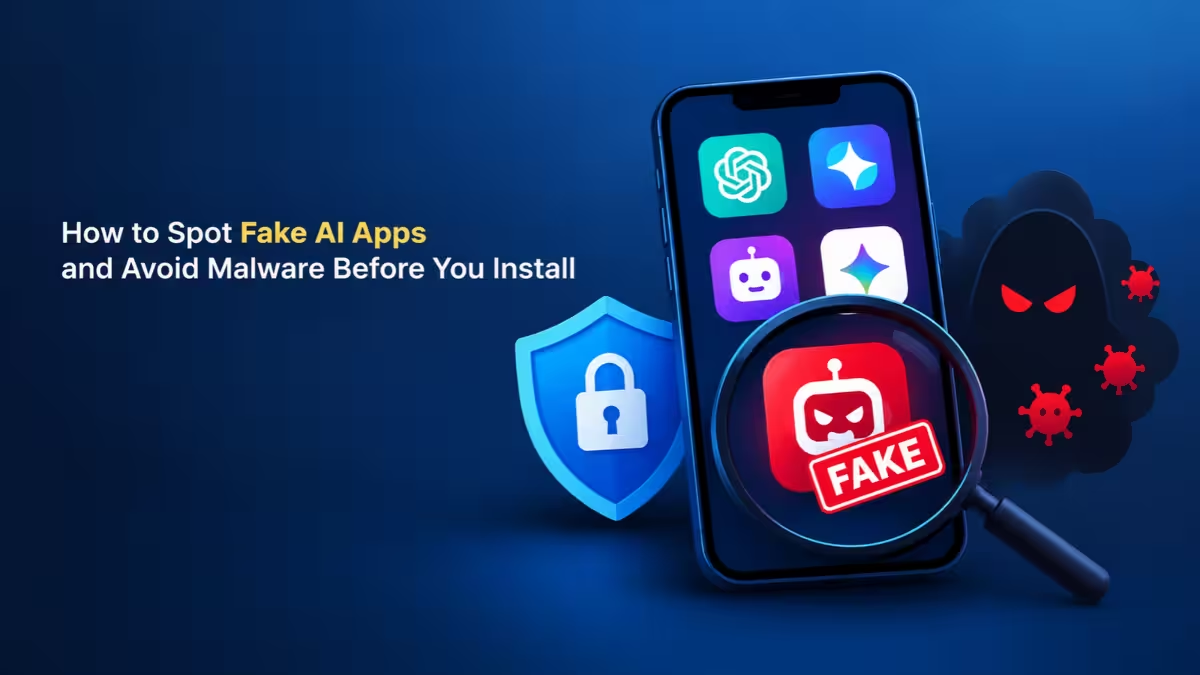
Security researchers recently tracked a campaign that pushed fake ChatGPT and Claude desktop apps with invented names like "GPT-6 Astra" and "Claude Opus" desktop builds. The installers carried a genuine, digitally signed setup file from the AI company, so Windows showed a trusted publisher. A hidden DLL file sat right next to it and did the real damage. Other campaigns ask you to paste a fake "install command" into your terminal, which hands attackers your machine in seconds.
Run through these checks before you install any AI app.
Why Fake AI Apps Look Real and Rank High in Search
Attackers no longer rely on sloppy pages with broken English and odd domains.
They host their lures on platforms people already trust, such as GitHub, GitHub Pages, Cloudflare Pages, GitLab and Google Sites. They tune page titles and descriptions so the fake project ranks near the top of Google and Bing for searches like "ChatGPT desktop download." Some even publish poisoned content inside shared chats and artifacts on real AI platforms, so the malicious link appears on a genuine AI company domain.
The payloads vary. Some campaigns install a cryptocurrency miner that quietly eats your CPU. Others drop infostealers that grab saved passwords, browser sessions, SSH keys, cloud credentials and AI API keys. Because the loaders in these campaigns can fetch any program the attacker chooses, today's miner can become tomorrow's ransomware.
How to Check Whether an AI App or Model Really Exists
Start with the simplest test: search the vendor's own channels for the exact product name.
Fake projects love names that sound like the next big release, such as "GPT-5.6 Sol" or "GPT-6 Astra." If you cannot find the model name on the company's own website, blog or release notes, treat the download as fake. A real launch shows up on the official site first, not on a random repository.
- Open the vendor's official site directly by typing the address yourself.
- Check its news, blog or changelog page for the exact product name.
- Search the product name together with words like "scam" or "malware" to see if researchers already flagged it.
Where to Download AI Apps Safely
Official AI companies tell you exactly where their apps live, and you should never accept any other route.
Use these sources for the main AI tools:
- ChatGPT desktop app: OpenAI's download page
- Claude desktop app: Claude's download page
- Mobile apps: the Google Play Store or Apple App Store, published by the real company name
- Windows package managers: winget or the Microsoft Store, when the vendor lists them
A GitHub repository that promises a "free desktop version" of a paid or closed AI product almost always signals a trap. OpenAI and Anthropic do not ship their consumer desktop apps as ZIP files in a stranger's GitHub releases.
How to Check a GitHub Repository Before Downloading an AI App
When a link points to GitHub or another code host, spend two minutes checking who runs it.
Look for these warning signs:
- The account name copies the product name (for example, an account called "gpt-5-6") instead of the real company organization
- The account was created recently and holds only one or two repositories
- The commit history shows a single "Initial commit" or a lone readme file
- Only one contributor exists, with no issues, pull requests or real discussion
- The release offers a ZIP file while the code folder holds almost nothing
Do not trust star or fork counts alone. Recent fake AI repositories ranked high in search results without any fake stars at all, because they relied on search engine manipulation instead.
What to Look for Inside a Fake AI App ZIP File
Open the downloaded archive and read the file list before you double-click anything.
A legitimate installer usually comes as a single signed .exe or .msi file. Be suspicious when a ZIP contains a signed Setup.exe sitting next to loose DLL files such as winmm.dll, version.dll or d3dx9_41.dll. Attackers use this layout for DLL sideloading: the trusted program starts, looks for a library in its own folder, and loads the attacker's copy instead of the real Windows one.
Check the file details as well:
- Right-click each DLL and open Properties, then the Details tab.
- Note any DLL with no publisher, no version information or a very recent creation date.
- Upload the whole ZIP to VirusTotal before extracting it.
Keep in mind that a clean VirusTotal result does not prove safety. These droppers use anti-sandbox tricks, such as refusing to run unless launched by a specific file name, to stay undetected.
Can a Signed Installer Still Contain Malware?
A valid digital signature tells you who signed one specific file, nothing more.
In the fake AI app campaign, the setup file carried a real OpenAI or Anthropic signature. Windows showed a trusted publisher in the security prompt, and many users clicked through. The signature covered only that executable, not the malicious DLL it loaded or the ZIP package around it.
So when you see a familiar publisher name in a User Account Control prompt, still ask where the file came from. A signed file from an unofficial download page deserves the same suspicion as an unsigned one.
Why an AI App Installer Should Not Ask for Administrator Rights
Chat apps rarely need system-wide changes, so a demand for elevated rights is a red flag.
The dropper in the recent campaign showed a message asking the user to run it as administrator, then quit if they refused. With admin rights, it created a hidden folder under C:\ProgramData, copied a real Windows Media Player file there, and set up a scheduled task disguised as a Microsoft component that ran three minutes after every boot.
If an "AI app" you just downloaded insists on admin access, delete it. On a work PC, avoid using a permanent admin account for everyday tasks at all.
Why You Should Never Paste Install Commands From Unknown Pages
Copy-and-paste install commands have become one of the most common fake AI tricks.
Researchers call these ClickFix or InstallFix attacks. A page looks like official documentation for an AI coding tool or CLI and tells you to paste a command into PowerShell, Command Prompt or Terminal. The command downloads and runs malware directly in memory, so you never see an installer.
Follow these rules:
- Copy install commands only from the vendor's official documentation site.
- Compare the command letter by letter with the official version before you press Enter.
- Treat commands found in ads, shared AI chats, forum posts or "quick fix" pages as untrusted.
- Stop immediately if a command contains encoded text,
iex,Invoke-Expression,curl ... | bashfrom an unfamiliar domain or a hidden window flag.
Are Sponsored Search Results and Shared AI Chat Links Safe for Downloads?
Search ads and shared links often lead straight to fake AI downloads.
Attackers buy ads for AI brand names and push poisoned pages up organic results. They also publish shared chats, artifacts and custom GPTs on real AI platforms that contain malicious "setup guides." The page sits on a genuine domain, so it feels safe.
Type the vendor's address into your browser yourself, or use a bookmark you saved earlier. Ignore download links you find inside someone else's shared conversation.
Signs Your PC Is Infected by a Fake AI App
If you already ran a suspicious AI installer, these clues suggest your PC is compromised.
- Your CPU usage or fan noise spikes when you step away from the computer, then drops when you move the mouse
- A new folder appears in
C:\ProgramDatawith a name you do not recognize - Task Scheduler shows a new task claiming to be from Microsoft Corporation with a vague description
- The "AI app" never opens a real chat window, or it closes right after launch
- Your antivirus or Windows Security reports a disabled or tampered setting
What to Do If You Installed a Fake AI App
Act quickly, because loaders can swap a miner for a credential stealer at any time.
- Disconnect the PC from the internet.
- Open Task Scheduler and delete any unfamiliar task that runs at startup.
- Remove the suspicious folder from
C:\ProgramDataand the downloaded files. - Run a full scan with Windows Security, then an offline scan with Microsoft Defender Offline.
- From a different, clean device, change your passwords for email, banking, GitHub, cloud consoles and AI platforms.
- Revoke and regenerate any API keys, SSH keys and access tokens stored on the infected PC.
- Reinstall Windows if the scan finds a loader or if you used the machine for development work with sensitive credentials.
AI App Safety Checklist to Run Before Every Download
Run through this short list every time you install a new AI tool.
- The product name appears on the vendor's official website
- You reached the download page by typing the official address
- The file comes from the vendor, an official app store or a trusted package manager
- The publisher account matches the real company, not a lookalike
- The download contains a single installer, not a signed .exe plus loose DLL files
- The installer does not demand admin rights without a clear reason
- You did not copy an install command from an ad, shared chat or unknown page
- You scanned the file before opening it
Frequently Asked Questions
Can a digitally signed AI installer still contain malware?
Yes. The signature only covers the signed file itself. Attackers place a malicious DLL next to a genuine signed executable, and the trusted program loads that DLL when it starts.
Is GitHub a safe place to download AI apps?
GitHub hosts many legitimate open-source tools, but anyone can create an account and upload a release. Official consumer apps from companies like OpenAI and Anthropic come from their own websites and app stores, not from random GitHub accounts.
Do fake AI apps only target Windows?
Most desktop app lures target Windows, but install-command attacks also hit macOS and Linux users through Terminal. Fake mobile apps also appear in app stores, so check the publisher name before installing.
What does a fake AI app usually install?
Recent campaigns installed cryptocurrency miners, infostealers and remote access trojans. Many use a general loader, so the attacker can change the final malware at any time.
How can I tell if an AI model name is real?
Check the AI company's official website, blog or release notes. If a model name like "GPT-6 Astra" appears only on GitHub pages, download sites or ads, it is fake.