Adobe Firefly makes AI-powered video and animation creation accessible to anyone with a creative vision. Whether you want to generate a video from a text prompt, animate a character sketch, or turn a still photo into a moving scene, Firefly handles all of it through a single web-based interface. This guide covers everything from pricing and setup to the newest features: Precision Flow, AI Markup, and the Firefly AI Assistant.
What Is Adobe Firefly?
Adobe Firefly is Adobe’s all-in-one creative AI studio. It launched in March 2023 and integrates into Creative Cloud apps like Premiere Pro, After Effects, and Photoshop, while also running directly from Adobe’s website without requiring any installed software.
Firefly stands apart from many other AI tools because its native video models train exclusively on licensed content and public domain data. That means outputs are commercially safe for client work, advertising, and branded campaigns.
Adobe Firefly Pricing and Plans
Video generation requires a paid subscription. Adobe offers four Firefly-specific tiers in addition to its Creative Cloud Pro plan, which includes Firefly access.
| Plan | Monthly Price | Videos per Month | Generative Credits |
|---|---|---|---|
| Standard | $10 | 20 | 2,000 |
| Pro | Varies | 40 | More credits |
| Pro Plus | Varies | 100 | More credits |
| Premium | $200 | Unlimited | 50,000 |
Adobe regularly offers discounts on upper-tier plans, so check the pricing page before committing. Every paid tier includes a seven-day free trial that unlocks video generation, giving you a full preview before any charges apply.
Additional credits: When you exhaust your monthly allotment, you can purchase extra credits separately:
- $10 for 2,000 additional credits
- $30 for 7,000 additional credits
- $50 for 10,000 additional credits
- $200 for 50,000 additional credits
Credits do not roll over between billing cycles. Unused credits expire when your next allotment arrives, so plan usage accordingly.
How to Access Adobe Firefly
- Go to adobe.com.
- Click Creativity and Design in the top navigation menu.
- Select Adobe Firefly from the dropdown.
- Click the Generate menu to see three video options: Generate AI Video, Generate Video From Image, and Generate Animation.
You must sign in with your Adobe account before generating anything, since each generation draws from your credit balance.
How to Generate AI Video with Adobe Firefly
The AI video generator starts with a simple text prompt field and a Generate button. The interface stays consistent across all three generation modes, which makes learning the workflow straightforward.
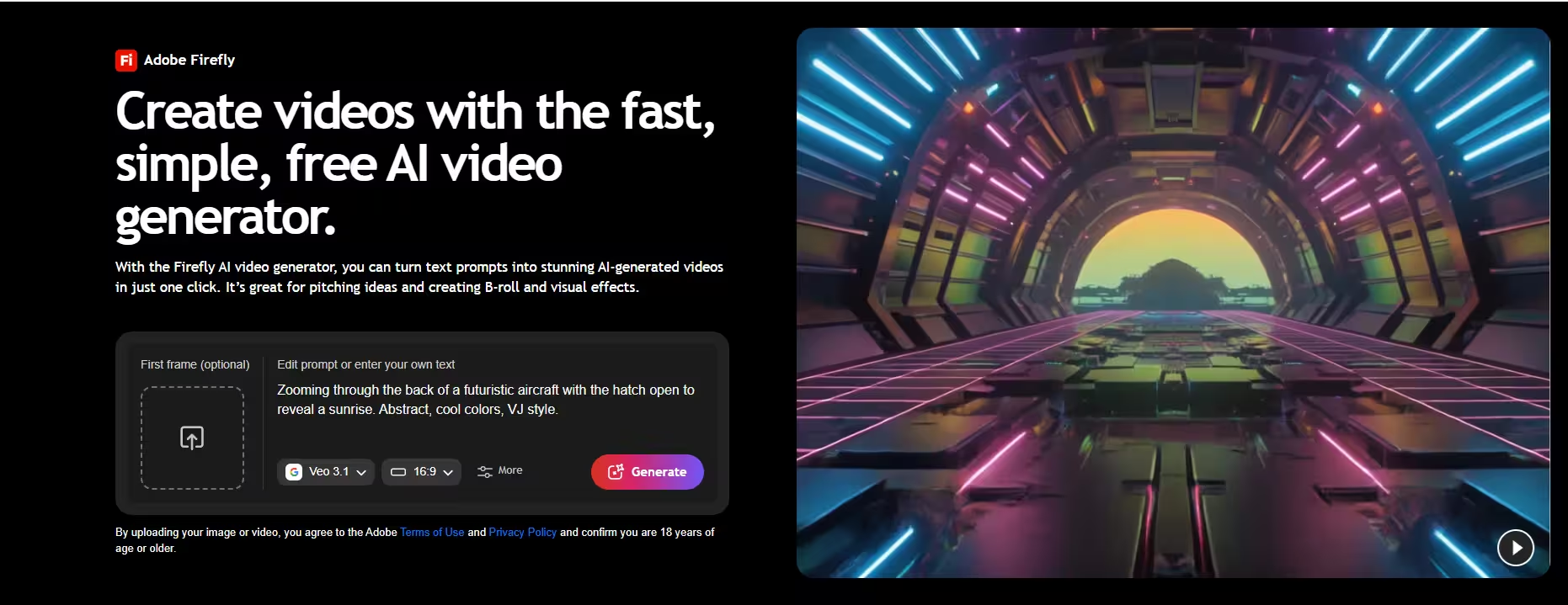
Step 1: Start with Your Input
Type a descriptive prompt into the input field. The more detail you include, such as subject, environment, lighting, camera angle, and mood, the more closely your result will match your vision. You can also upload an image as a reference under the References section, and some models let you add an end frame so the algorithm creates all the motion in between.
Step 2: Configure Your Settings
Before clicking Generate, set up your output in the General Settings sidebar:
- Duration: Choose 4, 6, or 8 seconds. Duration directly affects credit cost. If a 4-second clip costs 200 credits, an 8-second clip costs 400 using simple arithmetic.
- Aspect ratio: Choose Widescreen or Vertical depending on your intended platform. The Firefly Video model also adds a Square option.
- Resolution: Select either 720p or 1080p. Changing to 1080p does not cost extra credits, so always select it before generating.
- Sound: You can add ambient sound and foley to the video. This option does not increase credit consumption, so there is no reason to skip it.
- Model: This is the most important setting. The default model is Veo 31, and Firefly offers 13 additional models beyond it.
Available models:
- Veo 31 (default): A third-party partner model that produces high-quality results. An 8-second video costs around 400 credits. Start here for most projects.
- Veo 31 Fast: The same general capabilities as Veo 31 but faster and cheaper. An 8-second video costs only 80 credits. Quality may differ slightly.
- Firefly Video: Adobe’s own native model and the only one labeled officially Commercially Safe. Supports a Square aspect ratio, but locks duration at 5 seconds and costs 500 credits per video.
- Ray3 HDR: The highest-tier model, producing clips up to 4K resolution. Costs 2,250 credits for a 5-second video. Use this when maximum quality matters more than credit efficiency.
Note: Only the Firefly Video model carries Adobe’s official Commercially Safe designation. The other models come from third-party partners and do not carry this guarantee.
Step 3: Export and Share Your Video
Once Firefly finishes generating, you can download the video immediately. The file works for social media posts, presentations, marketing campaigns, and pitch decks. You can also bring it directly into Premiere Pro or After Effects for further editing.
If the result does not match your vision, you have two edit options:
- Upscale: Improves overall visual quality at a cost of 80 credits. Rendering takes longer than the original generation, and the improvement is often subtle.
- Prompt: Lets you add more instructions and regenerate based on the updated context. This costs 250 credits and offers three rendering model choices. Treat it as an iterative step rather than a guaranteed fix.
Regenerating with a more detailed prompt often produces better results faster than cycling through edit options.
How to Generate Video From an Image
The Generate Video From Image option opens the same interface as AI video generation. The key difference is that you upload a starting image in the References section rather than relying on text alone.
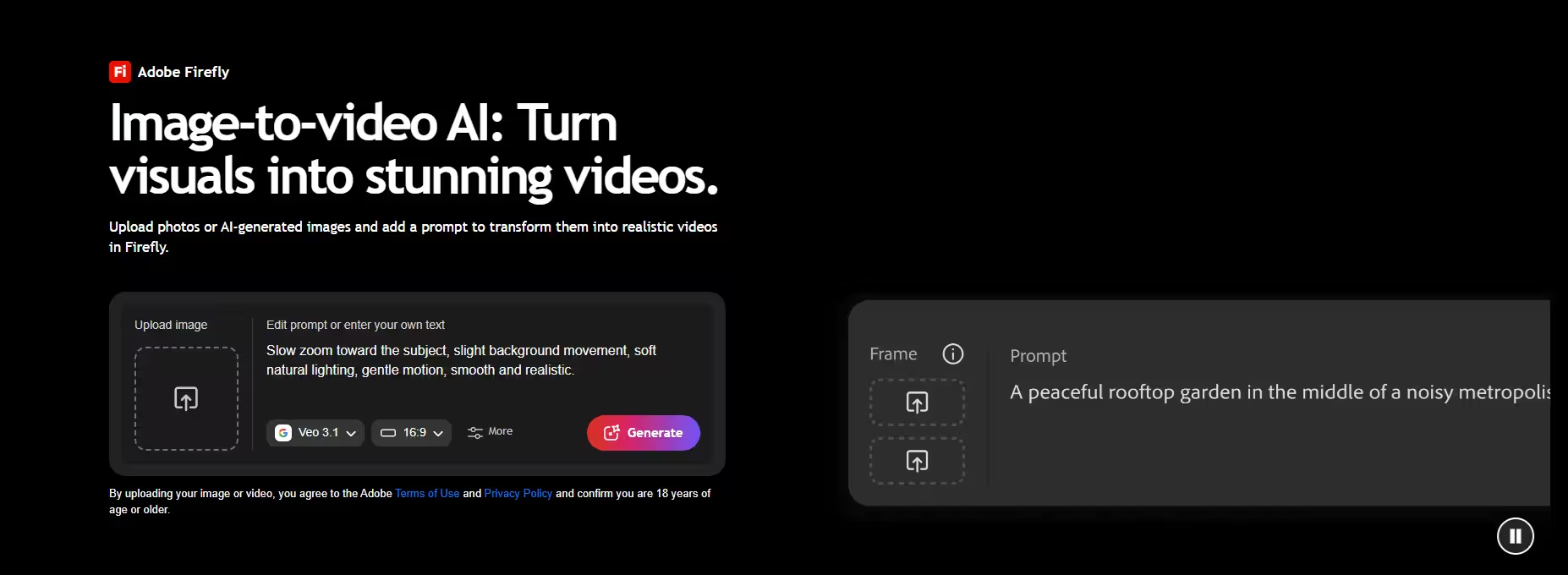
Firefly reads your image and your text prompt together to generate motion. The model demonstrates a notable ability to extend environments naturally beyond the edges of the original photo. For example, when a generated camera pan moves past the frame of an uploaded landscape photo, Firefly recreates a realistic continuation of the scene rather than inventing unrelated content.
This feature works well for filmmakers and content creators who want to create B-roll footage from photography or bring a static concept image to life. The same model selection, duration settings, and credit costs apply as in standard AI video generation.
How to Generate Animation with Adobe Firefly
The Generate Animation workflow works best with character sketches and line drawings. Here is the process:
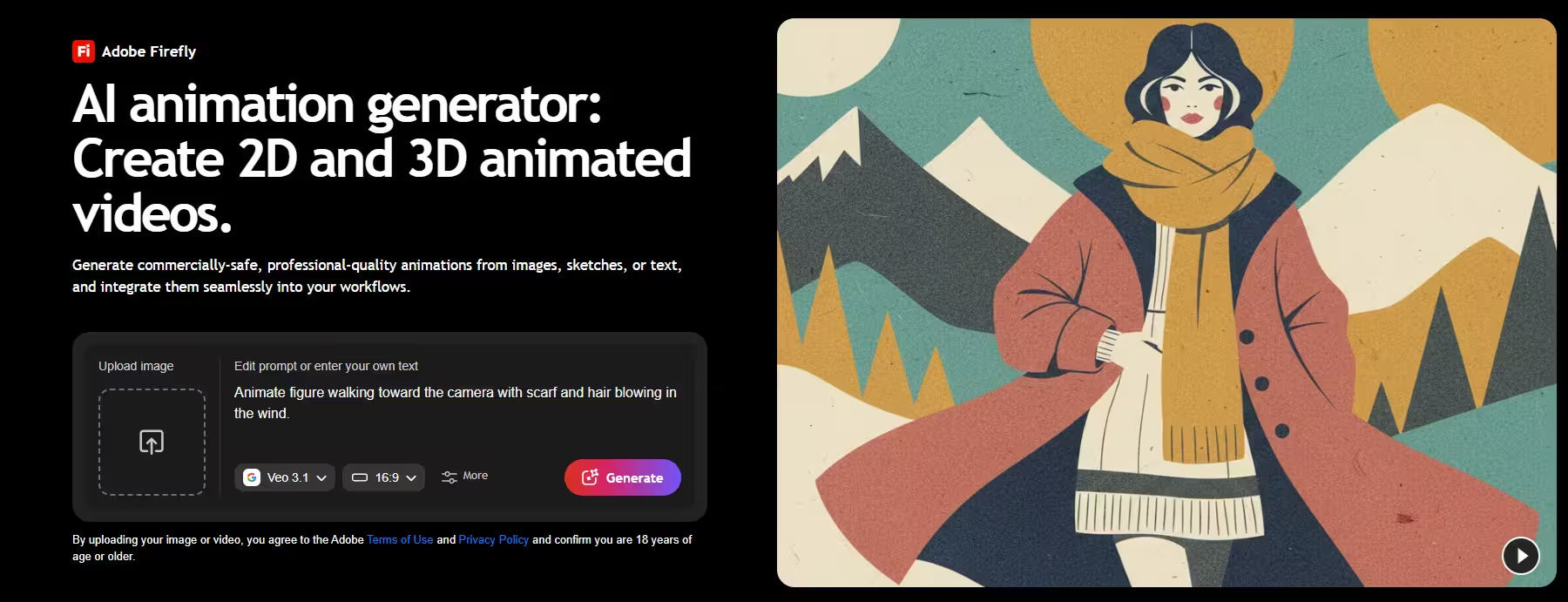
- Upload a drawing, character design, or sketch as your starting frame.
- Write a text prompt describing the motion you want, such as “the dog picks up the ball and runs to the right while the boy on the bench watches.”
- Select your model, resolution, and duration settings.
- Click Generate and wait a few minutes for the render.
Animation generation costs around 400 credits at standard settings. Firefly handles character movement in detail, capturing subtle actions like a dog’s ears flopping while running, a character glancing at another before moving, and natural pauses between gestures. These details often appear without explicitly prompting them.
Firefly supports both 2D and 3D animation styles. Teams working in graphic design will find the animation workflow integrates cleanly into existing creative pipelines, particularly when combined with After Effects for final compositing.
What you can create with the animation generator:
- Social media short clips for TikTok, Instagram Reels, and YouTube
- Animated marketing content and product demos
- Storyboards and concept scenes
- Explainer videos and AI anime-style clips
- Cinematic sequences for presentations or pitch decks
New Features: Precision Flow and AI Markup
Adobe has added two powerful image editing tools to Firefly that extend creative control well beyond video generation.
Precision Flow
Precision Flow generates a spectrum of image variations from a single prompt. Instead of one result, you get a range of outputs displayed across an interactive slider. You move the slider from one extreme interpretation to the other and select the version that fits your vision.
What Precision Flow can adjust:
- Lighting: Slide from bright and flat to soft and dramatic.
- Weather: Shift from clear skies to overcast, rain, or snow.
- Mood: Move from warm tones to cool, desaturated atmospheres.
- Time of day: Explore golden hour, dusk, or night lighting in a single control.
- Scene elements: Add or remove objects like furniture, trees, or background details.
How to use Precision Flow:
- Upload or generate an image in the Firefly image editor.
- Open Precision Flow from the left-side menu.
- Describe your desired change in plain language.
- Use the Edit Strength slider to control how subtle or dramatic each variation appears.
- Browse the generated range and select the version that works best.
Precision Flow removes the need to rewrite prompts repeatedly when you need incremental adjustments. It works particularly well for mood and lighting refinements where you want to compare multiple looks side by side before committing.
AI Markup
AI Markup gives you direct, hands-on control over edits through drawing tools layered on top of your image. Rather than describing changes in text alone, you draw on the image to show exactly where and how you want it to change.
The AI Markup toolkit includes:
- Brush: Sketch in new elements or erase existing ones from specific areas.
- Rectangle tool: Target a defined region of the image for isolated edits.
- Prompt boxes: Add multiple text instructions pointing to different areas of the same image simultaneously.
After you mark up the image, Firefly applies the instructions precisely and blends changes seamlessly into the rest of the composition.
AI Markup works well for:
- Moving an object to an exact location in the frame
- Adding a specific-colored element to a precise spot
- Refining lighting or mood in one section without affecting the rest of the composition
- Sketching in new scene elements like props, backgrounds, or character accessories
Together, Precision Flow and AI Markup give you far more precise output control, reducing the number of iterations needed to arrive at the image you imagined.
Firefly AI Assistant: Agentic Creative Workflows
Firefly AI Assistant entered public beta on April 27, 2026. It connects Adobe’s entire creative suite through a single conversational interface, replacing the need to navigate between Photoshop, Premiere Pro, After Effects, and Firefly separately.
You describe the outcome you want in plain language and the assistant orchestrates the steps across all connected apps automatically.
Key Capabilities
- Conversational control: Describe your goal and the assistant handles the multi-step workflow, surfacing results without requiring you to manage each step manually. The conversational interface and project context follow you into individual apps like Photoshop when you need pixel-level control.
- Creative Skills: A growing library of pre-built workflow templates handles complex multi-step tasks from a single prompt. For example, a social media assets skill can crop around the subject, resize for each platform, optimize file sizes, and save outputs to Creative Cloud storage all from one instruction. It can even turn a still image into a short animation.
- Context-aware editing: The assistant reads what you are working on and makes relevant suggestions based on the content type. When editing a forest product photo, it might offer a simple slider to adjust the surrounding foliage rather than requiring you to mask and edit manually.
- Feedback integration: The assistant can share work via Frame.io, collect feedback, and apply approved changes, shortening the review and revision cycle.
- Persistent context: Project state carries between sessions and across apps. You can step in at any point to redirect the work, adjust outputs, or refine details as things evolve. All final outputs remain fully editable in native Adobe file formats.
Firefly AI Assistant grew out of Project Moonlight, which Adobe previewed at MAX 2025. Adobe is also expanding assistant access to popular third-party AI models, with more details coming later in 2026.
Tips for Better Results in Adobe Firefly
- Write detailed prompts: Include subject, environment, camera angle, lighting, and style. Vague prompts produce vague results, and spending a few extra seconds on a richer description saves credits.
- Always set resolution to 1080p before generating: The generator defaults to 720p. Bumping to 1080p costs zero additional credits, so there is no reason to leave it at the lower setting.
- Start with Veo 31: The default model delivers strong quality at a reasonable credit cost. Switch to Firefly Video when you need the official Commercially Safe designation, or to Ray3 HDR only when 4K resolution justifies the credit cost.
- Use References for image-based generation: Uploading a starting image gives the model visual context that text alone cannot provide, particularly for landscape extensions and character animations.
- Add ambient sound: Firefly lets you include foley and ambient audio at no extra credit cost. Enable it by default.
- Use Precision Flow before regenerating. If your image is close but needs lighting or mood adjustment, Precision Flow explores the range faster than starting over with a new prompt.
- Use AI Markup for precise placements: When you know exactly where an element belongs, annotating the image directly produces more accurate results than trying to describe placement in text.
- Treat edit options as optional: Regenerating with an improved, more detailed prompt often produces better results faster than using the Upscale or Prompt edit tools.
Frequently Asked Questions
Is Adobe Firefly free to use for video generation?
Video generation requires a paid plan. Firefly offers a free tier, but it does not include video or animation creation. Every paid plan includes a seven-day free trial that unlocks video generation before any charges apply.
How many credits does it take to generate a video in Adobe Firefly?
Credit cost depends on the model and duration you choose. A standard Veo 31 video costs 200 credits for 4 seconds and 400 for 8 seconds. Veo 31 Fast costs just 80 credits for an 8-second clip, while the premium Ray3 HDR model costs 2,250 credits for a 5-second 4K video.
Are Adobe Firefly videos safe to use commercially?
Only videos generated using Adobe’s native Firefly Video model carry the official Commercially Safe designation. Third-party partner models like Veo 31 do not. If you upload your own image as a starting point, that image must not violate any copyright, trademark, or privacy rights for the output to remain commercially safe.
What is the difference between Precision Flow and AI Markup in Firefly?
Precision Flow generates a range of image variations across a slider so you can pick the version closest to your vision. AI Markup lets you draw directly on the image to show exactly where and how you want changes made. Precision Flow works best for mood and lighting adjustments, while AI Markup suits precise element placement and targeted edits.
Can Adobe Firefly generate 3D animation?
Yes. Firefly supports both 2D and 3D animation styles through the Generate Animation tool. You control the style through your text prompt and model selection, with no technical animation skills required.

