If your AOC monitor is showing up as Generic PnP Monitor in Windows 11, you are not getting the best performance out of your display. Installing the official AOC driver unlocks the correct resolution, refresh rates, and color profiles for your specific panel. This guide walks you through every method to install AOC monitor drivers on Windows 11, including the EXE installer, Device Manager, and direct INF install.
![How to Install AOC Monitor Drivers on Windows 11 [Step-by-Step Guide]](https://www.fdaytalk.com/wp-content/uploads/2025/09/sw31047-27-1-1024x576.avif)
Why You Should Install AOC Monitor Drivers
Windows 11 loads a generic driver for monitors automatically. That generic driver usually works for basic output, but it often causes these problems:
- Refresh rate options are limited or capped below the monitor’s maximum.
- The display shows as Generic PnP Monitor instead of your AOC model name.
- Color calibration and ICC profiles are missing.
- Adaptive sync (FreeSync or G-Sync Compatible) and HDR modes do not activate.
Installing the official AOC driver fixes all of these issues and gives Windows accurate information about your panel’s capabilities.
Step 1: Find Your AOC Monitor Model Number
Before downloading anything, identify your exact monitor model. The model number is printed on the sticker on the back of the monitor. You can also find it on the original box or your purchase receipt.
Write it down exactly, including all letters and numbers. For example: AOC 24G2, AOC C27G2Z3, or AOC Q27G3XMN. Drivers are model-specific and are not interchangeable across product lines.
Step 2: Download the AOC Monitor Driver
- Open your browser and go to the AOC Drivers and Downloads page.
- Type your monitor model number into the search field and press Enter.
- If the search does not return your model, browse by monitor size using the size filter below the search bar.
- Click your monitor model from the results.
- On the product support page, locate the Driver section and download the latest driver package listed for Windows 10/11.
The downloaded file is either:
- An EXE file: a full installer package.
- A ZIP file: contains an
.infdriver file and sometimes an.icmcolor profile file.
Step 3: Install the Driver
Use the method that matches your downloaded file type.
Method A: EXE Installer (Easiest)
If your download is an .exe file:
- Double-click the downloaded EXE file.
- Follow the on-screen installation wizard.
- Allow the installer to finish. It places the driver in the correct location automatically.
- Restart your PC when prompted.
Method B: Install via Device Manager (ZIP or INF file)
If your download is a ZIP file, extract it to a folder first. Then:
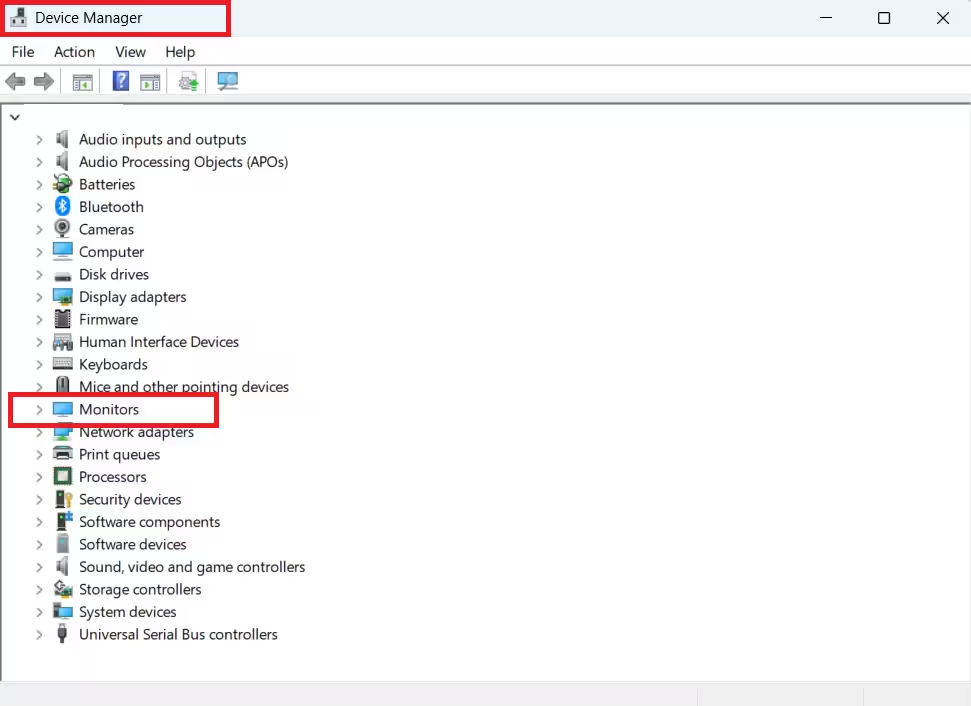
- Press Win + X and select Device Manager.
- Expand the Monitors section.
- Right-click Generic PnP Monitor and choose Update driver.
- Select Browse my computer for drivers.
- Click Browse and navigate to the folder where you extracted the driver files.
- Make sure Include subfolders is checked, then click Next.
- Windows installs the driver. Your monitor now appears as AOC [Model Number] in Device Manager.
Method C: Direct INF Install (Quick Option)
If you have only the .inf file and prefer a faster method:
- Open File Explorer and navigate to the folder containing the
.inffile. - Right-click the
.inffile and select Install. - Wait for the success confirmation message.
- Restart your PC.
This same right-click INF install method works for other hardware drivers too. For example, the process is identical when you install MIDI drivers on Windows 11 for a keyboard or audio interface that ships without a full setup executable.
Step 4: Install the AOC Color Profile (Optional but Recommended)
The color profile (.icm file) improves color accuracy and is worth installing even if your monitor already detected correctly.
- Press Win + I and go to System > Display > Advanced display.
- Scroll down and click Color management.
- In the Color Management window, select your AOC monitor from the Device dropdown.
- Check Use my settings for this device.
- Click Add and browse to the downloaded
.icmfile. - Select the profile and click Set as Default Profile.
Step 5: Restart Your PC
Restart your computer after completing any of the steps above. The new driver and color settings take effect only after a full restart.
Troubleshooting Tips
- Monitor still shows as Generic PnP Monitor after driver install: Uninstall device in Device Manager, restart, then reinstall using Method B.
- Windows says “better driver already installed”: Skip the wizard. Right-click the
.inffile and select Install (Method C). - Refresh rate options still limited after install: Update your GPU driver from NVIDIA, AMD, or Intel’s official page, then recheck display settings.
- Wrong driver downloaded: Check the model sticker on the back of your monitor and re-download the correct driver from the AOC support page.
- Dual-monitor setup: Repeat the full process for each AOC monitor separately. One install does not cover both.
- 6. Driver install fails or throws an error: Run
sfc /scannowin an elevated Command Prompt to repair system files, then retry. See also: no device drivers were found error during Windows 11 installation. - AOC support page shows no driver for your model: Your monitor is plug-and-play. Download only the
.icmcolor profile if listed and Windows handles detection automatically.
FAQs
Do I need to install AOC monitor drivers on Windows 11?
Not always. Windows 11 loads a generic driver automatically, but installing the official AOC driver is recommended if your monitor shows as Generic PnP Monitor, refresh rate options are missing, or HDR and adaptive sync are not working.
Where can I find my AOC monitor model number?
Check the sticker on the back of the monitor. The model number is printed there. You can also find it on the original box or your purchase receipt.
Why does my AOC monitor still show as Generic PnP Monitor after installing the driver?
Open Device Manager, right-click the monitor entry, and select Uninstall device. Restart your PC and reinstall the AOC driver using the Device Manager method. Also check that you downloaded the driver for your exact AOC model number.
Can I install the same AOC driver on multiple monitors?
Only if both monitors are the exact same model. Download a separate driver for each different AOC model you own.
What if AOC does not provide a driver for my monitor model?
Your monitor is likely fully plug-and-play and does not need a separate driver. Download only the color profile (.icm file) from the AOC support page if one is listed, and Windows will handle detection automatically.

