You open a browser, type a web address, and get "DNS server not responding" or "This site can't be reached." The Wi-Fi icon looks fine, and your phone may even load the same page without trouble. That mismatch points straight at DNS.
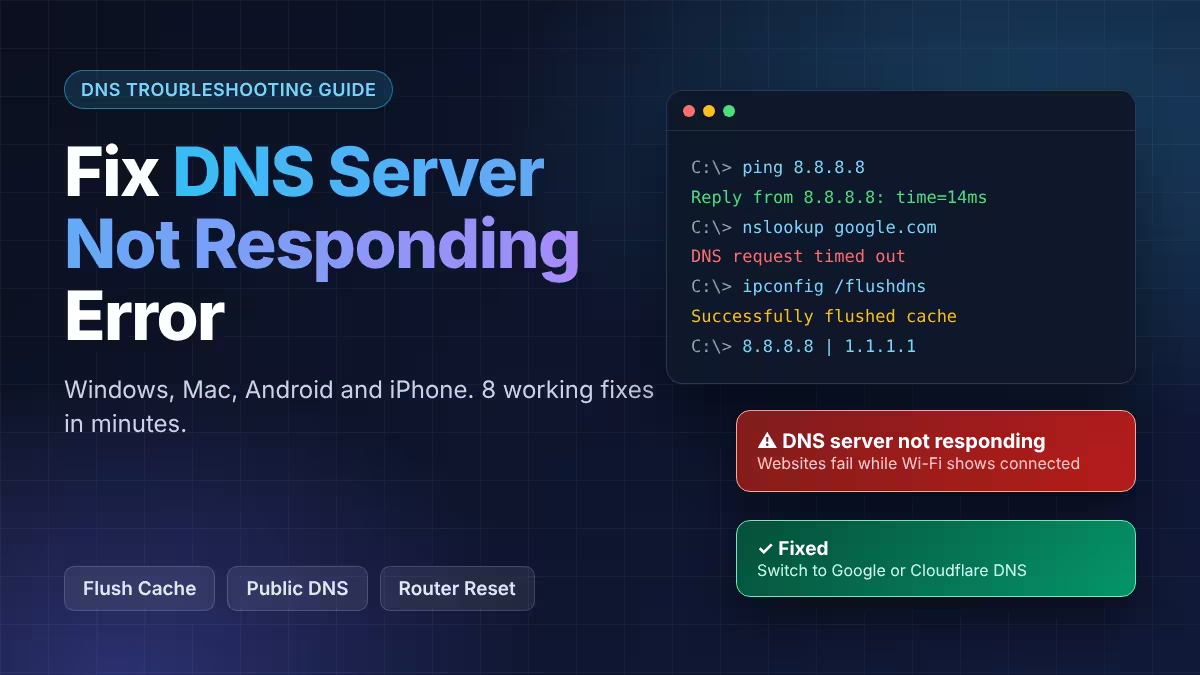
This guide shows you how to confirm the problem, find which layer causes it, and apply the right fix on Windows, Mac, Android, iPhone and your router. You can usually finish in under ten minutes.
What Does "DNS Server Not Responding" Mean?
DNS, the Domain Name System, turns a name like fdaytalk.com into an IP address your device can reach. When your device sends a lookup request and gets no answer, you see this error.
Your internet connection itself can stay healthy. Only the name lookup fails, so every website refuses to load while the connection still shows as active.
How to Test Whether DNS Is the Problem
Do not change any settings until you prove DNS is the culprit. Three quick tests tell you.
Test 1: Load a site by IP address. Type 8.8.8.8 into your browser's address bar. If a page loads, your internet connection works and name lookups fail. If nothing loads, the problem sits deeper in your network, so check your router, cables and Wi-Fi first.
Test 2: Ping a public IP. Open Command Prompt on Windows or Terminal on Mac and Linux, then run:
ping 8.8.8.8Replies mean your connection is alive. "Request timed out" means you have a broader network problem, not a DNS one. Our guide on websites not working covers that case.
Test 3: Compare devices. Load the same page on your phone using Wi-Fi, then using mobile data. If the phone works on Wi-Fi but your laptop fails, the laptop causes the issue. If both fail on Wi-Fi but the phone works on mobile data, your router or ISP causes it.
DNS Troubleshooting Commands: nslookup, dig and ping
These commands show exactly where a lookup breaks.
Windows:
nslookup google.com 8.8.8.8
Resolve-DnsName google.com -Server 8.8.8.8
Mac and Linux:
dig @8.8.8.8 google.comRead the result like this:
- An IP address comes back: Resolution works through that server. If your default resolver fails the same test, your local DNS or ISP causes the problem.
- SERVFAIL: The server answered, but something upstream broke.
- Timeout: Your device cannot reach that DNS service at all.
- NXDOMAIN when you expect an answer: The record is missing or the zone has a configuration error.
Add AAAA to the end of the dig command to check IPv6. A broken IPv6 lookup can hide behind a working IPv4 connection on dual-stack networks.
To see which DNS server your machine currently uses:
- Windows:
ipconfig /alland read the "DNS Servers" line - Linux:
cat /etc/resolv.conf - Mac:
scutil --dns
On Linux, sudo tcpdump -i any port 53 shows whether queries leave your machine. Queries that go out with no replies coming back mean the fault sits upstream.
A sensible diagnostic order: ping an IP to check connectivity, query your local resolver, query a public resolver, then run tracert (Windows) or traceroute (Mac and Linux) if you suspect a routing problem. That sequence separates connectivity, local DNS, ISP DNS and routing faults.
Common DNS Error Messages and What Each One Means
The wording of the error often hints at the fix.
- DNS server not responding: Your device reaches the network, but the resolver it asks never answers. Restart the router and switch to a public DNS server.
- DNS_PROBE_FINISHED_NXDOMAIN: Chrome could not resolve the name. Check the spelling of the URL, flush the cache and try another resolver.
- Server DNS address could not be found: The browser failed to translate the hostname. Flush the cache, change your DNS provider and check your VPN or proxy.
- DNS resolution failed (SERVFAIL): The resolver answered, but something upstream broke. Try a public resolver and check your ISP's status page.
- Could not perform DNS name resolution: This often appears on Windows work machines. The PC cannot find a domain controller, so check the primary DNS entry on the network adapter.
Edge and Chrome users who see the "Hmm, can't reach this page" message can follow the fix for the can't reach this page error.
Why Is Your DNS Server Not Responding? 7 Common Causes
Most failures trace back to a short list of causes:
- A stale or corrupted DNS cache on your device
- An ISP DNS server that is slow, overloaded or down
- A router that glitched, ran too long or needs a firmware update
- Wrong manual DNS entries left over from an old change
- A VPN, firewall or antivirus tool that blocks or hijacks DNS traffic on port 53
- A broken IPv6 setup while IPv4 works fine
- Malware that redirects your lookups to a rogue server (rare, but real)
Cache and configuration problems cause most cases, so start with the quick fixes below and move down the list.
Fix 1: Restart Your Router and Modem to Reset DNS
A restart clears the router's own DNS cache and forces a fresh connection to your ISP.
- Unplug the modem and the router from power.
- Wait 30 seconds.
- Plug the modem in first and let it fully start.
- Plug the router back in and wait up to 90 seconds.
- Restart your computer and test a website.
This single step solves a large share of home DNS errors.
Fix 2: Flush the DNS Cache on Windows, Mac and Linux
Your device remembers recent lookups. When those records go stale, your browser keeps using bad answers. Clearing the cache forces your device to ask for fresh ones.
Windows (open Command Prompt as administrator):
ipconfig /flushdnsPowerShell users can run Clear-DnsClientCache instead.
Mac (open Terminal):
sudo dscacheutil -flushcache; sudo killall -HUP mDNSResponderLinux (systemd):
sudo resolvectl flush-cachesOn older systems, sudo systemd-resolve --flush-caches does the same job. Before you run either, check what handles DNS on your machine with systemctl status systemd-resolved. If you use dnsmasq or another caching service, flush that one instead.
Chrome keeps its own host cache. Open chrome://net-internals/#dns and click Clear host cache.
Expect the first visit to each site to load a little slower after a flush, because your device rebuilds its records.
Fix 3: Switch to Google or Cloudflare DNS
Your ISP assigns its own DNS servers by default. They work until they don't. Public resolvers tend to run faster and fail less often.
- Cloudflare: 1.1.1.1 and 1.0.0.1. Fast and privacy focused.
- Google Public DNS: 8.8.8.8 and 8.8.4.4. Reliable and widely supported.
- Quad9: 9.9.9.9. Blocks known malicious domains automatically.
For IPv6, Google uses 2001:4860:4860::8888 and 2001:4860:4860::8844.
A smart setup uses one provider as primary and a different one as secondary, for example Cloudflare first and Google second. If one service fails, the other catches your lookups. Gamers can compare the best DNS servers for gaming, and console owners can read the PS5 DNS error fix.
How to Change DNS Settings on Windows, Mac, Android and iPhone
Windows 11 and Windows 10
- Open Settings > Network & internet.
- Choose Wi-Fi (then your network) or Ethernet.
- Find DNS server assignment and click Edit.
- Switch from Automatic (DHCP) to Manual.
- Turn on IPv4, then enter your preferred and alternate DNS addresses.
- Click Save, then restart your browser.
For screenshots and more detail, read how to change DNS server address on Windows 11.
Mac
- Open Apple menu > System Settings > Network.
- Select your active connection and click Details.
- Open the DNS tab and click the + button.
- Add your DNS addresses and click OK.
macOS stores DNS settings per network service, so edit the connection you use right now.
Android
Android 9 and later use Private DNS, which encrypts lookups.
- Open Settings > Network & internet > Private DNS.
- Choose Private DNS provider hostname.
- Enter
dns.googlefor Google orone.one.one.onefor Cloudflare. - Tap Save.
The menu path changes between phone brands. Search Settings for "Private DNS" if you cannot find it.
iPhone and iPad
- Open Settings > Wi-Fi and tap the info icon next to your network.
- Tap Configure DNS and choose Manual.
- Add your DNS addresses and tap Save.
This change applies only to that Wi-Fi network. It does not affect mobile data or other saved networks.
ChromeOS
Select the clock, open Settings > Network > Wi-Fi, pick your network, then expand Network. Under Name servers, choose Google name servers or enter custom addresses.
Fix 4: Stop Your Router, PC and Browser From Using Different DNS Servers
Modern setups use DNS at three layers, and they can disagree.
- Your router hands out DNS servers to devices through DHCP.
- Your operating system can ignore that and use a manual setting you saved months ago.
- Your browser can switch to encrypted DNS over HTTPS and skip both of the above.
You may change DNS on your router and think the whole network follows it, while one PC still uses an old manual entry. Windows can even use different settings on Ethernet and Wi-Fi.
The cure is to pick one place to control DNS and let everything else follow:
- Want one provider for the whole network? Set it on the router. Switch Windows and your browser back to automatic.
- Want a different provider on one PC only? Set it in that PC's network settings and leave the router alone.
On Linux, remember that DHCP can overwrite your edits to /etc/resolv.conf at reboot. Change the setting in your network manager or DHCP config instead.
Check secure DNS in your browser
If pages fail only in one browser while other apps connect fine, secure DNS is a likely cause.
- Chrome and Edge: Open Settings > Privacy and security > Security and find Use secure DNS. Turn it off to test, or pick a provider from the list.
- Firefox: Open Settings > Privacy & Security > DNS over HTTPS and choose a protection level, or turn it off to test.
Chrome's secure DNS does not run on managed devices or when parental controls are active. Windows 11 users can also set up private DNS in Windows 11 at the system level.
Fix 5: Turn Off VPN, Firewall and Antivirus Interference
DNS travels over port 53, using UDP for most queries and TCP for large responses. A strict firewall can block that traffic without showing a clear error. VPN clients also tend to intercept port 53 and send lookups to a resolver that does not answer.
To test this:
- Disconnect your VPN and any proxy.
- Temporarily disable your firewall or antivirus.
- Reload a website.
If the error clears, you found the cause. Add a rule that allows DNS traffic, then switch your security software back on right away. If the problem started after you installed or updated a VPN, remove it and reboot.
On iPhone and iPad, uninstall any VPN or security app that may intercept DNS, restart the device and test again.
Fix 6: Reset the Network Stack and Renew Your IP on Windows
When the basics fail, give Windows a clean network configuration. Open Command Prompt as administrator and run these commands in order:
ipconfig /release
ipconfig /renew
ipconfig /flushdns
netsh winsock reset
netsh int ip reset
Restart the PC afterward so the resets take effect. You can also use Settings > Network & internet > Advanced network settings > Network reset, which does a broader version of the same job. If the DNS Client service itself throws errors, see how to fix DNS client errors on Windows 11.
Make sure DHCP stays on for the adapter, with both "Obtain an IP address automatically" and "Obtain DNS server addresses automatically" selected, unless you deliberately want static values.
Fix 7: Update the Network Adapter Driver
An outdated adapter driver can break communication with your DNS server. This fix applies to Windows.
- Press the Windows key, type Device Manager and open it.
- Expand Network adapters and right-click your adapter.
- Choose Update driver, then Search automatically for drivers.
- Restart the PC.
If that does not help, choose Uninstall device and restart. Windows reinstalls the driver on boot.
Fix 8: Update Your Router Firmware
Routers receive DNS bug fixes through firmware updates. Log in to the admin page (often at 192.168.0.1 or 192.168.1.1), look for the firmware or update section and install any new version. If DNS errors keep returning on an older router with many connected devices, the hardware itself may be the limit.
How to Fix Slow DNS Lookups
A slow lookup differs from a full error. Your internet works, but pages take a moment too long to start loading. An overloaded or distant ISP DNS server usually causes this delay.
- Switch to a fast public resolver such as Cloudflare (1.1.1.1) or Google (8.8.8.8).
- Test the speed difference by running
nslookupagainst your ISP's server and against a public one, then compare the response times. - Restart the router to clear its cache, and update its firmware.
- If slow lookups persist on an older router that handles many devices, consider replacing it.
DNS Setting Locked or Resetting? Check for Managed Device Policy
On a school, office or family-managed device, DNS may follow a policy that you cannot override. If the setting greys out or snaps back after a restart, stop changing it. Contact your IT admin or the provider of your VPN or security software. Chrome, Edge, Apple devices and managed ChromeOS all support policy-controlled DNS.
Old tutorials also cause confusion. Skip per-Wi-Fi DNS guides for Android unless your phone runs a version older than Android 9, and skip Firefox instructions that point to the old Network Settings menu under General.
DNS Server Still Not Responding? Next Steps
If every fix fails, try these last steps:
- Use a different network. Connect through a mobile hotspot. If sites load there, your home network or ISP is the problem, not the websites.
- Contact your ISP. If their name servers are down and you cannot switch resolvers, you have to wait for them to fix it.
- Run an antivirus scan. Some malware redirects DNS queries to a malicious server.
- Boot into Safe Mode with Networking (Windows). If DNS works there, a startup program or driver interferes.
- Isolate IPv4 and IPv6. Use
ping -4ordig -4to force IPv4 and see whether the behavior changes. - Check the zone if you own the domain. Look for broken CNAME records, missing A records, bad TTL values and a broken DNSSEC chain. A DNSSEC failure looks exactly like a server outage.
How to Prevent DNS Errors From Coming Back
A few habits keep the problem from returning:
- Use a reliable public DNS provider instead of your ISP default, and set a backup server from a different company.
- Keep your router firmware current.
- Commit to one control point for DNS, either router or device, not both.
- Test IPv4 and IPv6 separately once in a while.
- Write down your DNS configuration. At 2 a.m. during an outage, you will want that note.
- If you run a network, monitor DNS response times and failure rates, because slow DNS feels broken long before it fails.
- If you own domains, keep every renewal date and registrar login documented. Expired domains cause major outages.
Frequently Asked Questions
What does "DNS server not responding" mean?
Your device can reach the network, but the DNS server it asks for website addresses does not answer. The cause usually sits in the router, the ISP's resolver, a bad DNS setting or security software that blocks port 53.
How do I fix DNS server not responding quickly?
Restart your router and device, flush the DNS cache, then switch to a public DNS server such as 1.1.1.1 or 8.8.8.8. These three steps clear most cases.
Does flushing the DNS cache delete my data?
No. It removes only the saved website lookup records on your device. Your files, passwords and browsing history stay untouched. Sites may load slightly slower on the first visit afterward.
Is it safe to use Google or Cloudflare DNS?
Yes. Both are reputable public resolvers. Each publishes its privacy practices, so read them before you switch if privacy matters to you. Quad9 is another option if you want automatic blocking of known malicious domains.
Why does DNS work on my phone but not my laptop?
The laptop probably has a stale cache, a manual DNS entry, a VPN or a firewall rule that the phone does not share. Flush the cache, reset the DNS setting to automatic and disable the VPN to test.
Why do I still get DNS errors in Chrome after changing my Windows DNS?
Chrome can use its own secure DNS setting and ignore the system one. Check Use secure DNS in Chrome's security settings, and update Chrome if the issue happens only there.
Does changing DNS affect my internet speed?
It changes how fast names resolve, not your download speed. A faster resolver makes pages start loading sooner, especially when your ISP's DNS server is slow or far away.
Why does DNS keep failing every few days?
Recurring failures point to a persistent cause: an unreliable ISP resolver, an aging router, outdated firmware or security software that interferes with DNS. Switch to a public DNS provider and update the router firmware first.