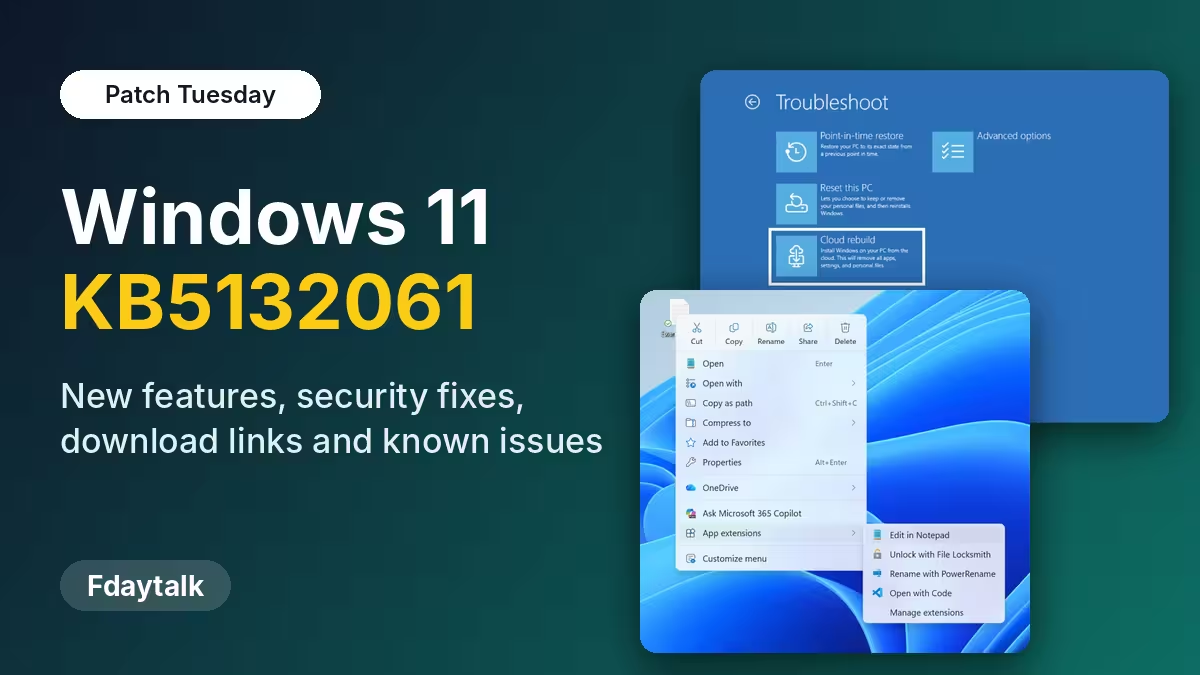
The November Patch Tuesday update, Windows 11 KB5132061, refuses to install on a number of PCs. Windows Update downloads it, starts the install, and then stops with Install error - 0x800f0993. Restarting and clicking Retry usually brings the same result.
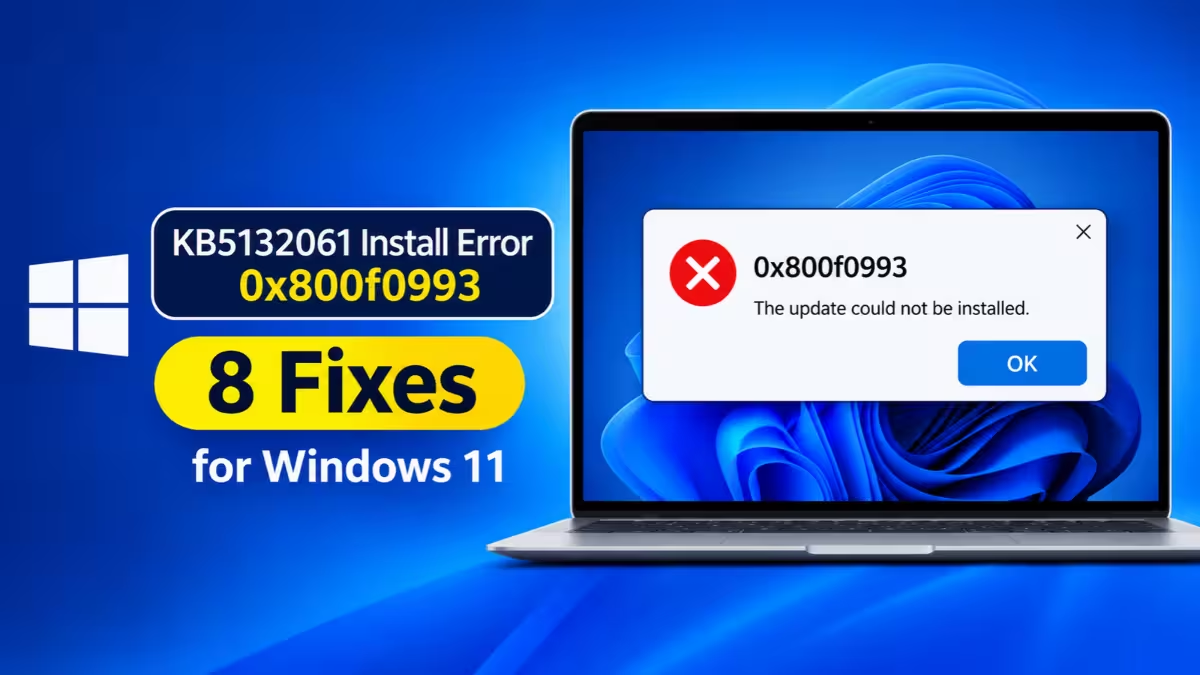
This guide explains what the code actually means, why it shows up on your PC, and the fixes that work, starting with the quickest ones.
What Is KB5132061 and Which Windows 11 Versions Get It?
Microsoft shipped KB5132061 on November 10 as the monthly security update for Windows 11. It targets three versions, including Windows 11 26H2:
| Windows 11 version | Build after the update |
|---|---|
| 26H2 | 26300.9974 |
| 25H2 | 26200.9974 |
| 24H2 (Enterprise editions only) | 26100.9974 |
24H2 Home and Pro reached end of support in October, so they no longer receive this update. If your 24H2 Home or Pro PC throws 0x800f0993, you need to fix the update base and move to 25H2 or later.
What Does Install Error 0x800f0993 Mean in Windows 11?
This code comes from the Windows servicing stack, the component that assembles and installs updates. It has nothing to do with your internet connection or a broken download.
In the CBS log, the same failure appears as PSFX_E_REBASE_HYDRATION_CANDIDATES_MISSING. Starting with 24H2, Microsoft ships monthly updates as small binary differences calculated against a checkpoint update (KB5043080, build 26100.1742). Windows rebuilds new system files from those differences. When the base files it needs are missing, the rebuild fails and you see 0x800f0993.
You will often spot a second code, 0x80073712, in Update history on the same machine. That one signals a damaged component store (the WinSxS folder).
Is 0x800f0993 a Known Issue With KB5132061?
No. Microsoft has not listed 0x800f0993 as a known issue for KB5132061, and its release health page for 26H2 stays silent on the code. Users have reported the failure on Microsoft Q&A, so the problem sits on individual PCs rather than inside the update itself.
Why KB5132061 Fails With Error 0x800f0993
- Missing prerequisites. KB5132061 on 26H2 needs Servicing Stack Update 26100.9539 or newer, plus an update released on or after September 22 (for example KB5124010).
- Missing checkpoint update. PCs that receive updates manually or from a company server sometimes skip KB5043080.
- Leftover package from an in-place upgrade. Microsoft confirmed in June that some PCs upgraded from Windows 10 (21H2 or 22H2) or Windows 11 23H2 keep an old rollup package that blocks later updates.
- Half-installed language pack. Every cumulative update also services installed languages, and a pack missing files gives Windows nothing to build on.
- Damaged component store or update cache. Corruption in WinSxS or SoftwareDistribution stops the install partway.
Fix 1: Check the Servicing Stack Update (26100.9539 or Later)
Start here, because a missing prerequisite blocks KB5132061 no matter what else you try.
- Search for Command Prompt, right-click it, and pick Run as administrator.
- Run this command:
DISM /Online /Get-Packages | findstr /i "ServicingStack"- Look at the version number in the Package Identity line.
- If it reads lower than 26100.9539, open Settings > Windows Update, click Check for updates, and install every older update Windows offers.
- Open Settings > Windows Update > Update history and make sure at least one update dated September 22 or later appears there.
- Once both conditions pass, retry KB5132061.
Fix 2: Install KB5132061 Manually With the KB5043080 Checkpoint
When Windows Update keeps failing, install the packages yourself from the Microsoft Update Catalog.
- Check your processor type under Settings > System > About > System type. An x64 PC needs x64 files; a Snapdragon or other ARM PC needs arm64 files.
- Search the catalog for KB5132061 and pick the row that matches your Windows version and architecture.
- Download every .msu file listed. For an x64 26H2 PC you get two:
-
windows11.0-kb5043080-x64(the checkpoint update) -windows11.0-kb5132061-x64(the November security update) - Double-click the KB5043080 file first and let it finish. If it says the update already exists on the PC, skip ahead.
- Double-click the KB5132061 file and wait for it to complete.
- Restart, then run
winverto confirm the new build number.
You can also place both files in one folder, such as C:\packages, and let DISM sort the order for you:
DISM /Online /Add-Package /PackagePath:C:\packages\windows11.0-kb5132061-x64.msuDISM picks up the checkpoint from the same folder automatically. Keep only these two files in that folder.
Fix 3: Restart Windows 11 and Retry the Update
Microsoft delivers its fix for the upgrade-related cause on Home and unmanaged Pro PCs after a restart. Use Start > Power > Restart (not Shut down), then click Check for updates. If the install fails, restart one more time and try once again before moving on.
Fix 4: Run DISM RestoreHealth and SFC to Repair 0x800f0993
This fix suits PCs that also show 0x80073712. In an admin Command Prompt, run these commands one after another:
DISM.exe /Online /Cleanup-Image /RestoreHealthsfc /scannowDISM may pause at around 20% for several minutes. Leave the window open. After SFC reaches 100%, restart and try the update again.
Fix 5: Remove the Leftover RollupFix Package After an Upgrade
Use this fix only if your PC did not ship with 24H2 or later and instead got there through an upgrade. Back up important files before you start, because a removed package does not come back with a click.
- Open Terminal (Admin).
- List installed rollup packages:
dism /online /get-packages /format:table | findstr /i RollupFix- Look for
Package_for_RollupFix~31bf3856ad364e35~amd64~~26100.1742.1.10. If it does not appear, skip this fix. - If it appears, remove it:
dism /online /remove-package /packagename:Package_for_RollupFix~31bf3856ad364e35~amd64~~26100.1742.1.10- Restart when DISM finishes, then check for updates.
This package name applies to 64-bit Intel and AMD machines.
Fix 6: Remove Unused Language Packs in Windows 11
- Go to Settings > Time & language > Language & region.
- Click the three dots next to any language you don't use and choose Remove.
- Keep your main Windows display language.
- Restart and run Windows Update again.
If the Remove option stays greyed out, that language currently runs as your display language. Switch to another language, sign out, sign back in, and then remove it.
Fix 7: Reset Windows Update Components and Clear the Cache
A corrupt cached download makes Windows retry the same broken files. Clear the cache so Windows fetches a fresh copy. Run each line in an admin Command Prompt:
net stop wuauserv
net stop bits
net stop cryptsvc
net stop msiserver
ren C:\Windows\SoftwareDistribution SoftwareDistribution.old
ren C:\Windows\System32\catroot2 catroot2.old
net start cryptsvc
net start bits
net start wuauserv
net start msiserver
If a rename returns "Access is denied", one service still runs. Stop it again and repeat the rename. Restart afterward and check for updates; the first scan takes longer than usual.
If you prefer to avoid commands, run the built-in troubleshooter first from Settings > System > Troubleshoot > Other troubleshooters > Windows Update.
Fix 8: Repair Windows 11 With Reinstall Now (Keeps Files and Apps)
When nothing else works, let Windows replace its own system files while keeping your apps, files, and settings.
- Back up anything you can't afford to lose.
- Open Settings > System > Recovery.
- Next to Fix problems using Windows Update, click Reinstall now.
- Keep the PC plugged in and online until the process ends. Expect an hour or more.
- After the restart, open Windows Update and install KB5132061.
If the Reinstall now button doesn't appear, download the official Windows 11 ISO from Microsoft's download page, mount it, run setup.exe, and choose to keep personal files and apps.
How to Read CBS.log to Find What Is Blocking KB5132061
If you want to skip guesswork, read the log before choosing a fix:
- Press
Win + R, type%systemroot%\Logs\CBS, and press Enter. - Copy CBS.log to your desktop and open the copy in Notepad.
- Search for
0x800f0993, then search for, errornear the same timestamp. - Check the lines just above the error:
- A language code like
pl-PLpoints to Fix 6. -RollupFixwith version26100.1742.1.10points to Fix 5. - A missing file underWinSxSpoints to Fix 4, then Fix 8.
How to Prevent Windows 11 Update Error 0x800f0993
- Install each monthly update in the month it lands, so Windows never has to leap across several checkpoints.
- Restart whenever Windows Update asks.
- Leave around 20 GB free on drive C:, since cumulative packages for 25H2 and 26H2 approach 5 GB.
- Never delete files inside
C:\Windows\WinSxSby hand or run forum cleanup scripts that strip packages. - Let a language pack finish installing before you close Settings.
- Don't power off the PC while it installs updates.
Frequently Asked Questions
Is 0x800f0993 a known issue with KB5132061?
No. Microsoft lists no known issues for KB5132061, and the 26H2 release health page doesn't mention this code. The failure comes from the state of the affected PC.
Will I lose files if I use Reinstall now?
No. Fix problems using Windows Update reinstalls your current Windows version and keeps apps, files, and settings. Back up important data anyway before any system repair.
Does the error mean my internet connection failed?
No. The update downloads fully. The failure happens while Windows assembles the new system files from the checkpoint base.
Can I just pause updates and ignore the error?
Only for a short time. KB5132061 carries security fixes, and a PC with this error fails every following monthly update too, so it falls further behind each month.
Do I need KB5043080 if I already have newer updates?
Install it anyway when the catalog lists it. If Windows reports it as already installed, move straight to KB5132061.
Related Guides
- Windows 11 KB5129195: What the Emergency Update Fixes and Doesn't Fix
- Windows 11 26H2 Not Showing Up? How to Get the Update Manually
- How to Fix Kernel Data Inpage Error in Windows 10/11 (7 Fixes)
- No Bootable Devices Found in Windows 11: 7 Fixes That Work
- PowerShell Commands to Clean Up Windows and Speed It Up Without a Cleaner App