If your PC refuses to recognize your Nvidia GeForce GTX 760 after installing or upgrading to Windows 10 or 11, you’re not alone. The GTX 760, a once-popular GPU from Nvidia’s Kepler lineup, often runs into compatibility or driver issues on newer systems.
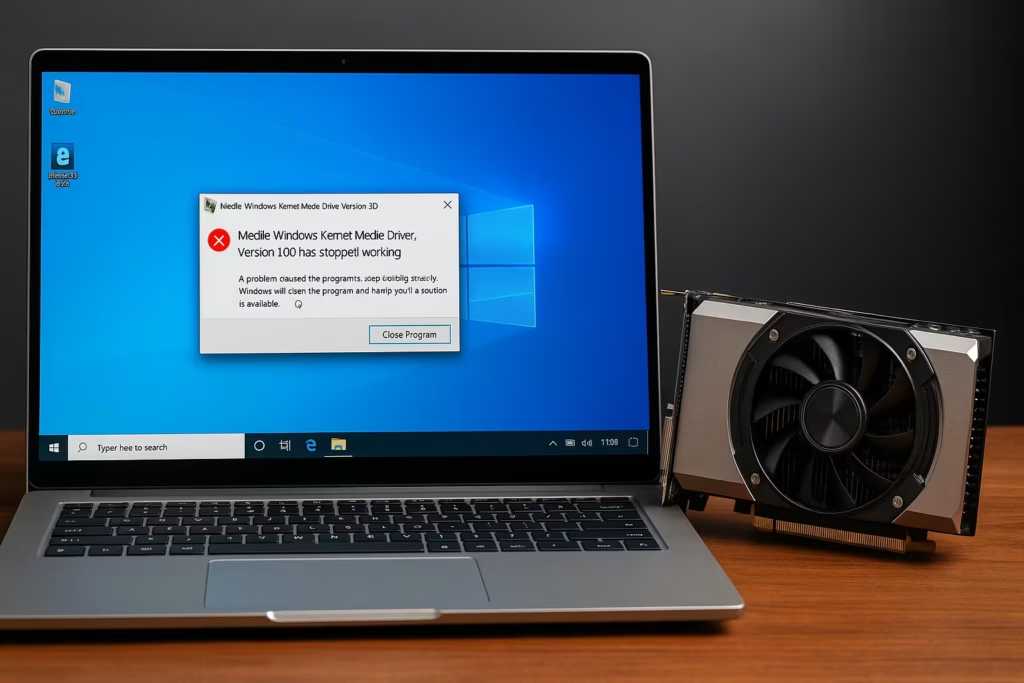
Is GTX 760 Still Supported on Windows 10 and 11?
The GTX 760 is part of Nvidia’s older Kepler architecture.
- It’s fully supported on Windows 10, with official drivers like version 466.47.
- On Windows 11, however, support is limited, as Nvidia discontinued Game Ready driver updates for Kepler GPUs after 2024.
Still, the GTX 760 can function fine if you install drivers manually and manage settings carefully.
If Windows shows “Microsoft Basic Display Adapter” instead of your GTX 760, it means your Nvidia driver isn’t properly installed.
Common Reasons Why GTX 760 Fails to Work
| Cause | Description |
|---|---|
| Driver not properly installed | Windows might have replaced or failed to install the correct Nvidia driver. |
| Outdated drivers | Old or mismatched drivers can cause display errors or black screens. |
| Integrated GPU taking priority | BIOS may use onboard graphics instead of the GTX 760. |
| Loose hardware or missing power cables | GPU not properly seated or powered. |
| Overheating issues | Dust or overclocking can cause the GPU to throttle or shut down. |
| Windows 11 driver conflicts | Some builds have trouble loading legacy Kepler drivers. |
Fix #1 – Check If the Driver Installed Successfully
Before reinstalling anything, confirm that the driver is actually installed.
Steps:
- Press Win + X → Device Manager → Display Adapters.
- Check if “Nvidia GeForce GTX 760” is listed.
- If you see a yellow exclamation mark, the driver isn’t properly installed.
- Click Action Center → Finish installing hardware drivers (if visible).
- Restart your PC.
If the GTX 760 still doesn’t appear correctly, proceed with a clean driver reinstall.
Fix #2 – Reinstall Nvidia Drivers Cleanly
A clean driver reinstall resolves most detection and compatibility issues.
Step 1: Uninstall Old Drivers
- Boot your PC into Safe Mode.
- Open Device Manager → Display Adapters → Nvidia GTX 760 → Uninstall device.
- Check Delete the driver software for this device.
- Reboot the PC.
Step 2: Download and Install Correct Driver
- Visit the Nvidia Driver Download Page.
- Choose:
- Product Type: GeForce
- Product Series: GeForce 700 Series
- Product: GeForce GTX 760
- OS: Windows 10 64-bit or Windows 11 64-bit
- Download version 466.47 (or latest listed).
- During installation, choose Custom (Advanced) → check Perform a Clean Installation.
- Restart once complete.
Fix #3 – Check Physical Installation and Power Supply
Sometimes the GPU is installed incorrectly or lacks sufficient power.
Checklist:
- Power off the PC and unplug it.
- Remove and firmly reinsert the GTX 760 into the PCIe x16 slot.
- Ensure 6-pin (or 8-pin) PCIe power cables are properly connected.
- Confirm PSU capacity — 500W minimum is recommended.
- Plug the monitor cable directly into the GPU, not the motherboard.
Fix #4 – Set GTX 760 as the Primary GPU
Windows may default to integrated graphics.
Steps:
- Reboot and enter BIOS/UEFI (usually by pressing F2 or DEL).
- Find Primary Display / Init Display First setting.
- Set to PCIe / PEG / Discrete Graphics.
- Save and exit.
Your PC should now use the GTX 760 as the main display adapter.
Fix #5 – Tweak Nvidia Control Panel Settings
Sometimes, performance throttling or incorrect settings can make the GPU appear inactive.
Steps:
- Right-click on desktop → Nvidia Control Panel.
- Go to Manage 3D Settings.
- Under Power Management Mode, select Prefer Maximum Performance.
- Turn Vertical Sync (V-Sync) to Off.
- Apply changes and restart your PC.
This forces the GPU to run at full performance and prevents power-saving issues that can mimic driver failures.
Fix #6 – Prevent Windows from Overwriting Drivers
Windows Updates can replace your working driver with a generic one.
To block automatic driver updates:
- Open Control Panel → System → Advanced System Settings.
- Go to Hardware tab → Device Installation Settings.
- Select No (your device might not work as expected) and save.
- Open gpedit.msc → Computer Configuration → Windows Update.
- Enable Do not include drivers with Windows Updates.
This keeps your manually installed Nvidia driver safe.
Fix #7 – Check for Overheating or Dust Build-Up
Overheating can cause the GPU to throttle, crash, or shut off.
Tips:
- Clean dust from GPU fans and vents using compressed air.
- Ensure case airflow isn’t blocked.
- Disable any overclocking utilities temporarily.
- If GPU runs hot, monitor temperature (keep under 80°C for GTX 760).
If performance stabilizes after cleaning, the issue was thermal throttling.
Fix #8 – Update DirectX and Windows
In some cases, missing DirectX or OS components cause detection errors.
- Press Win + R → dxdiag to check DirectX version.
- If below DirectX 12, install the latest runtime from Microsoft’s official site.
- Make sure Windows is updated to the latest stable build before reinstalling Nvidia drivers.
Fix #9 – Roll Back from Windows 11 to Windows 10 (if needed)
If you’ve tried all fixes and the GPU still fails on Windows 11, your OS may be the issue.
- Nvidia no longer supports Kepler GPUs (like GTX 760) in new Windows 11 driver branches.
- The stable configuration for GTX 760 remains Windows 10 22H2.
To roll back:
- Open Settings → System → Recovery.
- Click Go back to previous version of Windows.
This restores full driver compatibility.
Fix #10 – Rebuild Driver Registry Entries (Advanced)
If you see Code 43 or “Device not started,” reset Nvidia registry entries:
- Press Win + R → regedit.
- Navigate to:
HKEY_LOCAL_MACHINE\SYSTEM\CurrentControlSet\Services\nvlddmkm- Export a backup of the key.
- Delete the folder
nvlddmkm. - Reboot and reinstall the Nvidia driver.
When to Replace the GTX 760
If all fixes fail, your GPU may be aging out of modern driver and hardware support.
| GPU Tier | Recommended Upgrade | Why Upgrade |
|---|---|---|
| Entry | GTX 1660 Super / RTX 3050 | 3x faster, modern driver support |
| Mid | RTX 3060 Ti / RTX 4060 | Ray tracing + DLSS |
| High | RTX 4070 / 4080 | Windows 11 AI acceleration and full support |
The Nvidia GeForce GTX 760 can still perform well under Windows 10 — but requires manual driver installation and system tweaks. Check the installation status, reinstall cleanly, adjust power settings, and prevent Windows from overwriting your drivers.
Read More:
- Dwm.exe Crash Error in Windows 10/11: 8 Proven Fixes to Stop Desktop Window Manager Crashes
- How to Install MIDI Drivers on Windows 11
- How to Calibrate Xbox One Controller on Windows 11 (Step-by-Step Guide)
- How to Sign Out of Windows 11 (7 Easy Methods + Shortcuts Explained)
If you’re on Windows 11 and still facing issues, staying on Windows 10 or upgrading to a newer GPU may be the most stable solution.

