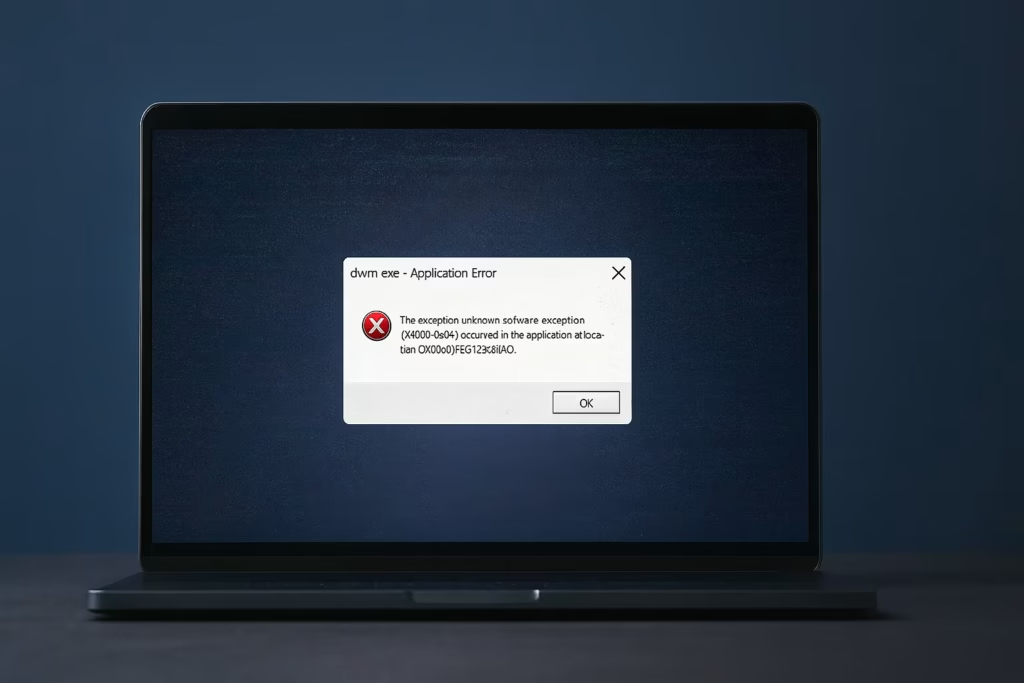
The dwm.exe crash error in Windows 10 and 11 is one of the most frustrating desktop issues — your screen may go black, you get logged off, or your system flickers suddenly with the message “Your session was logged off because dwm.exe crashed.”
What is dwm.exe?
Dwm.exe (Desktop Window Manager) is a core Windows process that handles everything you visually see on your desktop — transparency, animations, and window rendering.
When it fails, the symptoms include:
- Black or flickering screens
- Forced logout or restart
- Freezing taskbar or unresponsive windows
- Error messages referencing dwm.exe
Common Causes of dwm.exe Crash
| Cause | Description |
|---|---|
| Corrupted or outdated GPU drivers | The #1 reason for DWM failures |
| Faulty Windows updates | Some builds temporarily break GPU compositing |
| Hardware or PSU instability | Voltage drops or overheating GPUs trigger crashes |
| Third-party overlays | Game/recording overlays like Steam or Discord |
| System file corruption | Damaged DLLs or registry conflicts |
| Malware or fake dwm.exe | Infected duplicate file outside System32 |
Before You Begin
Before jumping into deeper fixes, do these quick checks:
- Unplug all USB devices (controllers, webcams, external drives)
- Check for malware using Windows Security → Full Scan or Offline Scan
- Make sure Windows and your GPU drivers are updated
If the problem persists, follow the detailed fixes below.
1. Install the Latest Windows Updates
Microsoft frequently patches DWM-related bugs via cumulative updates.
Steps:
- Open Settings → Update & Security → Windows Update
- Click Check for updates and install everything available
- Restart your PC after installation
Note: Windows 10 users should ensure update KB5052077 (Feb 2025) is installed — it explicitly fixes a dwm.exe crash issue.
2. Update or Roll Back Your Graphics Driver
Faulty or incompatible GPU drivers are the most common cause of dwm.exe crashes.
To Update:
- Press Win + X → Device Manager → Display adapters
- Right-click your GPU → Update driver → Search automatically for drivers
To Roll Back (if crash started after an update):
- Open Device Manager → GPU → Properties → Driver tab
- Click Roll Back Driver → follow prompts
- Restart and test stability
Always download official drivers from NVIDIA, AMD, or Intel.
3. Restart Explorer.exe (Quick Recovery Step)
If your screen goes blank but audio continues, restarting Explorer can restore the desktop instantly.
Steps:
- Press Ctrl + Shift + Esc to open Task Manager
- Go to Details → explorer.exe → End Task
- Click File → Run new task → type
explorer→ OK
This refreshes your desktop without rebooting your PC.
4. Disable Hardware Acceleration and Overlays
Hardware acceleration can overburden your GPU and cause rendering crashes.
Turn off GPU scheduling:
- Go to Settings → System → Display → Graphics → Default graphics settings
- Toggle off Hardware-accelerated GPU scheduling
Disable in-game overlays:
- Steam: Settings → In-Game → Uncheck Enable the Steam Overlay
- Discord: Settings → Game Overlay → Turn off overlay
- Xbox Game Bar: Settings → Gaming → Turn off overlay
Optional: Reduce visual effects via
Control Panel → System → Advanced → Performance Settings → Adjust for best performance.
5. Run System File Checker (SFC) and DISM
Corrupted system files often trigger unexpected crashes.
Steps:
- Open Command Prompt as administrator
- Run these commands:
sfc /scannow
DISM /Online /Cleanup-Image /RestoreHealth- Wait for completion and restart your PC
These tools repair missing or damaged system components that can affect dwm.exe.
6. Perform a Clean Boot
A clean boot helps identify background apps causing the crash.
Steps:
- Press Win + R → msconfig
- Go to Services tab → Hide all Microsoft services → Disable all
- Open Task Manager → Startup tab → Disable all startup apps
- Restart and test
If DWM stops crashing, re-enable items one at a time to locate the culprit.
7. Check Hardware and Power Settings
If none of the above work, hardware or power issues might be the cause.
Check GPU health:
- Use HWMonitor or MSI Afterburner to ensure GPU temps stay below 85 °C
- Re-seat GPU and power connectors
- Ensure PSU meets GPU wattage requirements
Switch power plan:
Control Panel → Power Options → Choose High performance
8. Reset or Reinstall Windows (Last Resort)
If the crash occurs even in Safe Mode, system corruption is deep.
Steps:
- Open Settings → System → Recovery → Reset this PC
- Choose Keep my files
- Follow on-screen instructions to reinstall system files
This method reinstalls Windows while keeping your personal data intact.
Read More:
- How to Install MIDI Drivers on Windows 11
- Windows 10 End of Support 2025: How to Stay Secure After October 14
- How to Sign Out of Windows 11 (7 Easy Methods + Shortcuts Explained)
The dwm.exe crash is usually tied to display drivers or GPU load, but with these fixes, you can systematically isolate and eliminate the cause.
Keep both your Windows and GPU drivers updated, and avoid aggressive third-party overlays to maintain desktop stability.
If this guide helped you, bookmark fdaytalk.com — we publish updated fix guides for Windows and gaming errors every week.

