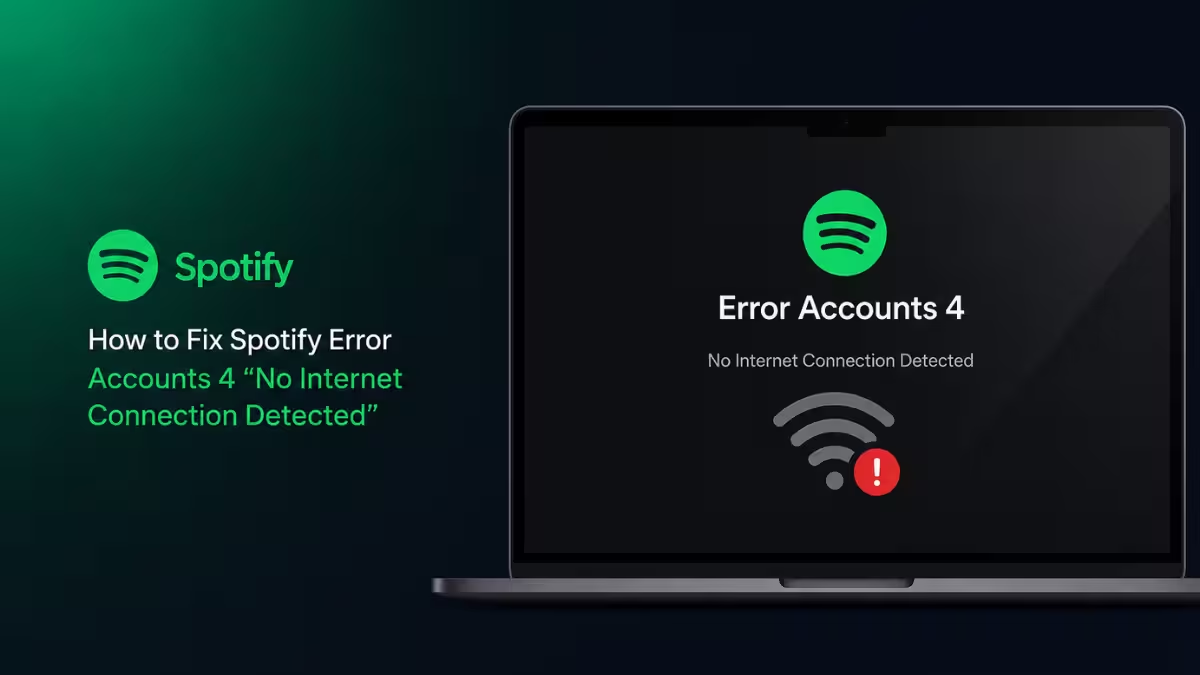
Spotify Error Accounts 4 blocks the desktop app from reaching Spotify's login servers even when the internet connection works fine everywhere else. This error shows up as a red banner reading "No internet connection detected (Error code: accounts:4)" and often appears alongside session:103 on the same device.
What Causes Spotify Error Accounts 4
Error Accounts 4 traces back to one of four sources, and identifying which one applies determines which fix actually works.
- A temporary outage on Spotify's authentication servers, where the desktop client cannot complete its login handshake regardless of local network settings.
- A stale or corrupted local cache that stores outdated login state, common after a Spotify app update changes the client signature.
- A DNS resolution failure where the system cannot reach Spotify's authentication servers even though other sites load normally.
- A VPN, proxy, or firewall rule that intercepts or blocks the authentication request before it reaches Spotify.
Fix 1: Confirm It Is Not a Spotify-Side Outage First
Before changing any local settings, rule out an outage on Spotify's end.
- Open the Spotify web player in a browser on the same device.
- Try logging in and playing a track on the web player.
- If the web player works fine while the desktop app still shows accounts:4, the desktop client itself is failing to complete its own authentication handshake rather than a local network problem.
- Check for a pending desktop app update and install it.
- Fully close the app from the system tray or task manager, then relaunch it and try logging in again.
Fix 2: Clear the Local Spotify Cache
A corrupted cache is the most common cause when the web player works but the desktop app does not, and no outage is active.
On Windows:
- Close Spotify completely from the system tray.
- Press
Win + R, type%appdata%, and press Enter. - Open the Spotify folder.
- Delete the
Usersfolder inside it. - Relaunch Spotify and log in again.
On Mac:
- Quit Spotify completely.
- Open Finder and go to
~/Library/Caches/com.spotify.client. - Delete the folder.
- Reopen Spotify and log in again.
On Linux:
- Close Spotify completely.
- Remove the
~/.cache/spotify/directory. - Start Spotify again and log in.
Fix 3: Change DNS and Rule Out Proxy or VPN Interference
If clearing the cache does not fix the login, the issue is likely DNS or a network interception point.
On Windows:
- Open Network Connections and select the active network adapter.
- Go to Properties, then Internet Protocol Version 4 (TCP/IPv4), then Properties again.
- Set Preferred DNS to
8.8.8.8and Alternate DNS to8.8.4.4. - Open Command Prompt as administrator and run
ipconfig /flushdnsto clear the old DNS cache. - Restart the network adapter or reboot the system.
On Mac:
- Open System Settings, then Network, then select the active connection.
- Click Details, then DNS.
- Add
8.8.8.8and8.8.4.4as DNS servers. - Open Terminal and run
sudo dscacheutil -flushcache; sudo killall -HUP mDNSResponderto clear the DNS cache. - Reconnect to the network or restart the Mac.
On Linux:
- Edit the network connection's DNS settings through NetworkManager or the distro's network settings tool and set
8.8.8.8and8.8.4.4. - Restart
systemd-resolvedwithsudo systemctl restart systemd-resolved, or restart NetworkManager withsudo systemctl restart NetworkManager. - Reconnect to the network.
Then rule out proxy and VPN interference on any operating system:
- Disconnect any active VPN completely, including its background service, since some VPN clients keep filtering traffic even after the app shows disconnected.
- Open system proxy settings and enable automatic detection.
- Turn off any manually configured proxy entry.
- Relaunch Spotify and try logging in again.
Fix 4: Allow Spotify Through the Firewall and Antivirus
Security software sometimes blocks Spotify's login handshake while allowing normal browsing, which explains why the web player keeps working.
- Open the firewall or antivirus program's settings and find its list of allowed or blocked apps.
- Add Spotify as an exception, or temporarily disable the firewall to test.
- On Windows, check Windows Defender Firewall under Allowed Apps and confirm both Private and Public networks are checked for Spotify.
- Relaunch Spotify and try logging in.
- If disabling the firewall fixes the login, re-enable it and keep Spotify listed as an allowed app instead of leaving protection off.
If Nothing Above Works
- Fully uninstall Spotify, including any leftover folders in AppData, Library, or
~/.config. - Restart the device.
- Download a fresh installer directly from Spotify's official site and reinstall.
- Log in immediately after the fresh install, before changing any other settings.
- If Error Accounts 4 still appears after a clean reinstall, the issue is most likely a Spotify-side outage rather than anything on the local device, and it typically resolves once Spotify's team fixes the outage.
Frequently Asked Questions
Is Spotify Error Accounts 4 the same as session:103?
They are not the same error code, but Spotify Community reports show both appearing on the same device during the same login failure, with accounts:4 sometimes appearing after a user reinstalls the app following a session:103 error.
Does reinstalling Spotify fix Error Accounts 4?
Reinstalling helps only when the cause is a corrupted local cache or an outdated client signature. It does not help when the cause is a temporary outage on Spotify's servers, since the app itself is not the source of the failure in that case.
Why does the Spotify web player work but the desktop app does not?
The web player and the desktop app use separate authentication paths. When only the desktop app fails, the problem is usually local to that client, either a stale cache, a blocked proxy, or in some cases, a broader handshake conflict tied to a recent app update.
Can a VPN cause Spotify Error Accounts 4 even after it is disconnected?
Yes. Some VPN clients keep a background service running that continues filtering network traffic even after the VPN app shows disconnected, which can still block Spotify's login request. Stopping the VPN's background service, not just disconnecting the connection, resolves this.
Does Spotify Error Accounts 4 affect mobile devices too?
The error code most commonly appears on the desktop app, but Spotify Community reports show it can also appear on mobile during login failures tied to a Spotify-side outage. On mobile, force-closing the app and reopening it after confirming other apps have internet access is the first step.